
GICT knowledge base
How to Self-Host PrivateBin with Docker
Published
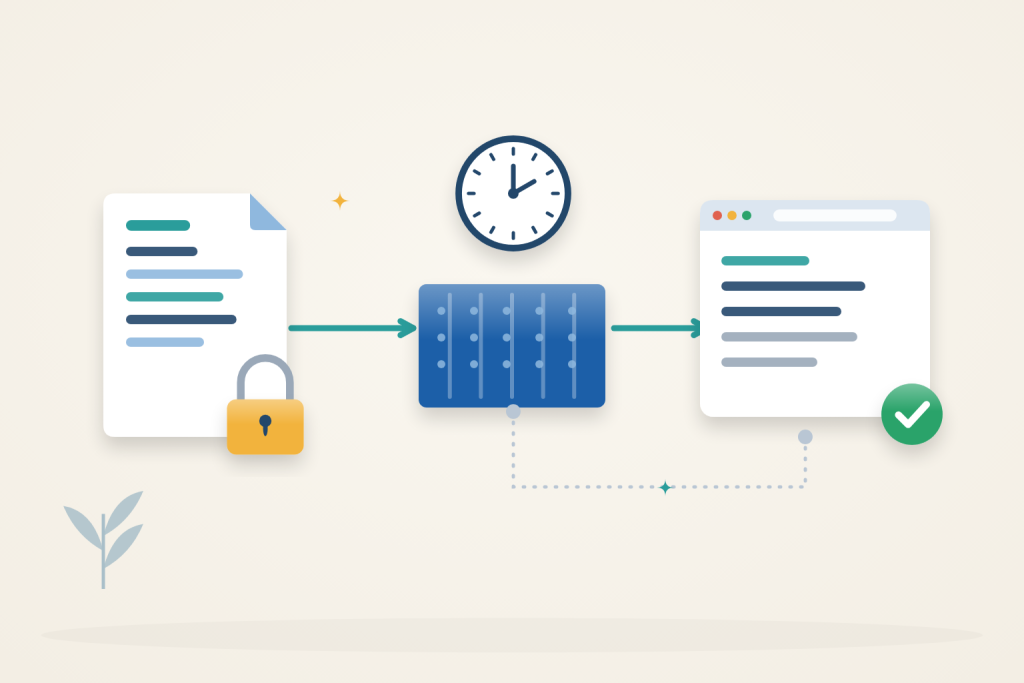
PrivateBin lets you share text through an encrypted link instead of leaving it in email or chat history. Your browser encrypts the content before sending it to the server. You can add a password, set an expiry time, or make a note disappear after it is read.
Private-port prerequisite: use Docker Engine 28 or newer for the loopback-published ports in this guide. Older releases have a documented localhost-port exposure limitation. Confirm from another machine that the public IP cannot reach those private service ports; a proxy login does not protect a direct bypass route.
Before you start
Use an Ubuntu 24.04 server with sudo access, Docker Engine and the Docker Compose plugin installed. Follow the Docker installation instructions if needed. An GICTServer VPS with 2 GB RAM is a reasonable starting point for a small text-sharing service; storage needs depend on traffic and retention.
Point a hostname such as paste.example.com at the server. Allow inbound TCP ports 80 and 443 while preserving your SSH access. You also need a valid certificate chain and matching private key for that hostname, with certificate renewal already arranged. This example uses /etc/ssl/privatebin/fullchain.pem and /etc/ssl/privatebin/privkey.pem; substitute your existing certificate paths. Never publish the private key.
Use a server where these ports are available. Replace paste.example.com throughout with your hostname.
Choose how a note should be shared
Use an ordinary expiring note when the recipient may need to open it more than once. Use burn-after-reading when one retrieval is the intended outcome, and check that behavior with harmless text before sharing something important. Neither choice stops a recipient from saving the plaintext after it appears in their browser.
A password adds a separate requirement to possession of the complete link. Send the password through a different channel when that separation matters; putting both together in one message gives access to anyone who obtains that message. Keep the full link intact when copying it. The server can receive the encrypted paste without receiving the URL fragment, but the recipient’s browser needs that fragment to decrypt it.
Expiry controls whether the application will serve a note after its lifetime. It should not be treated as a guarantee of immediate erasure from every disk, browser, message history, or separately retained copy. Choose the shortest lifetime that fits the recipient’s task rather than leaving notes available longer than necessary.
1. Prepare persistent storage
Create the project and its data directory:
$ sudo mkdir -p /opt/privatebin/data
$ sudo chown 65534:82 /opt/privatebin/data
$ sudo chmod 750 /opt/privatebin/data
$ cd /opt/privatebin
The official container runs its application with UID 65534 and GID 82. Giving that account ownership lets PrivateBin save encrypted notes without making the directory writable by everyone. These IDs assume Docker is running without user-namespace remapping.
Create /opt/privatebin/conf.php with these contents:
;<?php http_response_code(403); /*
[main]
name = "PrivateBin"
discussion = false
password = true
fileupload = false
[expire]
default = "1day"
[expire_options]
5min = 300
1hour = 3600
1day = 86400
1week = 604800
[traffic]
limit = 10
header = "X_FORWARDED_FOR"
[model]
class = Filesystem
[model_options]
dir = "/srv/data"
This keeps the service focused on text, disables discussions and attachments, and offers only finite expiry times. The traffic limit requires a ten-second gap between submissions from the same client IP. Nginx will supply that address through a header it overwrites itself.
2. Start PrivateBin with Compose
Create /opt/privatebin/compose.yaml:
services:
  privatebin:
    image: privatebin/nginx-fpm-alpine:stable
    restart: unless-stopped
    read_only: true
    ports:
      - "127.0.0.1:8080:8080"
    volumes:
      - ./data:/srv/data
      - ./conf.php:/srv/cfg/conf.php:ro
    tmpfs:
      - /tmp:nodev,noexec,mode=1777
      - /run:nodev,exec,mode=1777
The bind mount preserves notes outside the container. The two temporary filesystems let the image run with a read-only root filesystem. Binding port 8080 to loopback prevents visitors from bypassing the HTTPS proxy through a public Docker port.
Start the service from /opt/privatebin:
$ sudo docker compose config --quiet
$ sudo docker compose pull
$ sudo docker compose up -d
$ sudo docker compose ps
$ curl -I http://127.0.0.1:8080/
Allow a few seconds for startup. The service should be running, and the HTTP check should return 200 OK. The stable tag follows maintained releases, so a future pull can retrieve a newer image.
3. Put Nginx in front with HTTPS
Install Nginx:
$ sudo apt update
$ sudo apt install -y nginx
Create /etc/nginx/sites-available/privatebin:
server {
    listen 80;
    server_name paste.example.com;
    return 301 https://paste.example.com$request_uri;
}

server {
    listen 443 ssl;
    server_name paste.example.com;

    ssl_certificate /etc/ssl/privatebin/fullchain.pem;
    ssl_certificate_key /etc/ssl/privatebin/privkey.pem;
    ssl_protocols TLSv1.2 TLSv1.3;

    location / {
        proxy_pass http://127.0.0.1:8080;
        proxy_set_header Host $host;
        proxy_set_header X-Forwarded-Proto $scheme;
        proxy_set_header X-Forwarded-For $remote_addr;
    }
}
Enable the new site, check the configuration, then reload Nginx:
$ sudo ln -s /etc/nginx/sites-available/privatebin /etc/nginx/sites-enabled/privatebin
$ sudo nginx -t
$ sudo systemctl reload nginx
Do not reload if the configuration check fails. Correct the reported file or certificate error first. This configuration assumes visitors connect directly to Nginx, without a CDN or another proxy in front.
4. Create and read an encrypted note
Open https://paste.example.com in a current browser. Confirm there is no certificate warning. Enter a harmless test note, choose an expiration time, and click Create. Copy the generated link and open it in a separate private browser window. The original text should appear there.
Share the complete link, including the part after #. That fragment contains the decryption key and is not sent in the normal HTTP request. Removing it makes the link unusable for reading the note. Anyone with the complete link can read an unprotected note, so treat the link as sensitive. If you add a password, share it separately.
Try Burn after reading with a separate test note. Open its link in a private window, confirm that you want to read it, then try it again in another fresh window. After the first retrieval, it should no longer be available. A recipient can still copy or photograph the text before it disappears.
Distinguish a broken link from an unavailable note
If a recipient cannot read a note, first establish whether the complete fragment was included and whether a password was set. Those are decryption requirements, separate from whether the server is reachable. A certificate warning is a transport-trust problem; a missing fragment cannot be repaired by changing Nginx or restarting the container.
An expired or already-consumed burn-after-reading note is different again. Reopening its URL does not create a new copy. If the sender still has the source text and sharing it remains appropriate, they must create a new note. Do not repeatedly recreate the service or change storage permissions to solve an intentional expiry.
5. Check persistence and common problems
Create another note with a one-day expiry and leave burn-after-reading disabled. Keep its full link, then recreate the container from /opt/privatebin:
$ sudo docker compose up -d --force-recreateOpen the saved link again. The note should still decrypt because its data lives in /opt/privatebin/data, not the container’s writable layer. Removing that directory removes the stored notes; persistence is not a backup.
If saving fails, inspect the container logs and directory ownership:
$ sudo docker compose logs --tail=50 privatebin
$ sudo ls -ldn /opt/privatebin/data
A rate-limit message means you should wait at least ten seconds before sending again. An insecure-connection warning means you should check HTTPS and certificate trust, not disable PrivateBin’s warning. For a 502 Bad Gateway, check that the container is running and the loopback HTTP check still succeeds.
“Private” describes how note content is handled, not who may use the website: this setup allows anyone who can reach it to submit notes. The server still sees connection metadata, and a compromised server could deliver malicious browser code. Expiry and encryption do not replace access controls for a team-only service.
The stable image tag can move. Record the deployed image digest and configuration with your backup, review updates deliberately, and test retrieval of a disposable encrypted paste before replacing the deployment. Do not treat the URL fragment as an identity check.
Reference: PrivateBin project documentation. Check the documentation for your installed version before applying changes.
Related guides
How to Self-Host DocuSeal for Document Signing
Self-host DocuSeal with private administrator setup, PostgreSQL and HTTPS. Test signing, understand email data flows and create consistent backups.
DockerHow to Self-Host AFFiNE with Docker
Self-host AFFiNE with Docker and private initial setup. Check workspace persistence and understand the difference between local and server workspaces.
DockerHow to Run k3s on a Single VPS
Run k3s on a single VPS with HTTPS and persistent storage. Check rollout behavior, protect admin credentials and plan for single-node recovery limits.
DockerHow to Monitor Docker Image Updates with Diun
Monitor container image changes with Diun and ntfy. Configure a watch list, protect notification credentials and verify alerts without automatic updates.