
GICT knowledge base
How to Monitor Docker Image Updates with Diun
Published
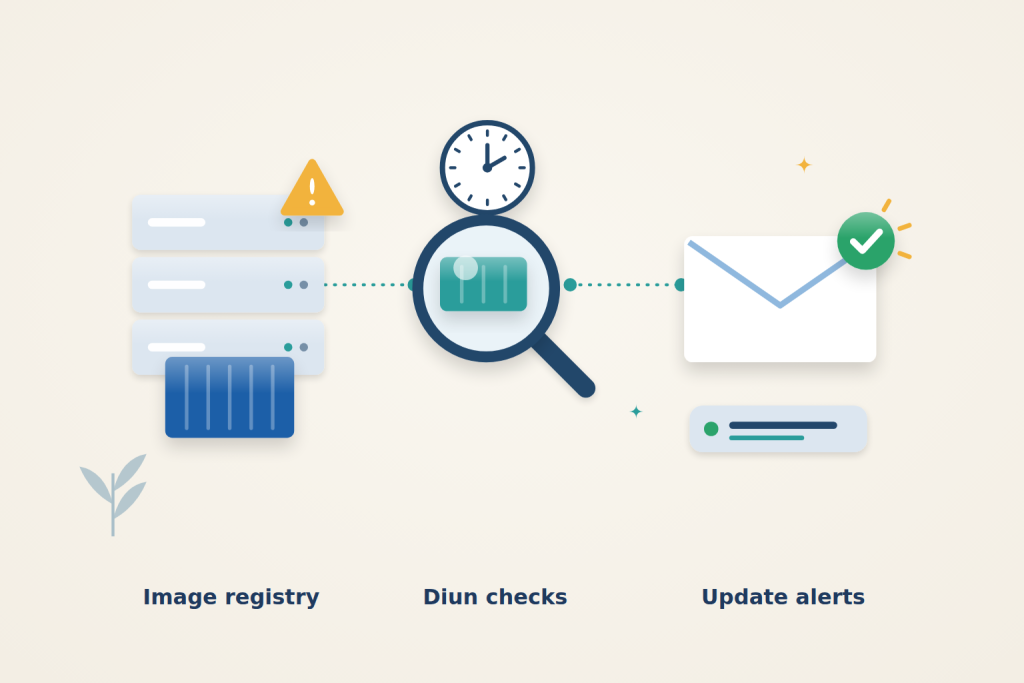
Docker image tags can change while your containers keep running an older image. Diun checks the registry on a schedule and sends a notification when a watched image changes. It does not pull replacement images into your Docker engine, restart applications, or decide whether an update is safe to install.
Use a small explicit watch list to begin with. The file provider works without access to the Docker socket, and it can monitor an image even when that image is not running on the monitoring server.
Before you start
Use an Ubuntu 24.04 server with sudo access and Docker Compose v2. If you need a separate monitoring host, an GICTServer VPS with 2 GB RAM is a reasonable starting point for a small watch list; leave additional capacity for any applications sharing it.
You also need a working HTTPS ntfy server, a topic you can subscribe to, and an access token permitted to publish to that topic. For a private notification service, see How to Self-Host a Notification Server with ntfy. That article uses an SSH tunnel; this setup additionally requires an HTTPS endpoint reachable from the Diun container. Configure the endpoint and token on your notification server before proceeding. Do not use an administrator token when a dedicated publishing account will do.
The examples use https://ntfy.example.com and the topic docker-updates. Replace the server address with your own. Subscribe to that topic in your usual ntfy client so you can see the test message.
1. Prepare Docker and the project directory
On a fresh Ubuntu server, install Docker and Compose:
$ sudo apt-get update
$ sudo apt-get install -y docker.io docker-compose-v2 nano
$ sudo systemctl enable --now docker
$ sudo docker version
$ sudo docker compose version
If Docker is already installed and working, keep its supported installation method rather than mixing package sources. Run the two version checks and continue.
Create a dedicated directory under your account:
$ mkdir -p ~/diun/secrets
$ cd ~/diun
$ chmod 700 secrets
Create ~/diun/secrets/ntfy-token without a trailing newline. Diun reads this file literally; an extra line ending can make its Authorization header invalid. Open nano with automatic final newlines disabled:
$ nano --nonewlines secrets/ntfy-tokenPaste only your token, without quotes or a variable name. Do not press Enter after it. Press Ctrl+O, Enter to save, then Ctrl+X to exit. Restrict the saved file:
$ chmod 600 secrets/ntfy-tokenKeep this file out of version control and shared archives. Compose will mount it into Diun as a secret file. This keeps the token out of the YAML and container environment, but it is still a file on the host, not an encrypted secret vault.
2. Define the images to watch
Create ~/diun/images.yml:
- name: docker.io/library/nginx:stable-alpine
- name: ghcr.io/crazy-max/diun:latest
Replace or extend these entries with the registry, repository and tag that matter to you. Explicit registry names avoid ambiguity. This list watches the stable-alpine tag for Nginx and the latest tag for Diun; it does not discover every new version tag in either repository.
A moving tag can point to new image content without changing its name. That is the change this configuration detects. If your application uses a fixed release tag, watching that same tag will detect a rebuild of it, not a newer release published under a different tag. Choose a maintained release-channel tag when you want alerts about that channel.
Watching Diun’s latest tag reports changes; the installed fixed-version container is not automatically updated.
3. Configure the schedule and notifications
Create ~/diun/diun.yml:
db:
  path: /data/diun.db

watch:
  workers: 2
  schedule: "0 */6 * * *"
  jitter: 30s
  firstCheckNotif: true
  runOnStartup: true
  compareDigest: true

providers:
  file:
    filename: /images.yml

notif:
  ntfy:
    endpoint: https://ntfy.example.com
    topic: docker-updates
    tokenFile: /run/secrets/ntfy_token
    priority: 3
    timeout: 10s
The schedule runs at midnight, 06:00, noon and 18:00 in the container’s timezone, with up to 30 seconds of random delay. The Compose file sets that timezone to UTC. Startup also triggers a check, so you do not need to wait for the next scheduled run after installation.
firstCheckNotif: true sends an initial notification when Diun first records an image. That establishes a visible baseline. It does not mean that the image changed since you installed Diun. Later checks compare the saved registry state and notify about changes. Setting this option to false suppresses first-discovery notifications, but keep it enabled while setting up the watch list.
The database in /data remembers previously seen images. Preserve that data between container replacements, or Diun will treat the watch list as new again. compareDigest reduces unnecessary manifest downloads; it does not remove registry rate limits.
4. Start Diun with persistent storage
Create ~/diun/compose.yml:
name: diun

services:
  diun:
    image: crazymax/diun:4.33.0
    command: serve
    restart: unless-stopped
    environment:
      TZ: UTC
      LOG_LEVEL: info
      LOG_JSON: "false"
    volumes:
      - diun-data:/data
      - ./diun.yml:/diun.yml:ro
      - ./images.yml:/images.yml:ro
    secrets:
      - ntfy_token

secrets:
  ntfy_token:
    file: ./secrets/ntfy-token

volumes:
  diun-data:
This configuration publishes no host ports and mounts no Docker socket. Diun needs outbound access to your registries and ntfy server, not a public web interface. The configuration and watch list are mounted read-only, while the named volume remains writable for the database.
Validate and start the project:
$ sudo docker compose config --quiet
$ sudo docker compose pull
$ sudo docker compose up -d
$ sudo docker compose ps
$ sudo docker compose logs --tail=80 diun
Wait for the initial analysis to finish. Check that the logs show the expected number of images and do not report registry or notification errors. An Up container alone does not prove that either registry access or delivery is working.
5. Check delivery and the recorded images
Send a notification test through the running Diun service:
$ sudo docker compose exec -T diun diun notif testConfirm that the message arrives in your subscribed ntfy topic. This exercises the notification destination independently of an actual registry update. It is not evidence that a newer image exists.
Inspect the images Diun recorded:
$ sudo docker compose exec -T diun diun image list
$ sudo docker compose exec -T diun diun image inspect --image docker.io/library/nginx:stable-alpine
The list should include your configured images after a successful initial scan. Inspection shows stored information about the selected image. If you changed the example watch list, use one of your own exact image references in the inspection command.
Keep both checks: a received test notification proves the delivery route, while a populated image database shows that registry analysis succeeded. Neither alone establishes the other.
6. Apply watch-list changes
Edit images.yml when you want to add or remove a watched tag. After changing either configuration file, recreate the Diun container so it reads the current files:
$ sudo docker compose config --quiet
$ sudo docker compose up -d --force-recreate
$ sudo docker compose logs --tail=80 diun
The named volume is retained by this operation. Existing unchanged images should not produce fresh baseline notifications, while a newly added image will because firstCheckNotif is enabled. Removing an entry stops future checks for it, but does not automatically erase its historical database record; do not use the database list alone as your active watch list.
To request an immediate analysis without changing configuration, restart the service:
$ sudo docker compose restart diunStartup checking is enabled, so Diun checks again after it starts. Avoid repeated restarts as a polling mechanism; use the schedule for routine monitoring.
Troubleshooting
No notification arrives. Run the notification test and inspect Diun’s logs. Verify the endpoint, topic and publishing permission of the token. An invalid header field value error can mean the token file contains a newline; replace its contents using the nano method above. An unauthorized or forbidden error points to authentication or authorization, not an image-update problem. A successful publish also does not guarantee that a phone’s notification permissions or background delivery are working.
If you replace the token file, keep its permissions restricted and recreate the container before testing again. This also refreshes the mount if your editor replaced the file rather than editing it in place.
The registry check fails. Verify the full image reference and whether the tag exists. A missing tag, network timeout or rate-limit response must be fixed before Diun can compare new content. The examples use public images; private registries additionally need Diun’s registry credentials configuration. The host’s Docker login is not automatically shared with this container.
TLS verification fails. Correct the ntfy hostname, certificate chain or server clock. Keep certificate verification enabled. For an internal certificate authority, configure Diun’s documented CA-file support instead of disabling verification.
An expected release did not alert. Check whether it was published under a new tag while you are watching an older fixed tag. Also confirm that the latest scheduled check succeeded. No notification means neither “fully updated” nor “free of vulnerabilities.” Diun monitors image availability; vulnerability scanning and deciding when to deploy remain separate tasks.
When an update notification arrives, review the upstream release notes and use the application’s own update procedure. Diun gives you visibility without taking control of running services.
Reference: Diun documentation. Check the documentation for your installed version before applying changes.
Related guides
How to Self-Host DocuSeal for Document Signing
Self-host DocuSeal with private administrator setup, PostgreSQL and HTTPS. Test signing, understand email data flows and create consistent backups.
DockerHow to Self-Host AFFiNE with Docker
Self-host AFFiNE with Docker and private initial setup. Check workspace persistence and understand the difference between local and server workspaces.
DockerHow to Run k3s on a Single VPS
Run k3s on a single VPS with HTTPS and persistent storage. Check rollout behavior, protect admin credentials and plan for single-node recovery limits.
DockerHow to Set Up Meilisearch with Docker
Run Meilisearch with Docker, index sample documents and create restricted search keys. Verify asynchronous tasks, persistence and access boundaries.