
GICT knowledge base
How to Run k3s on a Single VPS
Published
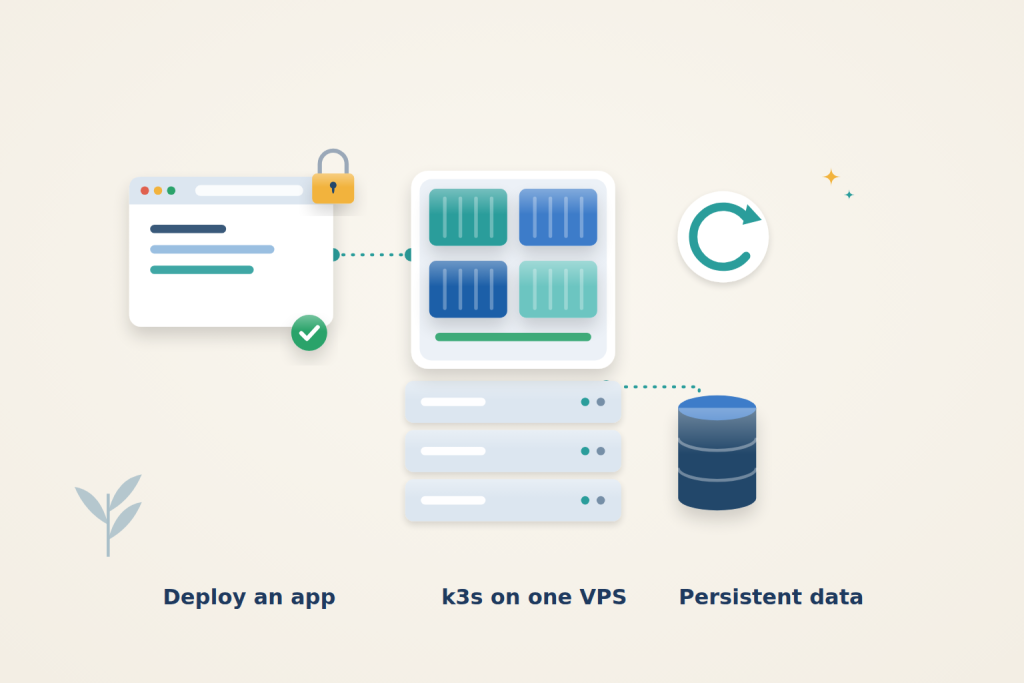
Kubernetes is often treated as something only large clusters need, but its everyday features are just as useful on one server: declarative files that describe your apps, automatic restarts, rolling updates that keep the old version running until the new one is healthy, and one-command rollbacks. k3s packages all of that into a single binary that runs comfortably on a small VPS.
A single-node setup can serve a website over HTTPS and keep its files through pod replacement. It is not a highly available cluster: the application and its local data still depend on one VPS.
Before you start
You need:
- An Ubuntu 24.04 VPS with sudo access. Check the current k3s system requirements, then allow additional capacity for ingress, certificate management and your own workloads. Two cores and 4 GB can be an evaluation starting point, not a measured production requirement. Monitor startup and rolling-update overlap.
- A domain or subdomain, such as
app.example.com, with an A record pointing to the server. Replace it everywhere below. - Ports 80 and 443 open to the internet, so visitors and Let’s Encrypt can reach the server.
If you need a server, an GICTServer VPS with 2 cores and 4 GB RAM fits this setup, and you can grow the plan as you add workloads. Use a fresh server: k3s takes over ports 80 and 443 for its own ingress controller, so it should not share them with a web server installed directly on the host.
Open the firewall
If UFW is active, allow SSH and web traffic, plus the internal networks k3s uses for pods (10.42.0.0/16) and services (10.43.0.0/16), as the k3s documentation recommends:
$ sudo ufw allow OpenSSH
$ sudo ufw allow 80/tcp
$ sudo ufw allow 443/tcp
$ sudo ufw allow from 10.42.0.0/16 to any
$ sudo ufw allow from 10.43.0.0/16 to any
The k3s documentation also opens port 6443, the Kubernetes API. That port is used by Kubernetes API clients and joining nodes. On a single server, leave it closed and manage the cluster over SSH, as shown near the end of this guide.
Install k3s
The official installer sets up k3s as a systemd service. Pin the version so every server you build gets the same one:
$ curl -sfL https://get.k3s.io | INSTALL_K3S_VERSION=v1.36.5+k3s1 sh -
$ sudo kubectl get nodes
After about half a minute, the node reports Ready. k3s already includes everything a small cluster needs: the containerd runtime, CoreDNS, the Traefik ingress controller that serves ports 80 and 443, a local storage provisioner, and a metrics server. Check that their pods are running:
$ sudo kubectl get pods -AThe helm-install-traefik pods should show Completed, and everything else Running.
Use kubectl without sudo
k3s writes its admin credentials to /etc/rancher/k3s/k3s.yaml, which only root can read. Copy them to your own account:
$ mkdir -p ~/.kube
$ sudo cp /etc/rancher/k3s/k3s.yaml ~/.kube/config
$ sudo chown $(id -u):$(id -g) ~/.kube/config
$ chmod 600 ~/.kube/config
The kubectl that ships with k3s still reads the root-only file unless KUBECONFIG is set, and fails with permission denied. Add this line to the end of ~/.bashrc:
export KUBECONFIG=$HOME/.kube/configLoad it and test:
$ source ~/.bashrc
$ kubectl get nodes
This file grants full control of the cluster. Treat it like a root password.
Install cert-manager
cert-manager requests and renews Let’s Encrypt certificates for your apps. Install the release manifest, then wait for its webhook to become ready:
$ kubectl apply -f https://github.com/cert-manager/cert-manager/releases/download/v1.21.2/cert-manager.yaml
$ kubectl -n cert-manager rollout status deploy/cert-manager-webhook --timeout=180s
Create ~/cluster-issuer.yaml to tell cert-manager how to obtain certificates:
apiVersion: cert-manager.io/v1
kind: ClusterIssuer
metadata:
  name: letsencrypt
spec:
  acme:
    server: https://acme-v02.api.letsencrypt.org/directory
    privateKeySecretRef:
      name: letsencrypt-account-key
    solvers:
      - http01:
          ingress:
            ingressClassName: traefik
It uses HTTP validation through Traefik, which works as long as port 80 reaches the server. Apply it and check that it is ready:
$ kubectl apply -f ~/cluster-issuer.yaml
$ kubectl get clusterissuer
The READY column should show True.
Deploy the website
Kubernetes describes an app as a set of objects. Create ~/web.yaml with all of them in one file:
apiVersion: v1
kind: Namespace
metadata:
  name: web
---
apiVersion: v1
kind: PersistentVolumeClaim
metadata:
  name: site-data
  namespace: web
spec:
  accessModes: ["ReadWriteOnce"]
  storageClassName: local-path
  resources:
    requests:
      storage: 1Gi
---
apiVersion: traefik.io/v1alpha1
kind: Middleware
metadata:
  name: redirect-https
  namespace: web
spec:
  redirectScheme:
    scheme: https
    permanent: true
---
apiVersion: apps/v1
kind: Deployment
metadata:
  name: web
  namespace: web
spec:
  replicas: 1
  selector:
    matchLabels:
      app: web
  template:
    metadata:
      labels:
        app: web
    spec:
      containers:
        - name: nginx
          image: nginx:1.30.5-alpine
          ports:
            - containerPort: 80
          readinessProbe:
            httpGet:
              path: /
              port: 80
          resources:
            requests:
              cpu: 50m
              memory: 32Mi
            limits:
              memory: 128Mi
          volumeMounts:
            - name: site
              mountPath: /usr/share/nginx/html
      volumes:
        - name: site
          persistentVolumeClaim:
            claimName: site-data
---
apiVersion: v1
kind: Service
metadata:
  name: web
  namespace: web
spec:
  selector:
    app: web
  ports:
    - port: 80
      targetPort: 80
---
apiVersion: networking.k8s.io/v1
kind: Ingress
metadata:
  name: web
  namespace: web
  annotations:
    cert-manager.io/cluster-issuer: letsencrypt
    traefik.ingress.kubernetes.io/router.middlewares: web-redirect-https@kubernetescrd
spec:
  ingressClassName: traefik
  tls:
    - hosts:
        - app.example.com
      secretName: web-tls
  rules:
    - host: app.example.com
      http:
        paths:
          - path: /
            pathType: Prefix
            backend:
              service:
                name: web
                port:
                  number: 80
Here is what each part does:
- Namespace keeps the app’s objects together, separate from the system components.
- PersistentVolumeClaim requests 1 GB of storage from k3s’s
local-pathprovisioner, so the site’s files survive pod restarts. - Middleware is a Traefik object that redirects plain HTTP to HTTPS.
- Deployment runs one nginx container with the storage mounted at its web root. The readiness probe keeps traffic away from the pod until nginx answers, and the memory limit bounds this container’s memory allowance. It does not reserve memory or protect the entire server from every source of resource pressure.
- Service gives the pods a stable internal address.
- Ingress tells Traefik to send requests for your domain to the service. Its annotations ask cert-manager for a certificate, stored in the
web-tlssecret, and attach the redirect.
Apply it:
$ kubectl apply -f ~/web.yaml
$ kubectl -n web get pods
Wait until the pod’s STATUS is Running. It still shows 0/1 ready. The new volume is empty, so nginx answers the readiness probe with 403 Forbidden, and Kubernetes holds back traffic. Add a first page. Create ~/index.html:
<!doctype html>
<title>k3s test</title>
<h1>Hello from k3s</h1>
Copy it into the running pod’s volume and wait for the deployment:
$ POD=$(kubectl -n web get pod -l app=web -o jsonpath='{.items[0].metadata.name}')
$ kubectl -n web cp ~/index.html $POD:/usr/share/nginx/html/index.html
$ kubectl -n web rollout status deploy/web
Check HTTPS and storage
cert-manager usually obtains the certificate within a minute:
$ kubectl -n web get certificateWhen READY shows True, open https://app.example.com. The page loads with a valid certificate, and http:// redirects to https:// with a 301. cert-manager renews the certificate before it expires, without any further action.
The page lives in the persistent volume, not in the container. Delete the pod and let the deployment replace it:
$ kubectl -n web delete pod -l app=web
$ kubectl -n web rollout status deploy/web
The site comes back with the same page. On disk, k3s keeps local volumes under /var/lib/rancher/k3s/storage/, which is the directory to include in your server backups. Local volumes live on this one server, so they are only as safe as its disk and your backups.
Update and roll back
To change the app, edit web.yaml and apply it again. For example, change the image line to the newer nginx release:
image: nginx:1.31.6-alpine$ kubectl apply -f ~/web.yaml
$ kubectl -n web rollout status deploy/webFor this Deployment, Kubernetes starts the new pod and waits for its readiness probe before stopping the old one. The server must have enough capacity for the overlap. Readiness helps maintain service during this application update; it is not protection against the VPS itself failing.
When an update fails, the old version keeps serving. If you apply an image tag that does not exist, the new pod shows ErrImagePull, rollout status never finishes, and visitors still get the previous version. Go back with:
$ kubectl -n web rollout undo deploy/webTo see earlier versions, run kubectl -n web rollout history deploy/web, and return to a specific one with --to-revision=N. After a rollback, change web.yaml to match the version now running. Otherwise the next kubectl apply reintroduces the broken change.
Watch resource use
k3s includes a metrics server, so you can see what each part of the cluster uses:
$ kubectl top node
$ kubectl top pods -A --sort-by=memory
Watch the whole node as well as individual pods, including during application startup and updates. Give your own containers deliberate resource requests and limits, as in web.yaml. A memory limit can lead to an OOM kill and replacement or restart of the affected container; it does not make other workloads or host services immune to memory pressure.
Keep your manifests and data safe
Keep your application manifests in version control outside this VPS, without committing kubeconfigs, passwords or other secrets. Manifests describe the intended objects, but they do not contain the data written into a volume or every credential needed to rebuild the deployment.
The local-path volumes exist on this server under /var/lib/rancher/k3s/storage/. Pod replacement does not provide an independent copy. Back that directory up off the server with your usual backup tool, using application-consistent methods such as a database dump for databases, and test a restore. Copying one HTML file into a volume, as in this guide, is not a full backup or restore.
Upgrade k3s
To upgrade k3s itself, run the installer again with the new version. Read the release notes first, and move one minor version at a time, for example from 1.36 to 1.37:
$ curl -sfL https://get.k3s.io | INSTALL_K3S_VERSION=v1.37.1+k3s1 sh -
$ kubectl get nodes
The installer updates and restarts the k3s service and may update bundled components. Plan a maintenance window: a single-node cluster has no independent node to absorb a failure, and existing containers do not guarantee uninterrupted service. Verify node readiness, system pods, HTTPS and application behavior after the upgrade.
Manage the cluster from your computer
You do not need to open the API port to use kubectl from your own machine. On your computer, copy the kubeconfig and open an SSH tunnel in a separate terminal:
$ mkdir -p ~/.kube
$ scp user@SERVER_IP:.kube/config ~/.kube/k3s-config
$ ssh -N -L 6443:127.0.0.1:6443 user@SERVER_IP
In another terminal, while the tunnel stays open:
$ KUBECONFIG=~/.kube/k3s-config kubectl get nodesThe kubeconfig already points to https://127.0.0.1:6443, so the tunnel carries the connection and the API stays closed to the internet.
Remove k3s
If you no longer need the cluster, the installer left an uninstall script:
$ sudo /usr/local/bin/k3s-uninstall.shIt stops k3s and removes its binaries, containers, and the whole /var/lib/rancher/k3s directory. That includes every local volume, so copy any data you need first.
Troubleshooting
- A pod stays at
0/1ready: runkubectl -n web describe pod -l app=weband read the events.Readiness probe failed: HTTP probe failed with statuscode: 403means nginx has nothing to serve yet; add anindex.htmlto the volume. ErrImagePullorImagePullBackOff: the image name or tag is wrong, or the registry is unreachable. Fix the image line and apply again, or roll back.- The volume claim stays
Pending:storageClassNamemust name a class that exists.kubectl get storageclasslists them; on k3s it islocal-path. - The certificate stays
READY False: runkubectl -n web get challengesandkubectl -n web describe challenge.failed to perform self check GET requestmeans cert-manager’s own HTTP challenge check failed; it is not proof that the certificate authority made the same request. Check the A record and the firewall. - The browser shows
404 page not found: Traefik found no ingress for that host name. Thehostin the Ingress must match the domain you visit exactly. kubectlsayspermission deniedon/etc/rancher/k3s/k3s.yaml:KUBECONFIGis not set in your shell. Runsource ~/.bashrc, or open a new SSH session.
This setup provides a single-node Kubernetes workflow, not high availability. Rehearse application rollback and full cluster/data restoration separately before relying on it for production. Adding nodes later also requires deliberate networking and storage design.
Reference: k3s installation requirements. Check the documentation for your installed version before applying changes.