
GICT knowledge base
Modify Hosts File on Windows
Published
The hosts file is used to point a hostname to an IP address. when a domain is searched from a local system, in a DNS lookup the hosts file can help us to assign an IP address for our domain name. When we are building a site locally and to test the same we can use this hosts. Because when we have added a hostname on the hosts file the system will fetch the IP address of the hostname from the hosts file. This feature can help developers to check the website locally even without purchasing the domain name or if the domain is under propagation we can easily utilize this feature.
To modify the hosts, we need to add the domain name and the IP address which they are resolving to. For example, if we have a domain www.example.com and it is not yet pointed, so we can add this to our local system hosts file like
xxx.xx.xx.xx www.example.com
Where the xxx.xx.xx.xx represent the IP address of the server. after you have added an entry on the hosts file, the system begins to resolve the domain to specified IP address in the hosts. After pointing the domain correctly, you need to remove the entry from the local hosts.
Let’s see the steps to add resolving IP address to hosts file.
1) Open the Notepad: The first steps for selecting the notepad are different for version less than windows 8
For Windows 10 and 8
Click/press on the Windows Key >> search for Notepad.
For windows 7 and vista
Click/press on Start >> All Programs >> Accessories.
2)Right click Notepad and select “Run as administrator” option.
3) Open the following file: c:\Windows\System32\Drivers\etc\hosts from the Notepad.
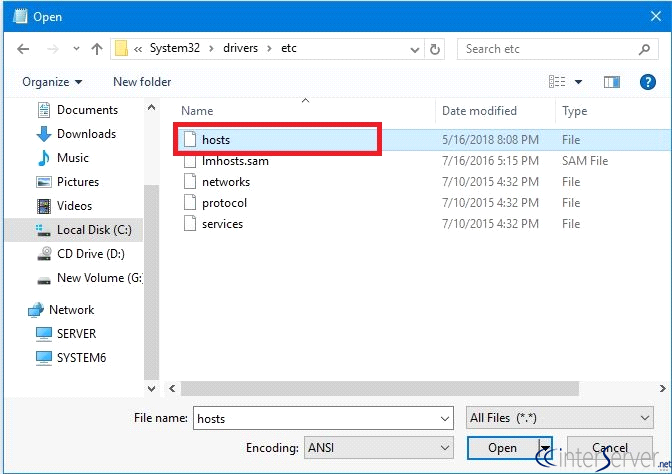
4) Add the IP address and hostname on to the file.
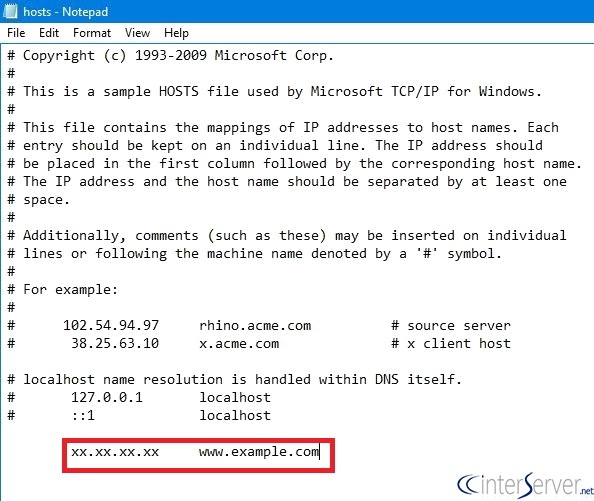
5) Click File >> Save to save your changes.
If you need any further assistance please contact our support department.
Related guides
Optimizing MetaTrader on Your GICTServer VPS
Optimizing MetaTrader on Your GICTServer VPS Running MetaTrader 4 or 5 (MT4/MT5) on a Virtual Private Server (VPS) is the gold standard for traders who need 24/7 uptime...
WindowsUnderstanding the db_owner Role in Plesk Windows Hosting
If you have ever managed a database on a Windows-based hosting plan using Plesk, you might have noticed that your database user doesn’t always start with "full"...
WindowsHyper-V Windows VPS: Password Security & Reset Policies
When you provision a Windows VPS (Hyper-V) with GICTServer, you are granted full Administrator access.
WindowsChange RDP port on Windows server
How do you Change the RDP port on a Windows server? Remote Desktop Protocol is a secure network protocol developed by Microsoft that provides a user interface with good...