
GICT knowledge base
Change RDP port on Windows server
Published
How do you Change the RDP port on a Windows server?
Remote Desktop Protocol is a secure network protocol developed by Microsoft that provides a user interface with good graphics to connect to another computer over a network connection. The user needs to install RDP client software on their local system and the remote computer must run the RDP server software. To provide better security to the Windows server, sometimes we need to change the Remote Desktop Protocol (RDP) port from default 3389 to something else.
Note that the Remote Desktop Connection client for the Mac only supports the 3389 port, which is the default port of RDP. Also, when we change the RDP port on a Windows server with firewall protection, make sure that the firewall is configured properly to allow access to the new port. Let’s discuss how we can change the Remote desktop port on a Windows Server.
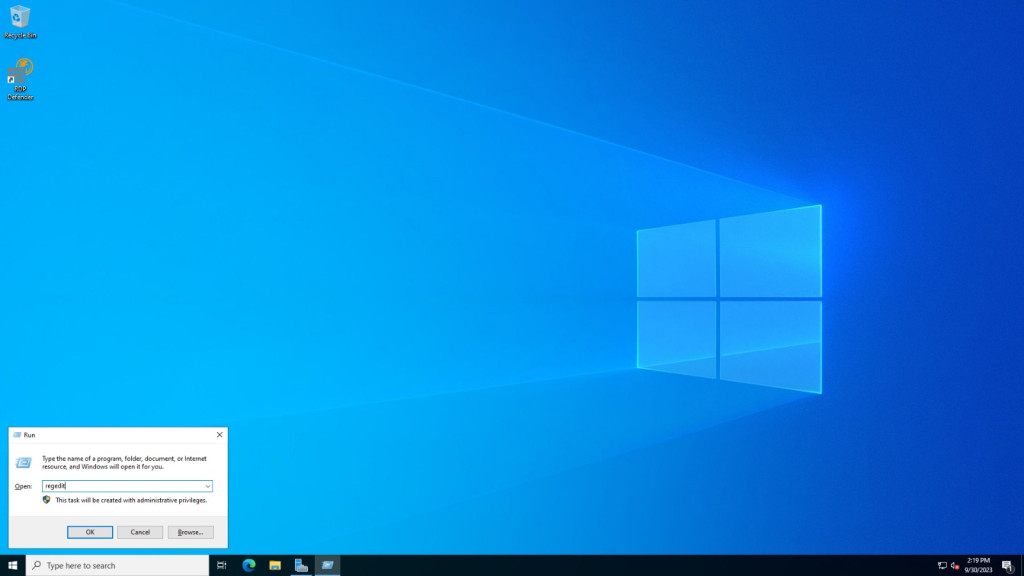
1) Connect to the server via the Remote desktop and open “Register Editor” by typing the “regedit” command on the run dialog box. Click simultaneously on the Windows logo + ‘R’ to open the “Run” dialog box.
2) Locate and then click the following registry subkey from the list:
HKEY_LOCAL_MACHINE\System\CurrentControlSet\Control\Terminal Server\WinStations\RDP-Tcp\PortNumber
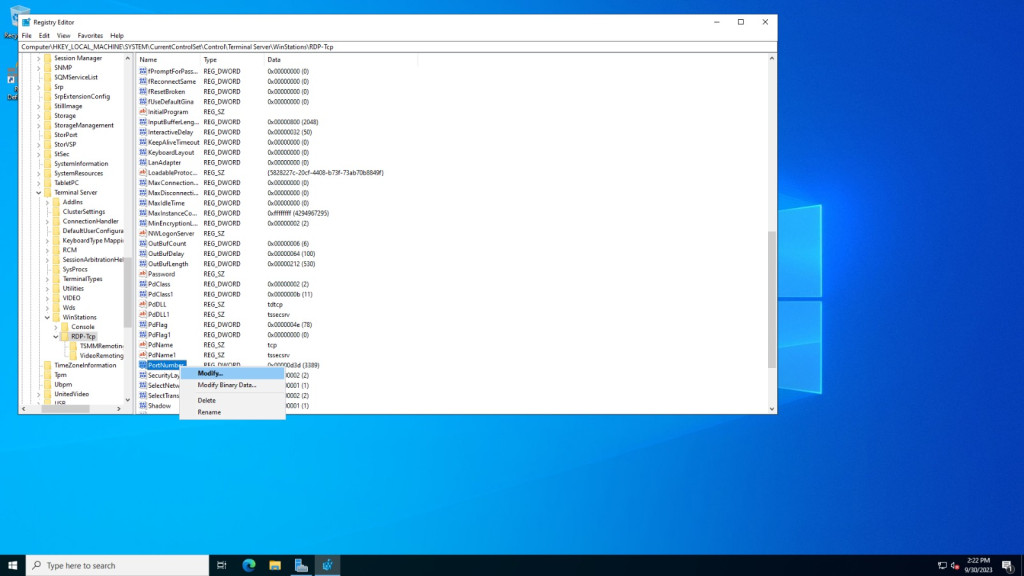
3) Right-click on the “Port number” registry key and choose the option “Modify”
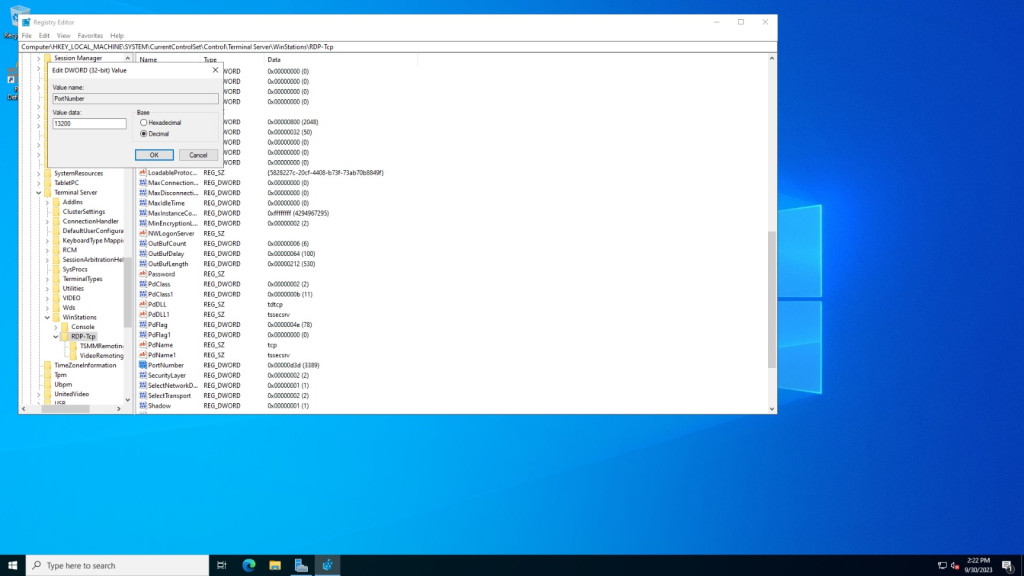
Next, select the “Decimal” option and then type the new port number, and click on the “OK” button to save the selection.
4) Open the port in the firewall
Please refer to the link https://www.GICTServer.net/tips/kb/open-ports-windows-firewall/
After making the necessary changes quit the Registry editor and Restart the server.
That’s it! You now know how to change the Windows RDP port.
If you have any additional questions or concerns, please contact [email protected]!
Related guides
Optimizing MetaTrader on Your GICTServer VPS
Optimizing MetaTrader on Your GICTServer VPS Running MetaTrader 4 or 5 (MT4/MT5) on a Virtual Private Server (VPS) is the gold standard for traders who need 24/7 uptime...
WindowsUnderstanding the db_owner Role in Plesk Windows Hosting
If you have ever managed a database on a Windows-based hosting plan using Plesk, you might have noticed that your database user doesn’t always start with "full"...
WindowsHyper-V Windows VPS: Password Security & Reset Policies
When you provision a Windows VPS (Hyper-V) with GICTServer, you are granted full Administrator access.
WindowsHow to copy files from Linux to Windows using WinSCP
There are two types of people who use the LINUX operating system.