
GICT knowledge base
IIS (Internet Information Services) Installation
Published
Step 1:
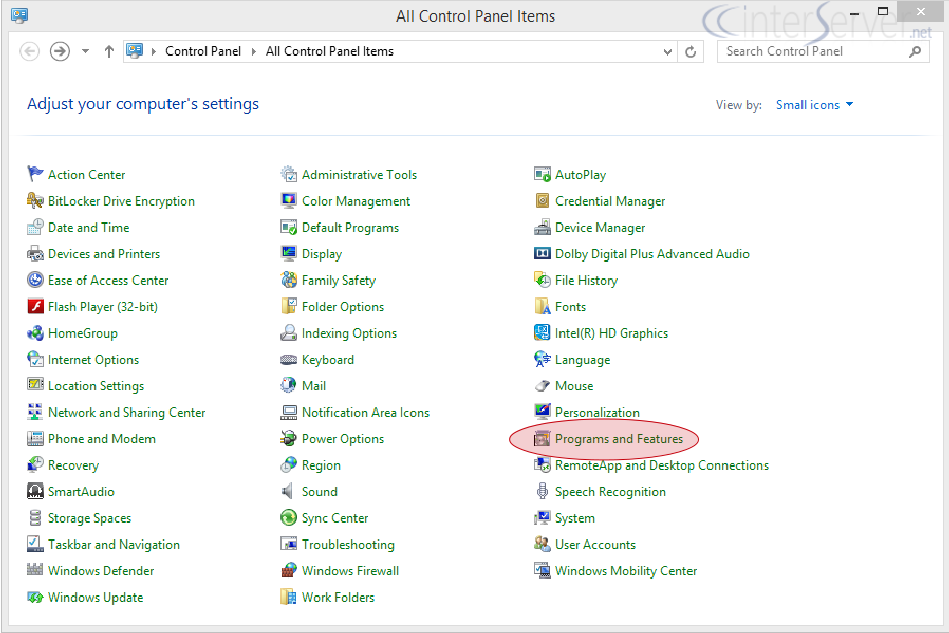
Access “Control Panel” from “Start” menu. Then click “Programs and Features”.
Step 2:
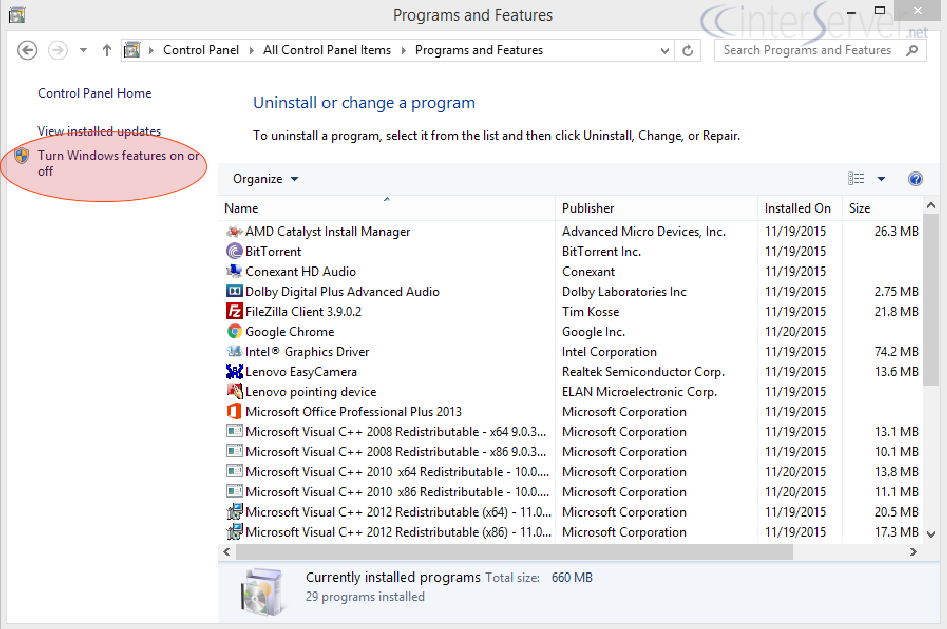
Then we can see option “Turn Windows features on or off” in the next Window and click on it.
Step 3:
Now “Windows Features” box will appear and select “Internet Information Services” option from the list.
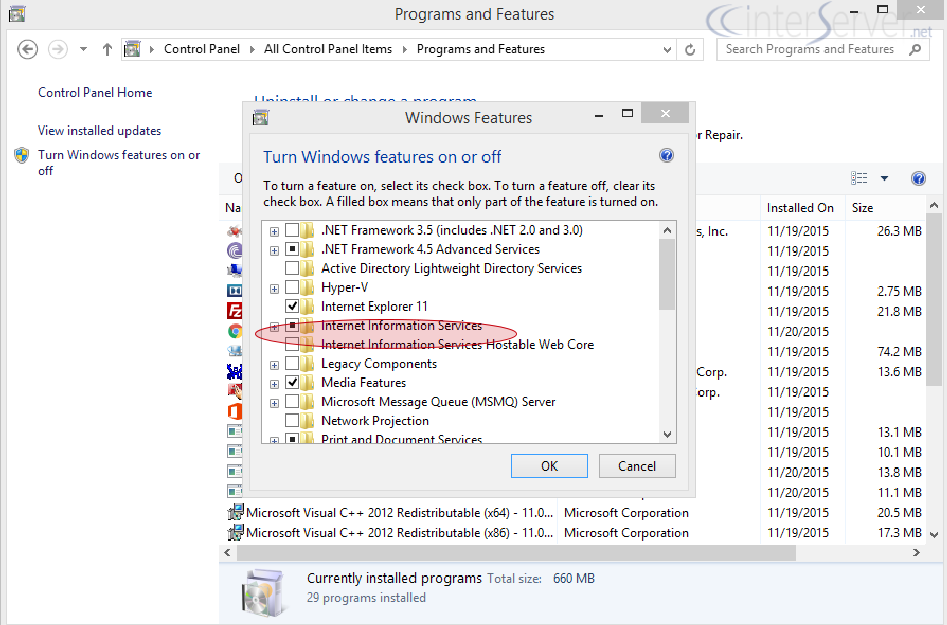
If you want to install other modules and features eg- ASP.NET you can install the same from here.

Once selected the required features click “OK”.
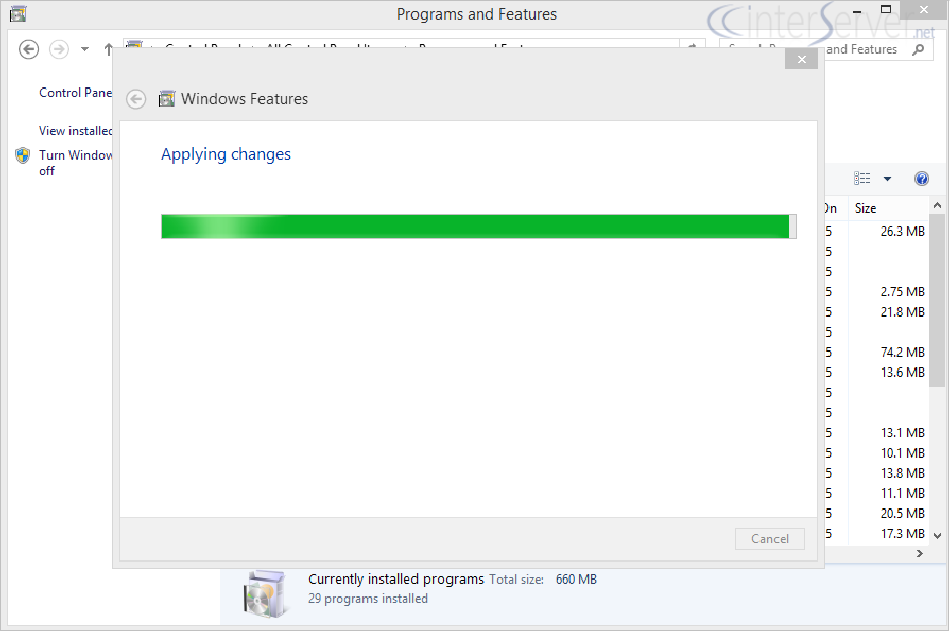
Now Windows is installing the selected components. Once finished you need to reboot the machine to complete the installation.
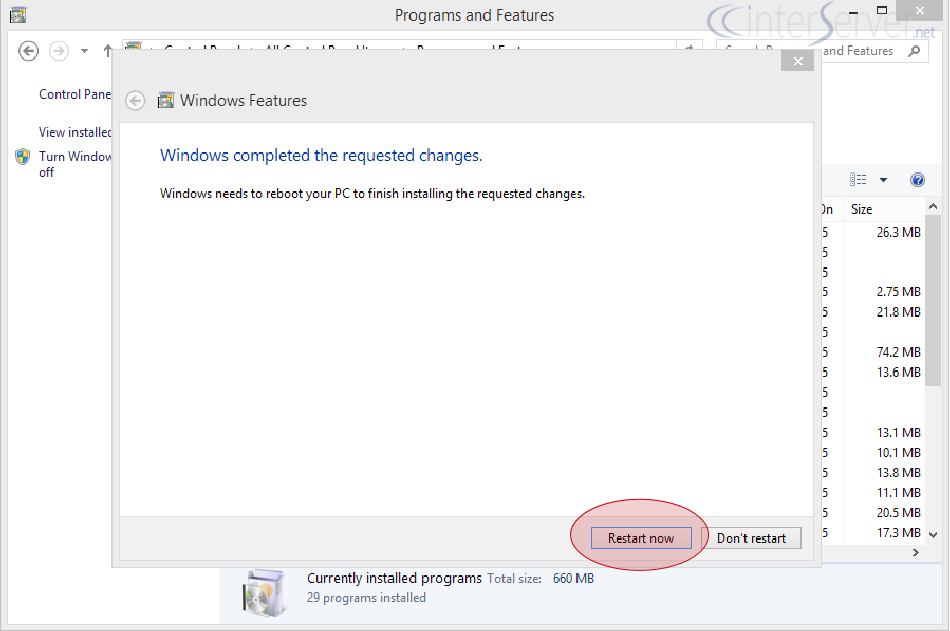
After reboot you can test IIS installation by accessing “localhost” in your web browser as shown below.
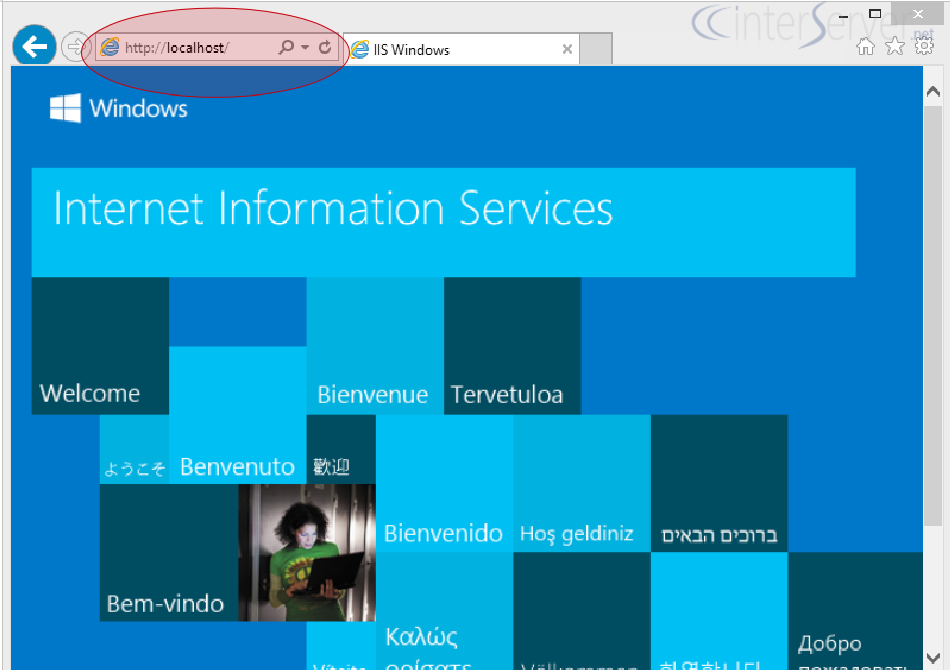
This concludes installation of IIS.
If you need any help with the IIS setup or having any issues please contact our support department.
Related guides
Optimizing MetaTrader on Your GICTServer VPS
Optimizing MetaTrader on Your GICTServer VPS Running MetaTrader 4 or 5 (MT4/MT5) on a Virtual Private Server (VPS) is the gold standard for traders who need 24/7 uptime...
WindowsUnderstanding the db_owner Role in Plesk Windows Hosting
If you have ever managed a database on a Windows-based hosting plan using Plesk, you might have noticed that your database user doesn’t always start with "full"...
WindowsHyper-V Windows VPS: Password Security & Reset Policies
When you provision a Windows VPS (Hyper-V) with GICTServer, you are granted full Administrator access.
WindowsChange RDP port on Windows server
How do you Change the RDP port on a Windows server? Remote Desktop Protocol is a secure network protocol developed by Microsoft that provides a user interface with good...