
GICT knowledge base
How to Set Up an LLM Gateway with LiteLLM
Published
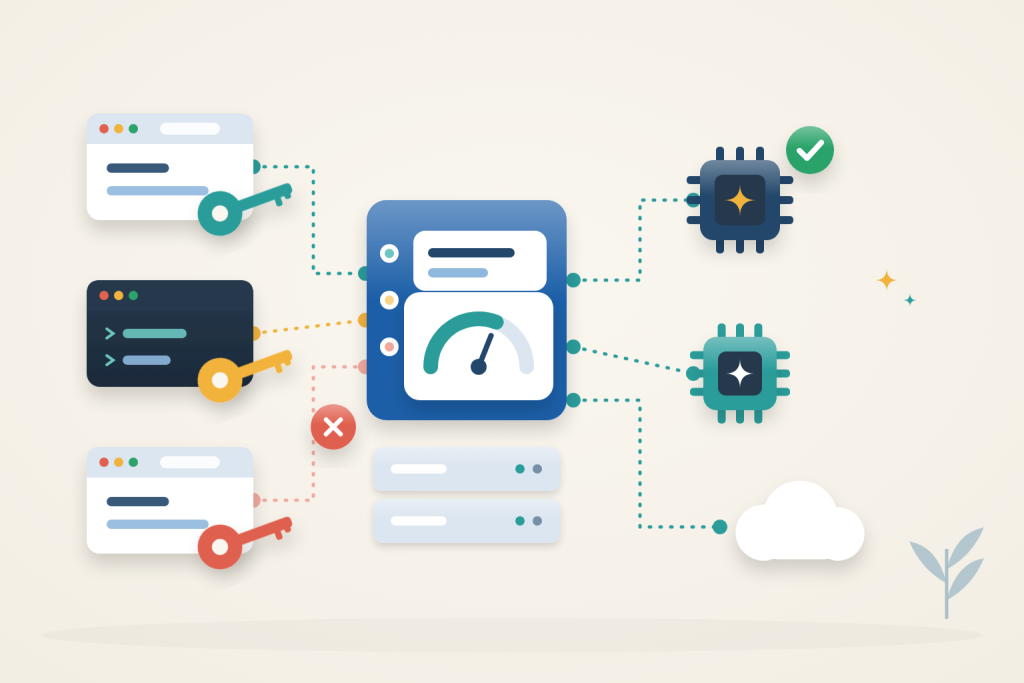
When several apps and people call language models, sharing one provider key gets messy fast. You cannot see who spent what, a leaked key exposes everything, and every app needs its own provider settings. LiteLLM fixes that with a single OpenAI-compatible endpoint. Each app gets its own key with allowed models, a budget, and a rate limit. Your real provider keys stay on the server.
This setup runs the LiteLLM proxy with PostgreSQL on Ubuntu 24.04, behind Caddy for HTTPS. It uses two local Ollama models so you can test everything without a paid account. Hosted providers such as OpenAI or Anthropic plug into the same configuration.
Private-port prerequisite: use Docker Engine 28 or newer for the loopback-published ports in this guide. Older releases have a documented localhost-port exposure limitation. Confirm from another machine that the public IP cannot reach those private service ports; a proxy login does not protect a direct bypass route.
Before you start
You need:
- An Ubuntu 24.04 VPS with sudo access. With the two local models, plan for 4 CPU cores and 8 GB RAM. If you only route to hosted providers and drop Ollama, 2 GB is usually enough.
- A domain, such as
llm.example.com, with an A record pointing to the VPS, and ports 80 and 443 open.
If you need a server, an GICTServer VPS of that size works well. A GPU server only makes sense if you plan to run larger local models.
Use the official image source and review security advisories before deployment. An exact tag improves version selection but is mutable; record the digest for reproducibility and verify the trusted publisher. Docker packaging alone is not a guarantee against compromised dependencies.
Install Docker and Caddy
$ sudo apt-get update
$ sudo apt-get install -y docker.io docker-compose-v2 caddy openssl curl
$ sudo systemctl enable --now docker
If UFW is enabled, allow SSH, HTTP, and HTTPS:
$ sudo ufw allow OpenSSH
$ sudo ufw allow 80/tcp
$ sudo ufw allow 443/tcp
Create the configuration
$ mkdir -p ~/litellm
$ cd ~/litellm
$ touch .env
$ chmod 600 .env
$ openssl rand -hex 32
$ openssl rand -hex 32
$ openssl rand -hex 32
Create ~/litellm/.env and paste the three generated values after the prefixes shown. Keep the sk- prefix on the first two:
LITELLM_MASTER_KEY=sk-FIRST_VALUE
LITELLM_SALT_KEY=sk-SECOND_VALUE
POSTGRES_PASSWORD=THIRD_VALUE
The master key is the admin credential for the whole gateway. The salt key encrypts provider credentials stored in the database. Never change it after setup, or stored credentials become unreadable. Back up this file somewhere safe.
Create ~/litellm/config.yaml:
model_list:
  - model_name: local-chat
    litellm_params:
      model: ollama_chat/qwen3:4b-instruct
      api_base: http://ollama:11434
    model_info:
      input_cost_per_token: 0.000001
      output_cost_per_token: 0.000002
  - model_name: local-small
    litellm_params:
      model: ollama_chat/granite4:350m
      api_base: http://ollama:11434
    model_info:
      input_cost_per_token: 0.0000005
      output_cost_per_token: 0.000001

general_settings:
  master_key: os.environ/LITELLM_MASTER_KEY
  database_url: os.environ/DATABASE_URL
Each model_name is the name your apps will request, and litellm_params says where the request really goes. Because apps only see the name, you can later point local-chat at a different model or provider without changing any app. The prices under model_info are internal accounting rates, not provider invoices. Local inference still consumes server resources, but has no per-request hosted-provider charge. Without an assigned cost, these local requests can record zero spend and will not consume a monetary budget.
Create ~/litellm/compose.yaml:
services:
  litellm:
    image: ghcr.io/berriai/litellm:v1.104.0
    command: ["--config", "/app/config.yaml", "--port", "4000"]
    restart: unless-stopped
    env_file:
      - .env
    environment:
      DATABASE_URL: postgresql://litellm:${POSTGRES_PASSWORD}@db:5432/litellm
    volumes:
      - ./config.yaml:/app/config.yaml:ro
    ports:
      - "127.0.0.1:4000:4000"
    depends_on:
      db:
        condition: service_healthy
      ollama:
        condition: service_started

  db:
    image: postgres:17
    restart: unless-stopped
    environment:
      POSTGRES_USER: litellm
      POSTGRES_PASSWORD: ${POSTGRES_PASSWORD}
      POSTGRES_DB: litellm
    healthcheck:
      test: ["CMD-SHELL", "pg_isready -U litellm"]
      interval: 5s
      timeout: 5s
      retries: 10
    volumes:
      - db_data:/var/lib/postgresql/data

  ollama:
    image: ollama/ollama:0.35.1
    restart: unless-stopped
    volumes:
      - ollama:/root/.ollama

volumes:
  db_data:
  ollama:
Only the proxy publishes a port, and only on 127.0.0.1. env_file passes the keys in .env to the proxy, and PostgreSQL stores virtual keys and spend. Ollama has no published host port. Keep its internal endpoint private and send application traffic through the authenticated gateway.
Start the stack and download the models:
$ sudo docker compose up -d
$ sudo docker compose exec ollama ollama pull qwen3:4b-instruct
$ sudo docker compose exec ollama ollama pull granite4:350m
$ curl -s http://127.0.0.1:4000/health/readiness
The first start applies database migrations, so allow a minute before the readiness check returns "status":"healthy".
Publish only the API through Caddy
Apps only need the /v1/ endpoints. The proxy also serves key management routes and an admin UI, and both accept the master key. Keeping them off the internet means password-guessing bots, and any future bug in those routes, never reach them. Keep a copy of the default Caddyfile:
$ sudo cp -a /etc/caddy/Caddyfile /etc/caddy/Caddyfile.bakReplace /etc/caddy/Caddyfile with:
llm.example.com {
    handle /v1/* {
        reverse_proxy 127.0.0.1:4000
    }
    handle {
        respond 404
    }
}
$ sudo caddy validate --config /etc/caddy/Caddyfile
$ sudo systemctl reload caddyTo use the admin UI, open an SSH tunnel from your computer with ssh -L 4000:127.0.0.1:4000 user@SERVER_IP and browse to http://localhost:4000/ui. Sign in as admin with the master key.
Create a key for each app
Run the following on the server. Load the master key into your shell first:
$ cd ~/litellm
$ set -a; . ./.env; set +a
Create a key that may only use local-small, may spend at most 0.01 USD, and is limited to 5 requests per minute:
$ curl -s http://127.0.0.1:4000/key/generate -H "Authorization: Bearer $LITELLM_MASTER_KEY" -H "Content-Type: application/json" -d '{"key_alias": "support-bot", "models": ["local-small"], "max_budget": 0.01, "rpm_limit": 5}'The response includes the new key and the limits you set:
{"key_alias":"support-bot", ... "models":["local-small"], ... "max_budget":0.01, ... "rpm_limit":5, ... "key":"sk-...", ...}Copy the "key" value. It is shown only once. To make a key expire, add a duration such as "duration": "30d" to the request.
Understand the key policy
An app key is a gateway credential, not the provider’s original credential. Give each application a separate key so you can identify and revoke that application’s access without replacing credentials in every other client. Keep the master key for administration on the server; putting it into a client bypasses the purpose of creating a restricted app identity.
The model allowlist, request rate, budget and expiry answer different questions. The allowlist controls which configured model names the key may request. The rate limit limits request frequency. The budget uses the gateway’s recorded cost, and expiry ends the key’s validity at a chosen time. One control does not replace the others: an inexpensive model can still receive a disruptive burst of requests, while a slow request rate can still accumulate spend.
The example assigns a small total budget without a recurring budget period. Do not assume it automatically renews every day or month. For the local models, changing the internal per-token rates changes how quickly that budget is consumed; it does not change an external bill. Use the key information response to understand what the gateway actually recorded.
Test the key over HTTPS
From any machine, call the gateway like any OpenAI-compatible API:
$ curl -s https://llm.example.com/v1/chat/completions -H "Authorization: Bearer sk-APP_KEY" -H "Content-Type: application/json" -d '{"model": "local-small", "messages": [{"role": "user", "content": "Say hello in five words."}]}'The answer comes back in the usual OpenAI format, under choices. The limits work the same way from any client. A request for local-chat with this key fails with key_model_access_denied. Requests beyond five in a minute get HTTP 429 with Rate limit exceeded. Once the key’s spend passes 0.01 USD, requests fail with Budget has been exceeded. Spend is checked before each request, so the last one can take the total slightly over the budget.
In application code, set the OpenAI SDK’s base URL to https://llm.example.com/v1 and use the app key as the API key. Streaming responses work too. To see which models a key may use, request https://llm.example.com/v1/models with that key; it lists only local-small.
Check what a key has spent from the server:
$ curl -s "http://127.0.0.1:4000/key/info?key=sk-APP_KEY" -H "Authorization: Bearer $LITELLM_MASTER_KEY"The spend field shows the running total in USD, next to max_budget.
To pause a key without losing its history, block it, and unblock it later with /key/unblock:
$ curl -s http://127.0.0.1:4000/key/block -H "Authorization: Bearer $LITELLM_MASTER_KEY" -H "Content-Type: application/json" -d '{"key": "sk-APP_KEY"}'To revoke a key permanently, for example after a leak, delete it:
$ curl -s http://127.0.0.1:4000/key/delete -H "Authorization: Bearer $LITELLM_MASTER_KEY" -H "Content-Type: application/json" -d '{"keys": ["sk-APP_KEY"]}'Separate gateway checks from model checks
First establish that the app key can list its allowed model and complete a small request. Then check the denied model and the intended limit behavior. A healthy database connection only confirms one dependency; it does not prove that the requested model exists in Ollama or that the app key is allowed to use it.
Keep the same app key and model name while diagnosing a failure. If you replace them both with the master key and a different model, success no longer explains which part of the original request was wrong. Similarly, a public 404 from an administration route is the configured Caddy boundary, not a reason to expose all proxy routes.
Budgets are request-admission controls, not an exact settlement guarantee. The accepted request can take recorded spend beyond the threshold before the next request is denied. Plan for that distinction when choosing a budget rather than treating the sample amount as an absolute ceiling on all possible resource consumption.
Troubleshooting
Start with the proxy log:
$ sudo docker compose logs --tail=50 litellmInvalid proxy server token passed: the key is wrong or has been deleted. Check theAuthorization: Bearerheader in the client.key_model_access_denied: the requested model is not in the key’smodelslist.model '...' not foundfrom Ollama: pull the model, and make sure the name afterollama_chat/matchesollama listexactly.The api_key client option must be set: a variable referenced withos.environ/is missing from.env. Add it and runsudo docker compose up -dso the container picks it up.- Changes to
config.yamlhave no effect: runsudo docker compose restart litellm. 404for/key/...or/uion your domain: this is intended. Caddy only forwards/v1/; manage keys on the server or through the SSH tunnel.- The server runs out of memory: each loaded model stays in RAM for a few minutes after use. Add RAM or drop the local models you do not need.
Your apps now share one HTTPS endpoint, each with its own key, model list, budget, and rate limit, while provider credentials and the admin interface stay on the server.
Reference: LiteLLM virtual keys. Check the documentation for your installed version before applying changes.
Related guides
How to Secure the Ollama API with Nginx
Protect a private Ollama API with Nginx authentication and restricted routes. Verify allowed requests, denied management calls and direct-port isolation.
AIHow to Self-Host Karakeep with AI Tagging on a VPS
Self-host Karakeep with local Ollama tagging. Restrict first-user setup, disable public registration and verify collection, search and suggested tags.
AIHow to Categorize Support Tickets with a Local AI Model
Suggest support-ticket categories from a CSV using a CPU-only AI model. Keep inference local, preserve ticket IDs, and review uncertain classifications.
AISelf-hosted OCR on Your VPS: Extracting Text from Images with Tesseract
Extract text from images on your own server with Tesseract OCR, free and CPU-only. Install it, run OCR, and boost accuracy with image preprocessing.