
GICT knowledge base
How to Self-Host Karakeep with AI Tagging on a VPS
Published
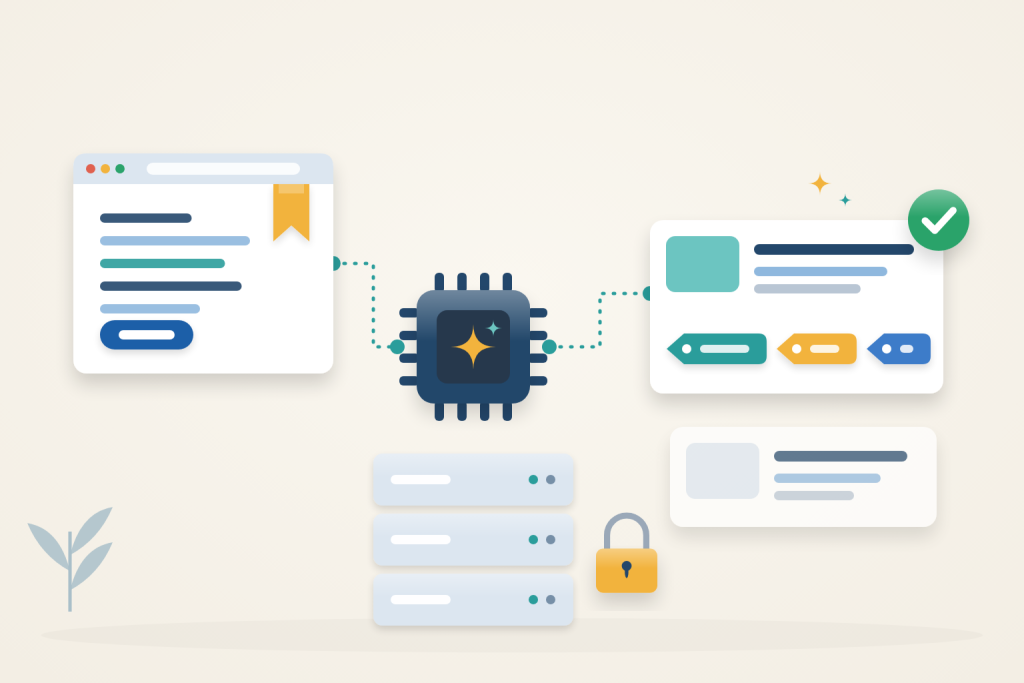
Saved links are only useful if you can find them again. Karakeep is a self-hosted bookmark manager that saves links and notes, archives the page text, and asks an AI model to suggest tags. On your own VPS, the tagging model can run locally with Ollama instead of sending bookmark text to a hosted AI provider.
This setup runs Karakeep 0.33.2, its headless Chrome crawler, Meilisearch, and Ollama with Docker Compose on Ubuntu 24.04. Caddy serves it over HTTPS on your own domain.
Before you start
You need:
- An Ubuntu 24.04 VPS with sudo access. Four CPU cores and 8 GB RAM are an evaluation starting point, not a measured minimum. Model, context length, concurrent jobs and crawler activity change memory demand.
- A domain or subdomain, such as
karakeep.example.com, with an A record pointing to the VPS IPv4. Replace that name everywhere below. - Ports 80 and 443 open to the internet so Caddy can obtain a certificate.
Use a fresh server or preserve existing web-server configuration deliberately. Measure your intended library and tagging load before choosing production capacity. CPU inference is possible, but responsiveness depends on the model, workload and available resources.
Install Docker and Caddy
Install the packages from Ubuntu’s repositories:
$ sudo apt-get update
$ sudo apt-get install -y docker.io docker-compose-v2 caddy openssl curl
$ sudo systemctl enable --now docker
If UFW is enabled, allow SSH, HTTP, and HTTPS. Use your real SSH port if it is not 22:
$ sudo ufw allow OpenSSH
$ sudo ufw allow 80/tcp
$ sudo ufw allow 443/tcp
Karakeep itself will listen only on 127.0.0.1, so there is no firewall rule for port 3000.
Before using the loopback Docker mapping as a security boundary, require Docker Engine 28 or newer and review Docker’s port-publishing limitations. Confirm that the public IP does not expose port 3000 directly; a Caddy restriction cannot protect a bypass route.
Create the Karakeep configuration
Create a project directory and a private environment file:
$ mkdir -p ~/karakeep
$ cd ~/karakeep
$ touch .env
$ chmod 600 .env
$ openssl rand -hex 32
$ openssl rand -hex 32
Create ~/karakeep/.env with the following contents. Put the first generated value in NEXTAUTH_SECRET and the second in MEILI_MASTER_KEY:
KARAKEEP_VERSION=0.33.2
NEXTAUTH_URL=https://karakeep.example.com
NEXTAUTH_SECRET=REPLACE_WITH_FIRST_VALUE
MEILI_MASTER_KEY=REPLACE_WITH_SECOND_VALUE
OPENAI_API_KEY=ollama
INFERENCE_TEXT_MODEL=qwen3:4b-instruct
INFERENCE_JOB_TIMEOUT_SEC=300
OPENAI_API_KEY=ollama is a placeholder, not a real key. Karakeep needs a value there to use Ollama’s OpenAI-compatible API. The longer job timeout gives a CPU-only model time to finish; the default of 30 seconds is too short.
Create ~/karakeep/compose.yaml:
services:
  web:
    image: ghcr.io/karakeep-app/karakeep:${KARAKEEP_VERSION}
    restart: unless-stopped
    env_file:
      - .env
    environment:
      DATA_DIR: /data
      MEILI_ADDR: http://meilisearch:7700
      BROWSER_WEB_URL: http://chrome:9222
      OPENAI_BASE_URL: http://ollama:11434/v1
    ports:
      - "127.0.0.1:3000:3000"
    volumes:
      - data:/data
    depends_on:
      - meilisearch
      - chrome
      - ollama

  chrome:
    image: ghcr.io/karakeep-app/karakeep-chrome:151.0.7922.47-r1
    restart: unless-stopped
    init: true
    command:
      - --disable-gpu
      - --disable-dev-shm-usage
      - --hide-scrollbars
      - --disable-blink-features=AutomationControlled
      - --window-size=1440,900

  meilisearch:
    image: getmeili/meilisearch:v1.41.0
    restart: unless-stopped
    environment:
      MEILI_MASTER_KEY: ${MEILI_MASTER_KEY}
      MEILI_NO_ANALYTICS: "true"
    volumes:
      - meilisearch:/meili_data

  ollama:
    image: ollama/ollama:0.35.1
    restart: unless-stopped
    volumes:
      - ollama:/root/.ollama

volumes:
  data:
  meilisearch:
  ollama:
This is the upstream Compose layout with pinned image versions and an Ollama service added. Ollama has no ports entry, so it is not published on the host. Containers on the same Compose network can reach it; the network is not an access boundary between those containers. Never publish port 11434 to the internet; Ollama has no authentication.
Start the stack:
$ sudo docker compose config --quiet
$ sudo docker compose up -d
$ sudo docker compose ps
$ curl -s http://127.0.0.1:3000/api/health
All four containers should be Up, and the health check should return {"status":"ok","message":"Web app is working"}.
Understand the four services
The web service holds the application and coordinates background work. Chrome fetches the linked pages, Meilisearch makes saved content searchable, and Ollama generates suggested tags. Caddy is the public HTTPS entry point; it forwards requests to the web service on the host’s loopback address. The browser never needs to connect directly to Meilisearch or Ollama.
The named volumes keep application data, the search index, and downloaded models outside the containers’ writable layers. Recreating a container is therefore different from removing its volume. Keep the volume declarations and project directory consistent when applying the configuration; do not remove data volumes to troubleshoot a slow tagging job.
Local inference does not make page collection an offline operation. The crawler still contacts the sites whose URLs you save, and installing the stack and model requires downloads. The privacy benefit here is narrower: the configured AI tagging request goes to your own Ollama service. Consider who can use your Karakeep account and server as well as where inference runs.
Download the tagging model
Pull the model into the Ollama container:
$ sudo docker compose exec ollama ollama pull qwen3:4b-instruct
$ sudo docker compose exec ollama ollama list
Inspect the selected model’s current metadata, download size and license before use. A model that returns structured tags can still produce irrelevant labels. Keep one model loaded initially and measure actual memory use before adding concurrency.
Enable HTTPS with Caddy
Keep a copy of the package’s default Caddyfile:
$ sudo cp -a /etc/caddy/Caddyfile /etc/caddy/Caddyfile.bakReplace /etc/caddy/Caddyfile with:
karakeep.example.com {
    @setup_admin remote_ip 203.0.113.10
    handle @setup_admin {
        reverse_proxy 127.0.0.1:3000
    }
    handle {
        respond "Setup restricted" 403
    }
}
Validate and reload Caddy:
$ sudo caddy validate --config /etc/caddy/Caddyfile
$ sudo systemctl reload caddy
$ curl -sI https://karakeep.example.com/api/health
Before reloading, replace 203.0.113.10 with your administrator workstation’s public IP. This temporary gate assumes clients connect directly to Caddy, not through a CDN or another proxy. From that workstation the HTTPS health request should succeed; from another public IP it must return 403. A curl request made on the VPS itself may be denied. Keep this restriction until registration is disabled and verified.
Create your account and close sign-ups
Open https://karakeep.example.com and choose Sign up. The first account becomes the administrator.
While the temporary IP gate is still active, create only the intended administrator. Then add this line to ~/karakeep/.env:
DISABLE_SIGNUPS=trueApply the change:
$ sudo docker compose up -dSign out and verify that registration is unavailable. Only then replace the temporary Caddy gate with the normal reverse_proxy 127.0.0.1:3000 route, validate and reload Caddy. Check again from a signed-out browser on a different network: ordinary access should work, but registration must remain disabled. Keep the gate if either check fails. Use the administrator’s user-management controls to add colleagues.
Save a link and check the AI tags
Save one public test article with New Item. Check collection, search indexing and the tagging job separately. CPU model startup and queued work can delay tags; there is no fixed one-to-two-minute completion guarantee.
Review the generated labels against the saved page. Remove unrelated tags and standardize names; a fluent or plausible label is not proof that the model understood the article.
Text notes are tagged the same way. Image bookmarks need a separate vision-capable model, which this setup does not configure.
Search for a word from the article body to confirm Meilisearch indexed it. To steer future tags, open the profile menu, choose User Settings → AI Settings, and add instructions, such as a preferred tag style or language.
For the browser extensions and mobile apps, enter https://karakeep.example.com as the server address and sign in with your account.
Check each stage before importing many links
Start with one publicly accessible page containing ordinary article text. Check that its title and content appear, that a body-word search finds it, and that tags are added. These checks answer different questions: a saved URL confirms storage, searchable text confirms collection and indexing, and tags confirm that the model completed its work. A successful health response alone does not prove all three stages.
Review the first few tag suggestions before filling the library. A model can produce valid tags that are too broad or only loosely related to the page. Treat tags as editable organizational hints, not a reliable summary of everything the source says. Consistent naming is more useful than accepting a large collection of near-duplicate labels.
After a quiet period, allow time for the model to load before treating a pending tag job as a fault. Adding many bookmarks at once also creates queued work; it does not give each item a dedicated model instance. Avoid switching models repeatedly while diagnosing one item, because that makes memory use and model-name mismatches harder to distinguish from a crawl problem.
Troubleshooting
Check the application log first:
$ cd ~/karakeep
$ sudo docker compose logs --tail=50 web- No tags appear: look for
[inference]lines.404 model '...' not foundmeansINFERENCE_TEXT_MODELdoes not exactly match a name inollama list.inference job failed: Error: Timeoutmeans the model needed longer thanINFERENCE_JOB_TIMEOUT_SEC; raise the value and apply it withsudo docker compose up -d. - A link shows only its URL, with no title or tags: the crawl failed, so there was nothing to tag. Look for
Crawling job failedin the log and check that the server can reach the site. Then open the bookmark’s menu and choose More → Refresh to crawl and tag it again. Failed to find potentially relevant tags ... Document not found: this line can appear for new bookmarks before the search index catches up. It does not stop tagging.- Ollama stops or the server freezes: the model does not fit in memory. Check
free -handsudo dmesg | grep -i oom. Add RAM, keep only one model in use, or choose a smaller model. - Changes to
.envhave no effect: runsudo docker compose up -dagain. A restart alone does not reload the file. - Certificate errors: check that the A record points to this server and that ports 80 and 443 are reachable. Inspect
sudo journalctl -u caddy -n 50 --no-pager.
Your bookmarks, archived pages, and search index now stay on your VPS, and new links are tagged by a model running on the same server.
Reference: Karakeep environment settings. Check the documentation for your installed version before applying changes.
Related guides
How to Secure the Ollama API with Nginx
Protect a private Ollama API with Nginx authentication and restricted routes. Verify allowed requests, denied management calls and direct-port isolation.
AIHow to Set Up an LLM Gateway with LiteLLM
Configure a LiteLLM gateway with private administration, virtual keys and model restrictions. Test allowed requests and understand budget limitations.
AIHow to Categorize Support Tickets with a Local AI Model
Suggest support-ticket categories from a CSV using a CPU-only AI model. Keep inference local, preserve ticket IDs, and review uncertain classifications.
AISelf-hosted OCR on Your VPS: Extracting Text from Images with Tesseract
Extract text from images on your own server with Tesseract OCR, free and CPU-only. Install it, run OCR, and boost accuracy with image preprocessing.