
GICT knowledge base
How to Secure the Ollama API with Nginx
Published
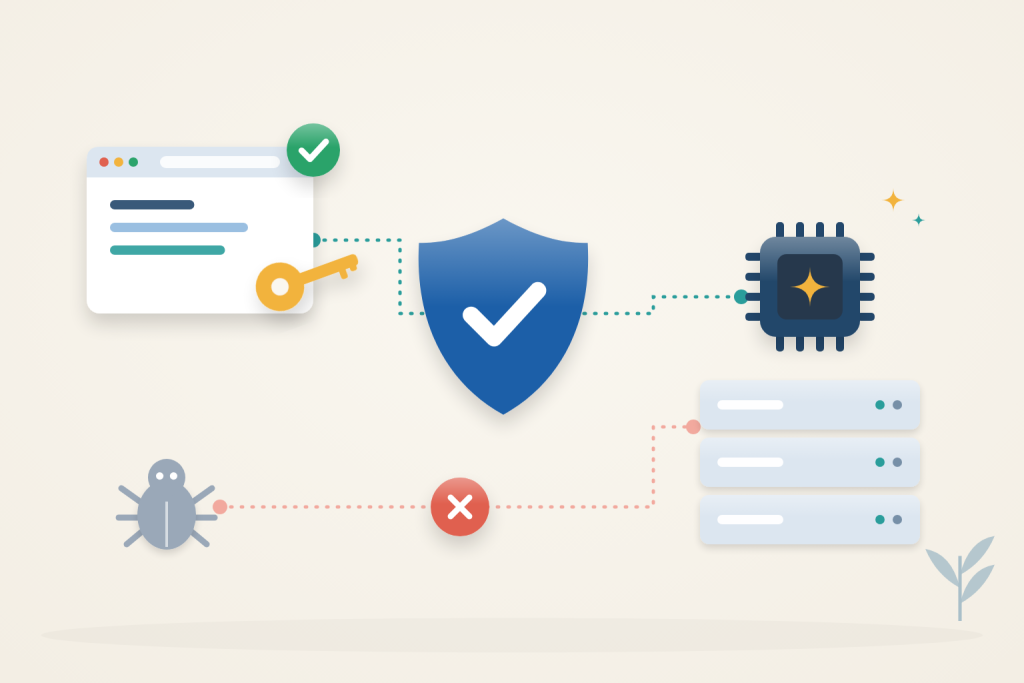
Ollama’s local API must not be published without access controls. A January 2026 SentinelLABS and Censys study reported 175,108 unique exposed hosts over 293 days. That is an observation-period total, not a simultaneous count. This guide keeps the backend private and authenticates a restricted proxy route.
The safer setup keeps Ollama on 127.0.0.1 and puts Nginx in front of it. Nginx adds HTTPS, accepts only requests with a valid API token, and forwards only the endpoints clients need.
Private-port prerequisite: use Docker Engine 28 or newer for the loopback-published ports in this guide. Older releases have a documented localhost-port exposure limitation. Confirm from another machine that the public IP cannot reach those private service ports; a proxy login does not protect a direct bypass route.
Before you start
You need an Ubuntu 24.04 server running Ollama as the systemd service from the official installer, sudo access, and a domain such as ollama.example.com with an A record pointing to the server. Ports 80 and 443 must be open for the certificate. Replace the domain everywhere below.
If you still need a server, an GICTServer VPS is sized by the models you run: small models up to about 4B parameters run on CPU with 4–8 GB RAM. Larger models are where a GPU server starts to pay off.
Check whether Ollama is exposed
On the server, see which address Ollama listens on:
$ sudo ss -ltnp | grep 11434127.0.0.1:11434 limits direct access to the local host. 0.0.0.0:11434 or *:11434 means every network interface, so the API is reachable from the internet unless a firewall blocks it. Find where the setting comes from:
$ sudo systemctl cat ollamaLook for an OLLAMA_HOST line, usually in /etc/systemd/system/ollama.service.d/override.conf.
Bind Ollama to localhost
Create or edit /etc/systemd/system/ollama.service.d/override.conf so it contains these lines. Remove any other OLLAMA_HOST line from the file:
[Service]
Environment="OLLAMA_HOST=127.0.0.1:11434"
Environment="OLLAMA_NO_CLOUD=1"
OLLAMA_NO_CLOUD=1 disables Ollama cloud features in versions that support this setting. Keep it enabled for this local-only configuration and verify the effective service environment. It does not control unrelated application traffic or replace network egress policy.
Apply the change and check the result:
$ sudo systemctl daemon-reload
$ sudo systemctl restart ollama
$ sudo ss -ltnp | grep 11434
$ sudo journalctl -u ollama --no-pager | grep "cloud disabled" | tail -n 1
The listener should now be 127.0.0.1:11434, and the last command should print a line ending in Ollama cloud disabled: true.
If you run Ollama in Docker instead, publish the port as 127.0.0.1:11434:11434. A plain -p 11434:11434 listens on every interface, and Docker’s rules bypass UFW.
Install Nginx and create an API token
$ sudo apt-get update
$ sudo apt-get install -y nginx certbot python3-certbot-nginx
$ openssl rand -hex 32
Create /etc/nginx/conf.d/ollama-tokens.conf and paste the generated value after Bearer. Each line maps one token to a client name; add a line per app or person:
map_hash_bucket_size 128;
log_format ollama '$remote_addr $ollama_client [$time_local] "$request" $status $request_time';

map $http_authorization $ollama_client {
    default "";
    "Bearer REPLACE_WITH_TOKEN" "laptop";
}
The map_hash_bucket_size line is needed because each token line is longer than Nginx’s default limit. Without it, nginx -t fails with could not build map_hash. The log_format line records which client name made each request, so you can see who uses the server.
Make the file readable only by root:
$ sudo chmod 600 /etc/nginx/conf.d/ollama-tokens.confCreate the Nginx site
Create /etc/nginx/sites-available/ollama:
server {
    listen 80;
    listen [::]:80;
    server_name ollama.example.com;

    client_max_body_size 20m;
    access_log /var/log/nginx/ollama-access.log ollama;

    location ~ ^/(api/(chat|generate|embed|embeddings|tags|show|ps|version)|v1/(chat/completions|completions|embeddings|models)) {
        if ($ollama_client = "") {
            return 401;
        }
        proxy_pass http://127.0.0.1:11434;
        proxy_set_header Host localhost:11434;
        proxy_set_header Authorization "";
        proxy_http_version 1.1;
        proxy_buffering off;
        proxy_read_timeout 300s;
    }

    location / {
        return 404;
    }
}
The first location lists the endpoints that run models or read model information, including the OpenAI-compatible /v1/ routes. Requests without a known token get 401. Everything else, including /api/pull, /api/delete, /api/create and /api/push, gets 404, so nobody can manage models from outside. This matters even for trusted clients: the pull endpoint makes the server download from whatever registry address it is given, and attackers have used exposed servers this way to force outbound connections. You can still pull models locally on the server with ollama pull.
Nginx removes the token before passing the request on, and proxy_buffering off lets streamed answers arrive word by word. proxy_read_timeout allows slow CPU answers, and client_max_body_size leaves room for images sent to vision models.
Enable the site and get a certificate:
$ sudo ln -s /etc/nginx/sites-available/ollama /etc/nginx/sites-enabled/ollama
$ sudo nginx -t
$ sudo systemctl reload nginx
$ sudo certbot --nginx -d ollama.example.com --redirect
Certbot asks for an email address, adds the HTTPS settings to the site, and installs a timer that renews the certificate. sudo certbot renew --dry-run confirms that renewal works. If UFW is active, run sudo ufw allow 'Nginx Full'. Do not open port 11434.
What the token protects
Each configured token grants access to the same listed inference and model-information routes. The client name is an accounting label in the access log, not a separate model permission or quota. Issuing different tokens makes individual revocation possible, but this configuration does not give one client a smaller model list or a separate spending budget.
Treat a token as a password. Keep it out of shared screenshots, support tickets and example configuration committed to a public repository. The access-log format records the client label instead of the Authorization header, and Nginx clears that header before forwarding the request to Ollama. Neither measure protects a token that a client application itself writes into its own logs.
The loopback listener and the authenticated proxy solve different problems. Loopback closes the unauthenticated network entrance; the proxy provides the controlled remote entrance. Local processes on the server can still contact Ollama directly. Do not describe this as isolation from other users or compromised applications already running on the same host.
Test the protection
From another computer, a request without a token must fail:
$ curl -s -o /dev/null -w "%{http_code}\n" https://ollama.example.com/api/tagsThe output is 401. With the token, the same request lists your models:
$ curl -s https://ollama.example.com/api/tags -H "Authorization: Bearer YOUR_TOKEN"Run a prompt through the OpenAI-compatible endpoint. Replace granite4:350m with a model you have pulled:
$ curl -s https://ollama.example.com/v1/chat/completions -H "Authorization: Bearer YOUR_TOKEN" -H "Content-Type: application/json" -d '{"model": "granite4:350m", "messages": [{"role": "user", "content": "Reply with OK."}]}'Model management must stay closed even with a valid token:
$ curl -s -o /dev/null -w "%{http_code}\n" https://ollama.example.com/api/pull -H "Authorization: Bearer YOUR_TOKEN" -d '{"model": "llama3.2"}'The output is 404. Finally, confirm that the raw port is closed. From another computer, this should time out or be refused:
$ curl -m 5 http://SERVER_IP:11434/api/tagsFor OpenAI SDKs and most chat apps, set the base URL to https://ollama.example.com/v1 and use the token as the API key.
If your clients connect from fixed IP addresses, you can also limit the site to them. Add these lines inside the first location block, above the if, with your own addresses, then reload Nginx:
        allow 203.0.113.10;
        deny all;
Requests from other addresses then get 403, even with a valid token. Skip this for laptops and phones whose address changes.
Each request is logged with the client name from the token file:
$ sudo tail -n 5 /var/log/nginx/ollama-access.logRequests without a valid token have an empty client field and status 401 or 404, which makes scanning attempts easy to spot. Expect some soon after the site goes live.
To revoke access, delete that client’s line from ollama-tokens.conf and run sudo systemctl reload nginx. To rotate a token without downtime, add the new token as a second line, reload Nginx, switch the app to the new token, and then delete the old line and reload again. Both tokens work in between, so the app never loses access.
Interpret the final checks together
The unauthenticated request, authorized completion, blocked management request and direct-port test establish four different boundaries. A 401 alone could come from an incorrectly configured proxy that rejects everyone. A successful model response alone could come from an unprotected endpoint. Both the allowed and denied outcomes matter.
When rotating a token, check the new token before removing the old one, then confirm the old token no longer works after the final reload. This distinguishes a successful replacement from simply adding another permanent credential. Keep each token’s client label meaningful so the access log remains useful when several applications use the same endpoint.
Troubleshooting
502 Bad Gateway: Ollama is not running or not on127.0.0.1:11434. Checksudo systemctl status ollamaand thessoutput.401with the right token: the header must be exactlyAuthorization: Bearer TOKEN, matching the map line character for character. A token sent withoutBeareris rejected.- The reload fails after editing the token file: run
sudo nginx -t. It names the line with the problem, often a missing semicolon. Nginx keeps running with the old configuration until the file is fixed. 413 Request Entity Too Large: the request is larger thanclient_max_body_size. Raise it for large images.ssstill shows0.0.0.0:11434after the restart: anotherOLLAMA_HOSTline still exists in an override file. Checksudo systemctl cat ollamaagain.
Ollama now answers only through Nginx, over HTTPS, to clients holding a token you issued.
Reference: Ollama configuration and network access. Check the documentation for your installed version before applying changes.
Related guides
How to Set Up an LLM Gateway with LiteLLM
Configure a LiteLLM gateway with private administration, virtual keys and model restrictions. Test allowed requests and understand budget limitations.
AIHow to Self-Host Karakeep with AI Tagging on a VPS
Self-host Karakeep with local Ollama tagging. Restrict first-user setup, disable public registration and verify collection, search and suggested tags.
AIHow to Categorize Support Tickets with a Local AI Model
Suggest support-ticket categories from a CSV using a CPU-only AI model. Keep inference local, preserve ticket IDs, and review uncertain classifications.
AISelf-hosted OCR on Your VPS: Extracting Text from Images with Tesseract
Extract text from images on your own server with Tesseract OCR, free and CPU-only. Install it, run OCR, and boost accuracy with image preprocessing.