
GICT knowledge base
How to Make Scanned PDFs Searchable with OCRmyPDF
Published
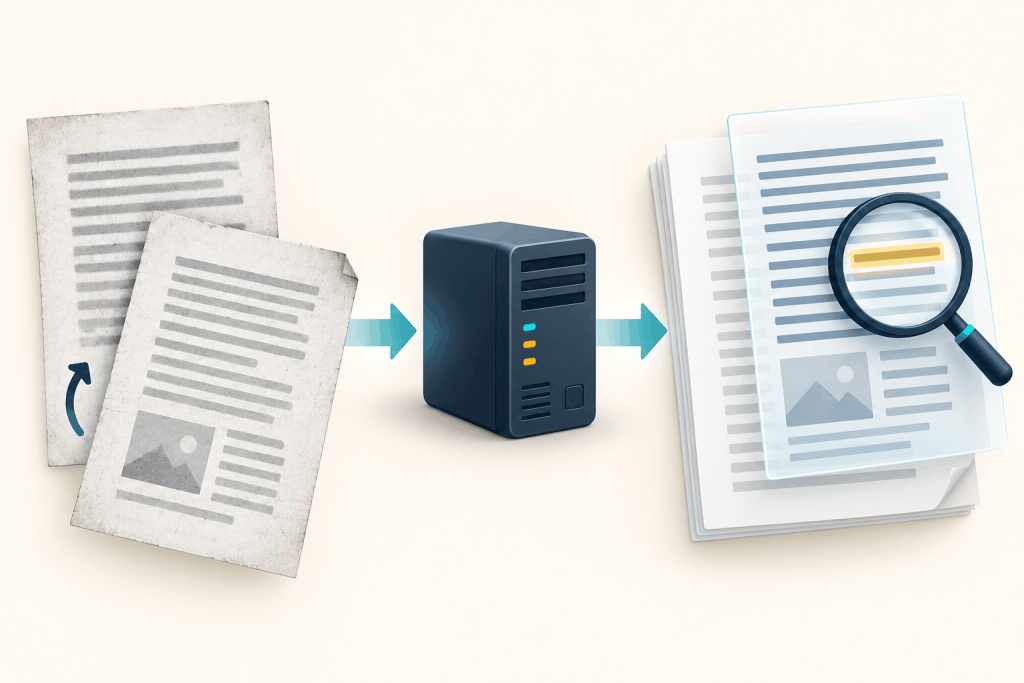
A PDF can look perfectly readable while search finds nothing. If every page is a scanned image, there may be no text for a PDF viewer to select, copy, or index. OCRmyPDF adds that text layer while keeping the document as a PDF.
This guide processes an existing multi-page scan on CPU, checks the extracted text, and handles rotated pages and documents that already contain some text. The original file stays separate. On a two-vCPU VM, the two-page example gained a text layer in 2.17 seconds.
Set up the CPU tools
Use Ubuntu 24.04 with sudo access and enough free space for the input, output, and temporary page images. The standard OCRmyPDF workflow uses Tesseract for recognition. A GPU is not required and does not accelerate this standard Tesseract path. A server is convenient for repeat jobs, but your own Linux computer can process occasional PDFs too.
If you do not already have a VPS, an GICTServer VPS with two vCPUs and 4 GB RAM is a starting point for small documents. Page dimensions, resolution, and parallel jobs affect memory use; large scans also need substantial temporary disk space. This is a hosting recommendation, not an GICTServer hardware benchmark or a minimum that every PDF will fit.
Run these commands on the Linux machine. $ represents your shell prompt; do not copy it.
$ sudo apt-get update
$ sudo apt-get install -y ocrmypdf tesseract-ocr-eng tesseract-ocr-osd poppler-utils
$ ocrmypdf --version
$ tesseract --list-langs
$ mkdir -p ~/ocr-demo
$ cd ~/ocr-demo
The tested Ubuntu packages provided OCRmyPDF 15.2.0 and Tesseract 5.3.4. The English recognition data is eng; osd supports orientation and script detection. The distribution packages install the supporting tools without a separate Python environment. Newer online documentation can describe options unavailable in Ubuntu’s packaged version, so check your installed version when comparing examples.
Check the original PDF
Place a copy of your document in ~/ocr-demo/scan.pdf. Use the supplied two-page scan.pdf if you want to repeat the example. Keep the only original somewhere else, and use a fresh output filename for each attempt. The examples below operate on copies, not an in-place replacement.
$ pdfinfo scan.pdf | grep '^Pages:'
$ pdftotext scan.pdf - | wc -w
$ sha256sum scan.pdf
For an image-only scan, text extraction produces no words. A nonzero count does not prove that every page is searchable: a cover page, page number, or old OCR layer can supply text while the rest of the document remains an image. Write down the page count and hash so you can verify that the source stayed unchanged.
Add a searchable text layer
$ ocrmypdf -l eng --jobs 2 --output-type pdf --optimize 0 --sidecar scan-ocr.txt scan.pdf searchable.pdf
$ pdfinfo searchable.pdf | grep '^Pages:'
$ pdftotext -layout searchable.pdf searchable.txt
$ head -n 12 searchable.txt
DOCUMENT PROCESSING CHECK
Reference: OCR-2048
Date: 10 September 2026
Invoice summary
Description Amount
Monthly service 124.50 USD--jobs 2 limits page workers. --output-type pdf requests an ordinary PDF rather than the default archival-conversion workflow, and --optimize 0 disables image optimization. This keeps the example focused on adding text instead of changing compression settings. It does not guarantee that output bytes or file size will stay the same.
The sidecar scan-ocr.txt contains text recognized during OCR. searchable.txt is extracted from the finished PDF and is the more useful check of what your PDF viewer can find. Check the source hash again; it should match the earlier result:
$ sha256sum scan.pdfThe test retained two pages and preserved the input hash. The 2.17-second measurement includes the OCR command and its postprocessing, with packages already installed. It excludes file transfer time. This was a small synthetic document on a VM with 3 GB allocated RAM, not a throughput estimate for a large archive.
Download searchable.pdf and open it in a PDF viewer. Search for a distinctive reference from the document, select a sentence, and copy it into a text editor. Inspect every page at a readable zoom. Visible pages and recognized text are separate things: a correct-looking scan can have an incorrect hidden text layer.
Correct rotated or crooked pages
A page scanned upside down needs a cardinal rotation. A page that is only slightly tilted needs deskewing. Apply these options to a new output if the input needs them:
$ ocrmypdf -l eng --jobs 2 --rotate-pages --deskew --output-type pdf --optimize 0 rotated.pdf corrected.pdf
$ pdftotext -layout corrected.pdf corrected.txt
$ head -n 8 corrected.txt
Here rotated.pdf is a separate input, not the output from the previous step. The example pack includes one. --rotate-pages asks Tesseract to detect orientation; --deskew straightens small tilts. A sparse page with little text may not provide enough evidence for automatic rotation. Inspect the output instead of assuming that either flag guarantees a fix.
The test corrected the upside-down first page and processed the slightly tilted second page. The corrected PDF grew to about 1.63 times the input size; rotation and deskewing are not compression tools. Deskewing can rasterize or resample page content. Avoid adding cleanup, background removal, or aggressive compression options unless you need them and have compared the result with the original. The goal is searchable text, not a prettier scan at the cost of missing detail.
Handle PDFs that already contain text
By default, OCRmyPDF stops when it detects existing text. That is useful protection against needlessly processing an already-searchable file. For a document with a digital cover followed by scanned pages, use --skip-text:
$ ocrmypdf -l eng --jobs 2 --skip-text --output-type pdf --optimize 0 --sidecar mixed-ocr.txt mixed.pdf mixed-searchable.pdf
$ pdftotext -layout mixed-searchable.pdf mixed-full.txt
$ head -n 8 mixed-full.txt
The supplied mixed.pdf contains a text cover and the two scanned pages. Skipping is page-level. A page with a typed page number and a large scanned image may be skipped entirely, leaving the image’s words unrecognized. This option is not a detector that fills every missing region on a partially searchable page.
The sidecar also omits existing text from skipped pages. If you want the complete document text, extract it from the resulting PDF with pdftotext, as above. Do not mistake a partial sidecar for missing pages in the PDF.
Do not add --force-ocr just to bypass an error. It rasterizes page content and may discard useful structure. Documents with a bad existing OCR layer need a deliberate re-OCR workflow, not indiscriminate forcing of every page in a mixed document.
Check quality before replacing your copy
- Verify the page count and orientation. A successful process is not a visual review. Compare each page with the source.
- Check numbers and identifiers. Amounts, dates, and similar-looking characters need attention even when ordinary sentences are correct. OCR does not verify whether an invoice total is valid.
- Read warnings about skipped pages or timeouts. A searchable output can still contain pages that were not recognized. Look for their expected text rather than relying only on file existence.
- Use the document’s language. English data is not a substitute for an appropriate language pack. Installing a language pack does not translate the document.
- Reduce concurrency if memory is tight. The
--jobs 2value is a bound for this example, not permission to run unlimited copies in parallel. Check available temporary disk space for large scans.
One real mismatch in the clean test scan was the asset code:
| Printed on the page | Extracted from the PDF |
|---|---|
O0I1-S5B8 |
O011-S5B8 |
The amount 124.50, time 02:30, and both document reference numbers were recovered, but the letter I became the digit 1. A reference search for the exact original code could therefore fail even though the page is searchable.
Keep the source until you have checked the output and made your normal backup. Searchable text helps retrieval; it is not evidence that every character was recognized correctly.
When OCR is the wrong tool
If the PDF already has good selectable text, use pdftotext directly. Repeating OCR can introduce errors without adding anything useful. For a clean image of printed text, Tesseract alone may be enough; OCRmyPDF is useful when the input is already a multi-page PDF and you want it to remain one.
This is not reliable handwriting recognition, table-to-spreadsheet conversion, or a fully tagged accessible-PDF workflow. A searchable layer does not automatically provide correct reading order or document structure. Keep digitally signed originals untouched: producing a changed PDF is not a way to preserve the original signature’s validity.
The two-page test became searchable in 2.17 seconds on CPU. You now have a separate output PDF, a way to inspect its text, and a check for pages that already contain text. Keep the visible scan and the recognized words in your review; neither one alone proves the conversion is correct.
Related guides
How to Self-Host DocuSeal for Document Signing
Self-host DocuSeal with private administrator setup, PostgreSQL and HTTPS. Test signing, understand email data flows and create consistent backups.
Self HostedHow to Self-Host Docmost with Docker on Ubuntu 24.04
Install Docmost with Docker, PostgreSQL and Redis. Set up a private workspace and verify editing, live updates and attachment retrieval.
Self HostedHow to Remove Image Backgrounds Locally with rembg
Remove image backgrounds locally with rembg. Preserve originals, check PNG transparency and inspect cutout quality on both light and dark backgrounds.
Self HostedHow to Translate Text Offline with Argos Translate
Translate plain text locally with Argos Translate. Install a language pair, prepare caches, verify offline operation and review translation quality.