
GICT knowledge base
How to Translate Text Offline with Argos Translate
Published
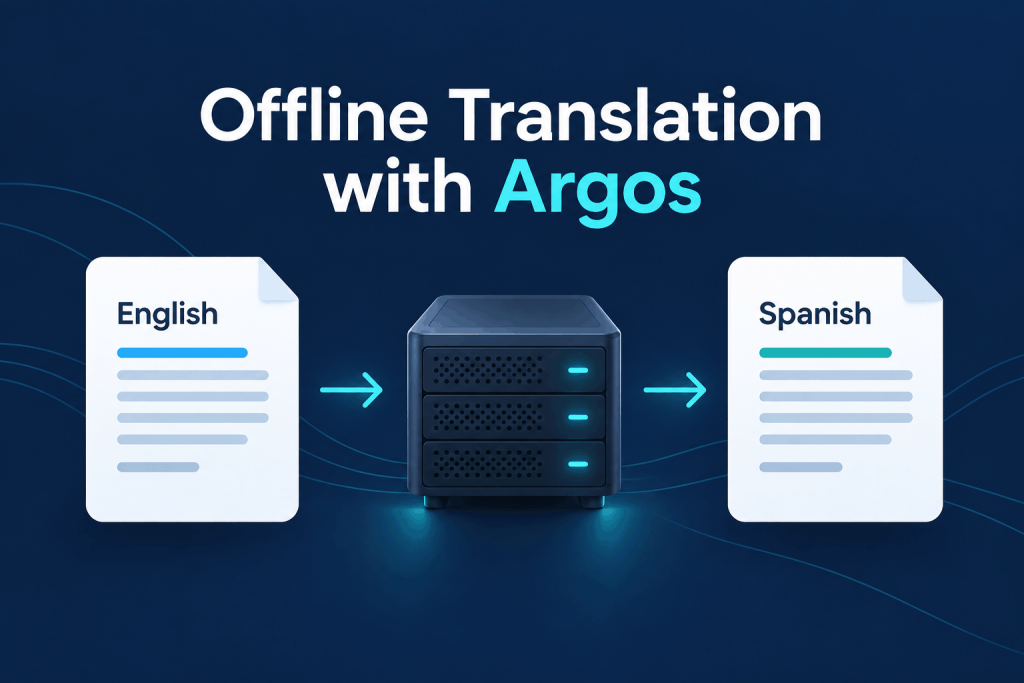
Translation does not have to send every sentence to a hosted service. Argos Translate runs a downloaded language model on your own machine. It can translate a support notice or a plain-text document without an API key, and it keeps processing local once the required files are installed.
Choose a CPU VPS and a direct language pair
Use Ubuntu 24.04 LTS, a regular SSH user with sudo access, and an internet connection for installation. Two vCPUs, 4 GB of RAM, and several gigabytes of free disk are a sensible starting point for one language pair and one translation job at a time. More simultaneous jobs need more resources; a short-text benchmark does not establish production capacity.
If you do not have a VPS already, choose an GICTServer VPS with comparable resources. A server is useful for repeat work or a shared translation workflow. Your own Linux computer also works for occasional documents, and this procedure does not require a GPU.
Language packages are directional. We install en to es, which means English to Spanish. It does not automatically provide Spanish to English. Argos can sometimes translate through an intermediate language when the required packages exist, but this guide uses a direct pair to keep the result and setup easier to assess.
Install the CPU tools in a virtual environment
Create an isolated Python environment instead of installing into Ubuntu’s system Python:
$ sudo apt-get update
$ sudo apt-get install -y python3-venv python3-pip nano time
$ mkdir -p ~/argos-demo
$ cd ~/argos-demo
$ python3 -m venv .venv
$ source .venv/bin/activate
$ python -m pip install 'torch==2.8.0' --index-url https://download.pytorch.org/whl/cpu
$ python -m pip install 'argostranslate==1.11.0'
$ python -m pip check
Argos includes sentence-processing dependencies that can use PyTorch. The CPU wheel avoids an unnecessary GPU runtime for this workflow. The package version below identifies the example; check current compatibility and security notes before installation.
Set the CPU device, select MiniSBD for sentence splitting, and keep the translation packages inside the project directory:
$ export ARGOS_DEVICE_TYPE=cpu
$ export ARGOS_CHUNK_TYPE=MINISBD
$ export ARGOS_PACKAGES_DIR="$PWD/packages"
$ export ARGOS_INTRA_THREADS=2
$ mkdir -p packages output
$ argospm update
$ argospm install translate-en_es
$ argospm list
Sentence splitting can require resources separate from the translation model. This example selects MiniSBD explicitly. Warm the cache as the intended user and verify your exact package combination offline rather than assuming a downloaded language model is sufficient.
argospm update downloads the package index. The install command downloads the selected language model, not every available language. The package list should include translate-en_es. These commands need internet access; “offline translation” does not mean an offline installation.
Argos software is available under MIT or CC0 licensing. Check the metadata and license shipped with a selected language package separately, particularly when distributing the model with an application. This guide installs from the official package index and does not bundle model weights.
Translate a sentence while still online
Run a short translation before disconnecting the machine:
$ argos-translate --from-lang en --to-lang es 'The server is ready.'An illustrative Spanish translation is:
El servidor está listo.The first translation can initialize or download sentence-boundary resources in addition to the translation package. Let it finish while the connection is available. A successful language-package download alone does not prove that a fresh machine is ready to work offline.
The explicit language arguments matter. They tell Argos which installed translation to use; this command is not automatic language detection. Quote short inline text so the shell passes it as one argument. For paragraphs, punctuation, and embedded quotation marks, a plain-text file is easier to maintain.
Translate a UTF-8 text file
Create ~/argos-demo/source.txt using nano source.txt, with these contents:
The website will be unavailable for ten minutes on Friday. Please save your work before the maintenance begins.

Your files will remain on the server. Do not delete the backup. Contact our support team if you need help.
Save it as UTF-8 plain text. Then feed it to the CLI through standard input and write the translation to a different file:
$ /usr/bin/time -f 'Elapsed: %e s; peak memory: %M KiB' argos-translate --from-lang en --to-lang es < source.txt > output/spanish.txt
$ cat output/spanish.txt
Read the generated Spanish file and the time command’s own measurements. Timing includes process startup and model loading; compare only runs with the same input, package versions and cache state.
Do not use source.txt as both the input and output path: the shell can truncate the file before Argos reads it. Reusing output/spanish.txt also replaces that output, so choose another name if you want to preserve an earlier translation. A failed command can leave an empty output file; check errors before using the result.
The time command reports the complete CLI run, including Python imports and model loading, while the translated text goes into the output file. This is different from measuring an already-running translation service. Inspect the result for missing sentences, incorrect numbers, lost negation, and terminology that is inappropriate for your audience.
To copy the result to your computer, run this in a local terminal, substituting your SSH username and server address:
$ scp your-user@your-server:~/argos-demo/output/spanish.txt ./spanish.txtKeep normal SSH host-key verification enabled. If you are running the guide locally, open output/spanish.txt directly instead. This workflow handles plain text; it does not preserve a Word document’s layout or translate a scanned PDF.
Check offline operation before relying on it
To test offline readiness, use an isolated disposable environment or an administrator-controlled process-level network restriction. Do not disable the VPS interface or its SSH firewall rules. Run the same input with the same account and caches, and retain the output and errors.
Keep the same operating-system user, virtual environment, package directory, and caches. A new user account may not have the sentence-boundary resources downloaded by the first user. If a background job runs as another account, prepare and verify that account before calling the job offline-ready.
In a fresh shell, restore the working directory and environment before translating:
$ cd ~/argos-demo
$ source .venv/bin/activate
$ export ARGOS_DEVICE_TYPE=cpu
$ export ARGOS_CHUNK_TYPE=MINISBD
$ export ARGOS_PACKAGES_DIR="$PWD/packages"
$ export ARGOS_INTRA_THREADS=2
$ argos-translate --from-lang en --to-lang es < source.txt > output/spanish-fresh.txt
$ cmp output/spanish.txt output/spanish-fresh.txt
cmp prints nothing when the files match. A match shows that this input gave the same result in the repeated test; it does not establish correctness in either language. Keep installation, model download, successful inference, and translation quality as separate checks.
Fix missing models and unexpected results
- The language or route is missing: inspect
argospm list. An English-to-Spanish package does not create the reverse route. Install the required direction and inspect any error rather than assuming swapping the language flags is sufficient. - A new shell cannot find the package: reactivate the virtual environment and reset
ARGOS_PACKAGES_DIRfrom the project directory. Shell exports are not permanent configuration. - Offline startup tries to download a file: warm up translation as the intended user while online. Preserve its cache as well as the language package directory.
- The output is still English: specify both language flags and confirm the requested route is installed. Exit status alone does not establish that the text was translated.
- The text sounds wrong: shorten ambiguous sentences and give the model enough context. Review dates, negation, product names, and instructions manually. A fluent-looking sentence can still carry the wrong meaning.
When to use a human translator
Argos is useful for private first drafts and understanding routine text. It is not a guarantee of publication-ready localization. Language pair, domain, and phrasing all affect the result, and an intermediate-language route can introduce additional errors.
Review negation, numbers, idioms, technical terminology and level of formality explicitly. A translation that preserves the sentence structure can still reverse an instruction or use the wrong product term. Do not publish sensitive instructions solely because the output sounds fluent.
Use a qualified translator or reviewer for legal, medical, contractual, and other consequential material. For a customer-facing notice, have a reader competent in the target language check the message before publishing it. Translating it back into English is not a substitute: two model errors can hide each other.
The result of this setup is a repeatable, local text-to-text workflow: a selected model, an explicit language direction, and a separate output file. Keep the model and required caches in place, and a CPU VPS can perform the translation without submitting each document to a hosted API.
Reference: Argos Translate upstream project. Check the documentation for your installed version before applying changes.
Related guides
How to Self-Host DocuSeal for Document Signing
Self-host DocuSeal with private administrator setup, PostgreSQL and HTTPS. Test signing, understand email data flows and create consistent backups.
Self HostedHow to Self-Host Docmost with Docker on Ubuntu 24.04
Install Docmost with Docker, PostgreSQL and Redis. Set up a private workspace and verify editing, live updates and attachment retrieval.
Self HostedHow to Remove Image Backgrounds Locally with rembg
Remove image backgrounds locally with rembg. Preserve originals, check PNG transparency and inspect cutout quality on both light and dark backgrounds.
Self HostedHow to Self-Host Vikunja with Docker on Ubuntu 24.04
Self-host Vikunja with Docker and PostgreSQL. Create an account privately, connect through SSH and verify tasks, attachments and persistent storage.