
GICT knowledge base
How to Create Websites in IIS
Published
In this tutorial, we can discuss about how to create websites in IIS. To do this, please follow the below given steps:
Step 1:
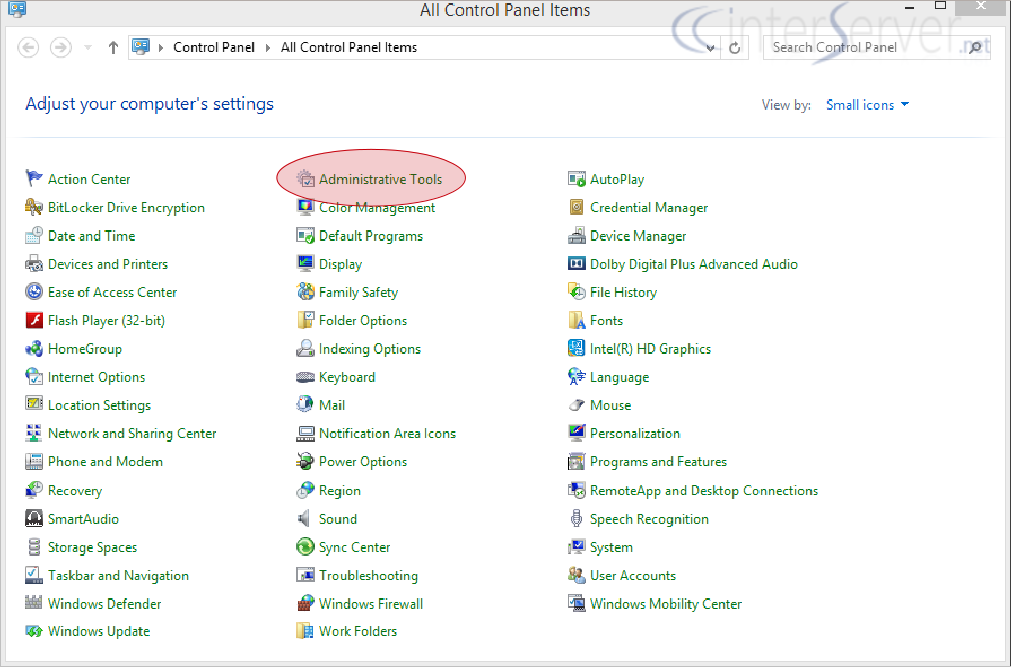
Log in to computer as administrator. Then access “Administrative Tools” from
Start>>Settings>>Control Panel.
Step 2:
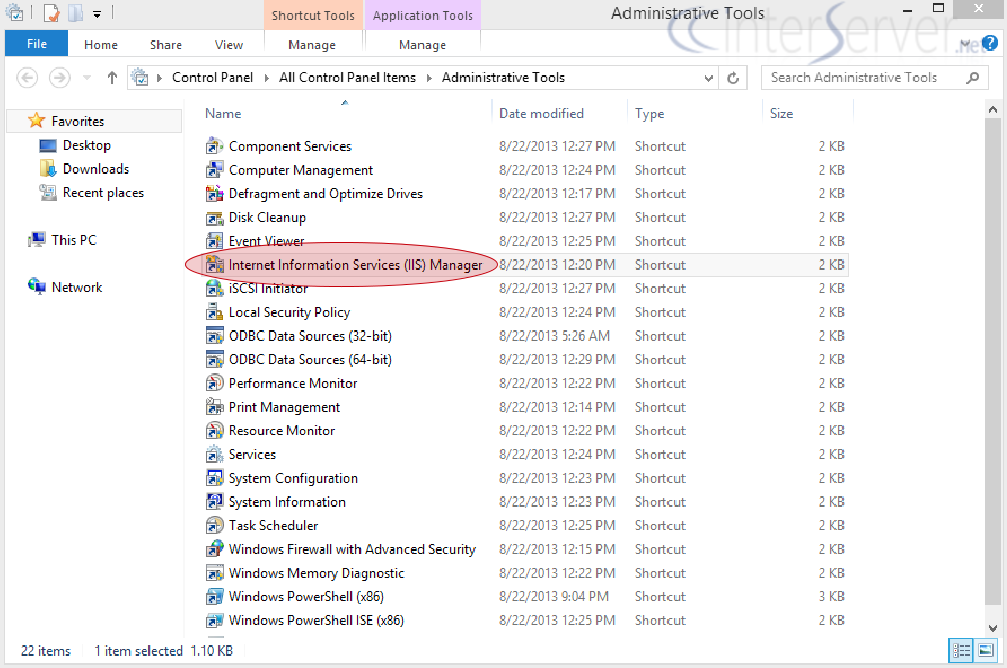
Double click “Internet Information Services (IIS) Manager” from “Administrative Tools”.
Step 3:
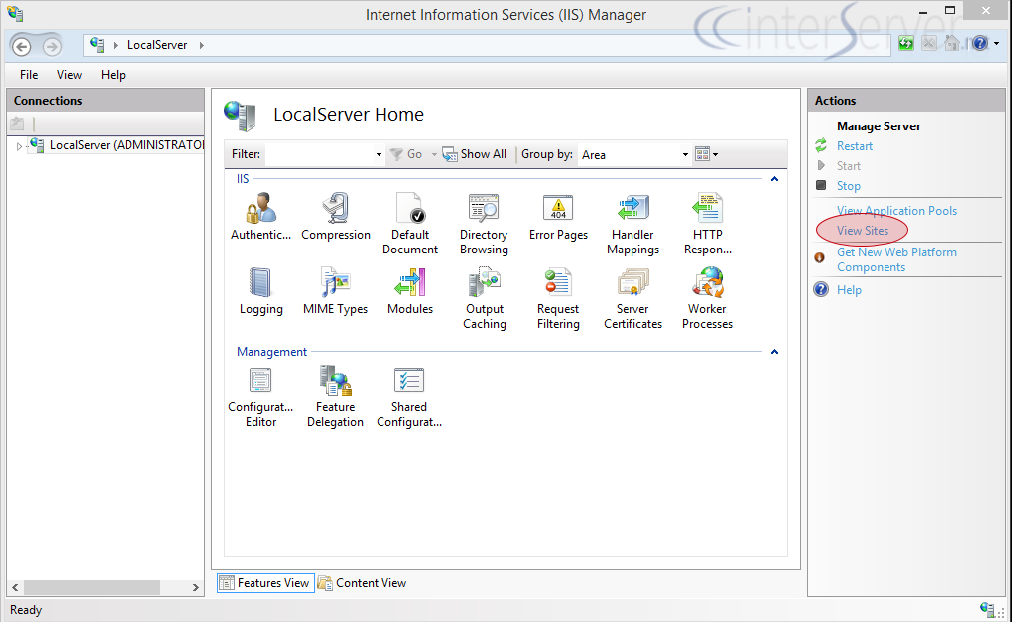
Click “View Sites” option from “Actions” panel (Right side of IIS Manager)
Step 4:
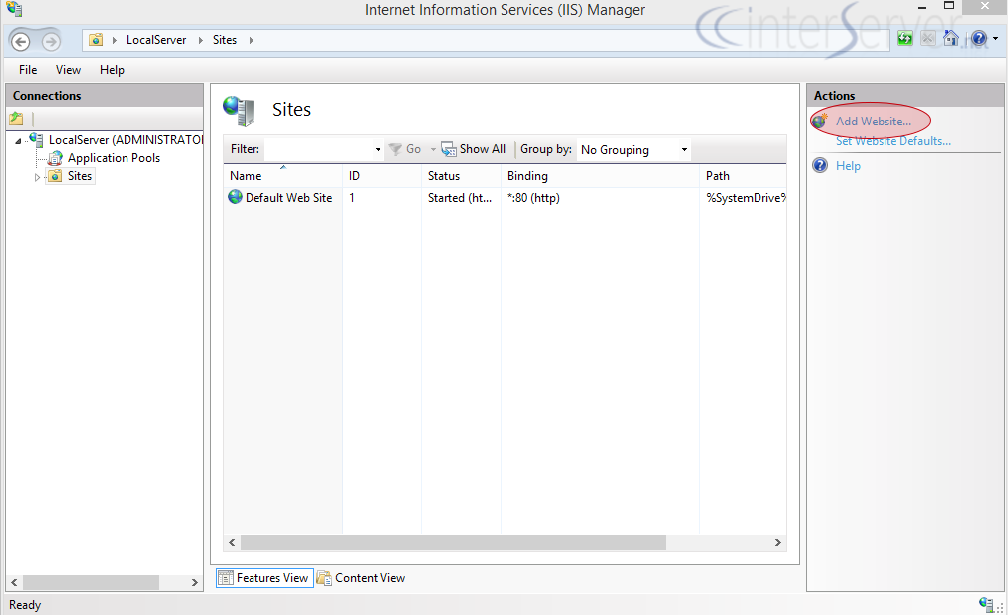
Now we can see a list of websites already added to IIS. Since our goal is to add a new website, click “Add Website” from the “Actions” panel.
Step 5:
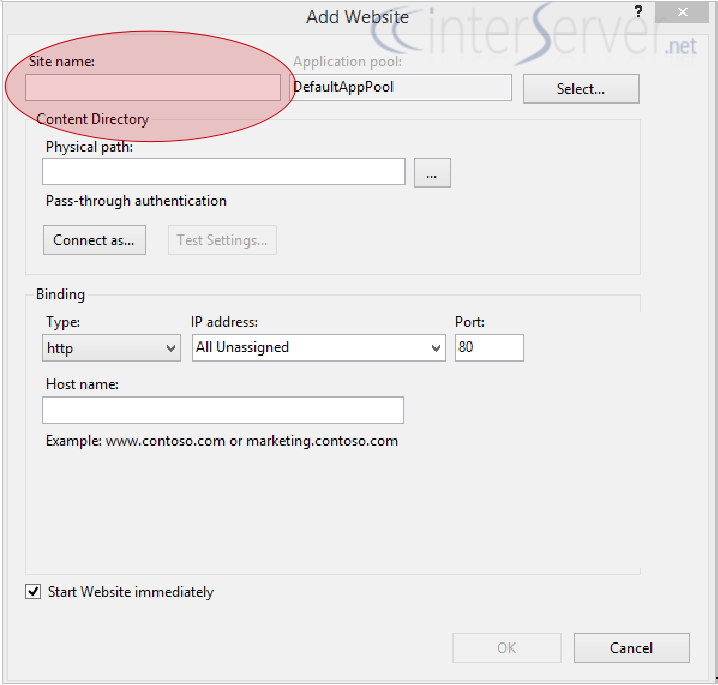
Now a box appears to add details forthe new website. Type a friendly name for your website in the “Site name” dialogue box.
Step 6:
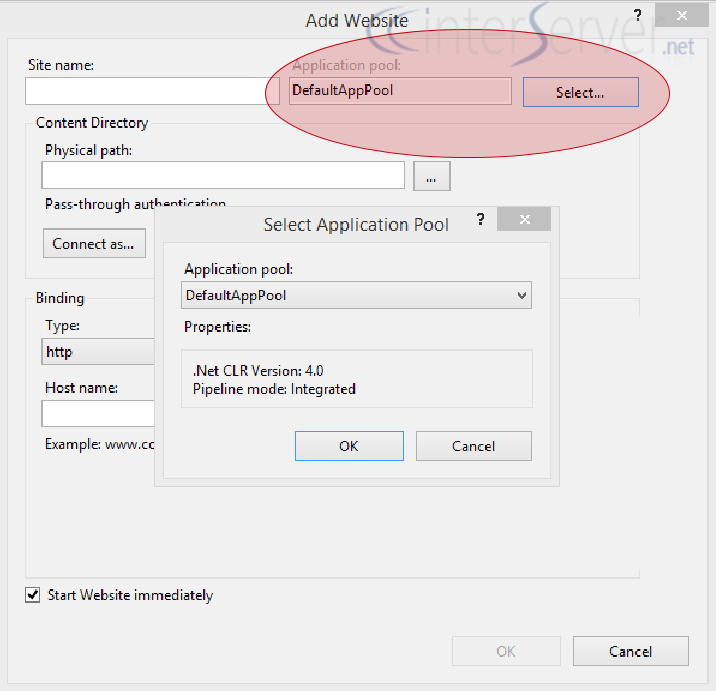
Select the application pool from the “Select” option, if you want to choose a different application pool thanthe listed one and click “OK”.
Step 7:
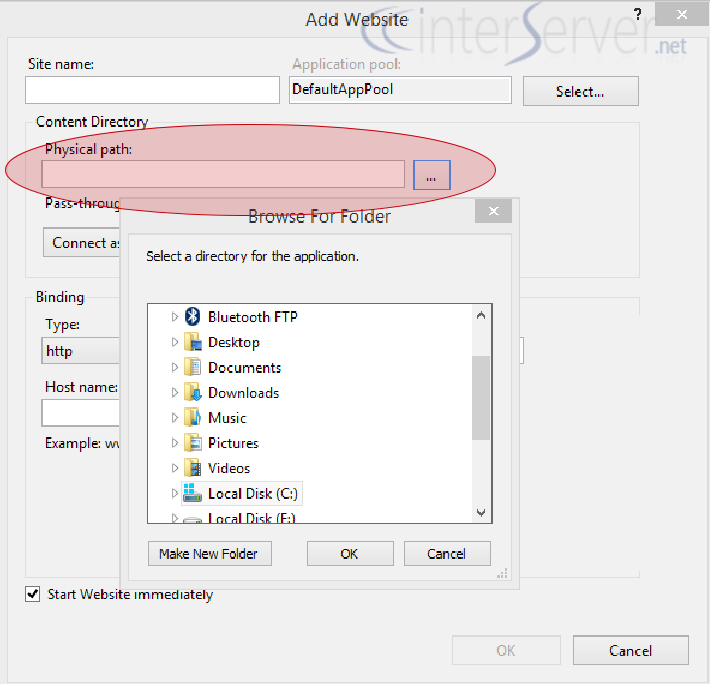
In the “Physical path folder type physical path of the website’s root folder or click the button (…) to browse and add the path.
Step 8:
In “Binding” addthe protocol, IP address, port number and name of your website as shown below and click “OK”.
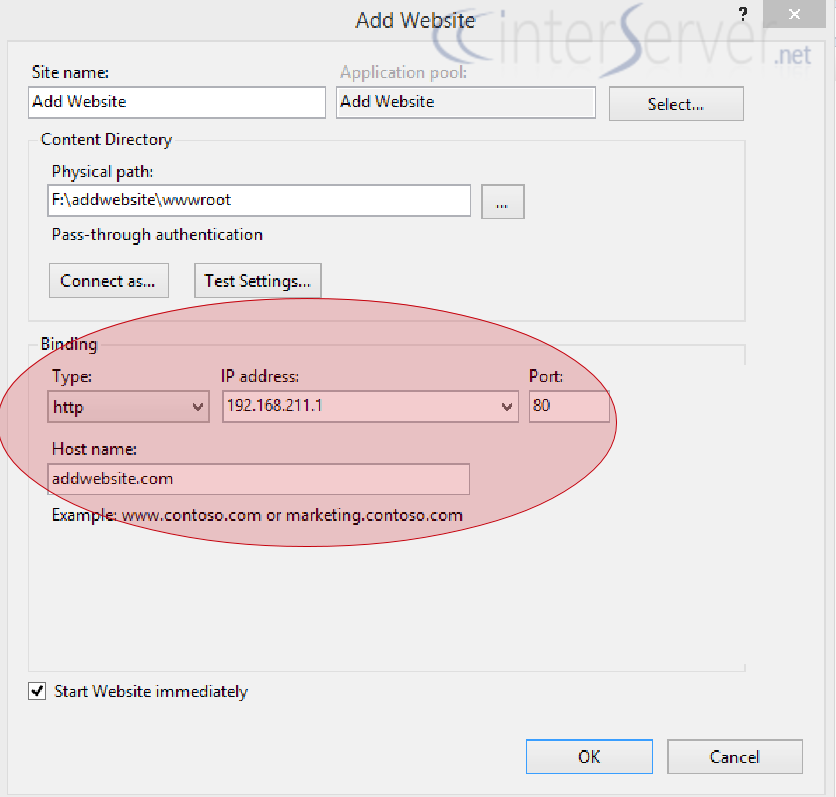
Now the website has been created and you can test the website from “Browse Website” option or directly from web browser.
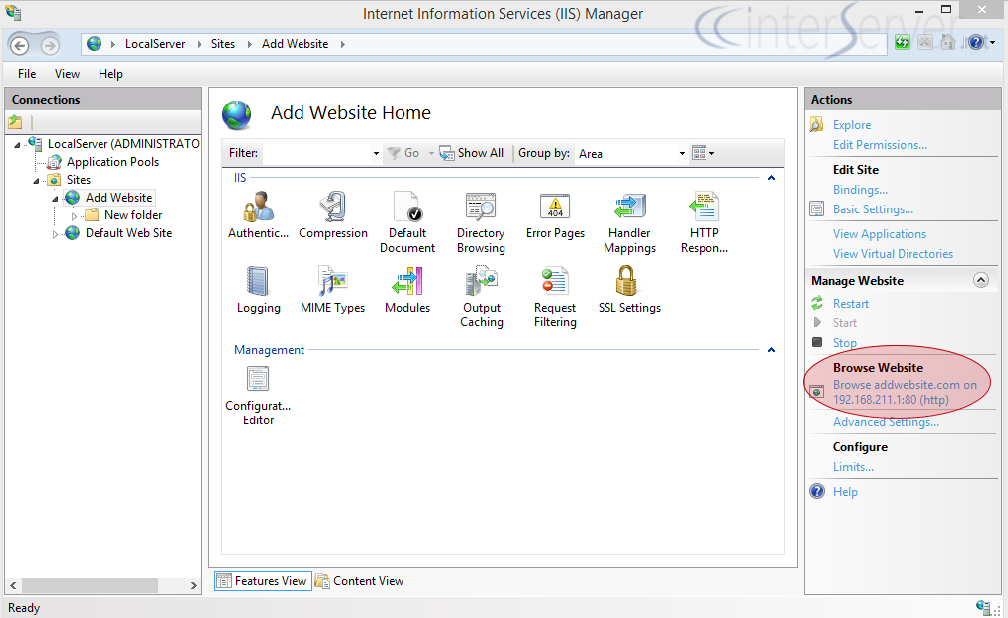
This concludes adding the website in IIS (Internet Information Services).
If you need any help with the setup, please contact our support department and we will help you with it.
Related guides
Optimizing MetaTrader on Your GICTServer VPS
Optimizing MetaTrader on Your GICTServer VPS Running MetaTrader 4 or 5 (MT4/MT5) on a Virtual Private Server (VPS) is the gold standard for traders who need 24/7 uptime...
WindowsUnderstanding the db_owner Role in Plesk Windows Hosting
If you have ever managed a database on a Windows-based hosting plan using Plesk, you might have noticed that your database user doesn’t always start with "full"...
WindowsHyper-V Windows VPS: Password Security & Reset Policies
When you provision a Windows VPS (Hyper-V) with GICTServer, you are granted full Administrator access.
WindowsChange RDP port on Windows server
How do you Change the RDP port on a Windows server? Remote Desktop Protocol is a secure network protocol developed by Microsoft that provides a user interface with good...