
GICT knowledge base
Why Your Website Needs a Backup Strategy (And How to Build One)
Published
Your website goes down. Maybe a plugin update breaks something. Maybe a hacker gets in and wipes your database. Maybe your hosting company has a bad day and loses data. Whatever the cause, the result is the same – your content is gone.
Now imagine you have been writing that blog for two years. Or running that e-commerce store with 400 orders in it. Or building a client portfolio for the last six months. All of it. Gone.
This happens more than people think. And the sites that recover fastest are the ones that never lost their data in the first place because they had a backup.
This guide explains exactly why backups matter, what can go wrong without them, and how to build a backup strategy that actually works.
What a Website Backup Actually Is
A website backup is a copy of everything that makes your site work. That includes your files – images, themes, plugins, scripts – and your database, which is where all your posts, comments, user data, and settings live.
Think of it like a photocopy. If something happens to the original, you have a copy you can restore. Without that copy, you have nothing to go back to.
Some hosting companies offer automatic backups as part of their service. Others treat backups as an add-on you pay extra for. Either way, the important question is not whether backups exist – it is whether you have tested restoring from one.
A backup you have never tried to restore is not really a backup. It is just a folder on someone else’s server.
What Can Actually Go Wrong
Most people do not think about backups until they need one. By then, it is too late. Here is what actually happens to websites that have no working backup strategy.
Failed updates. WordPress plugins and themes update all the time. Sometimes an update conflicts with something else on your site and breaks the whole thing. If you cannot restore quickly, you are stuck debugging code you did not write while your site is offline.
Hacks and malware. Websites get attacked every day. SQL injections, file upload exploits, compromised admin accounts – the methods vary but the outcome is often the same. An attacker can delete your content, deface your pages, or steal your user data. With a clean backup, you can wipe the damage and start fresh. Without one, you might be rebuilding from scratch.
Hosting failures. Even the best hosting companies have incidents. Hardware fails. Data centers have outages. Rare events happen. Your host might restore service eventually, but they are not responsible for your data. Their hardware, their choice. Your content, your problem.
Human error. You delete a page by accident. You mess up a database edit while trying to fix something else. You change a setting that locks you out of your own admin panel. These things happen to everyone at some point. Backups are your undo button.
Ransomware. This one is growing fast. Attackers encrypt your files and hold them hostage until you pay. If you have a recent backup that was not connected to the compromised system, you can restore and ignore the ransom demand entirely.
The Real Cost of Losing Your Data
Data loss is not just an inconvenience. It has real consequences.
For a blog, you lose years of content, your search rankings, your email subscribers, and the time you spent writing. Search engines de-index sites that return errors. Rebuilding that organic traffic takes months.
For an online store, every hour of downtime is lost revenue. If your product database is gone, you cannot process orders. If your customer records are gone, you cannot fulfill existing orders or communicate with buyers. The damage to trust alone can outlive the technical outage.
For a business site, your portfolio, your service pages, your contact information – all of it represents time and money invested. Losing it means starting over from zero while trying to run a business at the same time.
The pattern is the same everywhere. The more you have built, the more you have to lose.
What a Good Backup Strategy Looks Like
A backup strategy is not just one backup. It is a system that covers multiple bases.
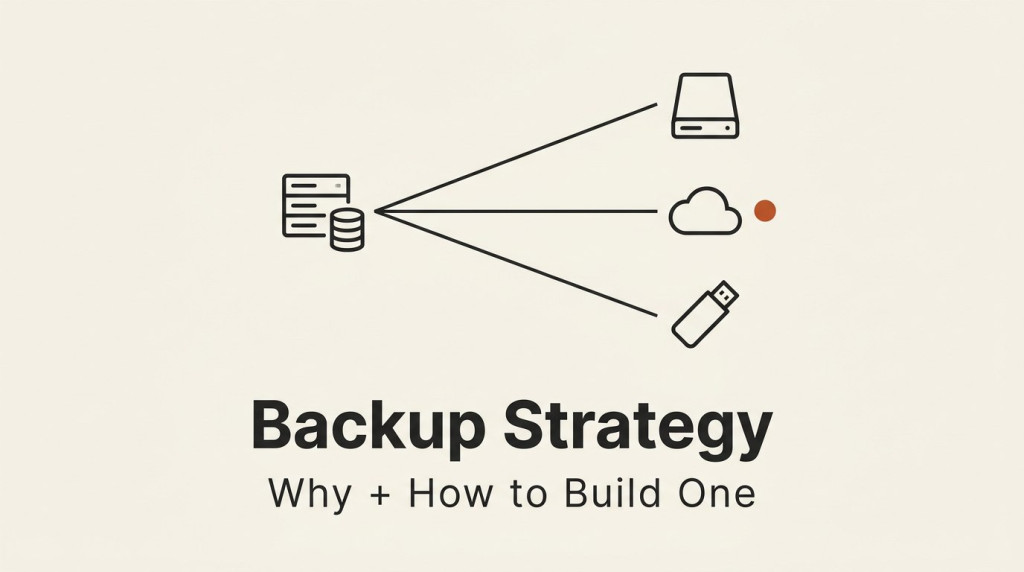
The 3-2-1 rule is a good starting point. Three copies of your data. Two different storage media. One copy offsite. This way, even if your server burns down and your home computer fails in the same week, you still have a way to restore.
For a real website, that might look like this. Your host provides automatic daily backups – that is one copy. You run your own weekly backup to a local hard drive – that is a second copy on different media. And you store a monthly archive on cloud storage like Google Drive or Amazon S3 – that is your offsite copy.
GICTServer offers automated backup solutions as part of their hosting plans, which covers the first layer. Adding your own manual backups on top of that creates redundancy that is genuinely robust.
Frequency matters. A backup from three months ago is useless if you update your site every day. Match your backup frequency to how often your content changes.
- For a static site that barely changes: monthly backups are probably fine
- For a blog with new posts every week: weekly backups minimum
- For an e-commerce store with orders coming in daily: daily backups or real-time replication
- For a membership site with user-generated content: real-time or near-real-time backups
How to Actually Build One
Here is a practical approach you can set up today.
Step 1: Check what your host offers. Log into your hosting dashboard and look for backup options. Some hosts run daily automated backups you can restore with one click. Others charge for backups or only keep them for a limited time. Know what you are working with before you build anything on top of it.
Step 2: Set up a manual backup schedule. Even if your host offers automated backups, having your own copy gives you control. For WordPress sites, plugins like UpdraftPlus or BlogVault make this straightforward. You can schedule automatic backups to cloud storage and forget about it.
Step 3: Store a copy offsite. Your hosting server is not enough. If the host has a complete failure, backups on that same server might be gone too. Cloud storage is the easiest solution. Google Drive, Dropbox, Amazon S3, and similar services all work. Pick one and set it as your automatic destination.
Step 4: Test your backups. This is the step most people skip. Pick a quiet afternoon and try restoring a backup to a staging environment. If it works, your strategy is real. If it does not work, you have time to fix it before something goes wrong.
Step 5: Document the process. Write down the steps to restore your site. Include login credentials, plugin names, and the exact restore sequence. Store this document somewhere safe, ideally not on the same system you are backing up. If you get locked out of your site at 2 a.m., you do not want to be figuring out what plugin you use while your visitors see an error page.
Common Mistakes to Avoid
Assuming your host has you covered. Read the fine print. Some hosts advertise backups but only keep them for seven days. Others only back up the server, not your individual account. Understand exactly what is included before you rely on it.
Backing up but never checking. You might have 30 backups saved and every single one could be corrupt. You will not know until you try to restore. Check them regularly, not just when something breaks.
Keeping all backups in the same place. If your cloud storage account uses the same password as your hosting account and someone compromises one, they have both. Use different credentials. Enable two-factor authentication everywhere.
Not backing up before major changes. Always take a fresh backup before you update WordPress core, install a batch of new plugins, or make major design changes. This gives you a clean restore point if something goes sideways.
Deleting old backups to save space. Old backups might be the only copies of content you later realize you needed. Keep at least three to six months of backups, even if they take up storage space. Storage is cheap. Losing two years of content is not.
Signs Your Current Backup Strategy Is Not Working
You might think you have a backup strategy and still be in trouble. Watch for these warning signs.
You have never successfully restored from a backup. If you have never tested the restore process, you do not have a working backup strategy. You have a hope and a prayer.
Your last backup is more than a month old. Content changes faster than that. Your restore point is already outdated the moment you create it.
All your backups live in the same place. Server, home computer, external drive in the same building. A single fire, flood, or theft takes all of them at once.
You do not know where your backups are. If you cannot immediately find and access your backups when you need them, they might as well not exist.
Conclusion
Backups are not optional. They are the difference between a temporary inconvenience and a catastrophe.
Set up automated backups today, not tomorrow. Use at least two different storage locations. Test your restore process at least once a quarter. Document everything so you can act fast if something breaks.
Your future self will thank you the first time you need a backup and it actually works.
FAQ
How often should I back up my website?
As often as your content changes. A static site that updates once a month might only need monthly backups. A WordPress site with daily posts needs weekly or daily backups. An e-commerce store needs daily or real-time backups at minimum. The rule of thumb is: you should never stand to lose more than a day’s worth of work.
Should I rely on my hosting company’s backups?
Only if you have verified exactly what they include and for how long. Many hosts offer backups as a courtesy, not a guarantee. Read the service terms. If they say backups are “best effort” or only kept for seven days, that is not a real strategy. Layer your own backups on top regardless.
What is the best way to back up a WordPress site?
UpdraftPlus is one of the most popular options because it handles both files and the database, schedules backups automatically, and can send copies to cloud storage. BlogVault is another strong choice, especially for larger sites. Both let you test restores without affecting your live site.
Can I back up my site manually?
Yes. You can download your files via FTP and export your database through phpMyAdmin. This works but it is time-consuming and easy to forget. Automated plugins are faster, more reliable, and less likely to be skipped when you are busy.
What should I do if my site gets hacked?
First, do not panic. Second, change all your passwords immediately. Third, find your most recent clean backup and restore from it. Fourth, once your site is back up, audit every plugin and theme for vulnerabilities. If you do not have a clean backup, you may need to rebuild from scratch, which is why prevention is so much better than recovery.
Related guides
How to Switch Hosting Providers With Zero Downtime
How to switch hosting providers with zero downtime in 2026: the migration plan, DNS cutover strategy, data sync strategies, rollback procedure, and a pre-migration...
Hosting GuidesDatabase Sharding Strategies for Growing Apps
Database sharding strategies for growing apps in 2026: when you actually need sharding, how to choose a shard key, the 5 main strategies, cross-shard query costs...
Hosting GuidesVector Databases Explained: pgvector for AI-Powered Apps
Vector databases explained for AI apps in 2026: what they are, why pgvector is the right default for most teams, how embeddings work, chunking strategies, production...
Hosting GuidesWhat Good Hosting Support Actually Looks Like
What good hosting support looks like in 2026: quick first response, real engineers, public status pages, transparent postmortems, and how to test support quality before...