
GICT knowledge base
How to Manage Zones in AbanteCart?
Published
Abantecart is an e-commerce platform where you can expand your business by one-step installation and
sell your products online. It provides you all the features you need to manage your store in whole world with great efficiency. In this tutorial, We will see one such feature. The feature that allows you to manage the availability of your store in the different parts of world.
Zones means the predefined areas of country where you can decide your products will be delivered here
or not. You can simply turn ‘ON’ &'OFF’ the (Areas) zones where you can deliver your products. Let’s see
how you can easily manage the zones Step by step.
How to manage zones in AbanteCart
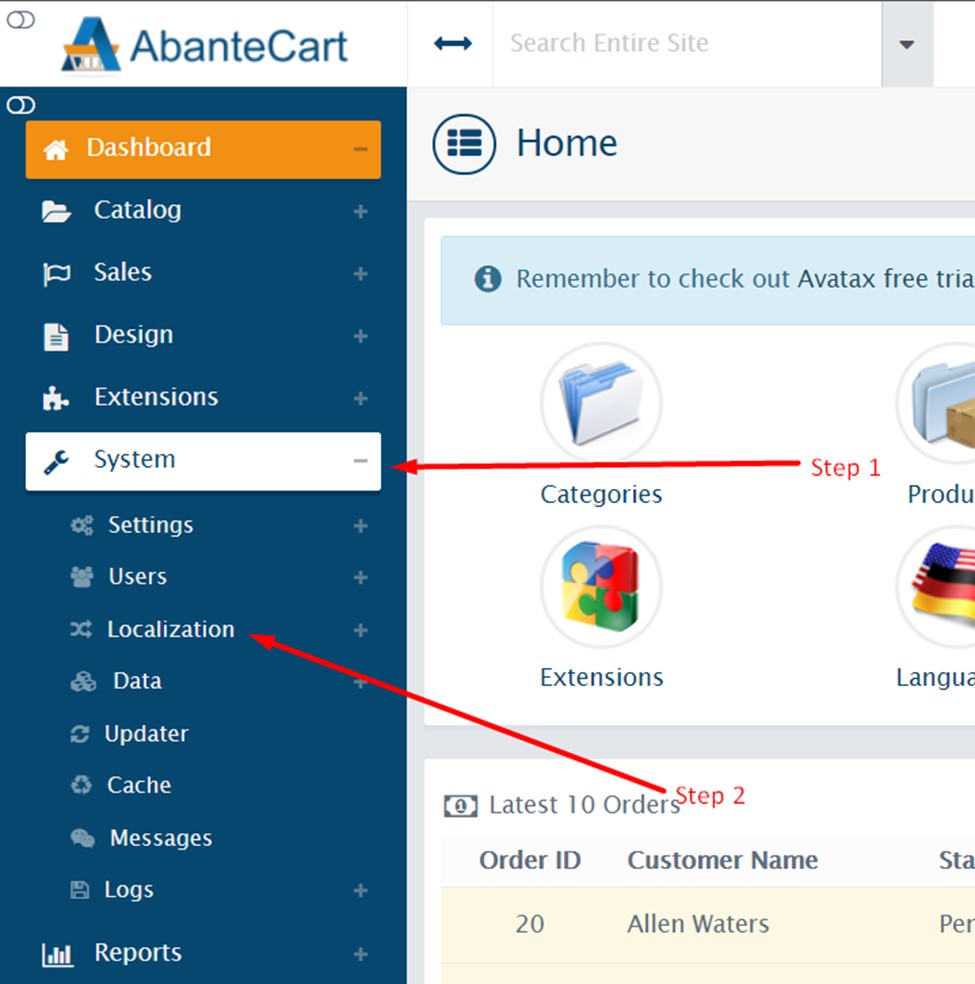
Step 1 : Log in to the admin panel of your AbanteCart. Click on the ‘System’.
Step 2 : Click on ‘Localization’ option from the left sidebar of the admin panel.
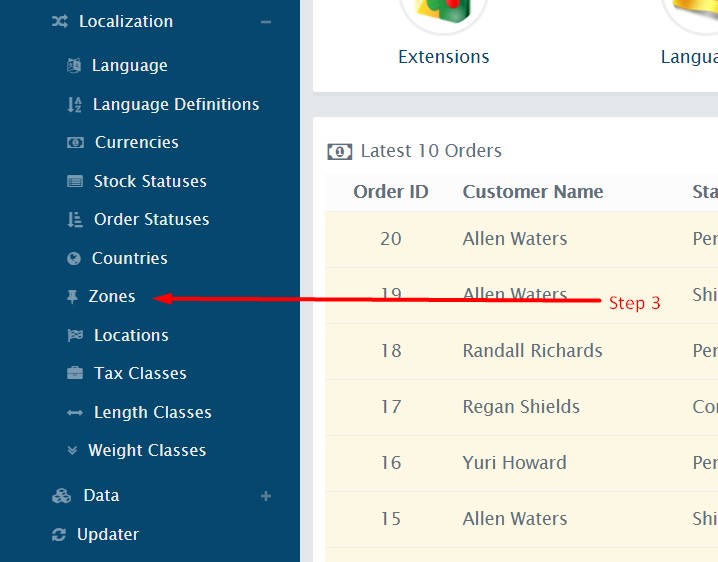
Step 3: Then Click On the ‘Zones’.
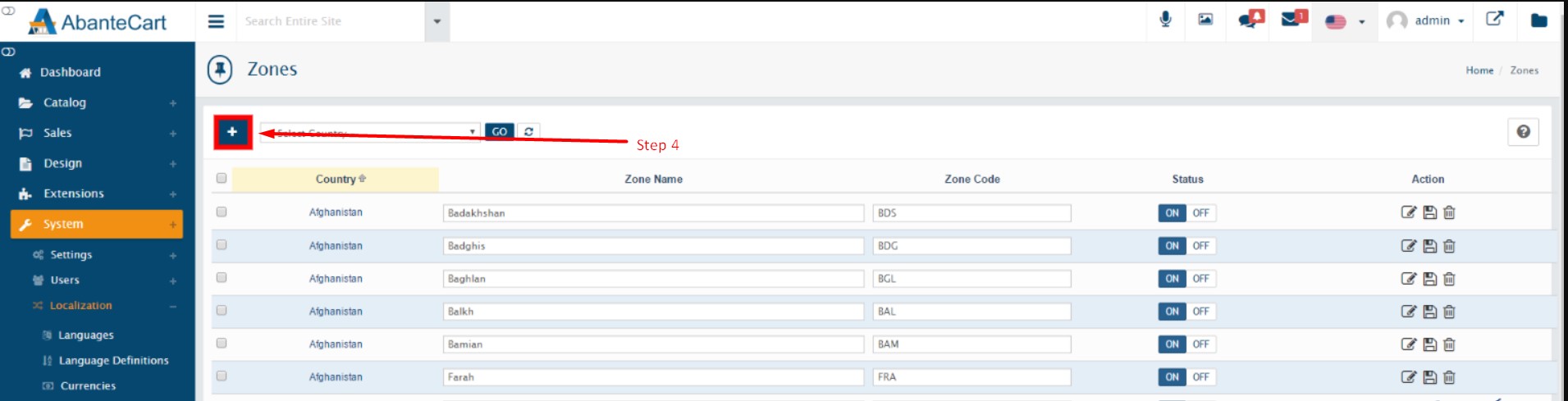
Step 4: Click on the Plus-button ‘Add’.
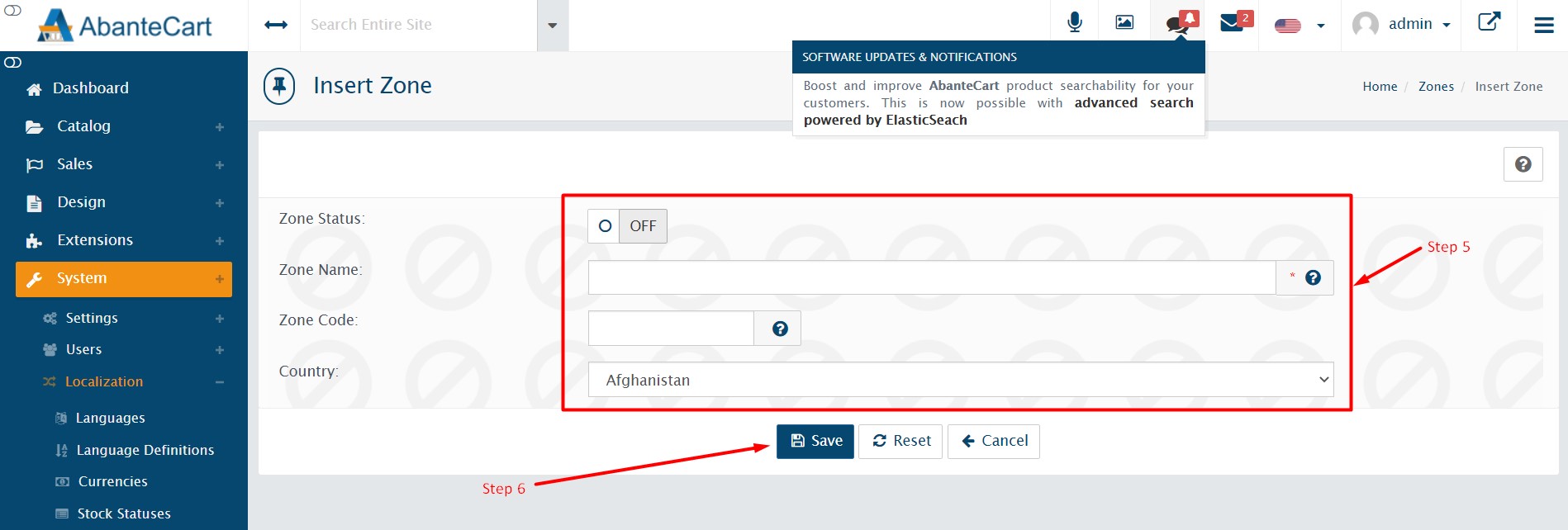
Step 5: Enter the Following details as per your requirement.
Step 6 : Click On ‘SAVE’ button.
Step 7: If you want any changes in your zone or delete any zone, There is 3 Different buttons
available in the first column from right side, just like the following image.
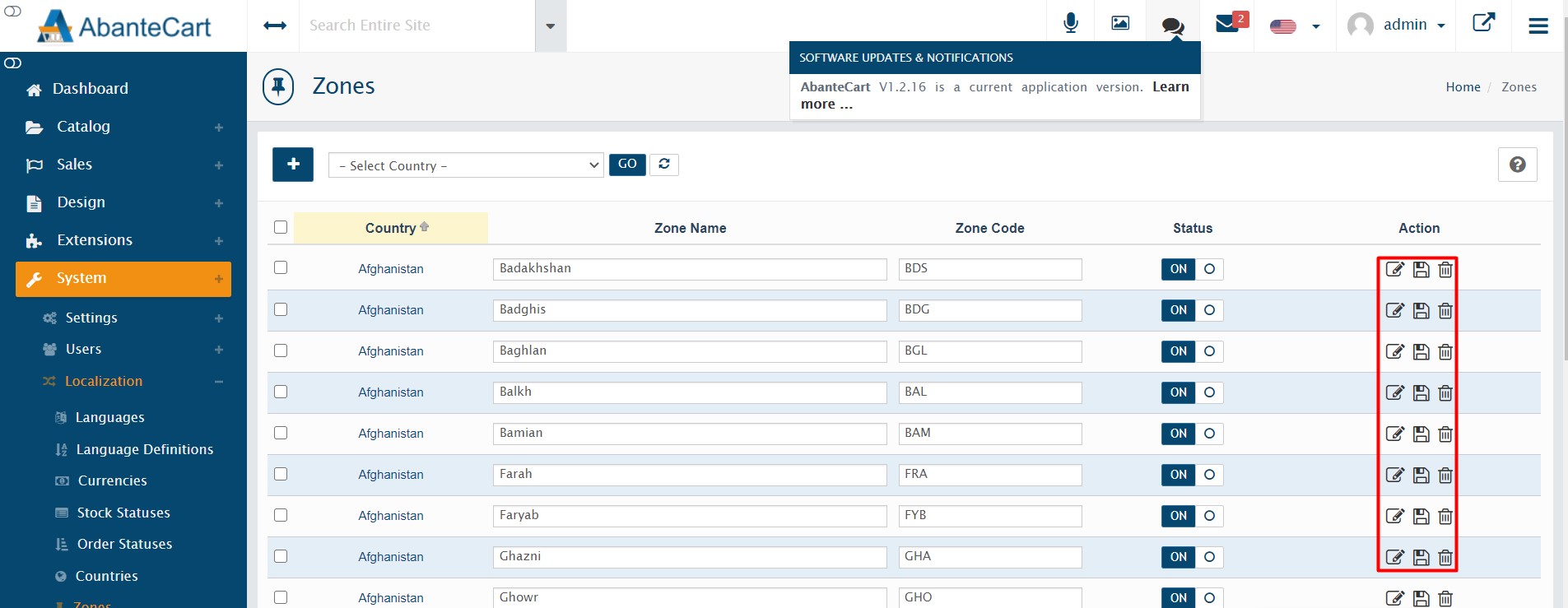
Note: The following image shows the dashboard for zones. Let’s see how you can turn ‘ON’ & ‘OFF’ the zones.
Once you add details and click on the ’SAVE’ button, The information will save here and there’s a switch
available for every zone. When the switch is in the ‘ON’ state it means you choose this zone for sell your
products. And when the switch is in ‘OFF’ State, Currently you’re not working in this Zones.
So, this is how you can manage zones in AbanteCart. We hope you liked this tutorial. If you have any questions regarding this topic, Please let us know in the comment section given below.
Related guides
Cache Management in AbanteCart
AbanteCart is one of the most popular E-commerce management system. Follow this tutorial to learn How to manage cache in AbanteCart.
AbanteCartManage Content Manager in AbanteCart
In this documentation, we can check how to manage content manager in AbanteCart. 1) Login to AbanteCart admin panel. 2) Click on the icon ‘Design’. 3) Go to
AbanteCartEnable HTML Cache in AbanteCart
In this documentation, we can check how to enable HTML cache in AbanteCart. 1) Login to AbanteCart admin panel. 2) Click on the tab ‘System’. 3) Go to Setti
AbanteCartConfigure AbanteCart Store URLs for HTTPS
Set the intended AbanteCart store URLs after validating HTTPS. Preserve paths and verify multi-store links, checkout, callbacks and renewal.