
GICT knowledge base
Cache Management in AbanteCart
Published
Caching plays an important role in the site speed optimisation as well as the overall user experience. It allows you to serve content to your visitors without putting a lot of pressure on the database server. Many Content Management Systems provide caching solution with the help of additional extensions. However, If you are using AbanteCart, The caching system is built-in! It means that you do not have to install a plugin and configure it to enable caching on your site.
In this tutorial, I will show you How to clear cache. Clearing the cache puts a temporary pressure on the database server. However, Once the cache for all the important pages are saved, the pressure on database server will decrease until you clear the cache next time. In AbanteCart, you can either clear all the cache or you can select the type of cache you want to clear.
It is a very easy process, Let’s get started.
Cache Management In AbanteCart
Step 1: Log in to your AbanteCart store using your administrator account.
Step 2: Click on the “System -> Cache” button from the left sidebar of the admin panel.
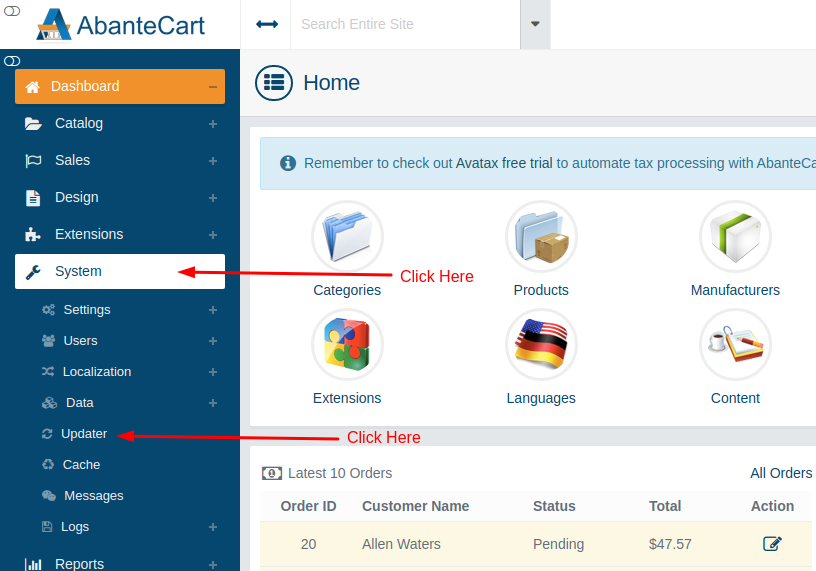
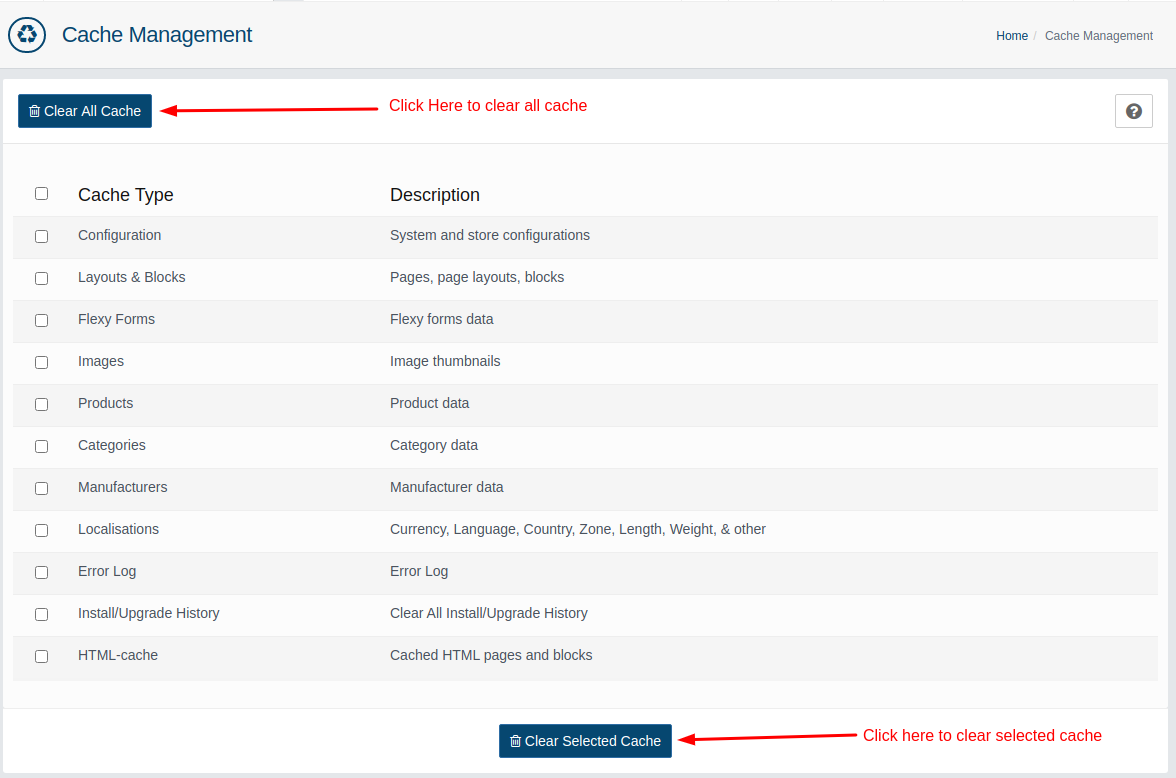
Step 3.1: To clear all cache, click on the “Clear All Cache” button.
Step 3.2: To clear a specific cache, select the type of cache from the list and click on the “Clear Selected Cache” button given at the bottom of the page.
So, this is how you can clear cache in AbanteCart. If you are facing any issue following this tutorial, please let us know in the comment section given below. If you are an active GICTServer customer, You can also contact our awesome 24*7 support team.
Related guides
Manage Content Manager in AbanteCart
In this documentation, we can check how to manage content manager in AbanteCart. 1) Login to AbanteCart admin panel. 2) Click on the icon ‘Design’. 3) Go to
AbanteCartHow to Manage Zones in AbanteCart?
In this documentation, we can check how to manage zones in AbanteCart. 1) Login to AbanteCart admin panel. 2) Click on the icon ‘System’. 3) Go to Localizat
AbanteCartEnable HTML Cache in AbanteCart
In this documentation, we can check how to enable HTML cache in AbanteCart. 1) Login to AbanteCart admin panel. 2) Click on the tab ‘System’. 3) Go to Setti
AbanteCartConfigure AbanteCart Store URLs for HTTPS
Set the intended AbanteCart store URLs after validating HTTPS. Preserve paths and verify multi-store links, checkout, callbacks and renewal.