
GICT knowledge base
Install ClipBucket From Softaculous
Published
Video streaming is one of the biggest markets on the internet. You can see successful companies making it big in the field like Netflix and Youtube. The technology to manage these kinds of video streaming websites is easy until you have tens of thousands of people watching daily on your application or website. Until you have that volume, you can run your store with minimal resources. And the technology to run a video streaming site is already available with a little or no investment. In this tutorial, I am going to show you how to install ClipBucket from Softaculous. But let’s first understand what is ClipBucket.
ClipBucket is a white-label OTT and VOD platform as per the official description. Basically, you can create a clone of popular services like Netflix and Youtube. You can easily manage everything using the administration panel on your website. Other than managing content on the site, you just have to market your site using various marketing techniques that these companies use. This way, you can start a business like Netflix and Youtube with minimal resources.
ClipBucket is very easy to install. You can install it directly from the Softaculous auto-installer that is available with almost all the web hosting providers on the internet. So, Let’s get started with the tutorial.
Install ClipBucket from Softaculous
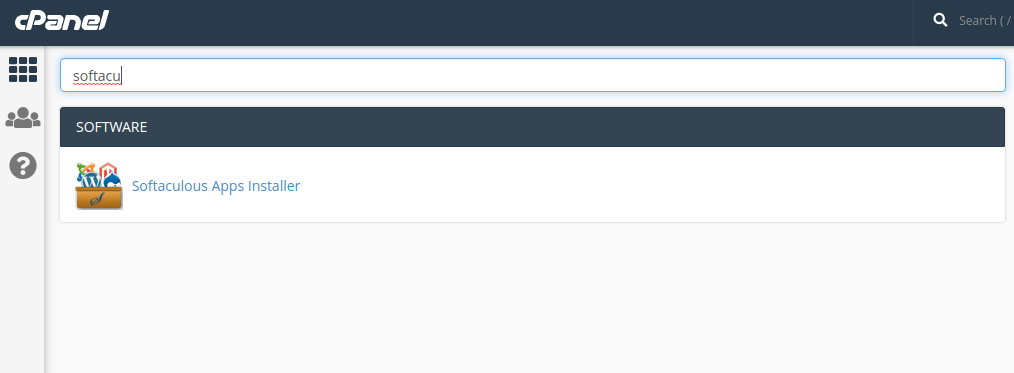
To install ClipBucket, log in to your cPanel account and find the Softaculous App Installer option from the list. You can also use the search function just like the following image.
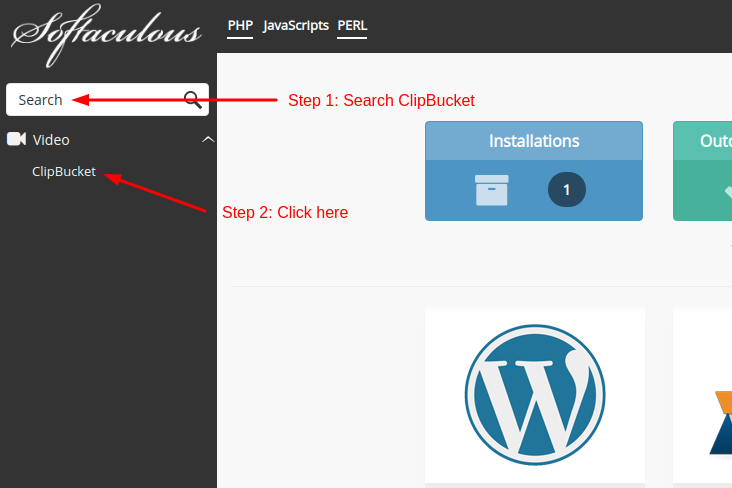
Click on that option to open the auto-installer. Once you are in Softaculous, search for ClipBucket in the search box given on the top-right corner of the page. Or, you can also find ClipBucket inside the Video section in the left sidebar.
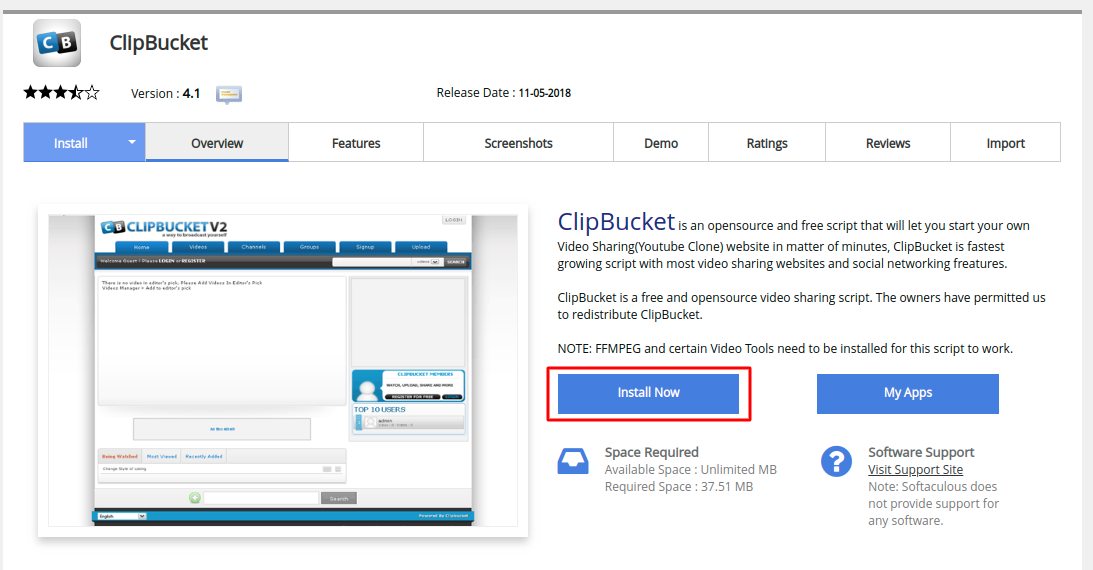
It will lead you to a page where you can find all the information about ClipBucket. You will also see an Install button just like the following image. To install ClipBucket, click on the Install button given on the page.
After clicking on the Install now button, you will see a new page with a form that you have to fill up with the required information like Admin login information, Site title, tagline and much more. The installation form should look like this.
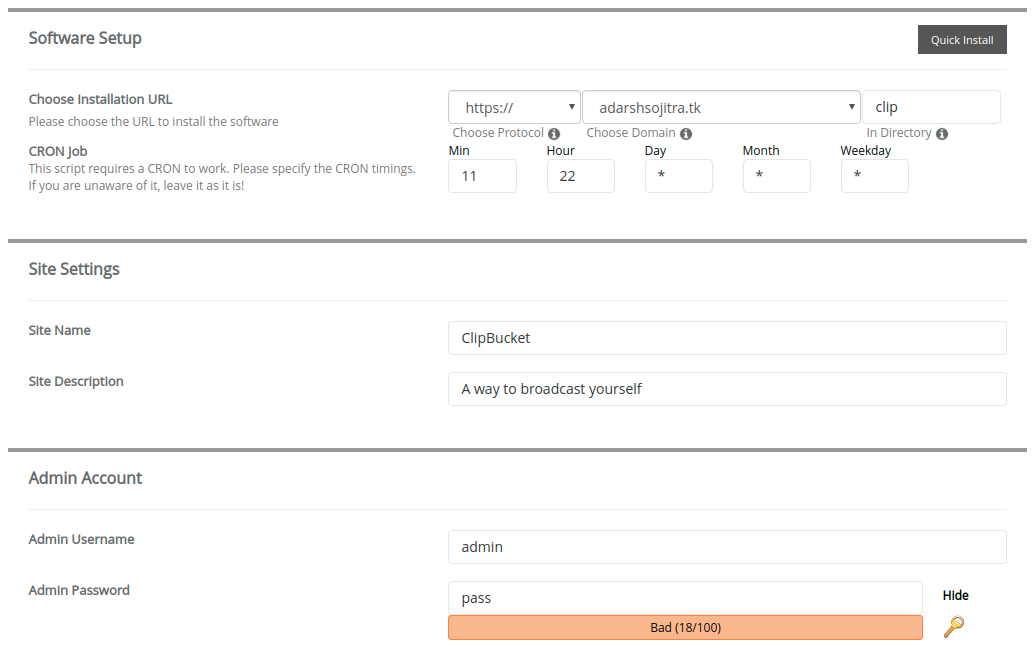
After entering all the required information in this form, click on the Install button given at the bottom of the form.
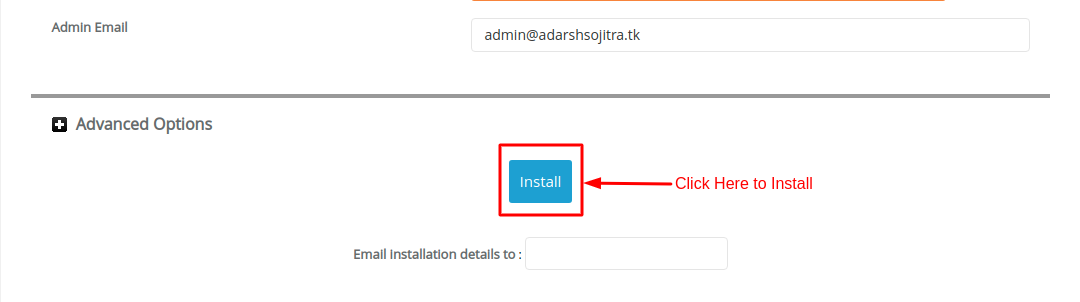
Now, it will take a few minutes to complete the installation. Once the installation is complete, it will redirect you to a page where you will find all the essential information about your new application.
So, this is how you can install ClipBucket from Softaculous. Let us know in the comment section given below if you are facing any issues with the process, we will get back to you with the solution as soon as possible.
Related guides
Install WordPress on DirectAdmin Using softaculous Application Installer
Login to https://my.GICTServer.net using the email address and password that you have used during the time of signup. Click on Login to DirectAdmin. scroll down.
SoftaculousHow to install WordPress multi-site using cPanel softaculous
GICTServer guide | WordPress multisite | Softaculous WordPress installation | Multisite installation using cPanel GICTServer Tips
SoftaculousHow to Install Softaculous on CWP
In this tutorial, we are going to discuss on how to install Softaculous on CWP control Panel, please refer the following steps on how to proceed with the
SoftaculousSoftaculous Staging Environment
Softaculous Staging Environment. The staging environment is a must require feature now a day, as this will help in making changes to a production