
GICT knowledge base
Install WordPress on DirectAdmin Using softaculous Application Installer
Published
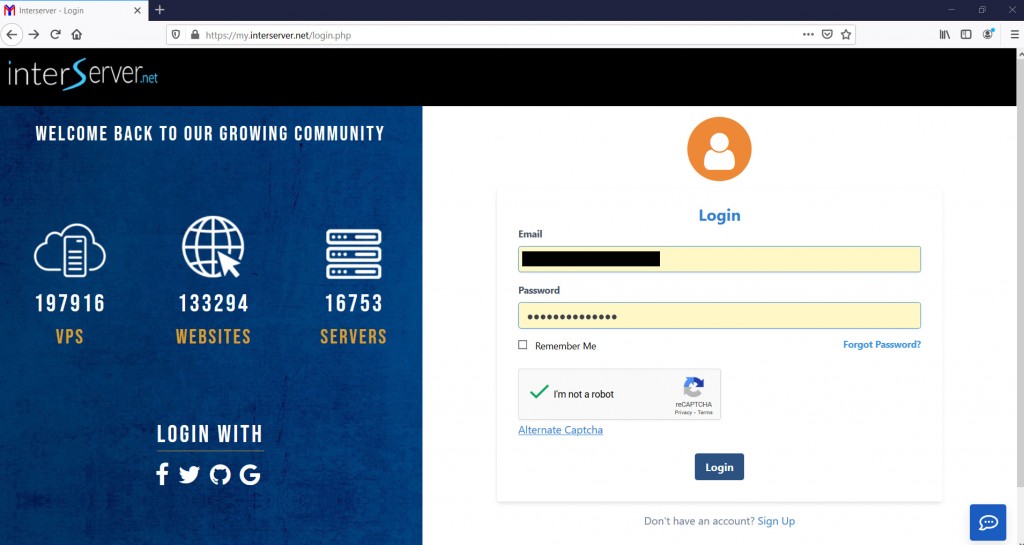
Login to https://my.GICTServer.net using the email address and password that you have used during the time of signup.
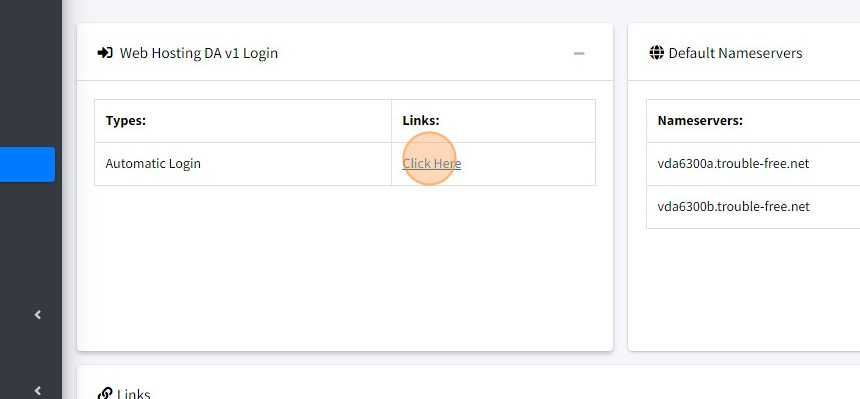
Click on Login to DirectAdmin.
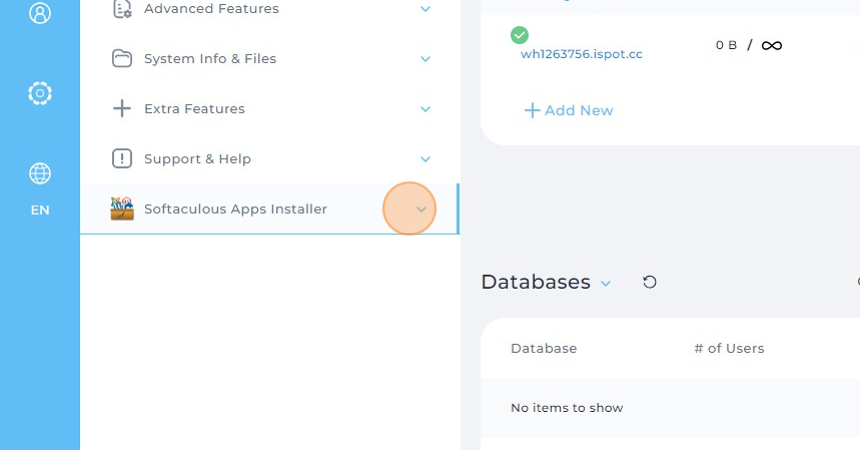
scroll down. Locate Extra features >> Softacolous Auto Installer click on it.
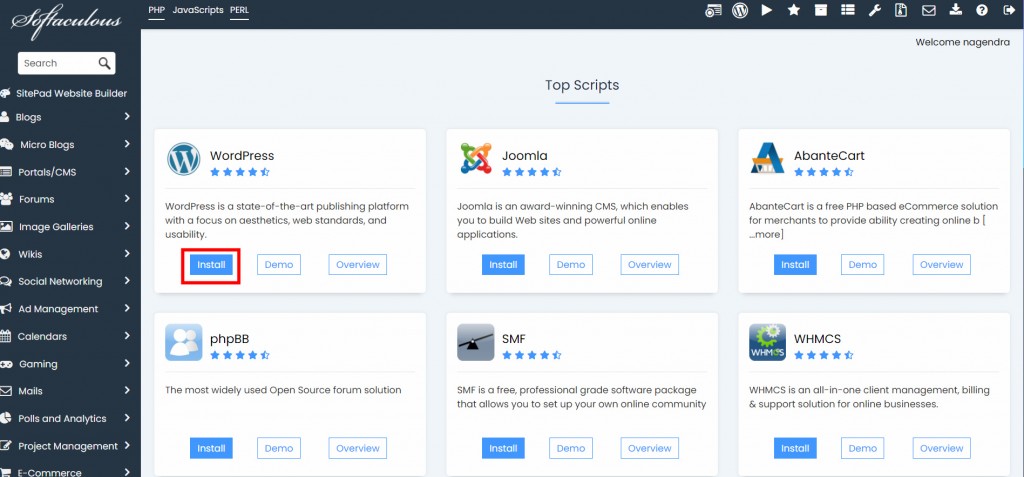
Click on WordPress
S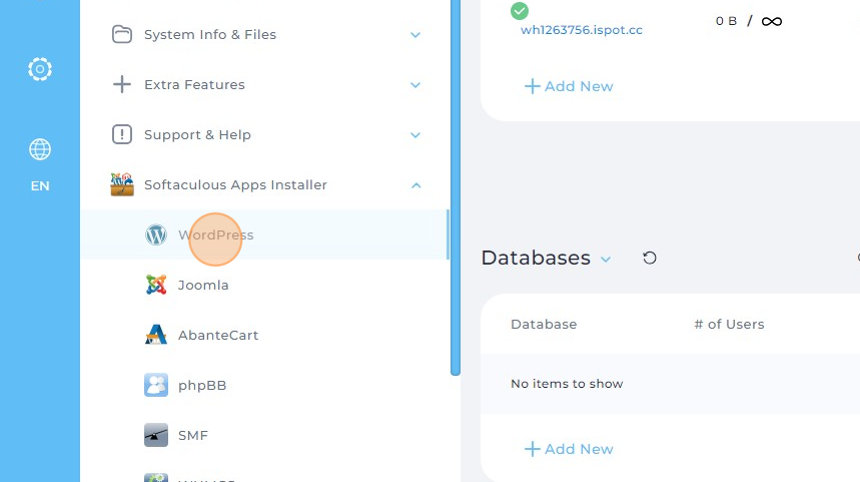
Click on Install. It will redirect to the WordPress installation page.
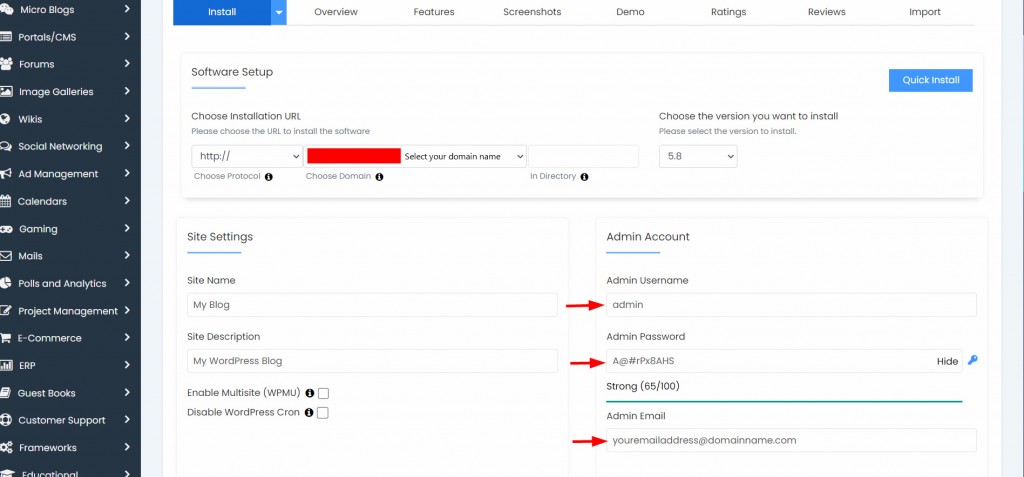
Here select the domain name from the drop-down which you wish to install WordPress. Enter username, password, and the admin email address. Save these details.
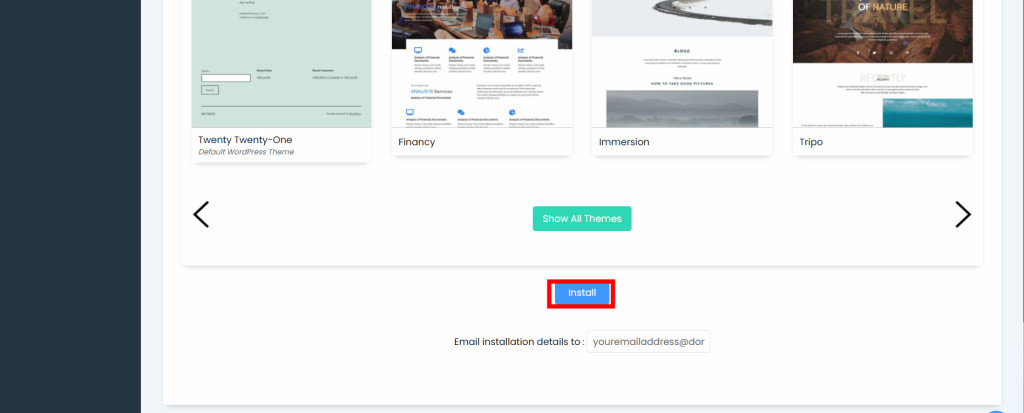
Scroll down and click on the Install Button. Allow it few minutes for the installation to complete.
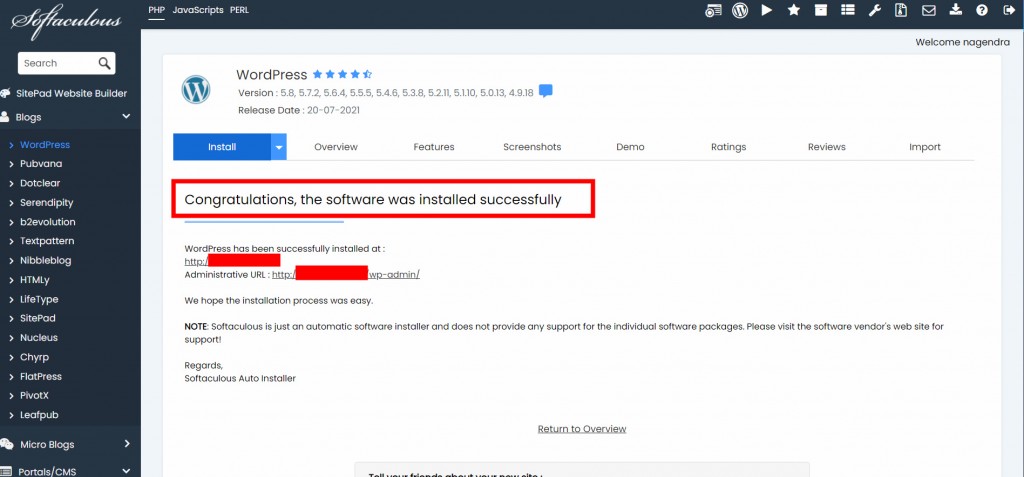
Once installation is complete you will see the message. Using the wp-admin link you can access the WordPress admin page. By entering the username and password which was used at the beginning of the WordPress installation.
If you have got any questions please feel free to contact us back. We are happy to help you.
Related guides
How to install WordPress multi-site using cPanel softaculous
GICTServer guide | WordPress multisite | Softaculous WordPress installation | Multisite installation using cPanel GICTServer Tips
SoftaculousHow to Install Softaculous on CWP
In this tutorial, we are going to discuss on how to install Softaculous on CWP control Panel, please refer the following steps on how to proceed with the
SoftaculousSoftaculous Staging Environment
Softaculous Staging Environment. The staging environment is a must require feature now a day, as this will help in making changes to a production
SoftaculousSoftaculous Installation in Plesk
Softaculous Installation in Plesk. Softaculous is a 3rd party auto installer for different control panels such as Plesk, Direct admin, and cPanel, which