
GICT knowledge base
How to install a theme in Drupal
Published
The design of your website is what attracts the new customers. So, it is important to design your website according to the profile of your ideal customer. All the popular content management systems has a repository of themes and plugins available to the users for Free. There is also a market of Paid themes. A theme is a complete website design along with the functionality a theme should have to integrate with the core of the system.
Drupal has a Repository of themes that you can surf to find an ideal theme for your website. All the themes you will see in the Repository are Free themes. You can download a theme directly from the website. It comes with .tar.gz or zip format. We do not have to perform any action on the file once downloaded.
In this tutorial, I will show you How to install a theme in Drupal if you already have a compressed archive containing theme files. So, Let’s get started with the tutorial.
Install a theme in Drupal
Step 1: Login To your Admin Panel with your Username and Password.
Step 2: Click on the Appearance tab from the tab section.
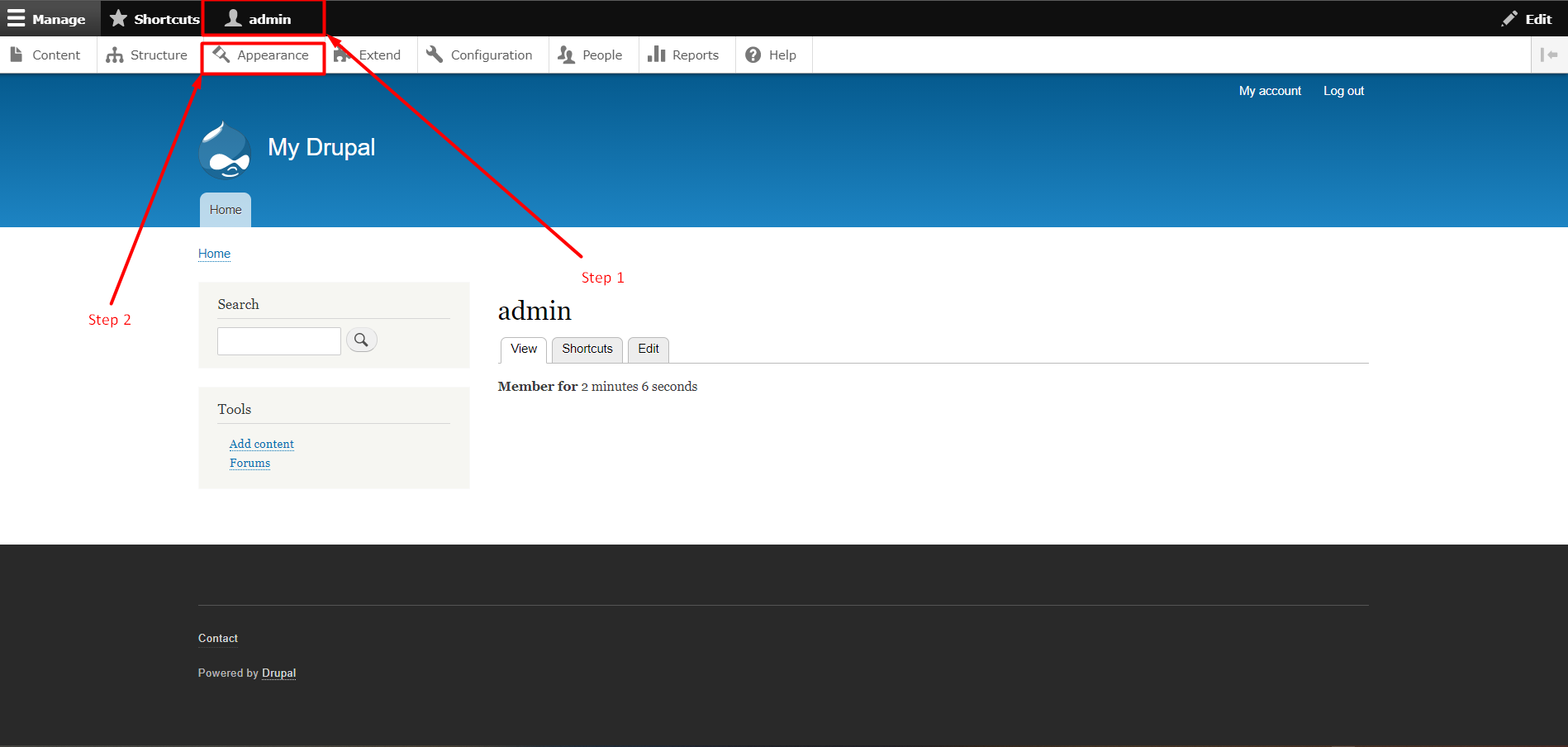
Step 3: Now Click on +Install new theme Button.
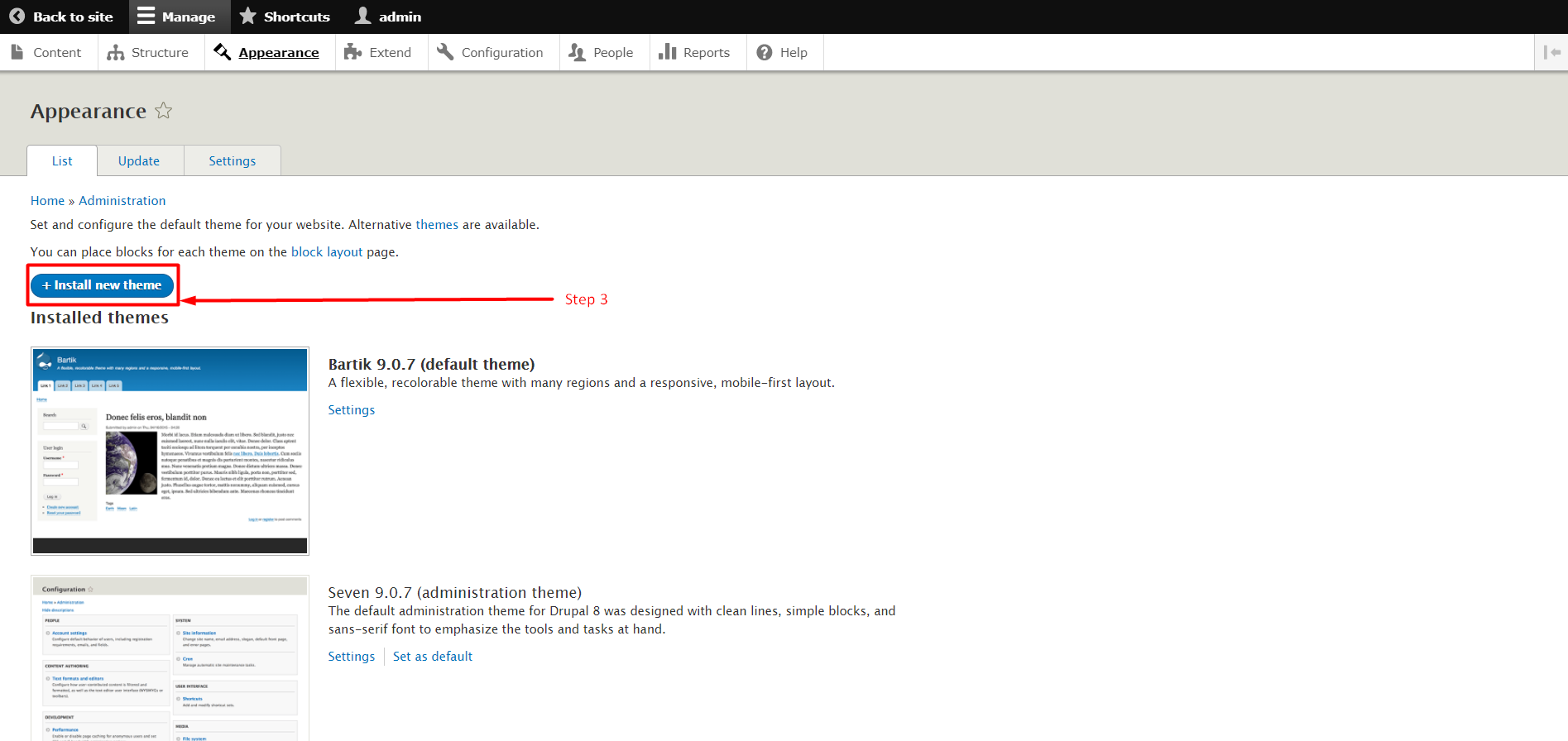
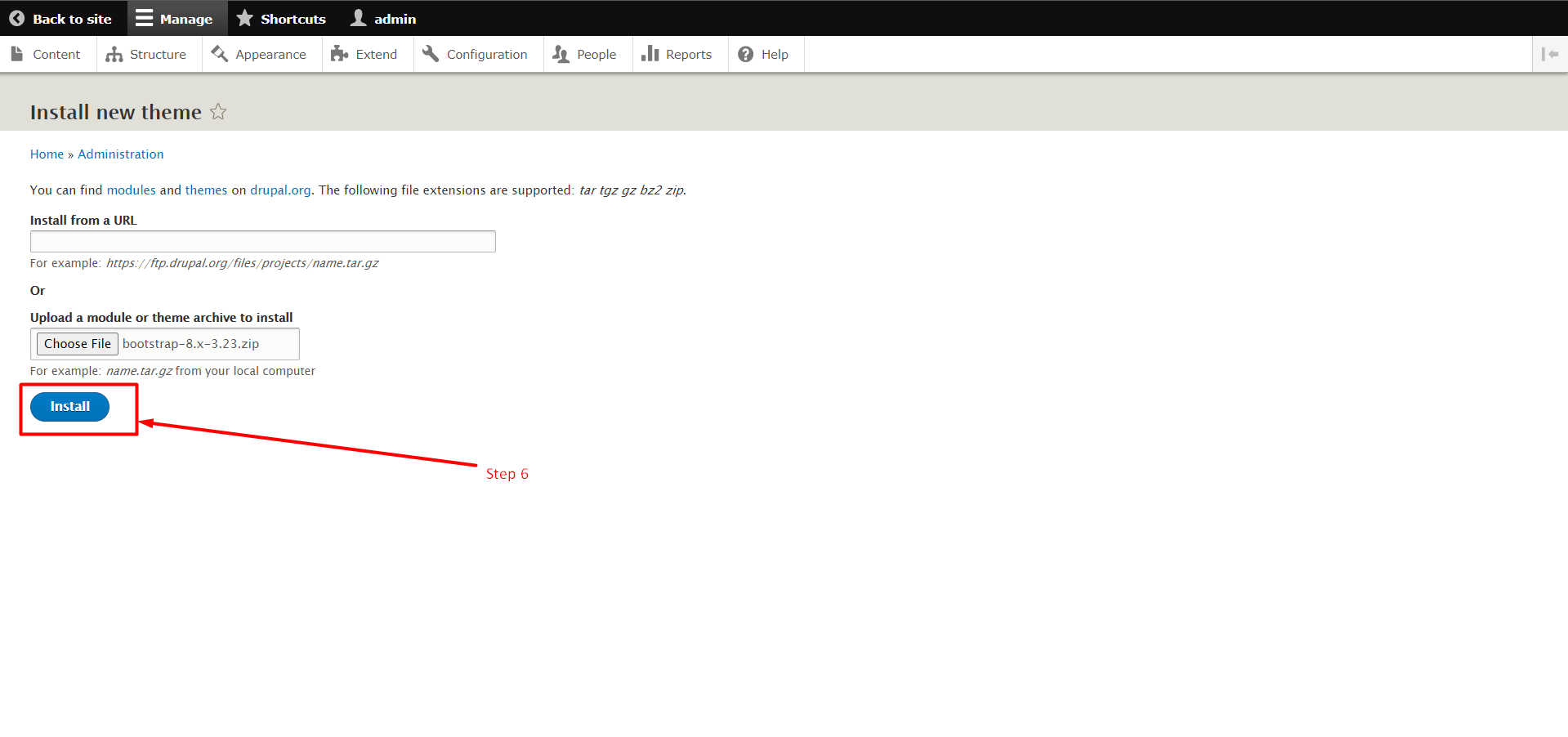
Step 4.1: Now see the below image the +Install new themes button will take you to this page. There’s a Textbox to Install From URL. If you have an URL to the theme file, you can paste it here.
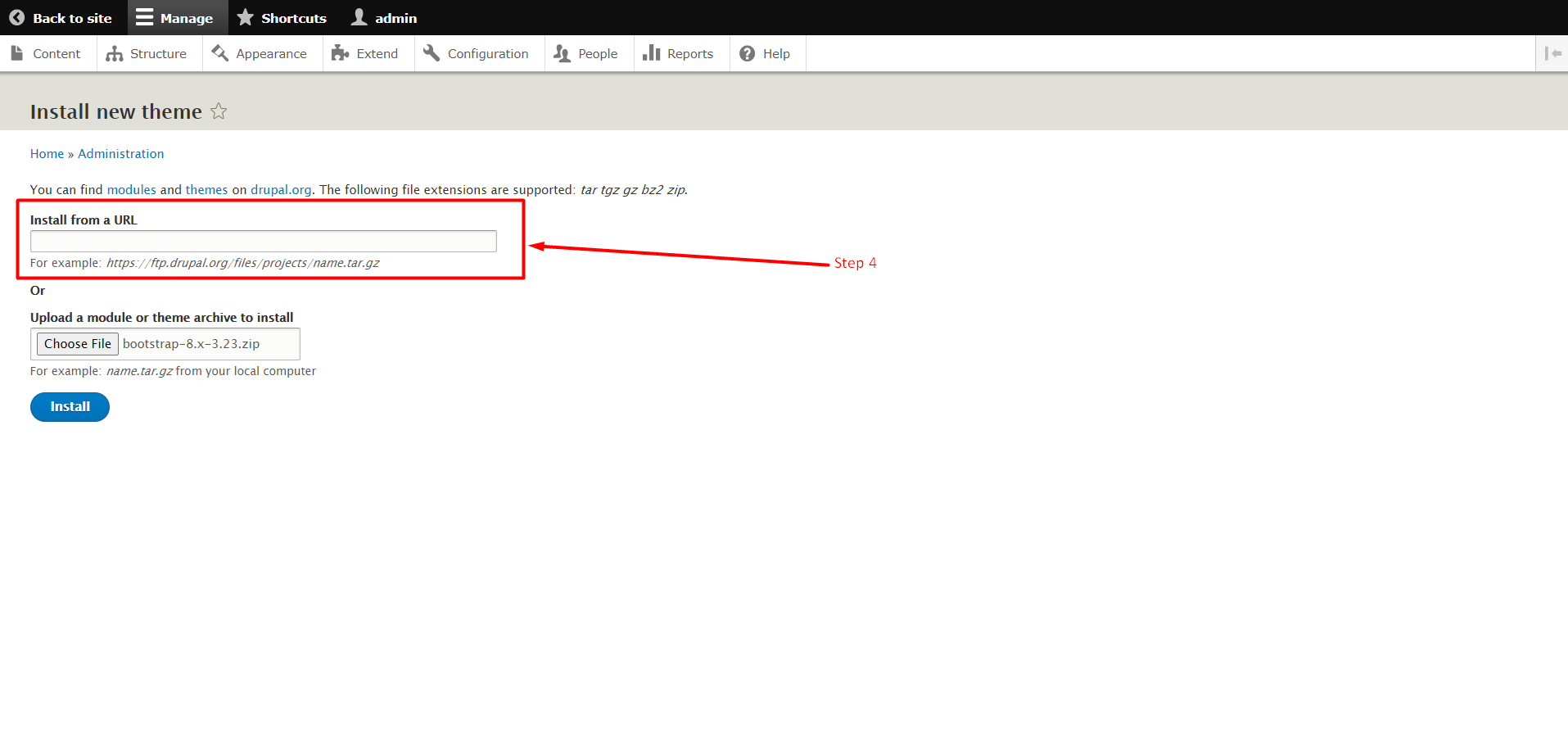
Step 4.2: Now below URL Textbox you can see another Add File Textbox and a button as Choose File.
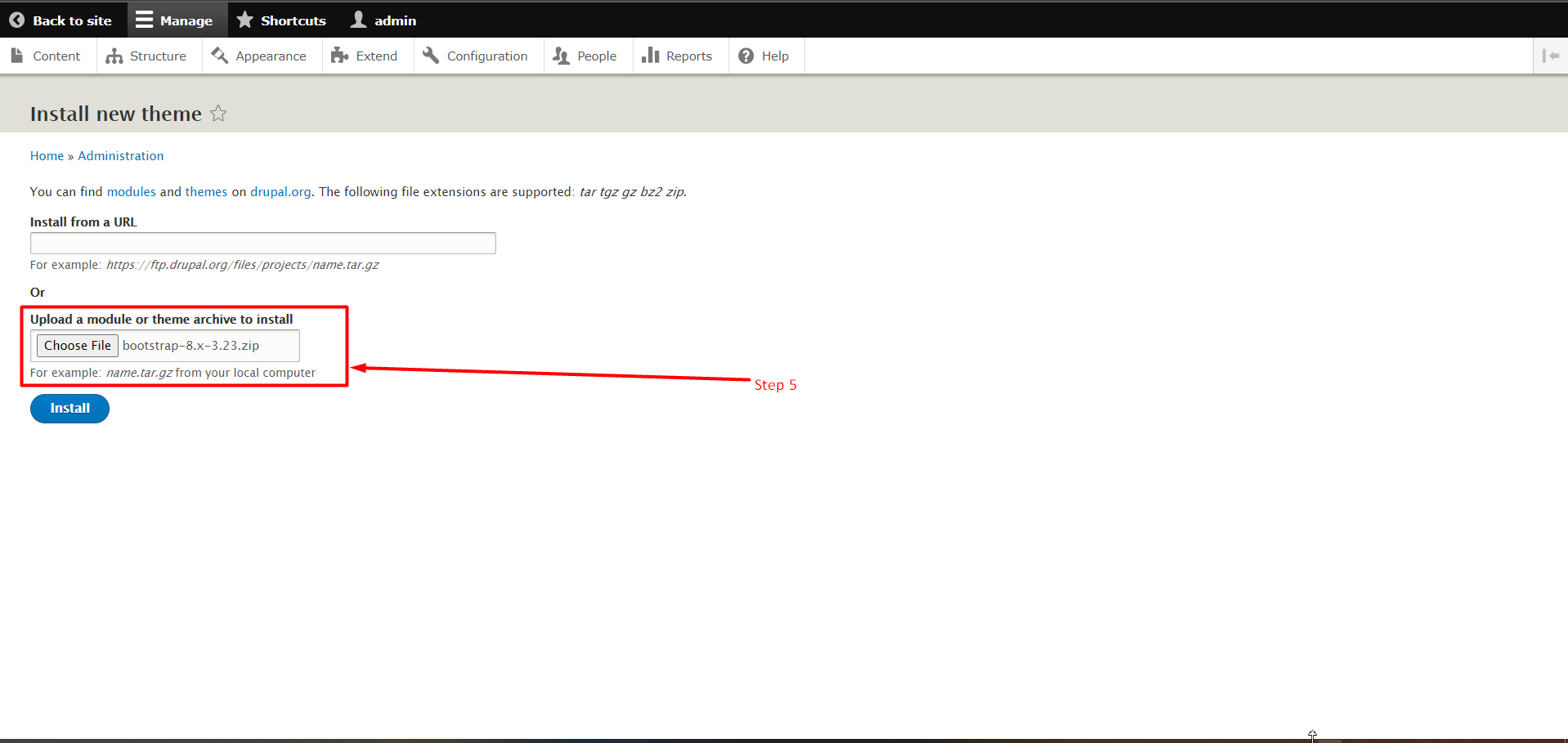
This step is for those users who want to install their themes from their Device. If you have a Design file on your device then click on the Choose File button and select the File. Follow the instruction below.
Step 5: Now Click on Install Button. After a few mins, the theme will get installed.
Step 6: After the successful Installation the Green dialog box appears just like the image below.
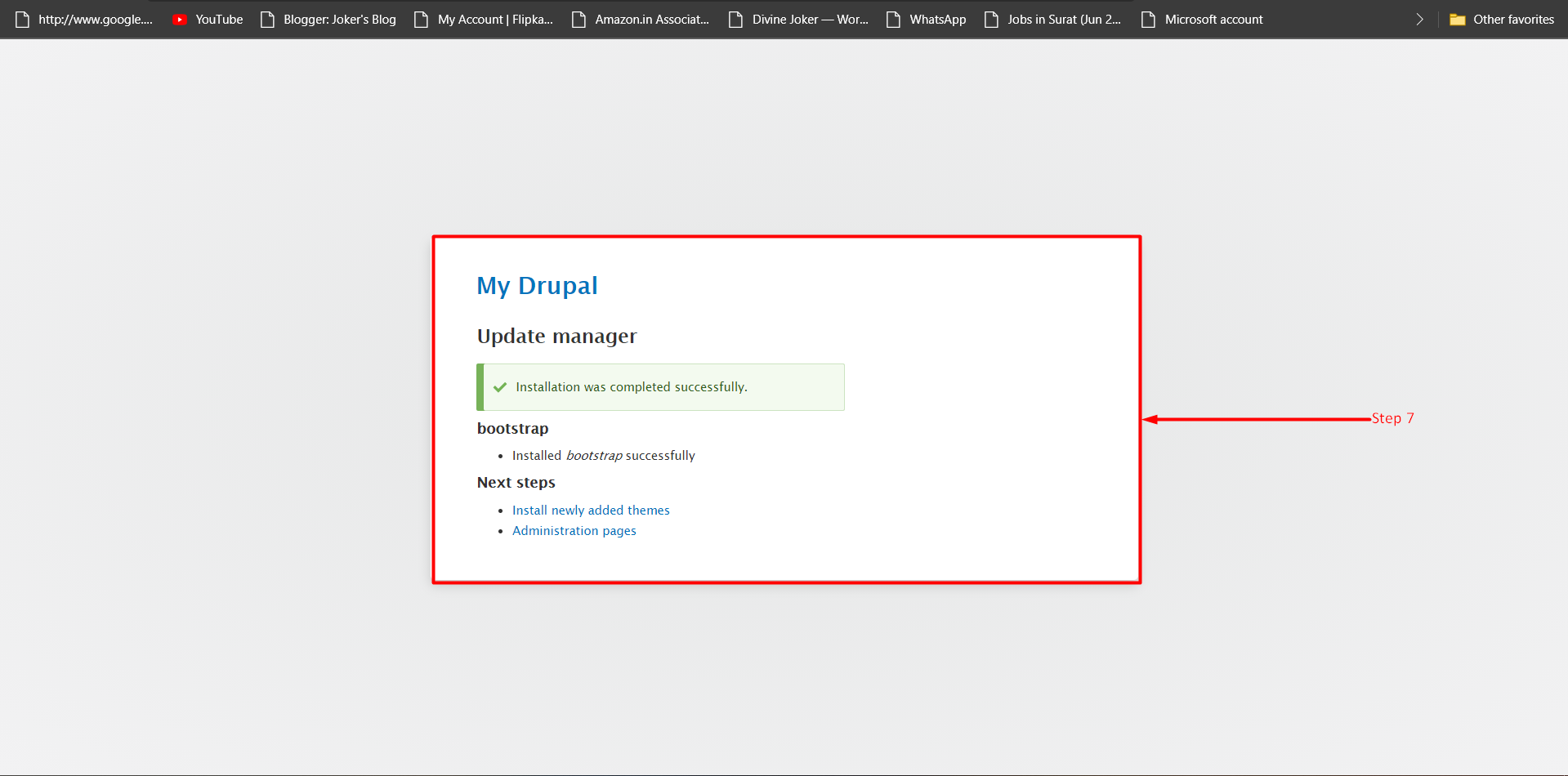
Step 7: On that Dialog Box find a link “Install newly added themes”.
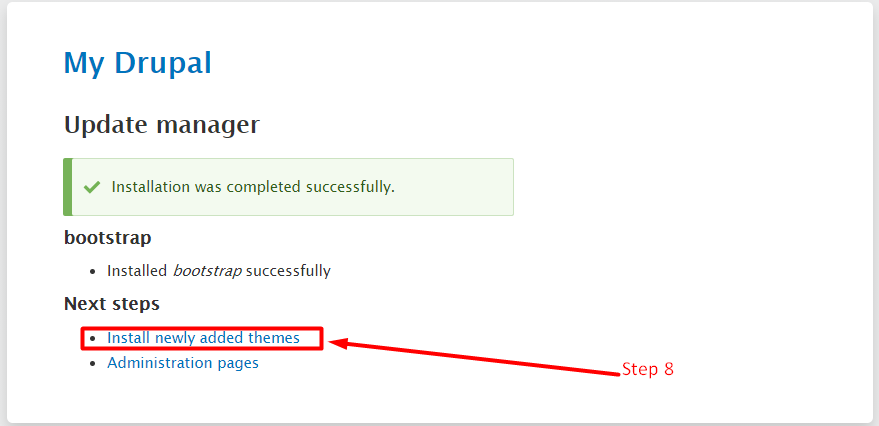
So, this is how you can install a new theme in Drupal. We hope this tutorial was helpful for you. If you have questions, feel free to use the following comment section.
Related guides
Create a Contact Webform Using Drupal 8 Webform Module
In this knowledgebase, you learn the steps to create a contact form using the Drupal 8 Webform Modules. The Webform module in Drupal 8 is a flexible
DrupalHow to Block IP Address in Drupal
In this documentation, we can check how to block IP address in Drupal. 1) Login to Drupal admin panel. 2) Click on the tab ‘Configuration’. 3) Go to the sec
DrupalHow to Add Content Type in Drupal
In this documentation, we can check how to add content type in Drupal. 1) Login to Drupal admin panel. 2) Go to the tab ‘Structure’. 3) Click on the option
DrupalDate and Time Settings in Drupal
In this documentation, we can check how to set the date and time in Drupal. 1) Login to Drupal admin panel. 2) Click on the tab ‘Configuration’. 3) Go to th