
GICT knowledge base
How to Add Content Type in Drupal
Published
Drupal is a powerful web content management tool where you can build responsive sites and web application which are compatible for almost every device. Flexible content builds an appropriate user experience, Building paths to content across multiple devices. Drupal web management tool allows a user and their team members to analysis, arrange, and appreciate from a mobile device like iPhone OR Android.
In Drupal, there are many features just like we took the example of content building. You can even add content type as per your requirement. You can ‘Create’ or ‘Manage’ Fields, Forms, and display settings. Let’s check how we can easily add content and manage it with Drupal.
To add content type in Drupal
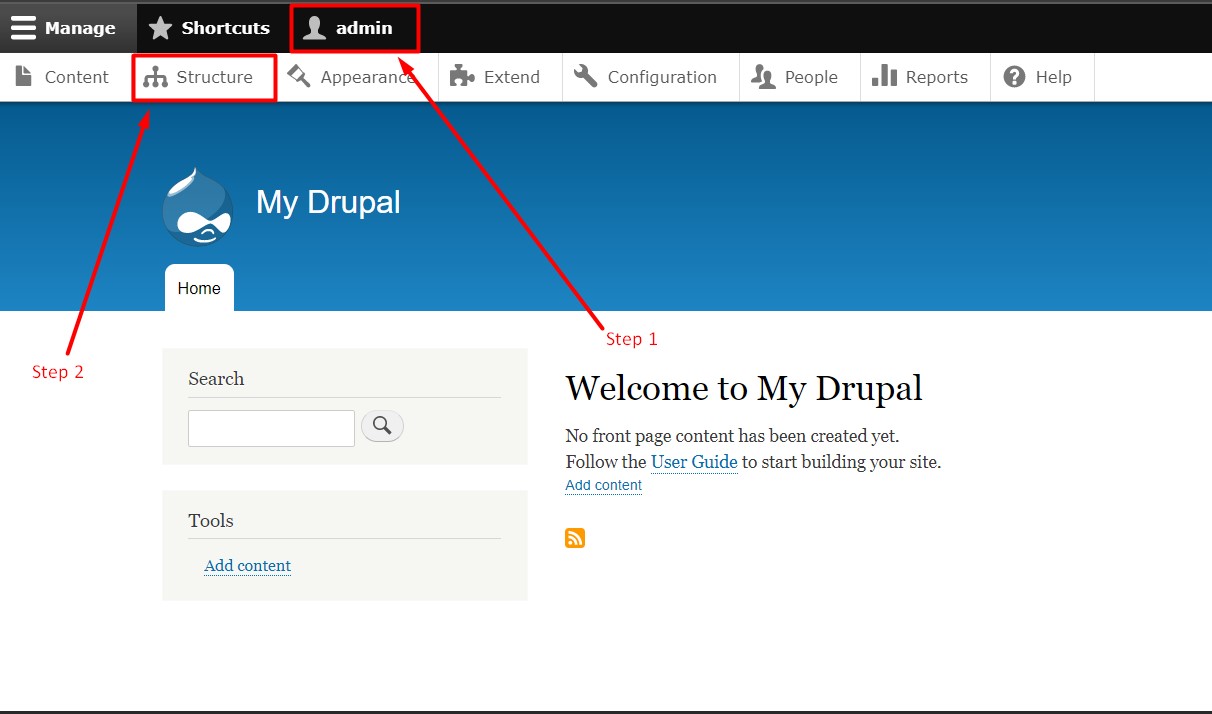
Step 1: Log in to the Drupal Admin panel with your Username & Password.
Step 2: Go to the tab ‘Structure’ as shown in the below image.
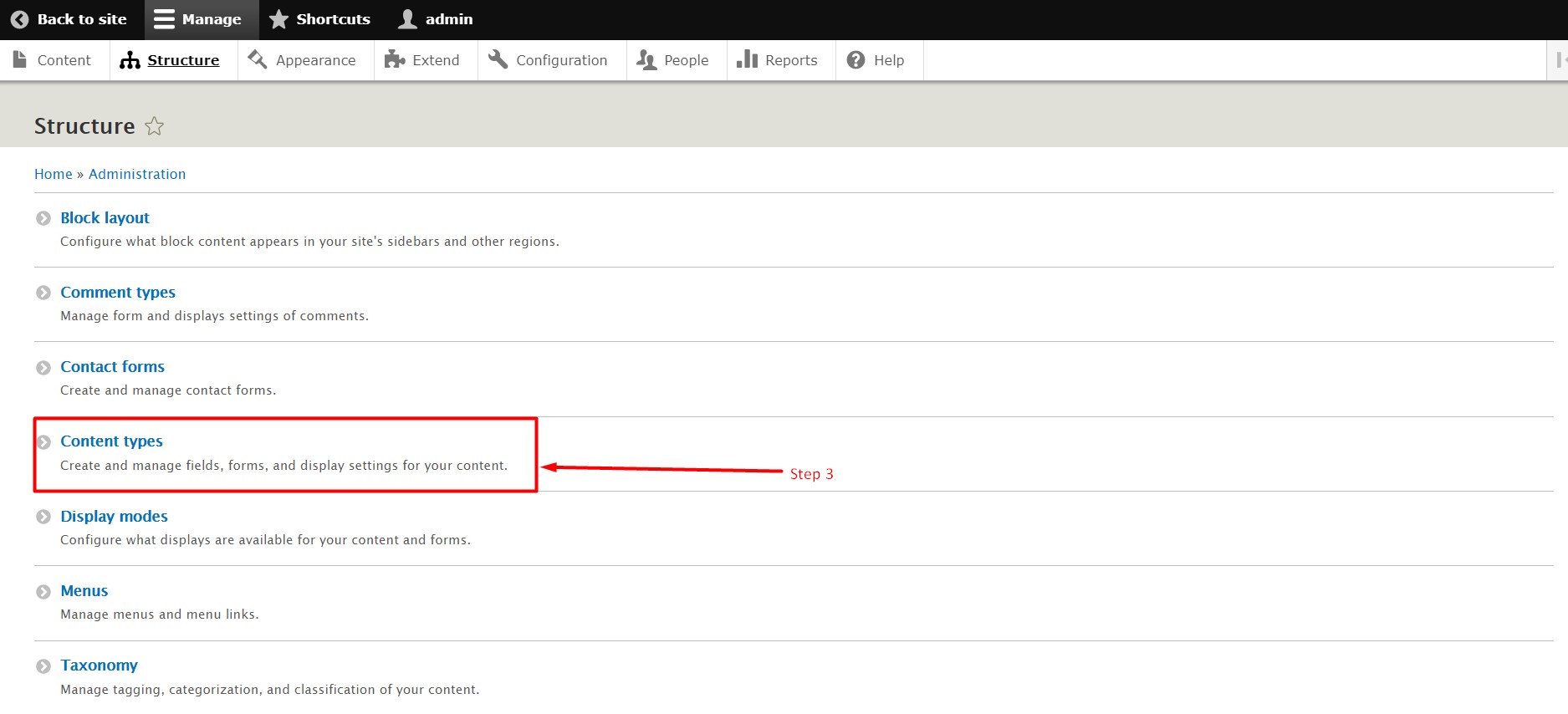
Step 3: Click on the option ‘Content Types’.
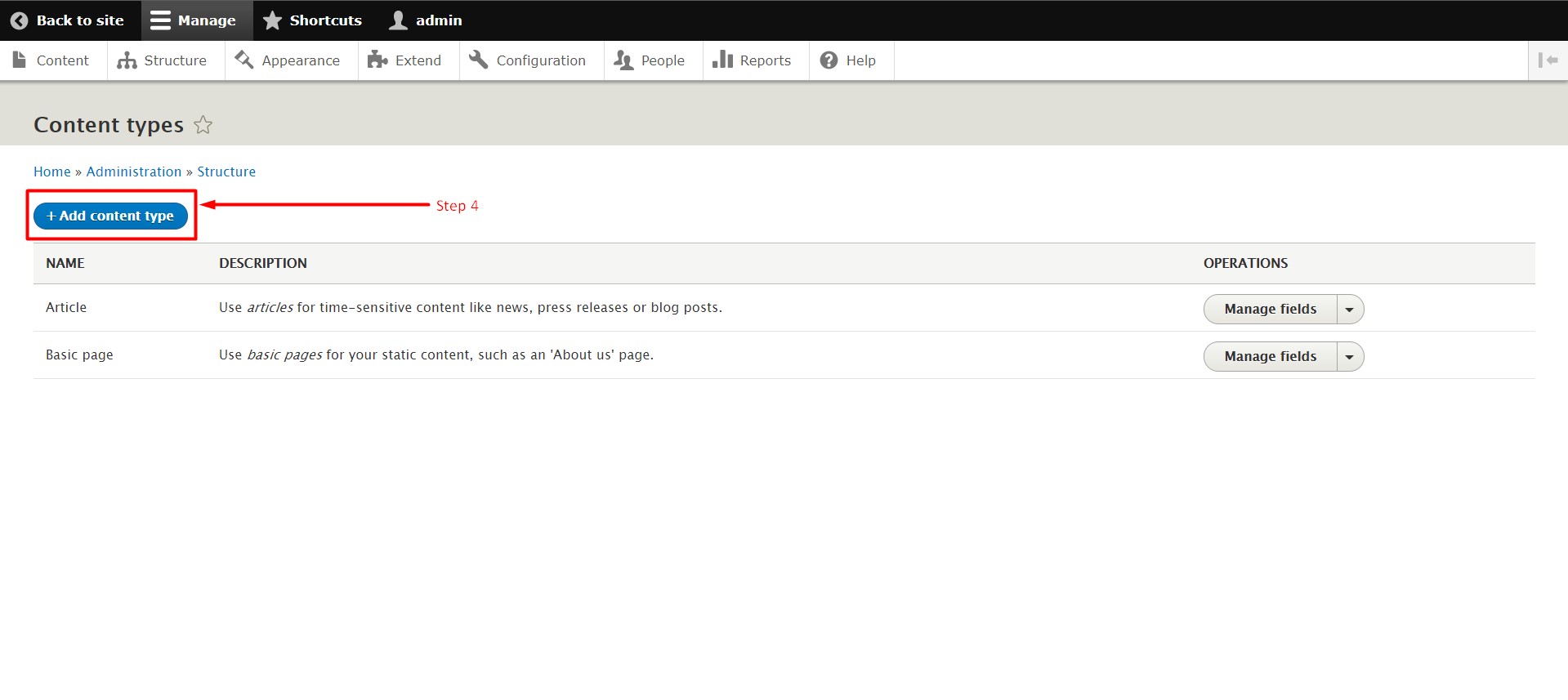
Step 4: Click the button ‘Add Content Types’.
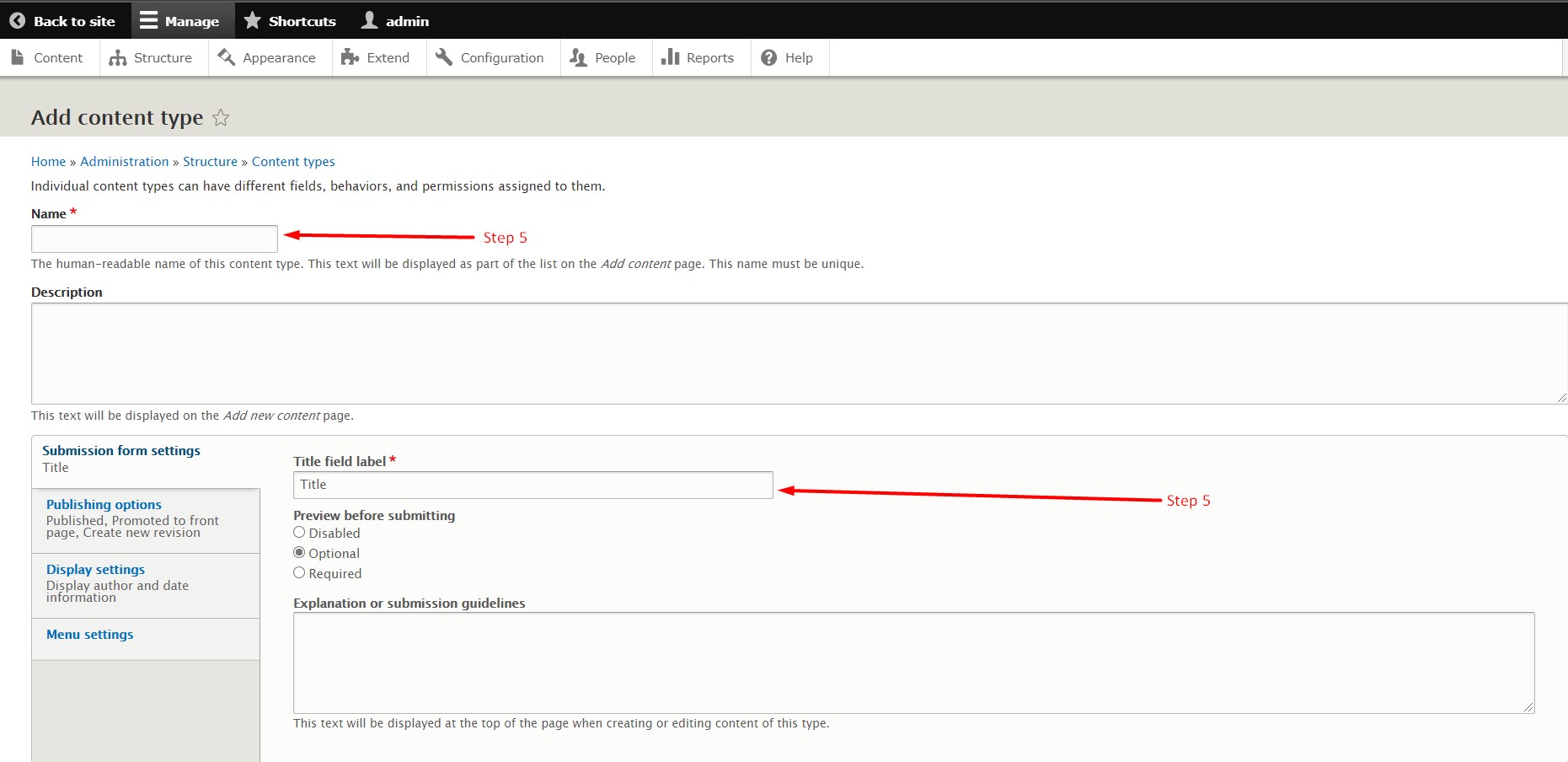
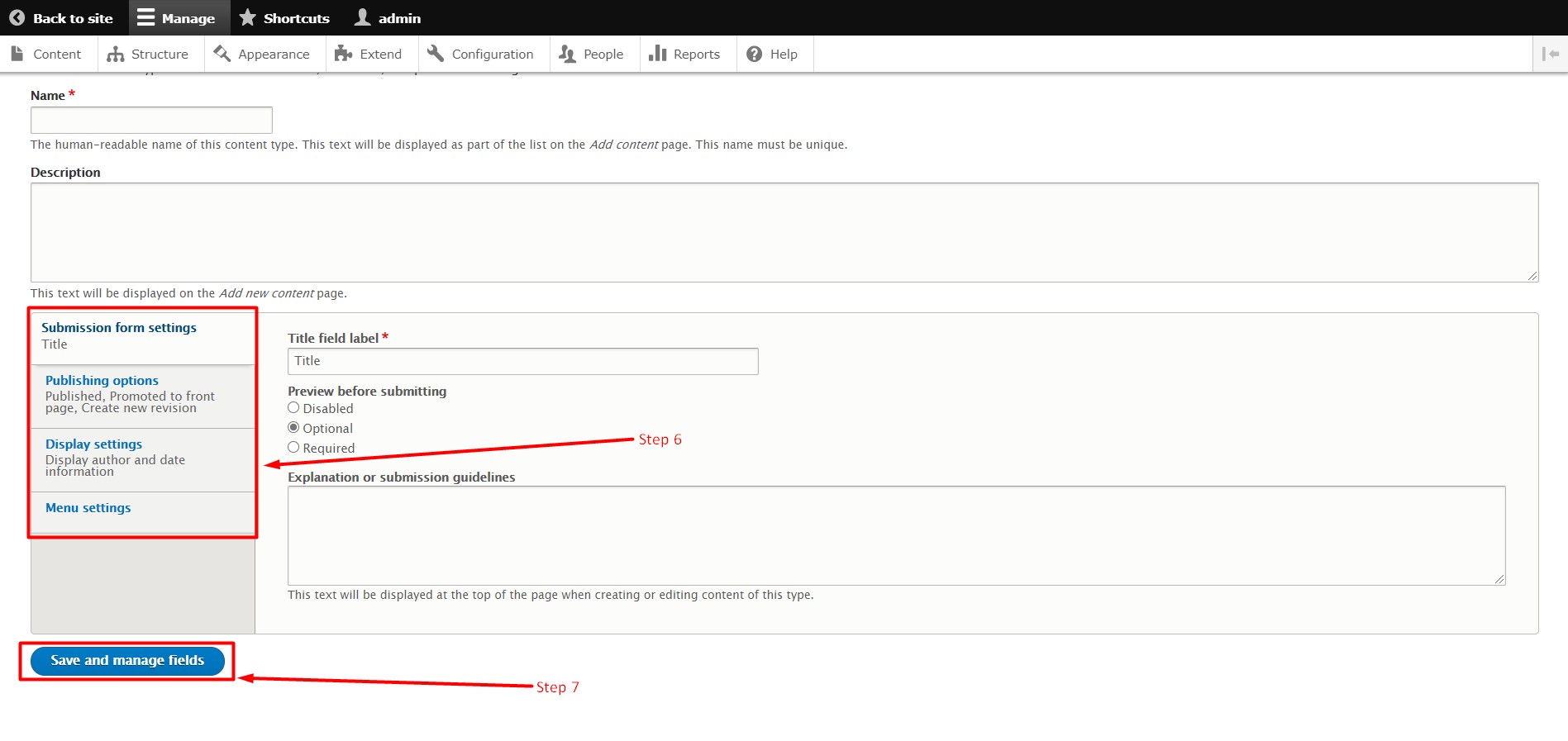
Step 5: Enter the details like the name as per its instructions which are written below of every required field.
The RED * IS showing mandatory fields for a content add.
Step 6: Enter the details in other tabs as ‘Publishing Options’, ‘Display Setting’ etc.
Step 7: Click the button ‘Save Content Types’.
Note: After the successful addition of content, you can see the content is ‘Structure’ TAB. Click on the Structure Tab you can directly manage your content fields from here as per the image below.
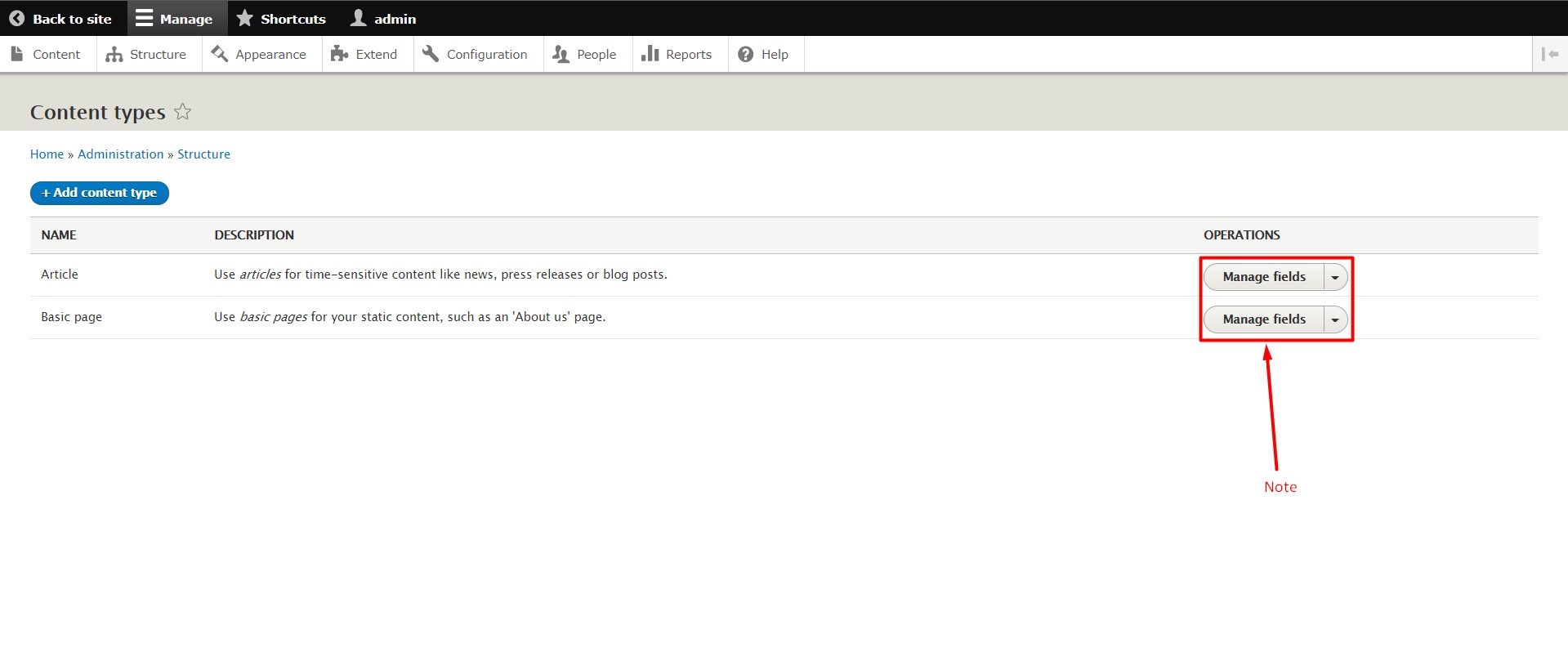
So, this is the process of adding content type and manage it. It’s a simple process and anyone can do it easily. Users don’t need any technical knowledge for it.
We hope this tutorial was helpful for you. If you have any questions, please use the comment section given below. If you are an active GICTServer customer, You can also contact our awesome support staff.
Related guides
Create a Contact Webform Using Drupal 8 Webform Module
In this knowledgebase, you learn the steps to create a contact form using the Drupal 8 Webform Modules. The Webform module in Drupal 8 is a flexible
DrupalHow to Block IP Address in Drupal
In this documentation, we can check how to block IP address in Drupal. 1) Login to Drupal admin panel. 2) Click on the tab ‘Configuration’. 3) Go to the sec
DrupalDate and Time Settings in Drupal
In this documentation, we can check how to set the date and time in Drupal. 1) Login to Drupal admin panel. 2) Click on the tab ‘Configuration’. 3) Go to th
DrupalHow to Configure RSS Publishing in Drupal
In this documentation, we can check how to configure RSS publishing in Drupal. 1) Login to Drupal admin panel. 2) Click on the tab ‘Configuration’. 3) Go to