
GICT knowledge base
How to Connect Two Servers Privately with WireGuard
Published
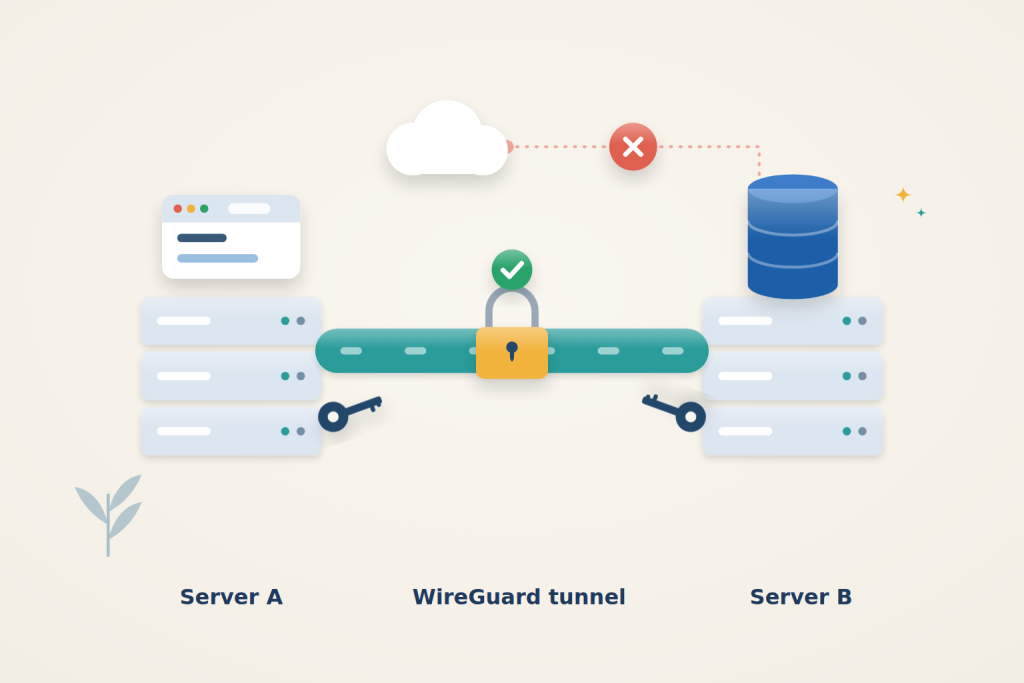
When an app server and its database live on separate VPSs, WireGuard can carry their traffic over a private, encrypted link. The database can listen on localhost and its tunnel address instead of a public interface. The public WireGuard endpoint accepts authenticated traffic from the configured peer, while PostgreSQL keeps its own login controls.
This guide connects two Ubuntu 24.04 servers and uses PostgreSQL as the example service. The same tunnel works for MySQL, Redis, or any internal API.
Before you start
You need two Ubuntu 24.04 servers with public IP addresses and sudo access on both. This guide calls them:
| Server | Public IP | Tunnel IP |
|---|---|---|
| app | APP_PUBLIC_IP |
10.10.0.1 |
| db | DB_PUBLIC_IP |
10.10.0.2 |
Replace both public IPs and run each step on the named server. The peers need mutually reachable UDP endpoints. Choose a different tunnel subnet if 10.10.0.0/24 overlaps existing routes. Encryption and packet processing use CPU and memory; measure throughput and headroom alongside the application rather than assuming every small VPS has sufficient capacity.
Install WireGuard and create keys
Run these commands on both servers:
$ sudo apt-get update
$ sudo apt-get install -y wireguard-tools
$ sudo sh -c 'umask 077; wg genkey > /etc/wireguard/wg0.key'
$ sudo cat /etc/wireguard/wg0.key | wg pubkey
The last command prints the server’s public key. Note it down for each server. The private key never leaves /etc/wireguard/wg0.key, which only root can read.
Configure the tunnel
Each server gets a small configuration file that names the other server as its only peer. In both files, replace DB_PUBLIC_KEY and APP_PUBLIC_KEY with the public keys you noted, and the IP placeholders with the real addresses.
On app, create /etc/wireguard/wg0.conf:
[Interface]
Address = 10.10.0.1/24
ListenPort = 51820
PostUp = wg set %i private-key /etc/wireguard/wg0.key

[Peer]
PublicKey = DB_PUBLIC_KEY
Endpoint = DB_PUBLIC_IP:51820
AllowedIPs = 10.10.0.2/32
On db, create /etc/wireguard/wg0.conf:
[Interface]
Address = 10.10.0.2/24
ListenPort = 51820
PostUp = wg set %i private-key /etc/wireguard/wg0.key

[Peer]
PublicKey = APP_PUBLIC_KEY
Endpoint = APP_PUBLIC_IP:51820
AllowedIPs = 10.10.0.1/32
AllowedIPs does two jobs: it routes that single tunnel address through WireGuard, and it accepts tunnel traffic only from that peer’s key. The PostUp line loads the private key from its own file, so the configuration contains no secrets.
Open the WireGuard port only to the other server. WireGuard already stays silent towards packets that are not signed with a known key, so scanners cannot even tell it is running; the source restriction adds a second layer. On app:
$ sudo ufw allow from DB_PUBLIC_IP to any port 51820 proto udpOn db:
$ sudo ufw allow from APP_PUBLIC_IP to any port 51820 proto udpStart the tunnel on both servers and enable it at boot:
$ sudo systemctl enable --now wg-quick@wg0
$ sudo wg show
Bring up both peers, then generate traffic from app to the tunnel address. A handshake may not appear until traffic triggers it; after the test, inspect wg show for handshake and transfer counters:
$ ping -c 3 10.10.0.2Replies mean the tunnel works. Between servers in the same region, the round trip should be close to the normal ping time between their public addresses; WireGuard adds very little.
To monitor the link later, print the time of the last handshake as a Unix timestamp:
$ sudo wg show wg0 latest-handshakesWhile traffic flows, the peers renew their session about every two minutes. A timestamp that keeps getting older while the app is busy points to a broken link, which makes this a simple check for a monitoring script.
Keep the tunnel and database controls distinct
A successful ping proves the peer can exchange tunnel traffic; it does not prove PostgreSQL is listening, that its firewall rule permits the connection, or that the database accepts the supplied user. Test those layers in order so a database authentication problem does not lead you to replace otherwise-correct WireGuard keys.
The peer endpoint is a public address used to carry encrypted packets. The tunnel address is the private destination your application uses for PostgreSQL. Do not put DB_PUBLIC_IP back into the app’s database configuration after establishing the tunnel, because that would select the public route instead of the intended private service address.
This is a two-host link, not a full internet VPN. The narrow peer address under AllowedIPs identifies the tunnel traffic for this connection; it is not a request to send all outbound traffic through the other VPS. No internet gateway or cross-subnet forwarding setup is required for the host-to-host database connection shown here.
Move PostgreSQL onto the tunnel
The rest of this guide runs on db, except where noted. If PostgreSQL is not installed yet, install it:
$ sudo apt-get install -y postgresqlCreate /etc/postgresql/16/main/conf.d/tunnel.conf so PostgreSQL listens on the tunnel address as well as localhost. Ubuntu 24.04 ships PostgreSQL 16; adjust the version in the paths if yours differs:
listen_addresses = 'localhost,10.10.0.2'Add this line to the end of /etc/postgresql/16/main/pg_hba.conf. It lets only the app server’s tunnel address log in to one database as one user:
host appdb appuser 10.10.0.1/32 scram-sha-256Create that user and database. The first command asks for the new password:
$ sudo -u postgres createuser --pwprompt appuser
$ sudo -u postgres createdb -O appuser appdb
PostgreSQL must start after the tunnel. Otherwise it can boot first, fail to bind 10.10.0.2, and keep running on localhost only; it does not retry when the tunnel appears. Create a directory for a systemd drop-in:
$ sudo mkdir -p /etc/systemd/system/postgresql@16-main.service.d
Then create /etc/systemd/system/[email protected]/wireguard.conf:
[Unit]
Wants=wg-quick@wg0.service
After=wg-quick@wg0.service
Allow the database port only from the app server, and only through the tunnel. UFW filters wg0 like any other interface, so without this rule the connection times out:
$ sudo ufw allow in on wg0 from 10.10.0.1 to any port 5432 proto tcp
$ sudo systemctl daemon-reload
$ sudo systemctl restart postgresql
$ sudo ss -ltn | grep 5432
The output should include 10.10.0.2:5432 and 127.0.0.1:5432, and no 0.0.0.0:5432.
Test the private connection
On app, install the client and connect through the tunnel:
$ sudo apt-get install -y postgresql-client
$ psql -h 10.10.0.2 -U appuser -d appdb -c "SELECT inet_server_addr(), inet_client_addr();"
After the password prompt, the result shows 10.10.0.2 as the server and 10.10.0.1 as the client. Point your application’s database host at 10.10.0.2.
Now confirm that the database is not reachable over the public network. From app, or from any other machine:
$ nc -zv -w 5 DB_PUBLIC_IP 5432The public PostgreSQL connection must fail while the intended tunnel connection succeeds. To inspect the tunnel on the actual public interface, filter for udp port 51820 and the peer address. Other traffic between the machines can still be present; a broad host capture is not expected to contain only WireGuard packets.
Finally, reboot db and run the psql test again from app. The tunnel and PostgreSQL come back on their own. The first connection may take a few seconds while the servers repeat their handshake.
For MySQL, Redis, or an internal API, the pattern is the same: bind the service to 10.10.0.2, order it after [email protected], and allow its port on wg0 from 10.10.0.1.
Troubleshooting
wg showhas nolatest handshakeline, and ping fails: check that each configuration contains the other server’s public key. Print it on the other server withsudo cat /etc/wireguard/wg0.key | wg pubkeyand compare. Then check that UDP 51820 is allowed from the peer’s public IP in UFW and in any firewall your provider runs. Restart the tunnel withsudo systemctl restart wg-quick@wg0after each change.- Ping works, but
psqlhangs and times out: the UFW rule for port 5432 onwg0is missing. Checksudo ufw status. no pg_hba.conf entry for host "10.10.0.1": thepg_hba.confline is missing, or its database or user name does not match. Fix it and runsudo systemctl reload postgresql.- After a reboot,
ssshows only127.0.0.1:5432: PostgreSQL started before the tunnel. The log at/var/log/postgresql/postgresql-16-main.logsayscould not bind IPv4 address "10.10.0.2": Cannot assign requested address. Add the systemd ordering file above, runsudo systemctl daemon-reload, and restart PostgreSQL.
Your two servers now share a private, encrypted network. The database answers on localhost and its tunnel address, while the WireGuard firewall rule permits the configured peer’s public IP.
Reference: WireGuard quick start. Check the documentation for your installed version before applying changes.
Related guides
How to Set Up zram on a Small VPS
Configure zram on Ubuntu with kernel and swap checks. Understand compressed memory limits, monitor real use and avoid unsafe swap-file changes.
vpsHow to Self-Host AFFiNE with Docker
Self-host AFFiNE with Docker and private initial setup. Check workspace persistence and understand the difference between local and server workspaces.
vpsHow to Run k3s on a Single VPS
Run k3s on a single VPS with HTTPS and persistent storage. Check rollout behavior, protect admin credentials and plan for single-node recovery limits.
vpsHow to Benchmark a VPS with fio and sysbench
Benchmark a VPS with fio and sysbench. Choose repeatable workloads and interpret storage latency, CPU scaling, memory caches and steal time carefully.