
GICT knowledge base
How to configure Email settings in OpenCart
Published
If you are running an eCommerce business, you have to send many E-mails from your server. We are talking about automated emails that your customers receive when they order something from your store. And, it is not always a good decision to send E-mails directly from your server. It is because you do not know the reputation of the IP address from which you are sending the emails. Your E-mails might go to the Spam or Promotions tab of your Gmail users.
The solution is to use an SMTP server. That are many E-mail services that provide SMTP server information to send E-mails from those SMTP servers instead of ours. The major benefit you get by using E-mail services is, your E-mails will arrive in the Inbox or Updates section if your Gmail users. It is because E-mail service providers take care of the reputation of their IP addresses.
So, I recommend you to use SMTP to send E-mails because it might help you with the business. In this tutorial, I am going to show you how to configure Email settings in OpenCart. It is an easy process that does not require you to have any technical knowledge. So, Let’s get started with the tutorial.
Configure E-mail settings in OpenCart
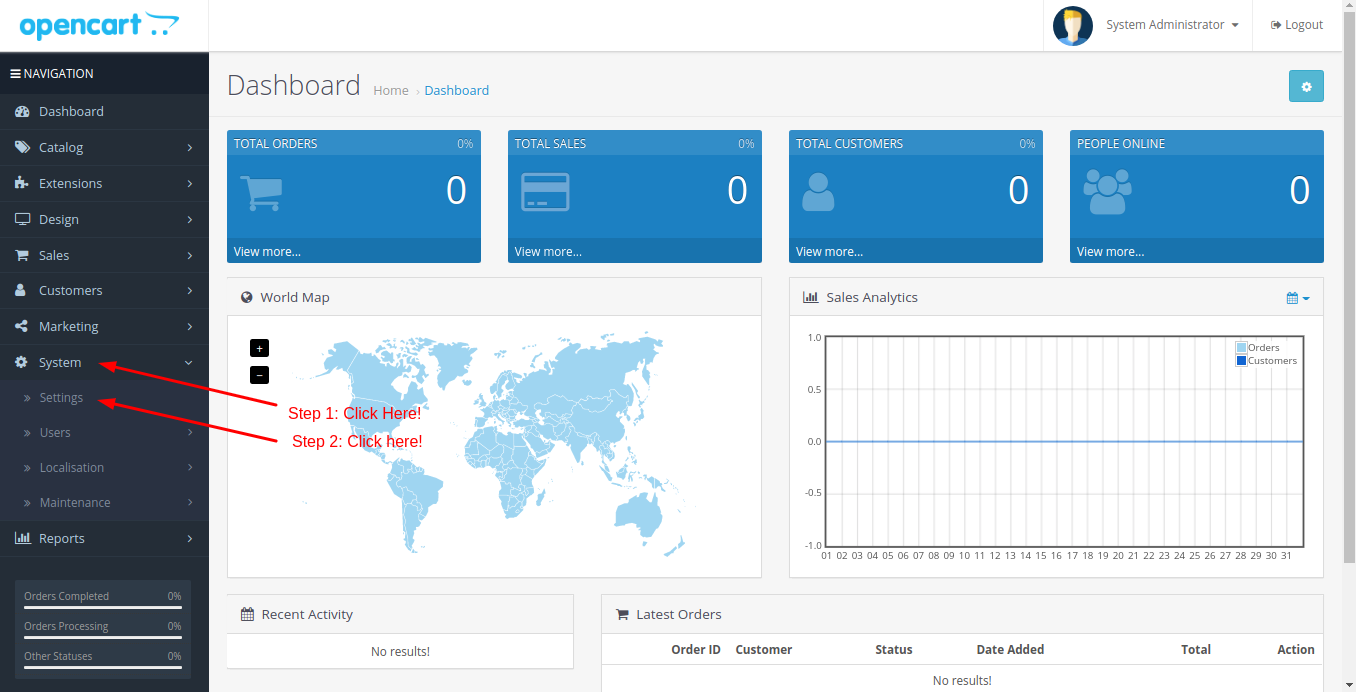
First of all, log in to the admin panel of your store. Once there, click on the System option given in the main menu. It will reveal a drop-down menu with more options. Click on the Settings option given in the drop-down menu. Follow the tutorial visually with the help of the screenshots attached after every step.
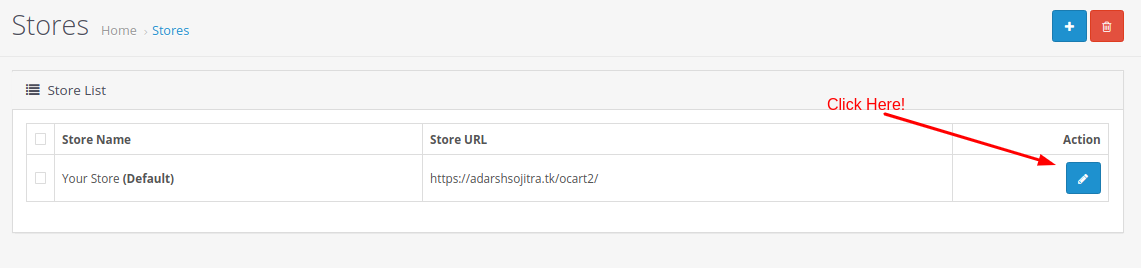
Now, Select the store name and click on the Edit link corresponding to the store you want to edit.
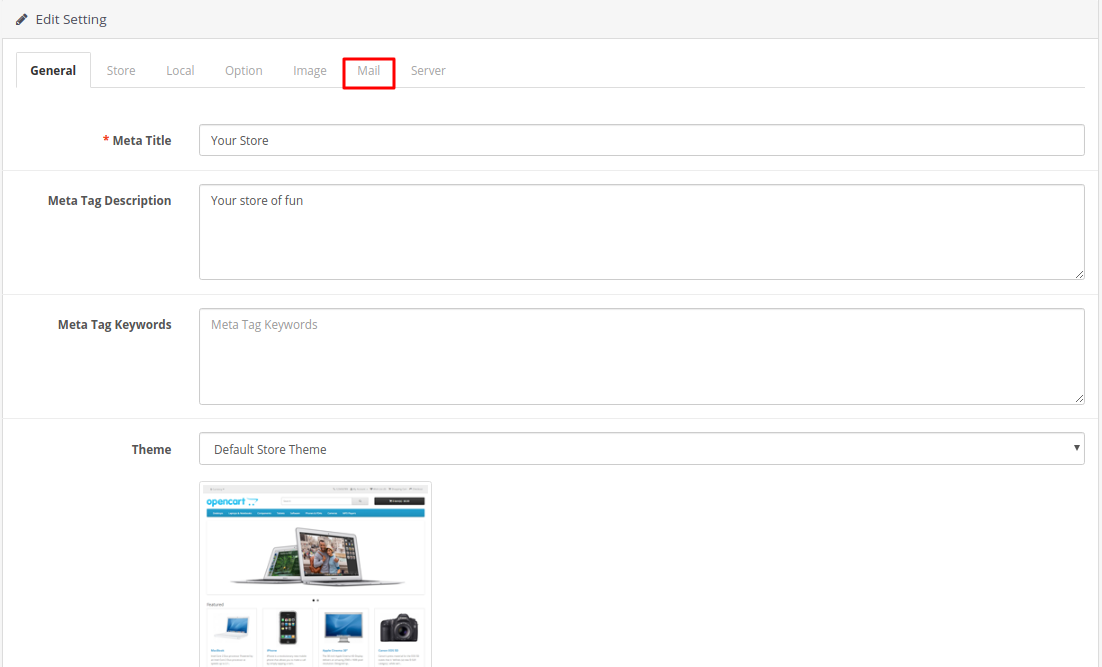
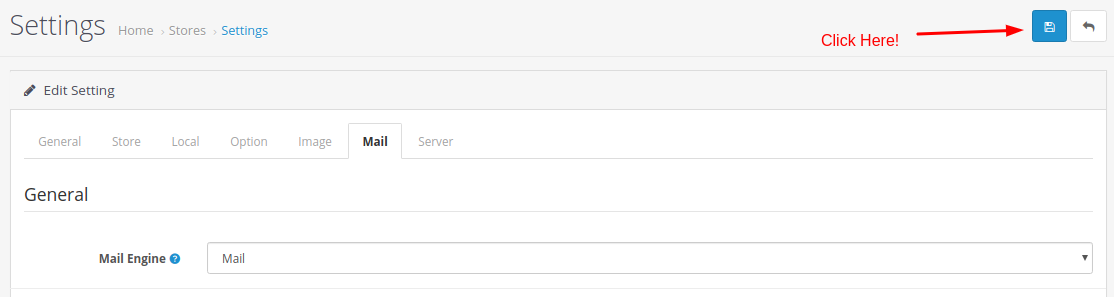
Now, you will see a page where you can modify all the aspects of your store. You will see tabs just like the following image. Click on the Mail tab to navigate to the E-mail settings section.
In this form, you have to enter all the information about your E-mail server. Enter Protocol, Parameters, Host, username, password, port and all the other required information that you will get from your E-mail service provider.
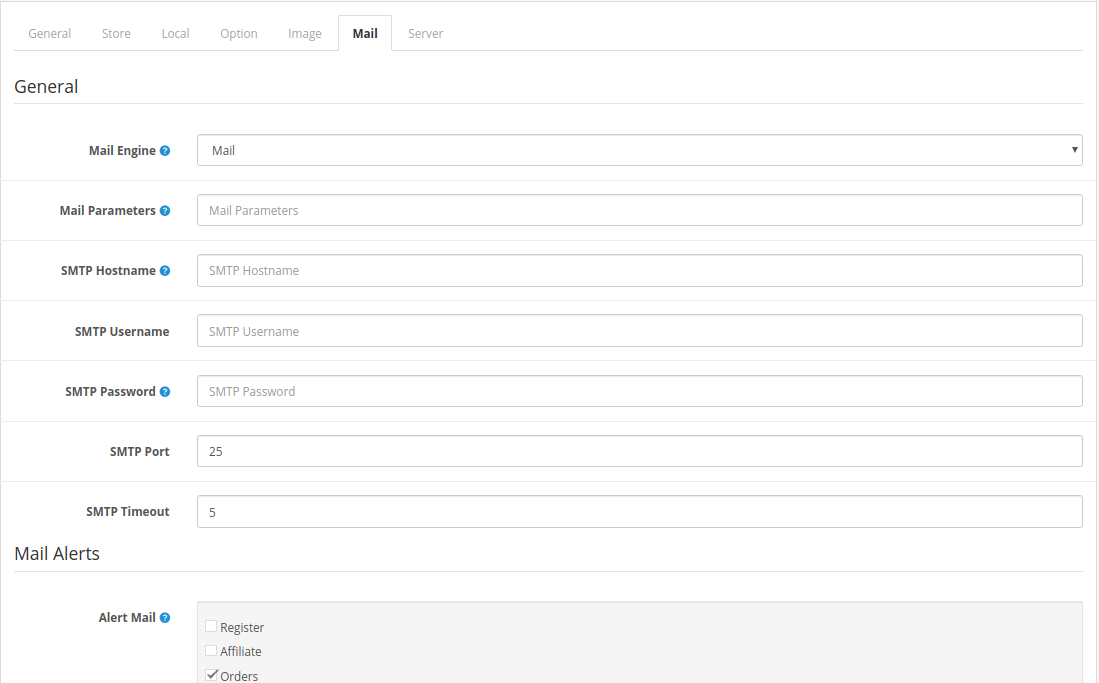
After entering all the required information, click on the Save button given at the top-right corner of the page to apply the changes immediately.
So, this is how you can configure Email settings in OpenCart. It is always good to use the E-mail service to send E-mails. You might also find Free E-mail service providers on the internet that will allow you to send bulk or automated E-mails from free directly from your application.
If you have any questions or queries regarding E-mail settings, SMTP or this tutorial, please let us know in the comment section given below, we are happy to help you!
Related guides
How to Install vQmod Manager in OpenCart
vQmod Manager is a graphical interface that helps you to see all the scripts, errors and all vQmod cache files. Many OpenCart modules are written by vQmod scripts.
OpenCartCreate Gift Vouchers in OpenCart
In this documentation, we can check how to create gift vouchers in OpenCart. 1) Login to OpenCart admin panel. 2) Go to the tab ‘Sales’. 3) Go to the option
OpenCartHow to Add an Affiliate in OpenCart?
Affiliate marketing is a win-win for Affiliate marketer as well as store owner. Follow this tutorial to learn how to add affiliate to opencart store.
OpenCartHow to Add Languages in OpenCart?
OpenCart is one of the most popular eCommerce management system. In this tutorial, I will show you how to add a new language to your OpenCart store.