
GICT knowledge base
How to Configure Email Piping in WHMCS?
Published
How to Configure Email Piping in WHMCS?
WHMCS is one of the leading web hosting automation platform. WHMCS provides the tools you need to start a web hosting business. WHMCS handling signups, provisioning, billing, and support. The main features that are provided by WHMCS are:
Save Time
Automate Billing
Web & Domains
Support Tools
Developer Friendly
Secure & Scalable
Powerful API
You can use WHMCS for setting up a support ticket system. When we set up a support ticket system it should need to have a support email address for clients to send questions or issues. If you set email piping in WHMCS, it will help your clients to open and reply to tickets via email without login to the client area first. Setting up email piping allows those emails to become tickets within your WHMCS.
The steps to configure Email piping between your WHMCS admin dashboard and cPanel are listed below.
1) Log into your WHMCS admin area.
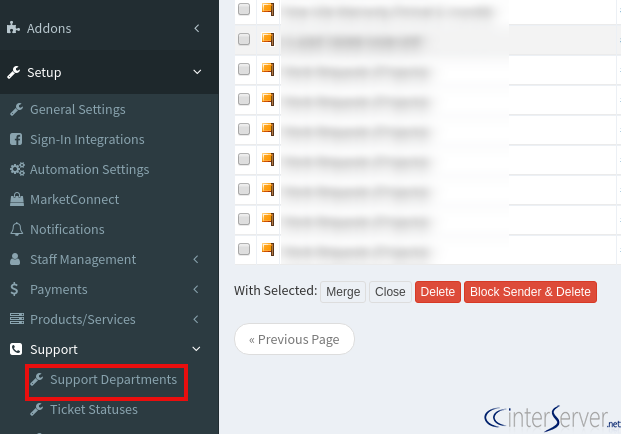
2) Then select Setup -> Support -> Support Departments.
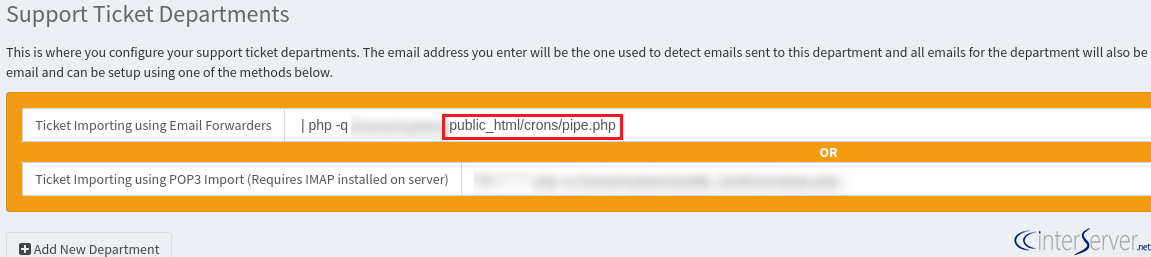
3) From the Support Ticket Departments page, locate the “Ticket Importing using Email Forwarders” field and copy the path after ‘home/username/’ specified in the path.
4) After that, login to your cPanel.
5) Select the “Forwarders” option under the Email category.
6) Click on the “Add Forwarder” button.
7) On the displaying Add New Forwarder page, enter the support department’s email address in the “Address to Forward” field. After that click on “Advanced Options”.
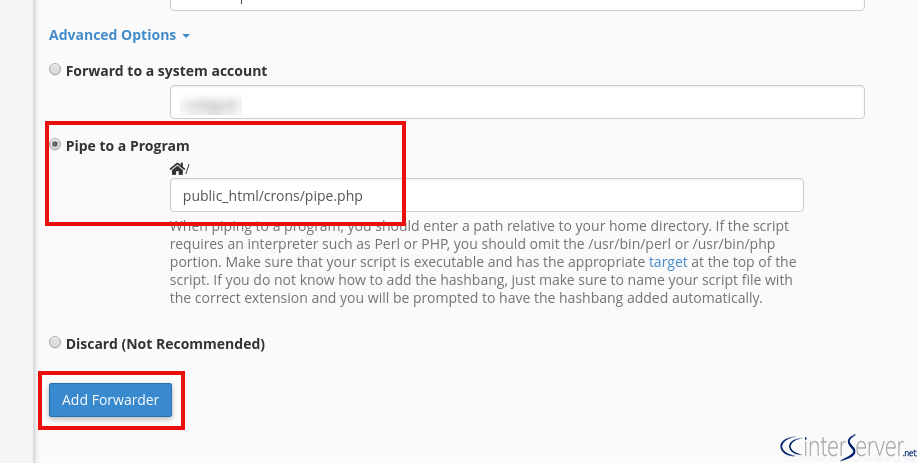
8) Click on the “Pipe to a Program” option and paste the path previously copied in step 3. And then click on the “Add Forwarder” button.
If you need any further assistance please contact our support department.
Related guides
How to Test Application Emails with Mailpit
Capture staging emails with Mailpit over a private connection. Inspect message formats and attachments without confusing capture with real delivery.
EmailHow to Test SMTP Login and TLS with swaks
Diagnose SMTP connectivity, TLS and authentication with swaks. Protect credentials and distinguish server acceptance from recipient delivery.
EmailResolving: This message was classified as rSPAM and may not be delivered
Resolve GICTServer rSPAM rejections using the SMTP code and MailBaby rule details. Check authentication, security and false positives through support.
EmailHow to Check SPF, DKIM and DMARC Using Message Evidence
Diagnose email authentication using real message identities and selectors, DNS answers and alignment instead of guessed records or delivery assumptions.