
GICT knowledge base
How to Test SMTP Login and TLS with swaks
Published
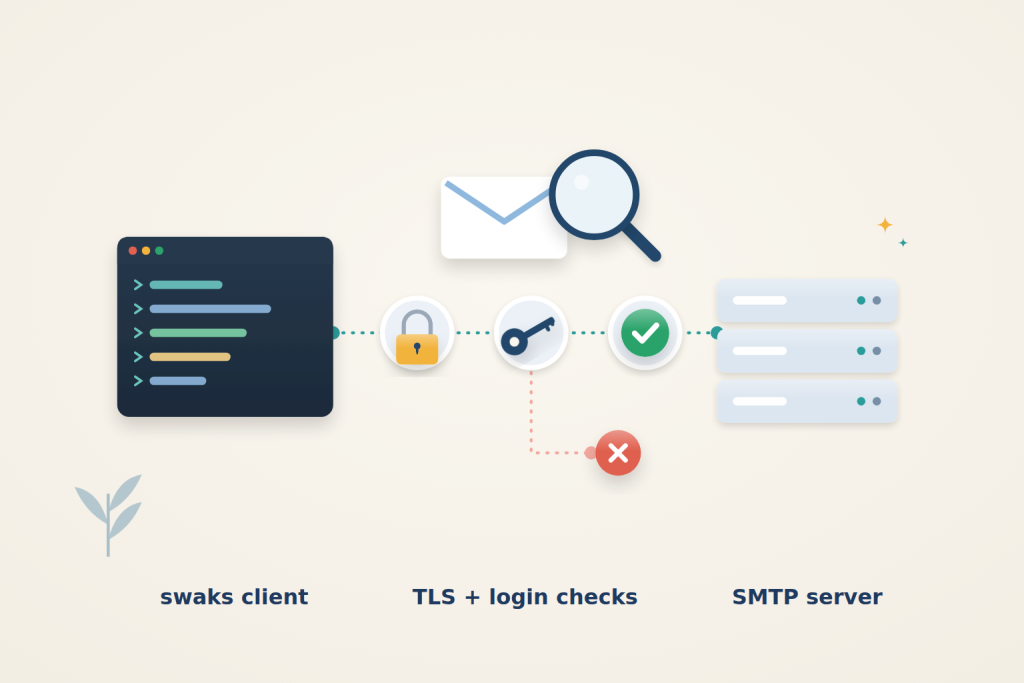
When an app or server stops sending email, the error message is often just “could not connect” or “authentication failed”, with no hint of which step broke. swaks talks to the mail server one SMTP step at a time and prints both sides of the conversation. In a few commands you can see whether the port is blocked, TLS fails, the login is wrong, or the server refuses the message.
Before you start
Run the tests on the server that has the problem, because firewalls and blocked ports depend on where the connection starts. You need sudo access and the SMTP details your app uses: host name, port, user name and password.
Most providers accept mail from apps on port 587 with STARTTLS, or on port 465 with TLS from the first byte. Port 25 is for server-to-server delivery, and many hosting providers block it for outgoing connections. GICTServer blocks outbound port 25 on VPS and dedicated servers by default; their SMTP support page explains when and how it can be opened. For app email, use 587 or 465 instead.
The examples use smtp.example.com and the user [email protected]. Replace them with your own values.
Install swaks
On Ubuntu and Debian, install swaks from the standard repositories:
$ sudo apt-get update
$ sudo apt-get install -y swaks
$ swaks --version
Ubuntu 24.04 ships version 20240103.0, which has every option used below. Only the installation needs sudo; run the tests themselves as your normal user.
Read the transcript
swaks marks each line of the conversation so you can see who said what:
| Prefix | Meaning |
|---|---|
=== |
swaks status, such as connecting or TLS details |
-> / <- |
what swaks sent / what the server replied, unencrypted |
~> / <~ |
the same, inside TLS |
<** or <~* |
the server replied with an error |
*** |
swaks itself gave up, for example on a timeout |
The SMTP reply code tells you most of the story: 2xx is success, 4xx is a temporary failure, and 5xx is a permanent failure.
Check the connection and what the server offers
Start without TLS or login, and stop after the greeting:
$ swaks --server smtp.example.com --port 587 --quit-after EHLOA working connection shows a 220 greeting and a list of 250- lines, including 250-STARTTLS. If you see *** Error connecting followed by Connection timed out, nothing on that port answered: a firewall or your provider is blocking it. Connection refused means the host answered but nothing listens on that port.
Do not worry if the list has no AUTH line yet. Most servers offer login only after TLS starts.
swaks waits 30 seconds for each step by default. Add --timeout 10 to get an answer faster when you suspect a blocked port. --quit-after accepts the stages CONNECT, EHLO, TLS, AUTH, MAIL and RCPT, so you can stop exactly where you want to look.
Test TLS and the certificate
Add STARTTLS and certificate checking:
$ swaks --server smtp.example.com --port 587 --tls --tls-verify --quit-after EHLOLook for these lines in the output:
=== TLS started with cipher TLSv1.3:TLS_AES_256_GCM_SHA384:256
=== TLS peer certificate passed CA verification, passed host verification (using host smtp.example.com to verify)
<~  250-AUTH PLAIN LOGIN
The AUTH line after TLS lists the login methods the server accepts. --tls-verify checks the certificate the way a strict mail library does. If it reports failed host verification, the certificate does not cover the name you connected to. That happens, for example, when you use the server’s IP address instead of its host name. Use the host name from your provider’s documentation.
For port 465, the TLS handshake comes first, so replace --tls with --tls-on-connect:
$ swaks --server smtp.example.com --port 465 --tls-on-connect --tls-verify --quit-after EHLOIf you use --tls on port 465 by mistake, swaks connects and then waits for a greeting that never comes, ending with Timeout (… secs) waiting for server response.
Test the login without sending mail
Stop right after authentication:
$ swaks --server smtp.example.com --port 587 --tls --tls-verify --auth-user app@example.com --protect-prompt --quit-after AUTH
swaks asks for the password, and --protect-prompt hides it as you type. Avoid --auth-password on the command line, because the password ends up in your shell history and process list. Success looks like this:
<~ 235 2.7.0 Authentication successfulA wrong user name or password returns 535 5.7.8 and ends with *** No authentication type succeeded. Many providers expect the full email address as the user name.
The transcript shows the login in base64, which is encoding, not encryption. Anyone can turn it back into your password. Before you share a transcript in a ticket or forum, run the test again with --auth-hide-password. swaks then sends the real password but prints PROVIDED_BUT_REMOVED, base64-encoded, in its place.
Send a test message
When the login works, send a real message to an address you can check. A mailbox at a different provider is the best test, because it exercises real delivery to the outside world:
$ swaks --server smtp.example.com --port 587 --tls --tls-verify --auth-user app@example.com --protect-prompt --from app@example.com --to you@example.net --header "Subject: swaks test" --body "Sent with swaks."
The server should accept the sender and recipient with 250 replies, and finish the message with a line such as 250 2.0.0 Ok: queued as …. That means the server has taken responsibility for the message. If it never arrives, check the recipient’s spam folder and the sending domain’s SPF and DKIM records next; the SMTP connection itself is working.
swaks exits with status 0 when its requested stages succeed. With --quit-after AUTH, that confirms login, not message submission. A full-send command checks additional stages, so choose the stopping point deliberately when using it in a script.
Common errors
| Output | Cause | Fix |
|---|---|---|
Connection timed out |
Port blocked by a firewall or your provider | Use 587 or 465, or ask your provider to open the port |
530 5.7.0 Must issue a STARTTLS command first |
The server requires TLS before mail commands | Add --tls, and enable STARTTLS in your app |
*** Host did not advertise authentication |
Login was attempted without TLS | Add --tls (port 587) or --tls-on-connect (port 465) |
535 5.7.8 … authentication failed |
Wrong user name or password | Check the credentials; try the full email address |
failed host verification |
Certificate does not match the host name | Connect using the host name on the certificate |
Timeout … waiting for server response on port 465 |
STARTTLS used on an implicit-TLS port | Use --tls-on-connect |
Relay access denied or Recipient address rejected: Access denied |
Sending to another domain without logging in | Add --auth-user, and make sure your app logs in |
Use the result to narrow the application problem
Compare the working command with the application’s hostname, port, TLS mode, username, envelope sender and recipient. Matching only the password is not enough. An application configured for implicit TLS on a STARTTLS port can fail before the server ever checks its credentials.
Keep the test’s origin the same as the failing application where possible. A successful connection from your laptop does not establish that a VPS, container or other network can reach the same endpoint. Likewise, a successful test at one time does not rule out an intermittent failure later. Record when and where the test ran along with the stage that failed.
Separate SMTP acceptance from inbox delivery. A final queued response shows that this SMTP server accepted the message; it does not show that every later server accepted it or that the recipient placed it in the inbox. Preserve the queue identifier when investigating a missing message, but remove credentials and unnecessary message content before sharing the transcript.
A successful swaks run establishes that the tested SMTP steps worked from that source at that time. Compare the application’s connection, TLS and authentication settings, but also investigate intermittent failures, queue processing and recipient delivery. It does not prove that every remaining problem is in the application.
Reference: swaks documentation. Check the documentation for your installed version before applying changes.
Related guides
How to Diagnose Packet Loss with mtr
Use mtr to investigate packet loss without misreading intermediate hops. Compare ICMP and TCP probes and collect useful evidence for hosting support.
troubleshootingWhat You Need to Know About the 408 Request Timeout Error: Understanding Causes, Implications, and Solutions
Learn about the 408 Request Timeout error, its causes, and practical solutions to improve user experience and maintain web performance effectively.
troubleshootingHow to Tackle the 401 Unauthorized Error: Essential Insights and Solutions for Website Owners
Discover essential insights and solutions for resolving the 401 Unauthorized error on your website, enhancing user experience and functionality.
troubleshootingHow to View and Manage System Logs Using journalctl in Linux
Master journalctl for Linux log management. Learn filtering, real-time monitoring, and troubleshooting techniques to efficiently analyze system logs.