
GICT knowledge base
Email Management in Plesk
Published
In this article we are going to discuss about Email management in Plesk control panel.
Create Email Account
You can refer the following steps to create Email account in Plesk.
1: Login to Plesk Admin Panel.
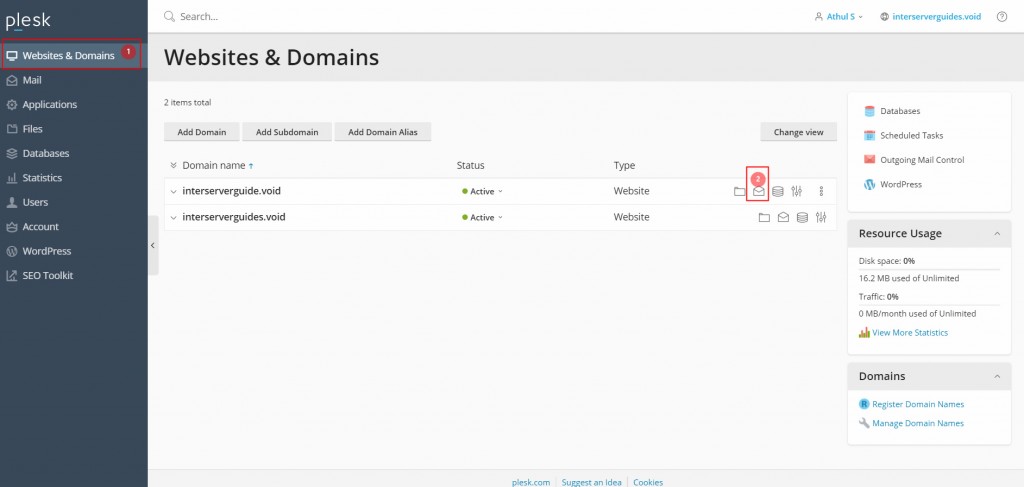
2: Click on the “Websites & Domains” option from the left tab. Click “Mail” icon listed on the right side of the page.
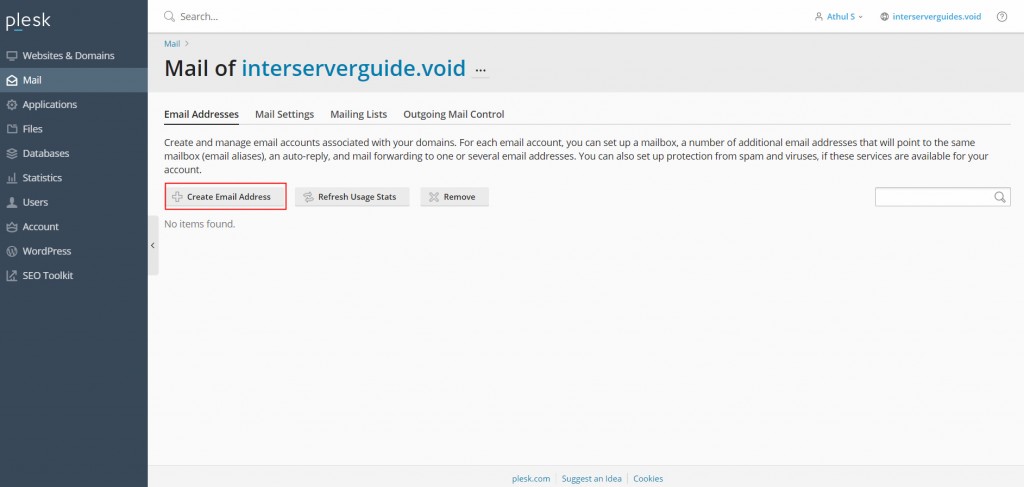
3:Now under the Email Addresses section we can see the “Create Email Address” option. Click on it.
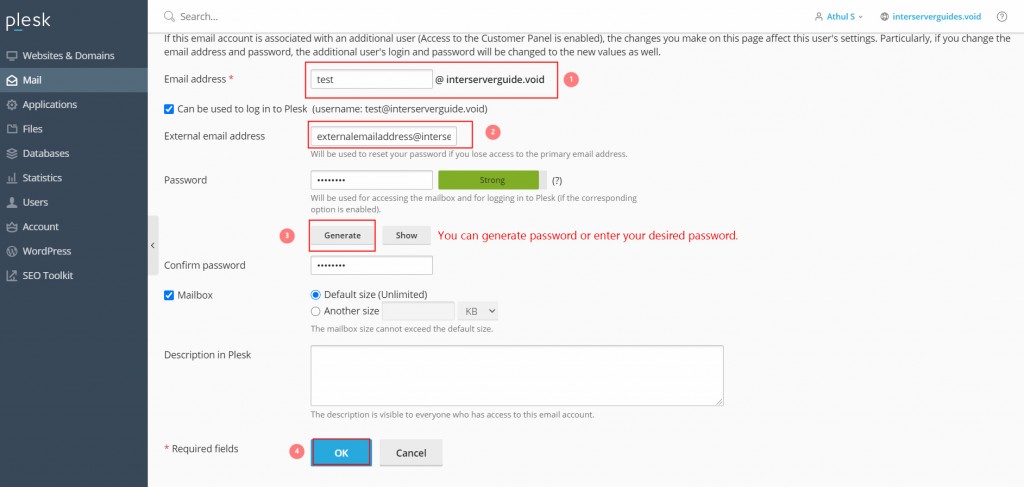
4: A new page will open to create a new Email account we need to add an Email address, password and Email quota for new account we are going to create.
You need to keep the “Mail Box” option enabled, otherwise mailbox will not be created for your Email account. If you wish to use the Email address as an Email forwarder, you can disable the option.
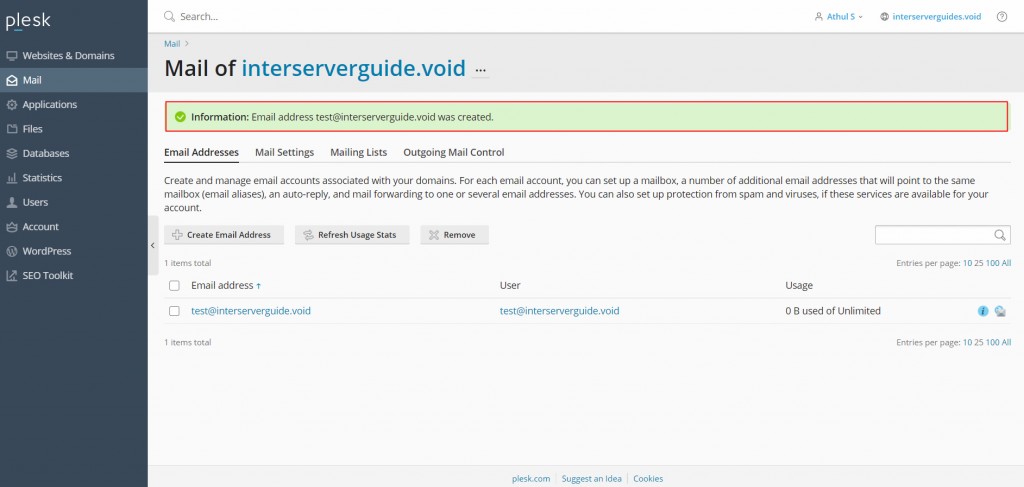
That will create a new Email account.
Email Forwarder Setup
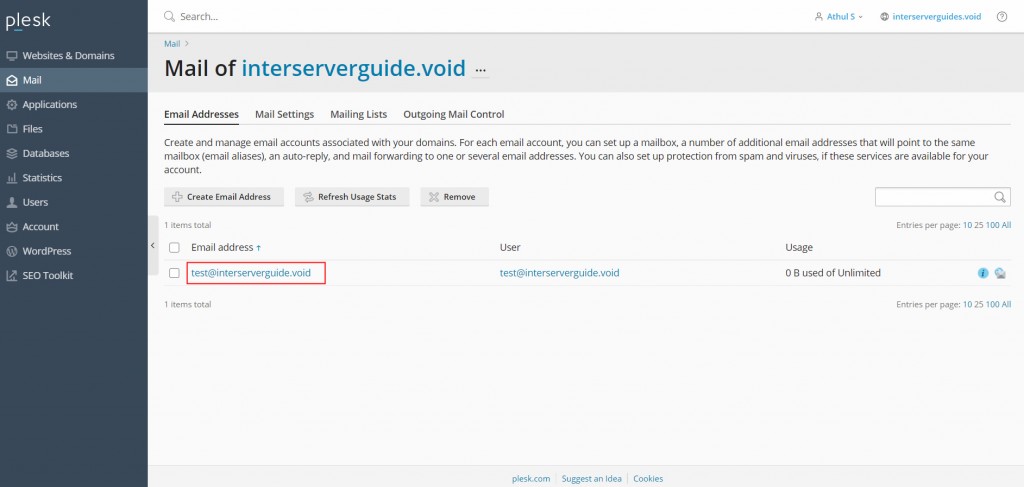
1: Click on “Mail” option from the domain control panel. Click on the Email address on which you wish to set up Email forwarding.
2: Click the “Forwarding” tab from the next page. Then enable the option “Switch on Email Forwarding” and Email address you want to set as a forwarder for this Email account.
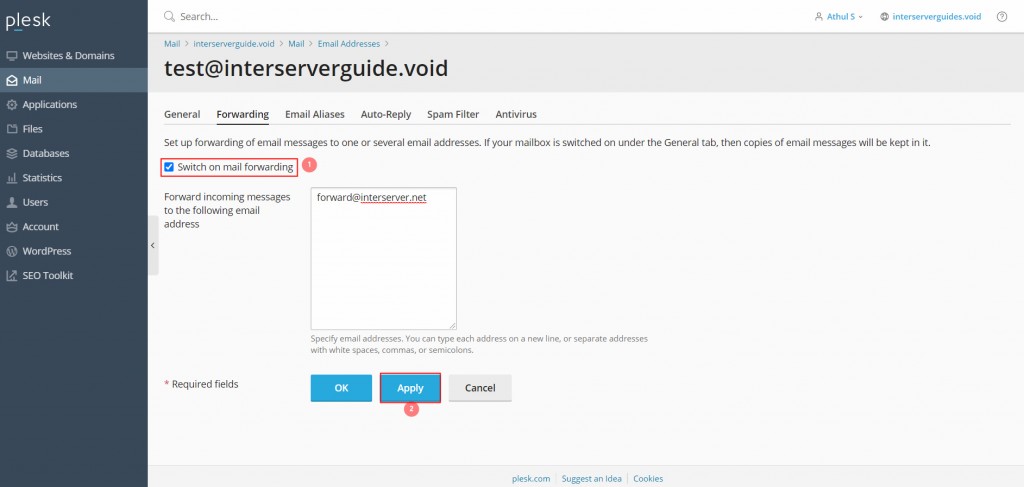
Now all incoming messages to that Email will forward to the Email addresses you mentioned in the box.
Email Alias Setup
Next to “Forwarding” option we can see Email Aliases” option which help you to setup aliases for the Email address.
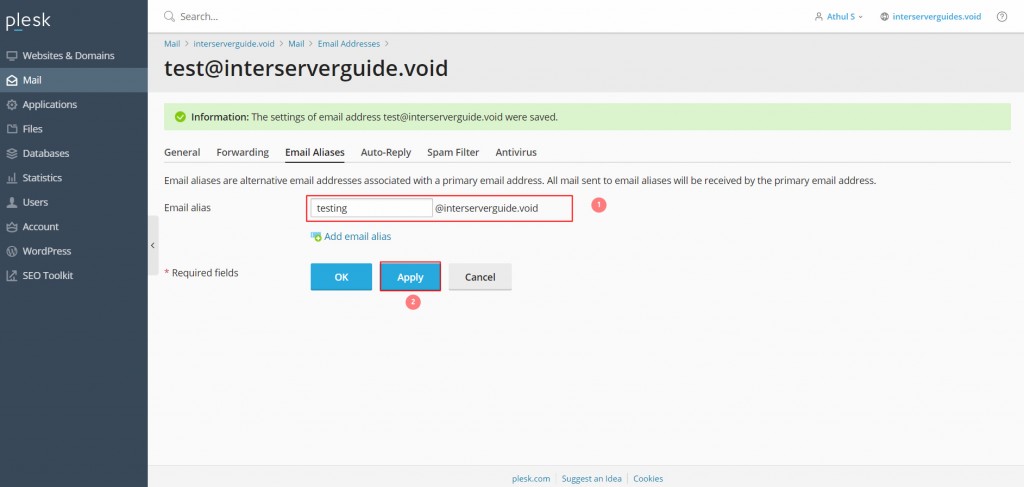
Add the username of the Email account you want to set as alias in the “Email alias” box, then click “OK”.
Remove Email Address
You can use the following steps to remove Email accounts from Plesk panel.
1: Go to “Mail” tab at the home page of the domain control panel.
2: Now we can see lists of the existing Email address.
3: Select Email account(s) you want to remove, then click “Remove” as shown in the image.
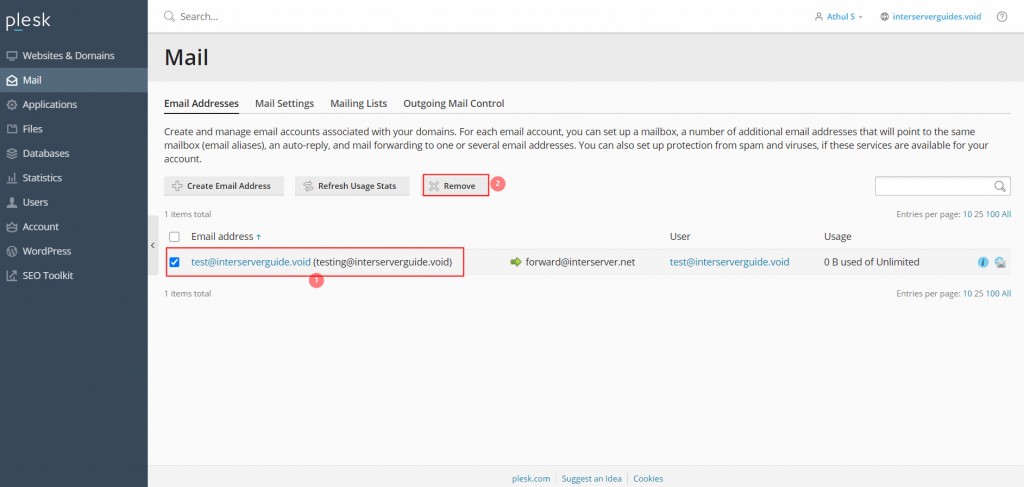
Click on Yes to remove the Email address.
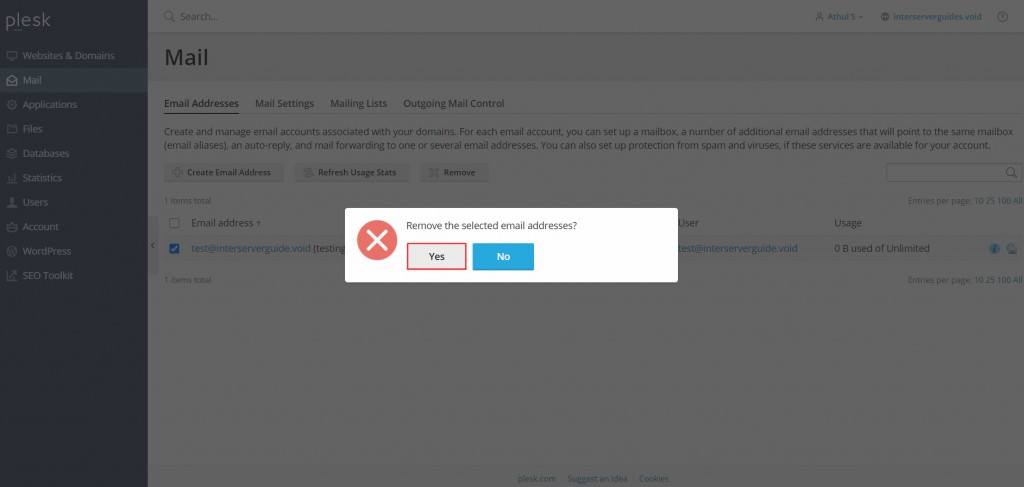
That will remove the selected Email Accounts.
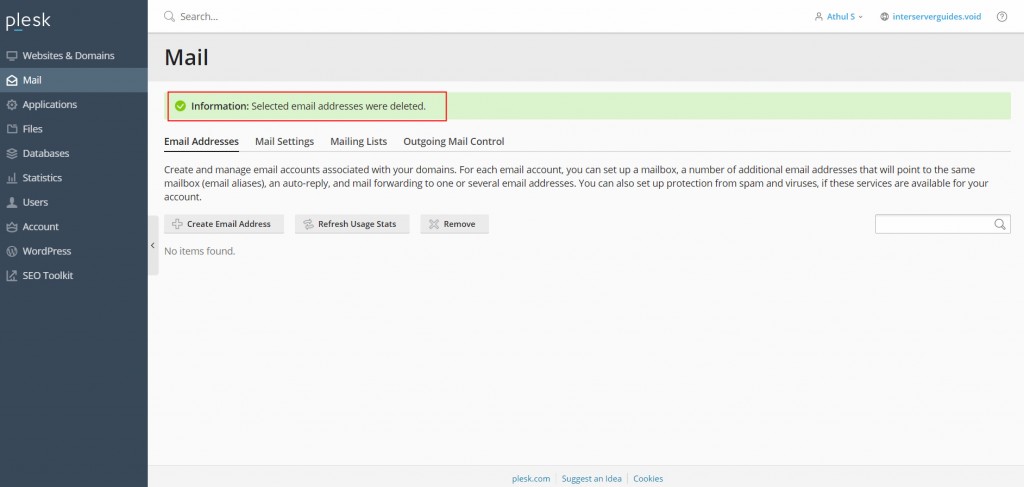
This concludes Email Management in Plesk.
If you need any further help, please do reach our support department.
Related guides
cPanel and Plesk notice: Awstats,. Webalizer and Analog stats are being removed
Important Update: cPanel and Plesk Phasing Out Legacy Statistics Tools If you regularly check your website traffic through your hosting control panel, we have an...
PleskUnderstanding the db_owner Role in Plesk Windows Hosting
If you have ever managed a database on a Windows-based hosting plan using Plesk, you might have noticed that your database user doesn’t always start with "full"...
PleskUsing Nmcli to Set a Static IP (Replacing DHCP) on AlmaLinux (RHEL Based) – Recommended for control panel systems
If you have been managing servers for a while, you probably remember the days when control panels like cPanel and Plesk absolutely hated NetworkManager.
PleskAdd a Website Domain to the Correct Plesk Subscription
Add a Plesk website domain with deliberate hosting and root settings, then verify DNS and certificate issuance separately from creation.