
GICT knowledge base
Disable ModSecurity Rule for cPanel User
Published
Disable ModSecurity Rule for cPanel User
ModSecurity is an Apache module which will protect your website from attacks, which includes a set of rules that blocks some regular expressions to prevent your websites from hackers. Almost 70% of server attacks are now carried out over the web application level. Mod_security always filters the data on your website and prevent your website from hackers and it will help you to secure your server.
In order to disable the mod security rule on your cPanel server, you would need to install a plugin called “ConfigServer ModSecurity Control”. For more information on how to install that plugin, please refer to our Knowledgebase article: https://www.GICTServer.net/tips/kb/install-configserver-modsecurity-control-cpanel/
Once you have installed that plugin, please see this tutorial to know how to disable a particular Mod_Security rule in the server.
Initially, you would need to find the exact rule which is triggered on the server. In order to find that rule, you will need to follow the below steps:
1) Login to your server via SSH.
2) Run the following command to determine what ModSecurity rules are being triggered:
grep ModSecurity /usr/local/apache/logs/error_log | sed -e ‘s#^.*\[id “\([0-9]*\).*hostname “\([a-z0-9\-\_\.]*\)”\].*uri “#\1 \2 #’ | cut -d\” -f1 | sort -n | uniq -c | sort -n
The above command will help you to find which rule is being triggered on the server.
After finding the rule, then you would need to follow the steps mentioned below, in order to disable those triggered rule for a particular cPanel user.
1) Login to WHM.
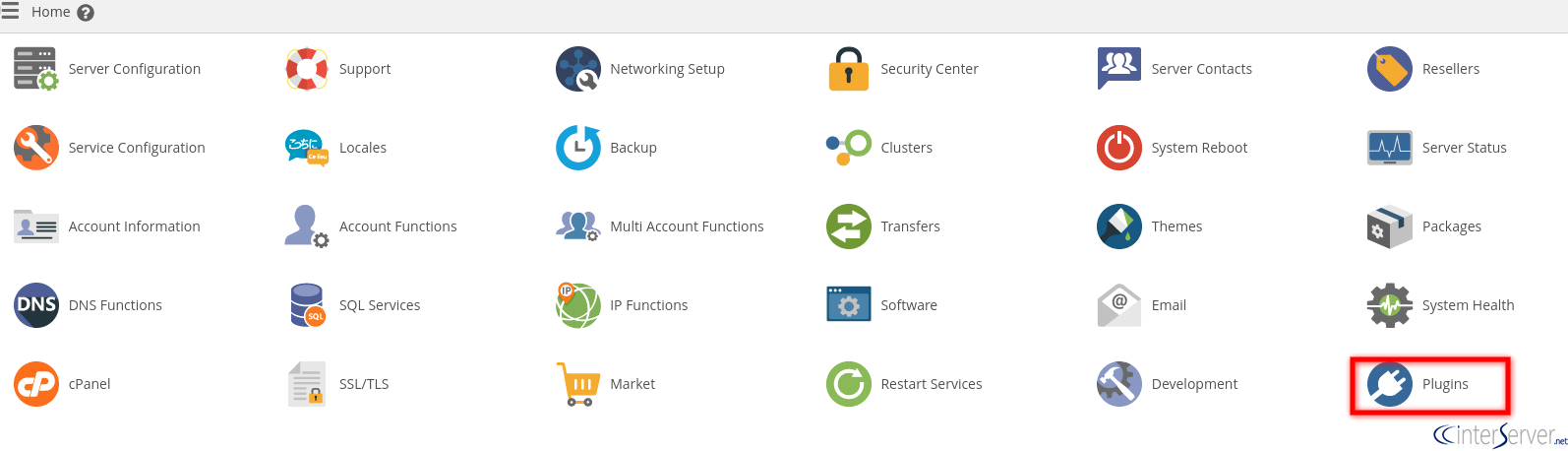
2) Navigate to “Plugins” section.
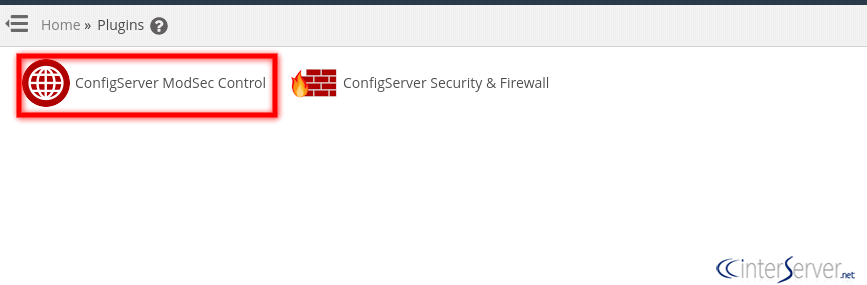
3) Click on “ConfigServer ModSec Control” plugin for whitelisting the rule.
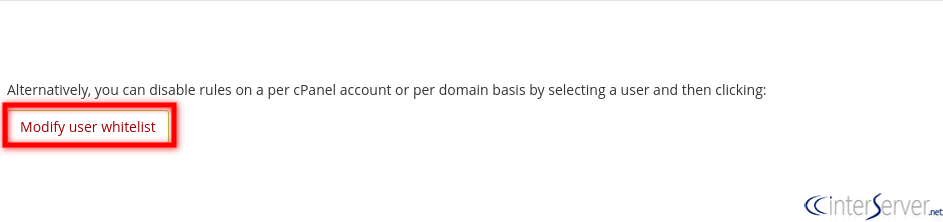
4) Then you would need to select the cPanel user that you wish to disable ModSecurity rule and click on “Modify user whitelist” button.
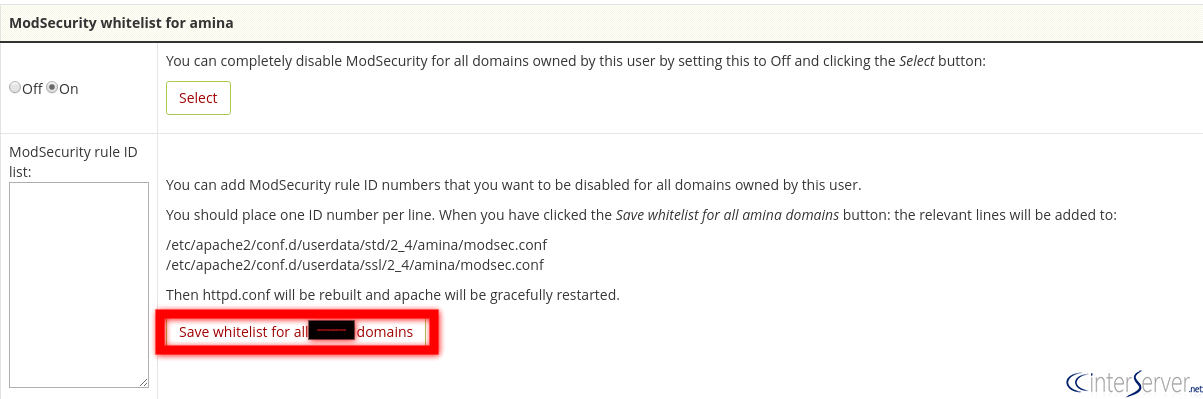
5) This will redirect you to a page and there you can add the rule that you wish to whitelist and click on the “Save whitelist for all your domains” button.
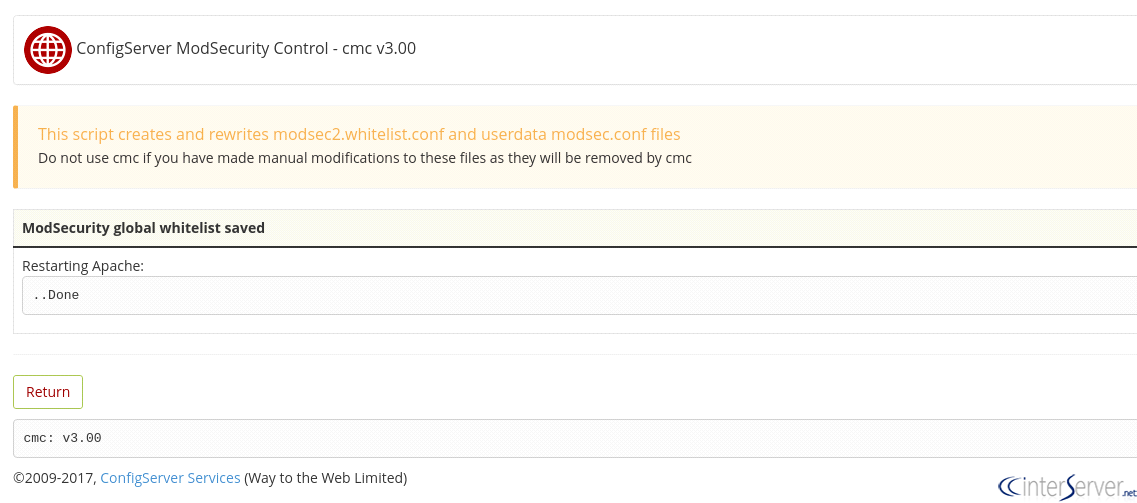
6) After you save the changes, it will redirect to a page like “ModSecurity global whitelist saved”. Apache service will automatically restart to enable those changes on the server.
If you need any further assistance please contact our support department.
Related guides
How to Find Services That Need a Restart After Updates with needrestart
Find services using outdated libraries with needrestart on Ubuntu. Read restart reports, review automatic restart policy and plan maintenance safely.
Firewall and SecurityHow to Connect Two Servers Privately with WireGuard
Connect two servers with WireGuard and keep PostgreSQL on the tunnel. Verify peer traffic, private database access and denied public connections.
Firewall and SecurityGICTServer HIPAA Hosting: BAA and Shared Responsibilities
Review GICTServer HIPAA hosting responsibilities and download the BAA and provisioning checklist. Request service-specific coverage through a support ticket.
Firewall and SecurityHow to Sign and Verify Files with Minisign
Sign release files with Minisign, share an authenticated public key, verify downloads, and stop processing when signatures fail.