
GICT knowledge base
How to Whitelist or Blacklist IP in cPHulk?
Published
How to Whitelist or Blacklist IP in cPHulk?
The cPHulk is a service which provides protection for your server against brute force attacks. The cPHulk monitors web servers and following services.
port 2083 cPanel service
port 2087 WHM service
dovecot and exim mail services.
PureFTPd service
SSH (Secure Shell)
You can manage cPHulk brute force protection via WHM.
WHM >> Home >> Security Center >> cPHulk Brute Force Protection.
In this tutorial, I will show how to whitelist or blacklist an IP address in cPHulk.
1) Login to WHM as a root user.
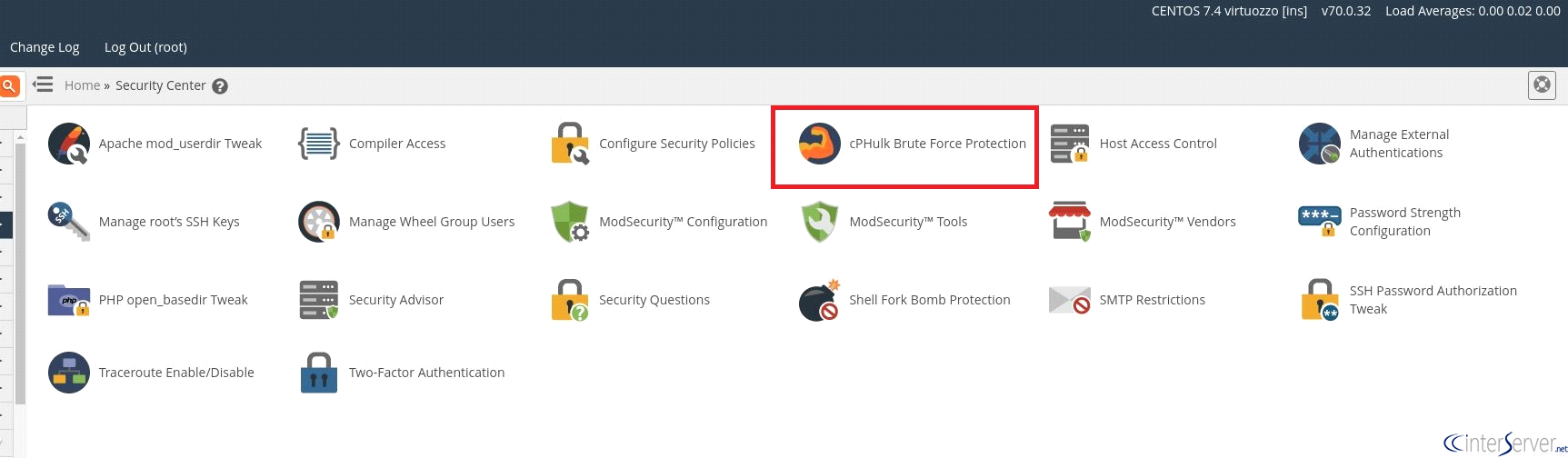
2) Navigate to Security Center >> cPHulk Brute Force Protection.
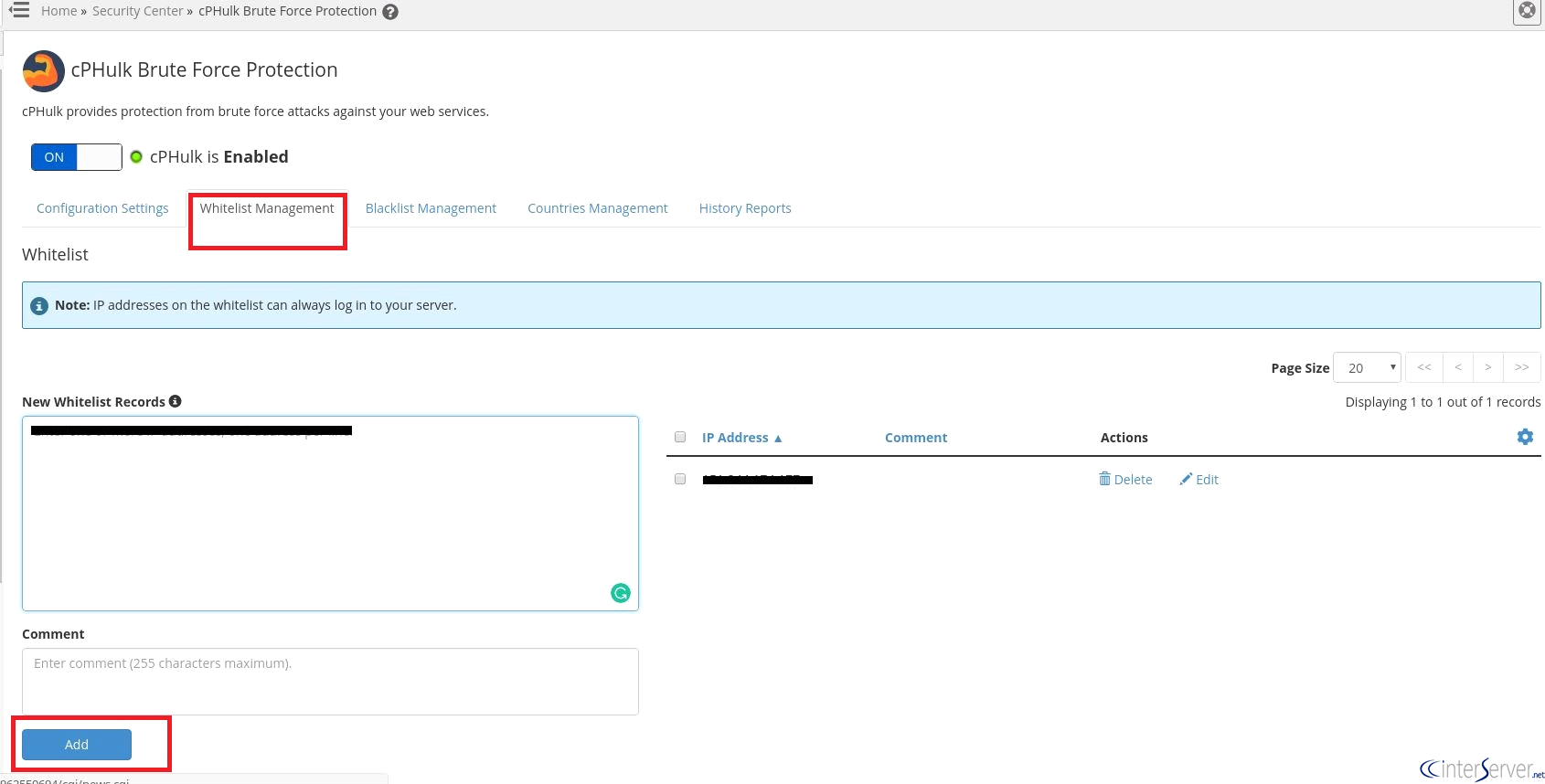
3) To whitelist an IP address, select “Whitelist Management”, enter the IP address which you want to whitelist and click the button “Add”.
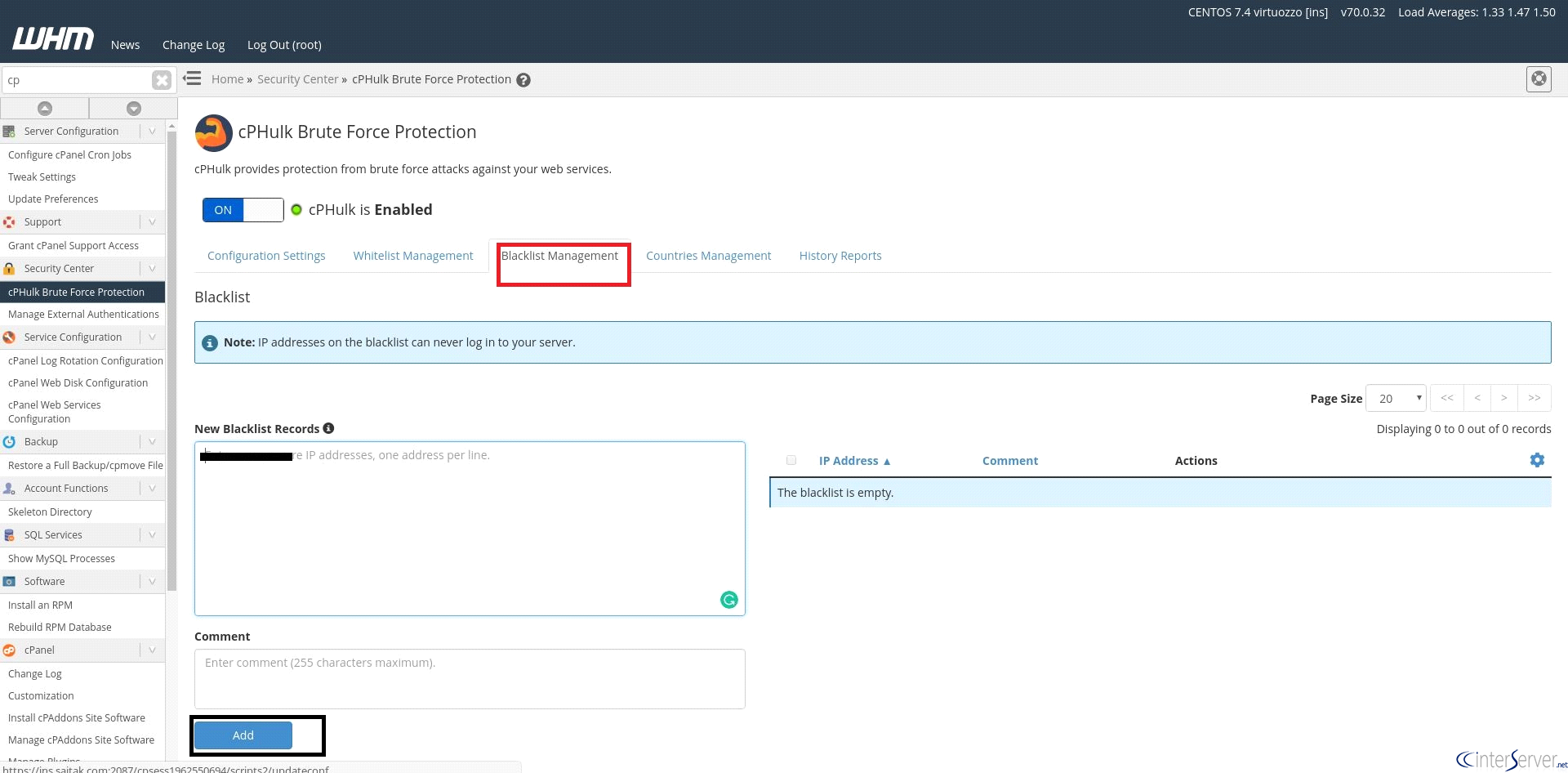
4) To blacklist an IP address, select “Blacklist Management”, enter the IP address which you want to blacklist and click the button “Add”.
If you need any further assistance please contact our support department.
Related guides
How to Install and Uninstall JetBackup for cPanel
How to Install JetBackup for cPanel. JetBackup is one of the leading backup solutions for cPanel & WHM that offers a user-friendly GUI. It provides
WHMSetup SendGrid on your cPanel VPS/Server
Setup SendGrid on your cPanel VPS/Server. SendGrid provides a cloud-based service for reliable transactional and marketing email.
WHMChange cPanel Nameserver Software to PowerDNS Carefully
Review WHM nameserver selection, resolver dependencies, cluster compatibility and DNSSEC requirements before a planned PowerDNS service change.
WHMTroubleshooting Jailed Shell on OpenVZ
cPanel/WHM providing Jailed shell environment for users, this feature giving high-level security for users when doing ssh access to their server.