
GICT knowledge base
systemctl Commands Cheat Sheet: Manage Linux Services Like a Pro
Published
Every Linux administrator hits the same wall eventually. A service will not start, the logs are somewhere, and the difference between starting a service and enabling it is fuzzy at the worst possible moment. systemd, the system and service manager that runs on nearly every modern Linux distribution, controls all of it, and systemctl is the command you use to talk to it.
This cheat sheet collects the systemctl commands you reach for in real work, grouped by what you are actually trying to do rather than dumped in one long alphabetical list. By the end, you will know how to start, stop, enable, inspect, and troubleshoot services with confidence, and you will understand the one distinction that confuses more people than any other in systemd.
Prerequisites
Before you start, make sure you have:
- A Linux system running systemd, which includes Ubuntu, Debian, Red Hat Enterprise Linux, CentOS, Fedora, and most other current distributions.
- Terminal access to the machine.
- Administrative privileges, since most service changes require sudo. Read-only commands like checking status work without it.
Understanding Service States First
Before the commands, look at what they actually do, because every status check you run reports one of a handful of states. A systemd service moves between states over its life, and reading that state is half of troubleshooting.
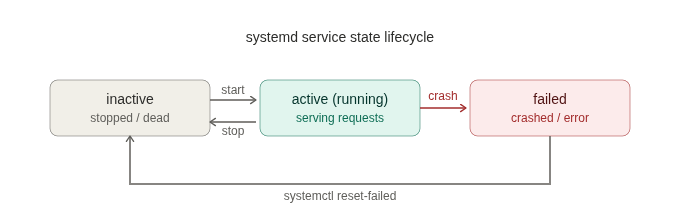
A service sits in inactive when it is stopped, moves to active when it runs correctly, and lands in failed when it crashes or exits with an error. That failed state is sticky on purpose, so the failure does not vanish before you notice it. You clear it with reset-failed once you have fixed the cause. Keep this picture in mind, because most of the commands below are just ways of moving a service between these states or asking which one it is in.
Starting and Stopping Services
These are the commands you run most, and they take effect immediately on the running system. None of them survive a reboot on their own, which is the trap covered in the next section.
Start a service right now:
sudo systemctl start nginxStop a running service:
sudo systemctl stop nginxRestart a service, which stops and starts it in one step. Reach for this after a configuration change that needs a full reload:
sudo systemctl restart nginxReload a service’s configuration without a full restart, when the service supports it. This keeps the service running and avoids dropping active connections, so prefer it over restart whenever the service allows:
sudo systemctl reload nginxWhen you are not sure whether a service can reload gracefully, use the combined command. It reloads if the service supports it and falls back to a restart if it does not:
sudo systemctl reload-or-restart nginxEnabling and Disabling at Boot
Here is the distinction that trips up nearly everyone, so it gets its own section. start and enable are not the same thing, and confusing them is the reason a service runs fine all week and then vanishes after a reboot.
start runs a service now, in this session. enable tells systemd to start the service automatically every time the system boots. A service can be started but not enabled, which means it dies on the next reboot. It can also be enabled but not currently started, which means it will come up on the next boot but is not running yet. You almost always want both for a production service.
Enable a service to start on boot:
sudo systemctl enable nginxEnable it and start it immediately, in one command. This is the one you actually want most of the time:
sudo systemctl enable --now nginxDisable a service so it no longer starts at boot:
sudo systemctl disable nginxDisable and stop it at the same time:
sudo systemctl disable --now nginxCommit that --now flag to memory. It saves you from the classic mistake of enabling a service, forgetting to start it, and wondering why nothing is listening until you reboot.
Checking Status and State
This group answers the question you ask most during an incident: what is this service doing right now? These commands are read-only, so they run without sudo.
See the full status of a service, including whether it is active, its recent log lines, and its process details. This is your first stop when something is wrong:
systemctl status nginxAsk a simple yes-or-no question with a clean exit code, which is ideal inside scripts:
systemctl is-active nginxCheck whether a service is set to start at boot:
systemctl is-enabled nginxCheck specifically whether a service has failed:
systemctl is-failed nginxListing and Inspecting Units
systemd calls everything it manages a unit, which includes services, timers, sockets, and mounts. When you do not know the exact name of what you are looking for, these commands help you find it.
List every loaded service and its current state:
systemctl list-units --type=serviceList only the services that have failed, which is a fast way to spot trouble across the whole system:
systemctl --failedList which services are set to start at boot and which are not:
systemctl list-unit-files --type=serviceShow the full configuration of a unit, so you can see exactly what it runs and how it is defined:
systemctl cat nginxViewing Logs With journalctl
systemd captures service output in its own log system, the journal, which you read with journalctl rather than systemctl. Since logs are where troubleshooting actually happens, these belong on any honest systemctl cheat sheet.
Show all logs for a specific service:
journalctl -u nginxFollow a service’s logs live, the way you would tail a log file. This is what you keep open in a second terminal while you reproduce a problem:
journalctl -u nginx -fShow only the most recent entries, jumping straight to the end:
journalctl -u nginx -eShow logs since the last boot, which filters out the noise from previous sessions:
journalctl -u nginx -bReloading systemd Itself
When you change a unit file, editing it is not enough. systemd reads unit files into memory, so it does not see your edits until you tell it to re-read them. Forgetting this step is why a change to a service file appears to do nothing.
Reload the systemd manager so it picks up new or edited unit files:
sudo systemctl daemon-reloadRun this after creating a unit, editing one, or installing software that adds a service. Then start or restart the service as usual.
Masking a Service
Masking is the strongest way to stop a service. A disabled service can still be started manually or pulled in as a dependency by something else. A masked service cannot be started at all, by anyone, until you unmask it. Use this when you need a hard guarantee that a service stays down.
Mask a service, blocking it completely:
sudo systemctl mask nginxUnmask it to restore normal control:
sudo systemctl unmask nginxReach for masking when you are replacing one service with another and want to be certain the old one never starts, or when a service keeps getting pulled up as a dependency and you need it gone. For routine “I do not want this at boot” cases, disable is the right tool, not mask.
Conclusion
Managing Linux services well comes down to a small set of commands and one clear mental model. You start and stop services for immediate changes, enable and disable them for boot behavior, and keep the difference between those two straight so nothing disappears after a reboot. You check state with status and is-active, hunt down problems with –failed and journalctl, remember to run daemon-reload after editing unit files, and keep mask in reserve for when a service must stay down no matter what.
Bookmark this page and the commands become muscle memory faster than you expect. The next time a service misbehaves, start with systemctl status, follow it into journalctl -u, and you will have diagnosed most problems before you even reach for a search engine.
Related guides
Plan a Safe Redis-to-Valkey Migration
Plan a Redis-to-Valkey migration: check version compatibility, rehearse recovery, stop writers for cutover and protect against lost writes during rollback.
Linux AdministrationHow to Restrict an SSH Key to One Command
Restrict an SSH key to one command with authorized_keys options. Protect the command and check that unwanted shell and forwarding access are denied.
Linux AdministrationHow to Schedule Tasks with systemd Timers
Schedule tasks with systemd timers. Verify service results separately from timer status, test missed-run handling and use an explicit UTC schedule.
Linux AdministrationHow to Restrict a Linux Service with systemd Security Settings
Restrict a Linux service with systemd drop-ins, a dedicated account, read-only paths, private temporary storage, and controlled writable directories.