
GICT knowledge base
Manage Skeleton Directory in WHM
Published
In this tutorial, we are going to discuss about how to manage the skeleton directory in WHM. By default, all the newly created accounts open with a 403 error. Which indicated there is no file or directory available on that account. If you want to add any custom pages for all the newly created accounts, then you can use the skeleton directory feature on your WHM. Skelton directory in WHM allows you to copy the same files to every newly created cPanel accounts public-html and public_ftp folders.
1) Login WHM as the root user.
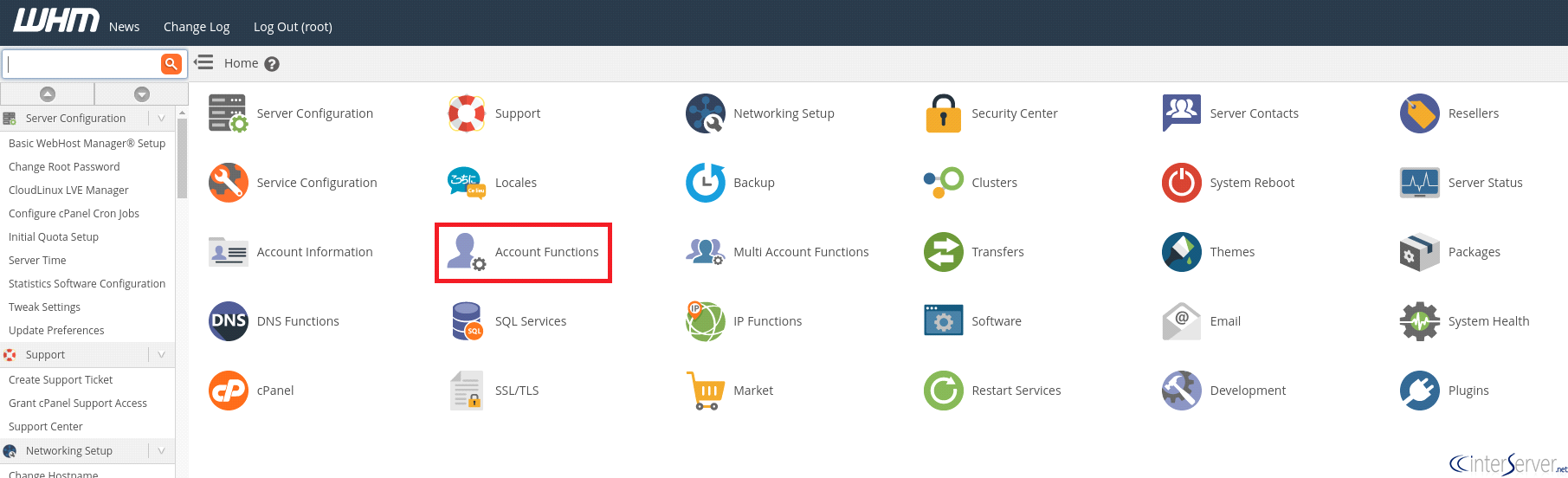
2) Select the icon “Account Functions”.
3) Navigate to “Skelton Directory”.
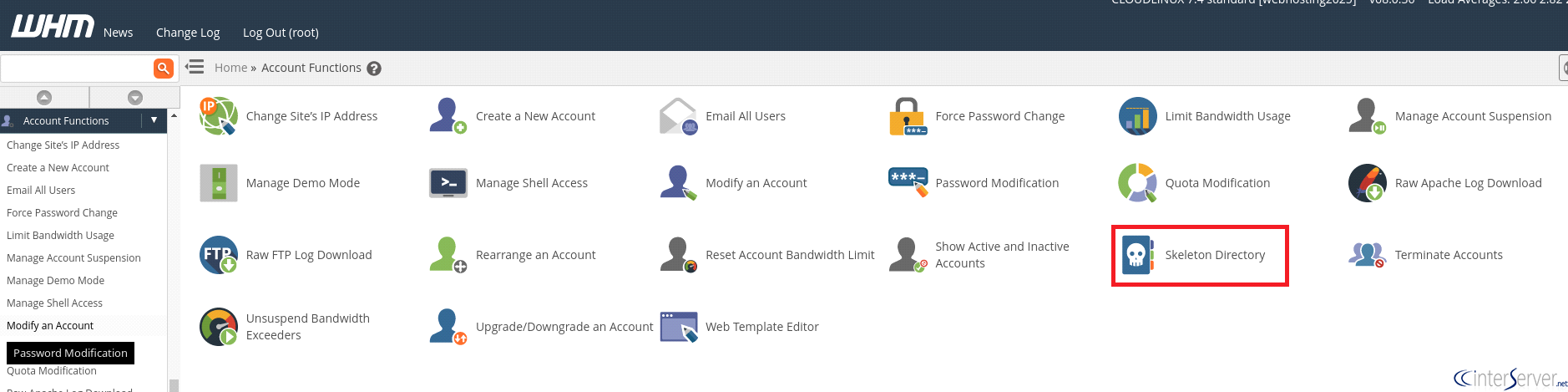
4) In this page, you can see the path to the default Skeleton directory.

This directory is what is going to be used as a skeleton for newly created cPanel accounts. For example, if you place an index.html file in /root/cpanel3-skel/public_html, and then creating a new cPanel account, that cPanel account will have a replica of your index.html in their public_html directory.
If you want to create custom pages for all the accounts on your reseller panel, you can upload the new page to the skeleton directory of your main or reseller account using FTP or file manager.
What is the /etc/skel directory?
The directory /etc/skel directory contains some files and directories that will be copied in the newly created user account. The skeleton directory has automatically copied the files and folders when the new user is created with useradd or other commands. After installing the operating system, some configuration files are placed in the /etc/skel directory and they are:
/etc/skel/.bash_logout
/etc/skel/.bashrc
/etc/skel/.profile
/etc/skel/.vimrc
To change the location of the skeleton directory, edit line beginning with SKEL=, in the /etc/default/useradd file.
# SKEL=/etc/skel
If you need any further help, please do reach our support department.
Related guides
How to Install and Uninstall JetBackup for cPanel
How to Install JetBackup for cPanel. JetBackup is one of the leading backup solutions for cPanel & WHM that offers a user-friendly GUI. It provides
WHMSetup SendGrid on your cPanel VPS/Server
Setup SendGrid on your cPanel VPS/Server. SendGrid provides a cloud-based service for reliable transactional and marketing email.
WHMChange cPanel Nameserver Software to PowerDNS Carefully
Review WHM nameserver selection, resolver dependencies, cluster compatibility and DNSSEC requirements before a planned PowerDNS service change.
WHMTroubleshooting Jailed Shell on OpenVZ
cPanel/WHM providing Jailed shell environment for users, this feature giving high-level security for users when doing ssh access to their server.