
GICT knowledge base
How to Set Permalinks in WordPress
Published
Search Engine Optimisation is one of the best way to earn free traffic. And, Permalinks are one of the ranking factors of many popular search engines. Permalink is the structure of the URL that your content has. For example, https://example.com/example-content is a permalink. And the https://example.com/[content-slug-here] is a permalink structure.
It is important to have a permalink structure that is not so long and is easy to understand. If you are a WordPress user, you can set your permalink structure with hundreds of different possibilities. In this tutorial, I will show you how to set permalinks in WordPress. To perform this action, you do not need additional plugins. WordPress provides us a feature to update permalink structures directly from the admin panel.
Note: Before we get started with the tutorial, acknowledge that changing the permalink structure on a site with good search engine traffic might show some changes in traffic. It is because Google or other search engine has to remove your content with old URLs and index the content with new Permalink structure.
Finally, Let’s get started with the tutorial.
Set Permalinks in WordPress
Step 1: Log in to the admin panel of the WordPress site with your username and password.
Step 2: Click on the “Settings -> Permalinks” option from the left sidebar.
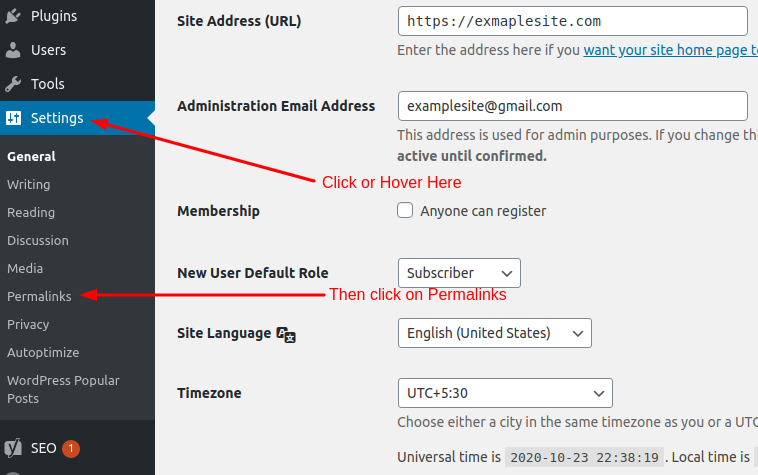
On this page, you will see a list of pre-defined permalink structures with an option to create a custom permalink structure.
Step 3: Click on the pre-defined or custom Permalink structure you would like to set for your content.
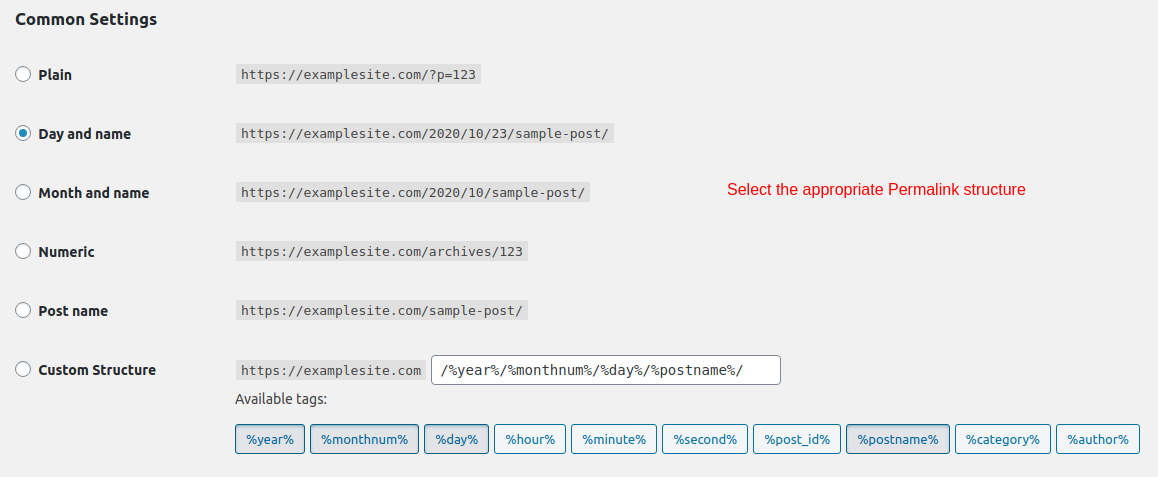
If you choose to select the custom permalink structure, You can create a permalink structure with the combination of the following.
- Year (%year%)
- Month Number (%monthnum%)
- Day (%day%)
- Hour (%hour%)
- Minute (%minute%)
- Second (%second%)
- Post ID (%post_id%)
- Post Name (%post_name%)
- Category (%category%)
- Author (%author%)
Step 4: Click on the “Save Changes” button given at the bottom of the page.
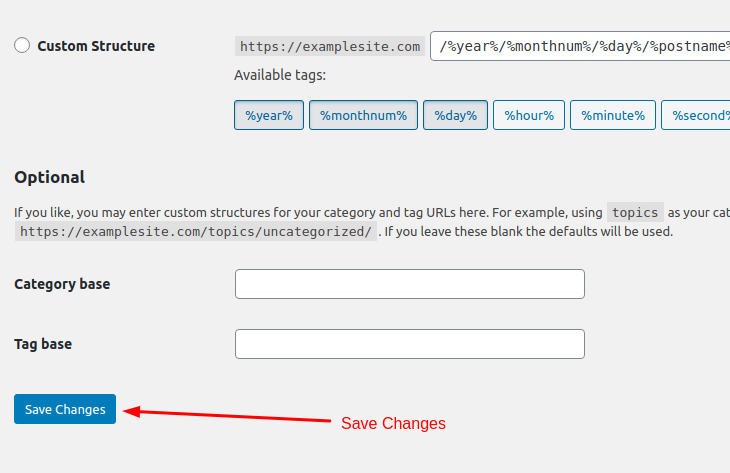
So, this is how you can set permalink structure in WordPress. We recommend you to set the permalink structure just after creating the WordPress website. It is because, once the site is indexed in search engines, It would be a mess to update Permalink structure.
If you have any question regarding this topic, please let us know in the following comment section. If you are an active GICTServer customer, please contact our awesome support staff!
Related guides
7 Common Hosting Mistakes Beginners Make (And How to Avoid Them)
7 common hosting mistakes beginners make in 2026: no backups, ignored updates, bad host choice, weak passwords, single point of failure, no staging. With fixes for each.
WordPressWebsite Migration Backup Checklist: What to Save and How to Test
Prepare a website migration backup: inventory files, databases, email and DNS, check archive integrity, test recovery and plan a safe final synchronization.
WordPressCore Web Vitals in 2026: A Practical Fix Guide for Site Owners
Core Web Vitals 2026: practical fixes for LCP, INP, and CLS. Real root causes, what to measure, common misconceptions, and a priority order of fixes for site owners.
WordPressFixing the WordPress “Death Loop”: When Missing Files slow down your site
You’ve just launched your new WordPress site or pushed a big update. In your staging environment, everything ran perfectly.