
GICT knowledge base
How to Reinstall VPS Operating System?
Published
How to Reinstall the Operating System?
If you want to reinstall your server’s operating system, you can easily do it from your GICTServer client area. Please note that reinstalling your operating system will vanish all the existing data on your server. Please follow the below steps to reinstall your operating system.
1) log in to https://my.GICTServer.net/ with your registered email address and password.
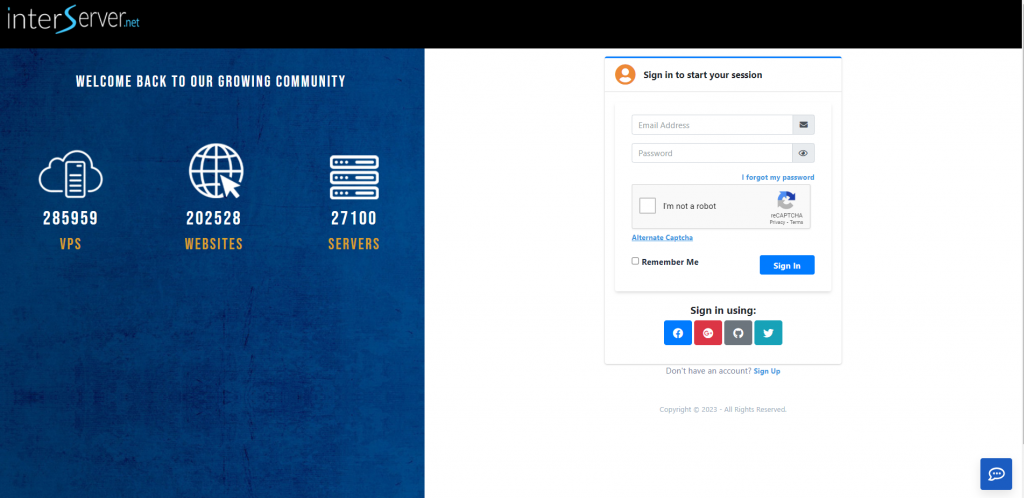
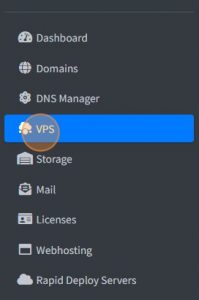
2) Select the VPS from the VPS section.
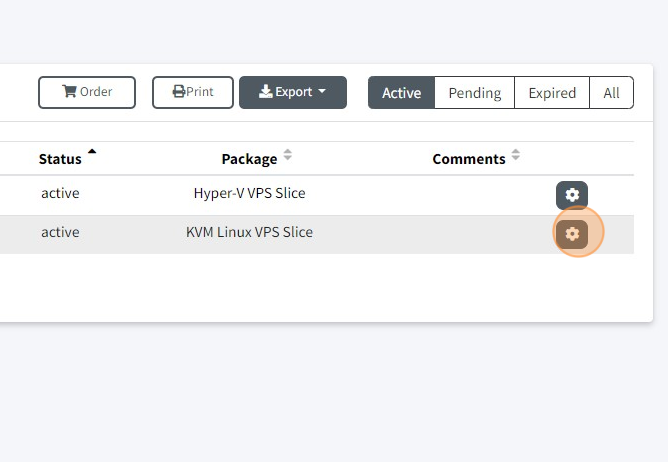
3) Click on the wheel icon.
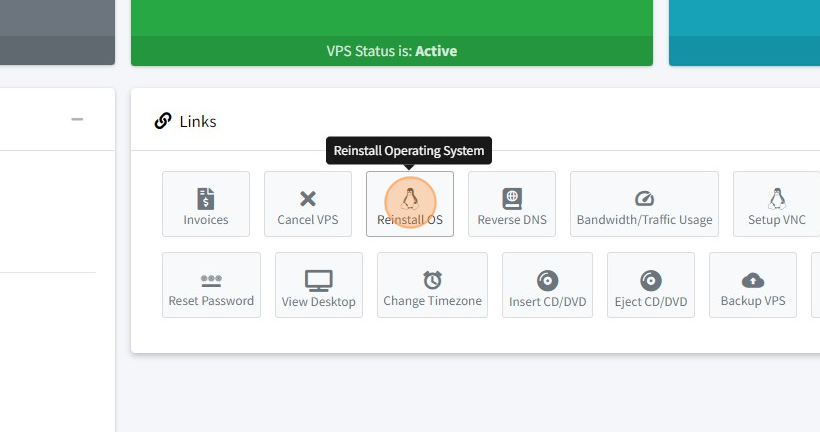
4) Click on the option “Reinstall OS”
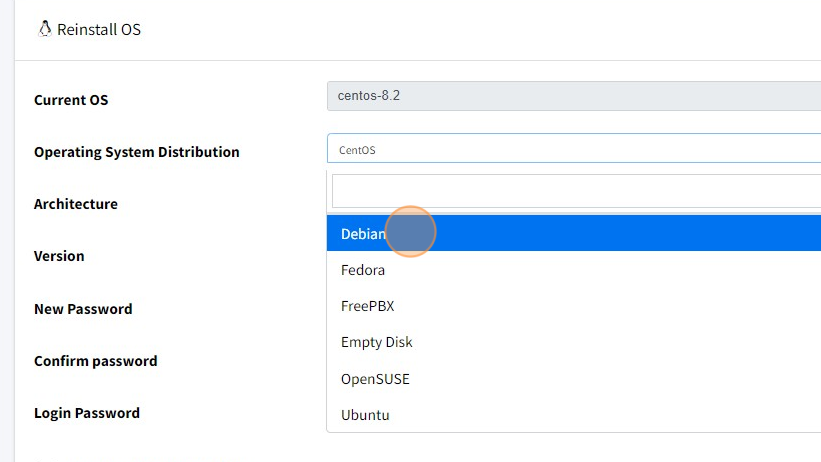
5) You will get the below popup window. Select the OS distributions which you wish to go with.
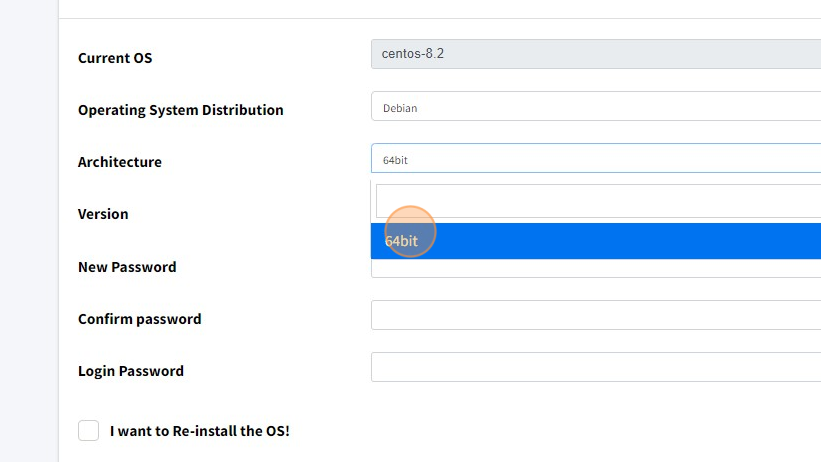
6) You can select Architecture.
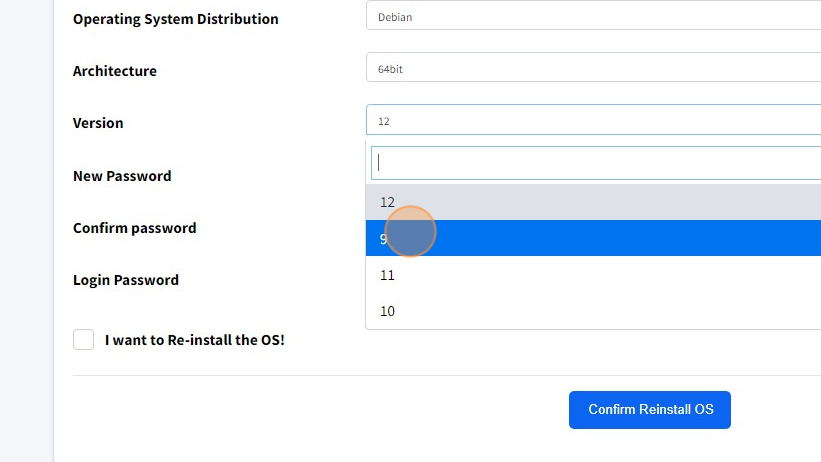
7) Select the version and control panel you want to install.
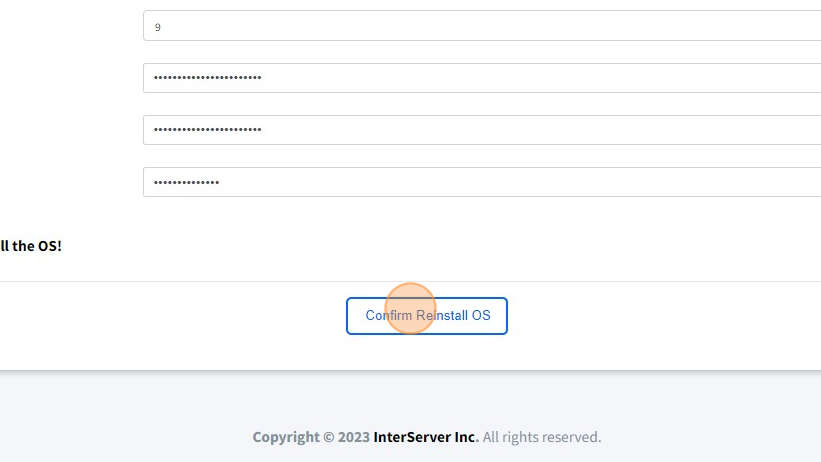
8) New password and confirm password will be the password you wish to set up for your VPS. The login password is the password that you have set to log in to https://my.GICTServer.net/. Click on the check box to Re-install the OS!
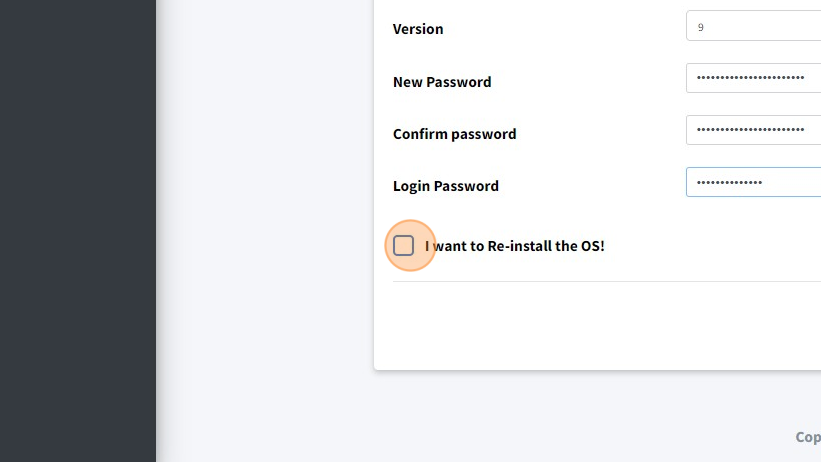
9) Click on Confirm Reinstall OS.
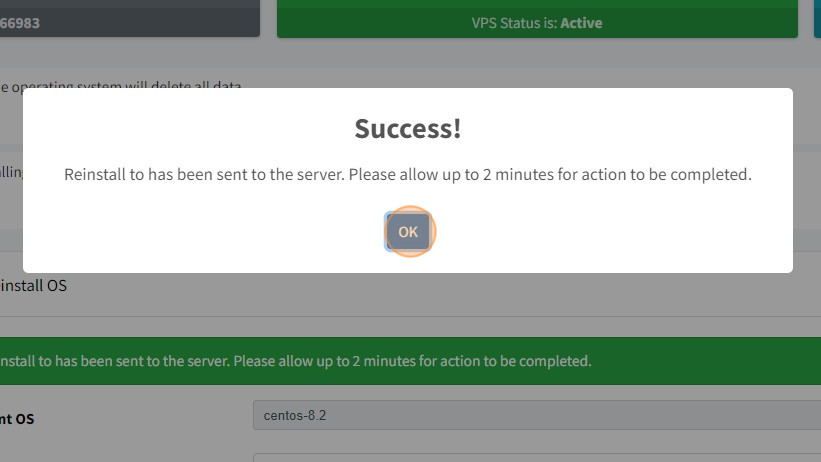
9) You will see the Success pop-up.
That’s it! You now know how to reinstall the operating system with GICTServer!
If you have any additional questions or concerns, feel free to contact [email protected].
Related guides
GICTServer HIPAA Hosting: BAA and Shared Responsibilities
Review GICTServer HIPAA hosting responsibilities and download the BAA and provisioning checklist. Request service-specific coverage through a support ticket.
InterServer Support24/7 Support Coverage
Understanding GICTServer’s 24/7 Support Coverage At GICTServer, we are committed to providing reliable support around the clock.
InterServer SupportRegister a Custom Nameserver Host Through GICTServer
Prepare nameserver host data and use the actual domain registrar controls, keeping registration, authoritative DNS hosting and delegation separate.
InterServer SupportHow to Perform Ping Test and Traceroute Test from Your Computer or Laptop?
We will be discussing how to perform a ping test from the different OS that you are using for your local system.