
GICT knowledge base
Message Highlighting in SquirrelMail
Published
The message highlighting in SquirrelMail helps you organize your email account’s Inbox by automatically highlighting the emails in different colors. We can define the rules for highlighting the emails as our wish. For example, we can define the highlighting rule as display all the emails which contain the word SPAM in red color. The steps to highlight the message in Squirrel Mail are listed below.
1) Login to Webmail.
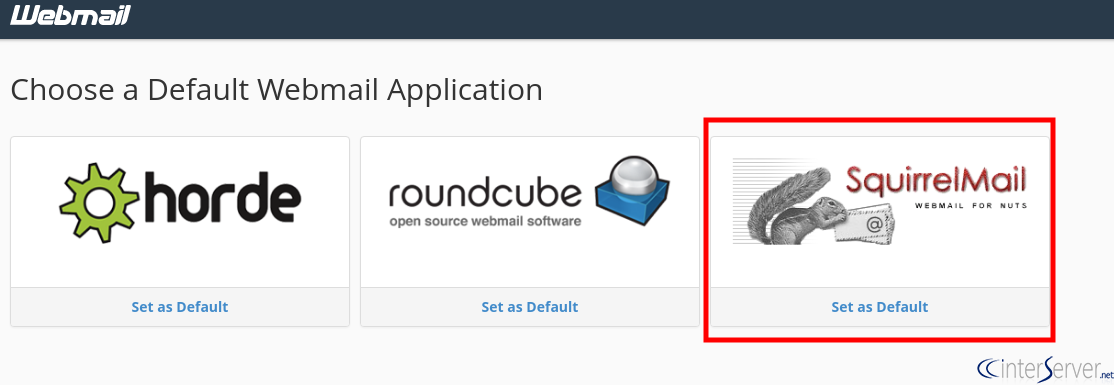
2) Select the “SquirrelMail” option.
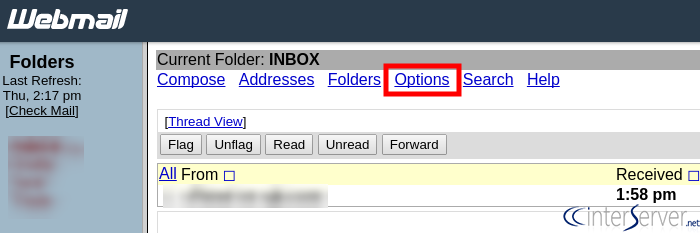
3) Select the “Options” link.
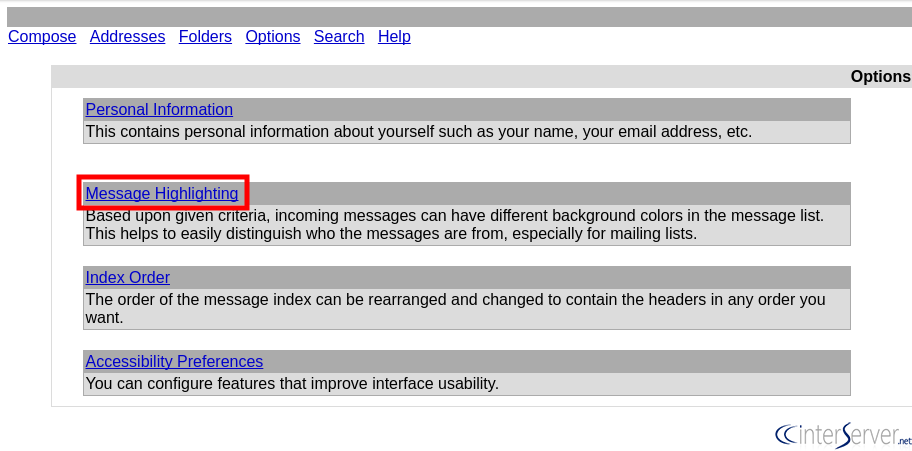
4) Then select the “Message Highlighting” link.
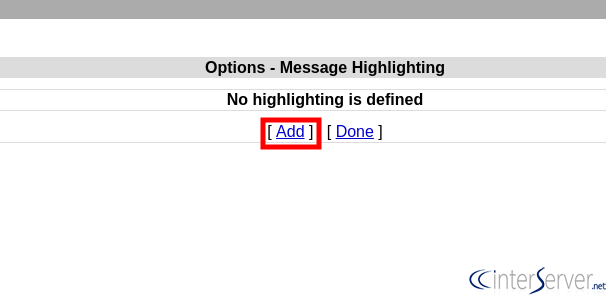
5) For creating a new highlighting rule, click on the “Add” link.
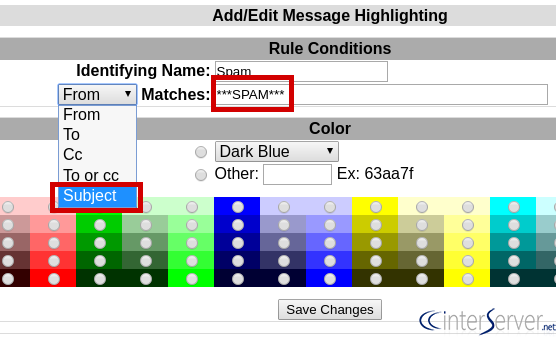
6) In the “Identifying Name” field, add the rule name that you wish to give. You can select the options From, To, Cc, To or cc, and Subject from the drop-down menu according to your rule and in the “Matches” filed, add the text that you want to highlight in your Inbox.
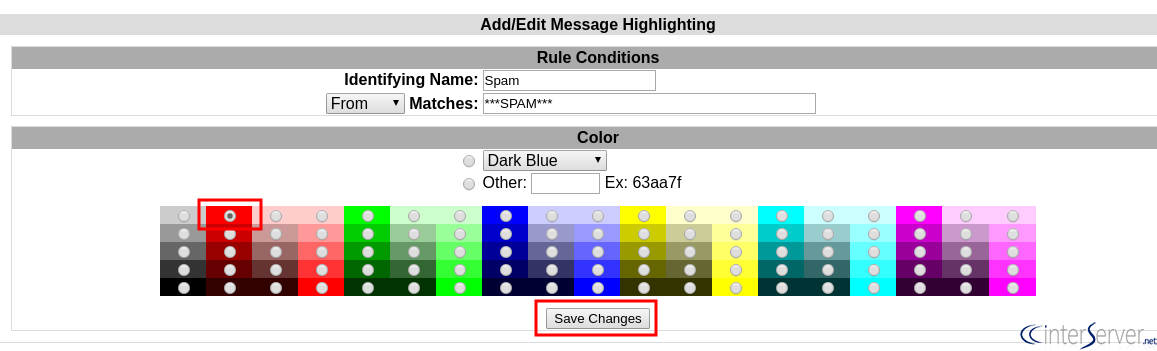
7) From the “Color” section, select the color and finally click on the “Save Changes” button.
If you need any further help, please do reach our support department.
Related guides
How to Install and Uninstall JetBackup for cPanel
How to Install JetBackup for cPanel. JetBackup is one of the leading backup solutions for cPanel & WHM that offers a user-friendly GUI. It provides
WHMSetup SendGrid on your cPanel VPS/Server
Setup SendGrid on your cPanel VPS/Server. SendGrid provides a cloud-based service for reliable transactional and marketing email.
WHMChange cPanel Nameserver Software to PowerDNS Carefully
Review WHM nameserver selection, resolver dependencies, cluster compatibility and DNSSEC requirements before a planned PowerDNS service change.
WHMTroubleshooting Jailed Shell on OpenVZ
cPanel/WHM providing Jailed shell environment for users, this feature giving high-level security for users when doing ssh access to their server.