
GICT knowledge base
Manage External Authentications in WHM
Published
Manage External Authentications in WHM
There are many ways to login to the cPanel/WHM. The standard way to access the cPanel/WHM is by appending the cPanel/WHM port to the IP address or hostname of the server. The cPanel supports external authentications too. That is, you could log in to the cPanel from another application such as ticketing system as in GICTServer portal.
We are going to discuss this in detail with the help of a few screenshots in this tutorial. It is really easy to enable the external authentications from WHM. Please follow the below steps for that.
1) Login to the WHM.
You could log in to the WHM using a web browser. You need to enter the IP address or hostname of the server followed by a colon and port number such as http://hostname:2086. If you need to access the WHM secured URL, you need to enter the below in the address bar of the web browser. https://hostname:2087. The difference here is the port number. Please note, you need to access the WHM, cPanel or Webmail accounts via SSL connection (Secured connection) to enable external authentication.
Once logged in, you need to go to WHM » Security center » Manage External Authentications.
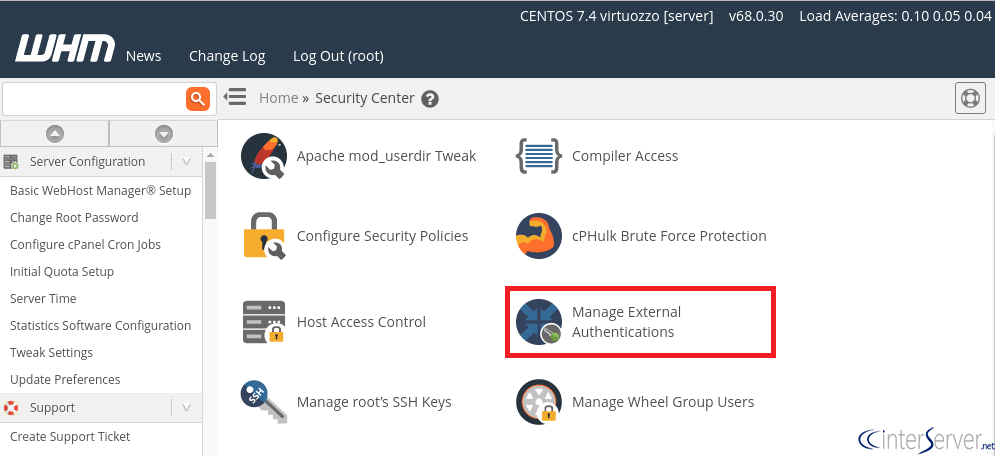
2) Configuring and Enabling Authentication Method.
Now we are going to see how to add an authentication method for a cPanel service. This is explained below.
Click on the Configure tab. You could see a list of identity providers. You need to click on the button Configure in the row of the desired identity provider.
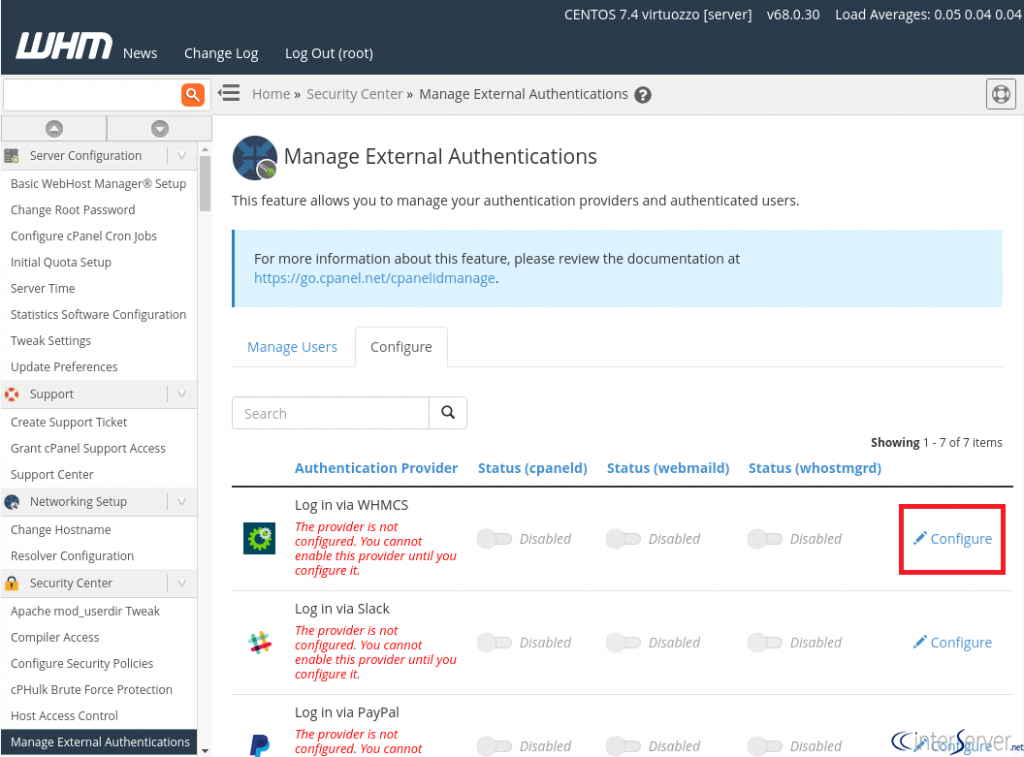
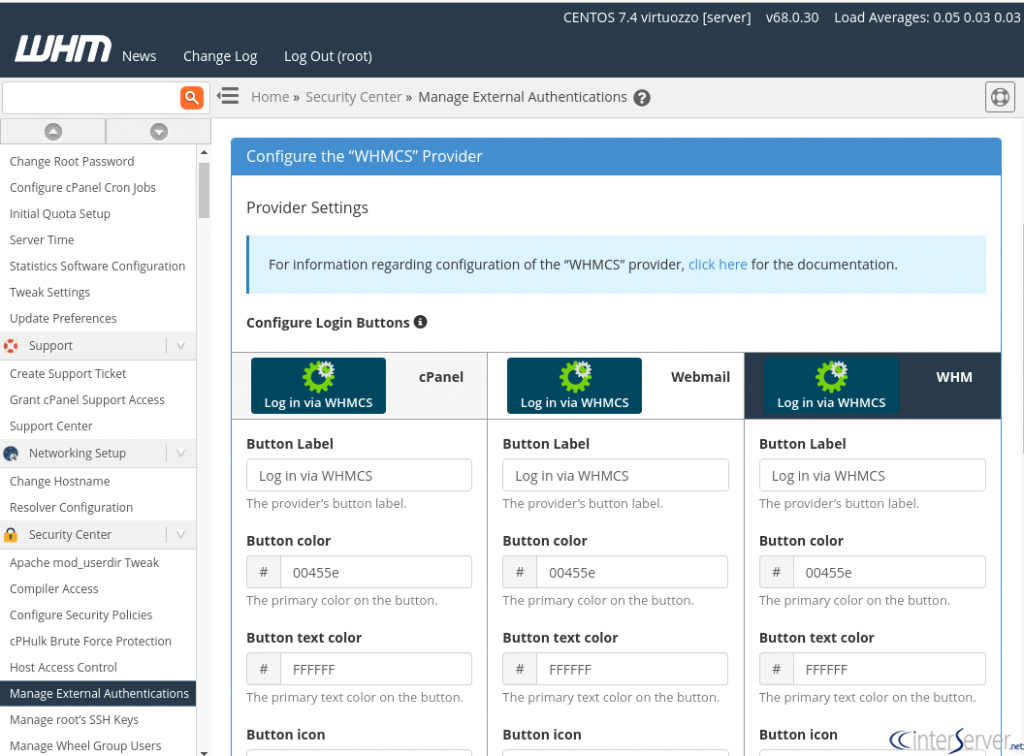
You need to give appropriate configuration settings for the selected provider.
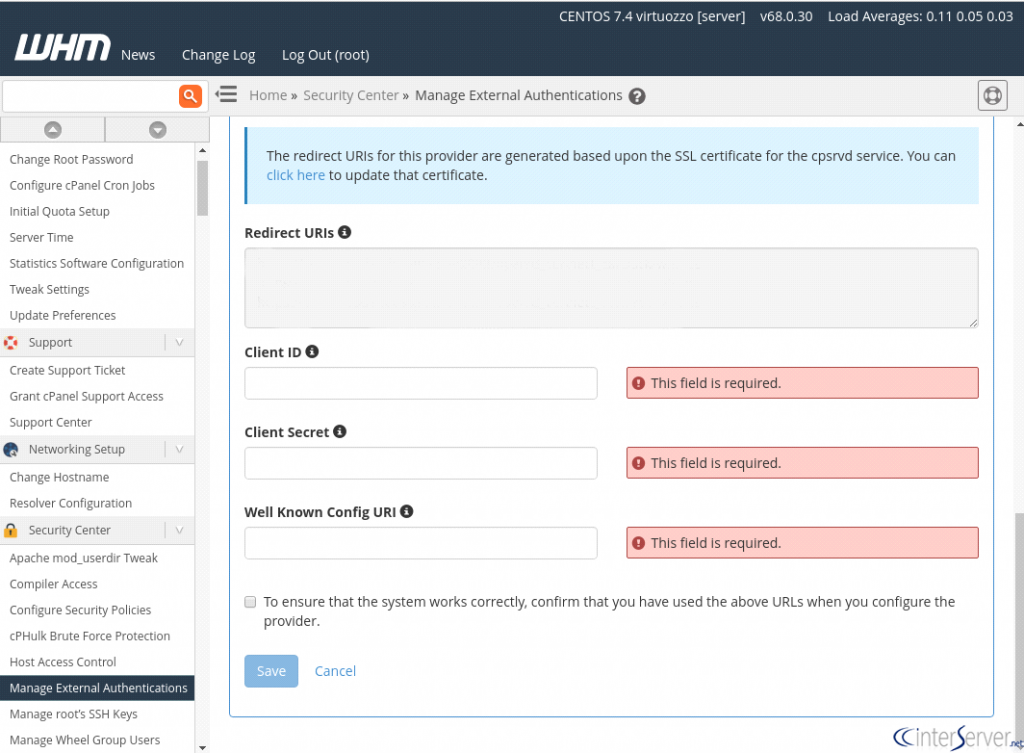
Now, you need to select the checkbox “To ensure that the system works correctly, confirm that you have used the above URLs when you configure the provider”. Click on “Save” button to save the changes.
Unlinking an Account from External Authentication
This Credentials section lists cPanel services accounts and their external authentication credentials. You can follow the below steps to unlink an account from external authentication.
1) Click on “Manage Users” tab.
2) Click “Manage” in the appropriate row for that user and service.
3) Click on “Unlink” next to the account.
4) Click on “Unlink” to confirm.
If you need any further help please do reach our support department.
Related guides
How to Install and Uninstall JetBackup for cPanel
How to Install JetBackup for cPanel. JetBackup is one of the leading backup solutions for cPanel & WHM that offers a user-friendly GUI. It provides
WHMSetup SendGrid on your cPanel VPS/Server
Setup SendGrid on your cPanel VPS/Server. SendGrid provides a cloud-based service for reliable transactional and marketing email.
WHMChange cPanel Nameserver Software to PowerDNS Carefully
Review WHM nameserver selection, resolver dependencies, cluster compatibility and DNSSEC requirements before a planned PowerDNS service change.
WHMTroubleshooting Jailed Shell on OpenVZ
cPanel/WHM providing Jailed shell environment for users, this feature giving high-level security for users when doing ssh access to their server.