
GICT knowledge base
Adding Official LinkedIn Share Button in WordPress
Published
In this tutorial, we are going to discuss, how to add the LinkedIn share button to your WordPress website. LinkedIn is a professional social network that helps you to connect professionals in your industry. It helps you to display your LinkedIn profile on your WordPress site to attract the people. Enabling LinkedIn share button help you to share your website contents within larges et professional network. With this, you can grow your business. You can refer the following steps to add the LinkedIn share button to your website for promoting your website content.
1) Visit the LinkedIn Plugin Generator page. Browse the website using the below link.
https://developer.linkedin.com/plugins/share
2) Enter your WordPress website URL and choose its language from the dropdown Language.
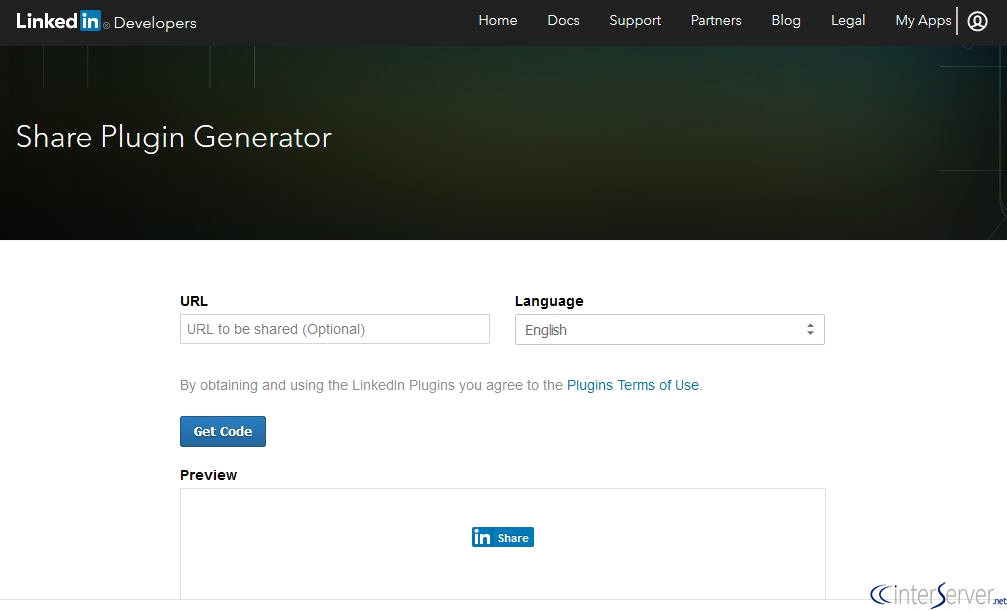
3) Click the button “Get Code”, then you can see a code snippet appear below. Copy that code.
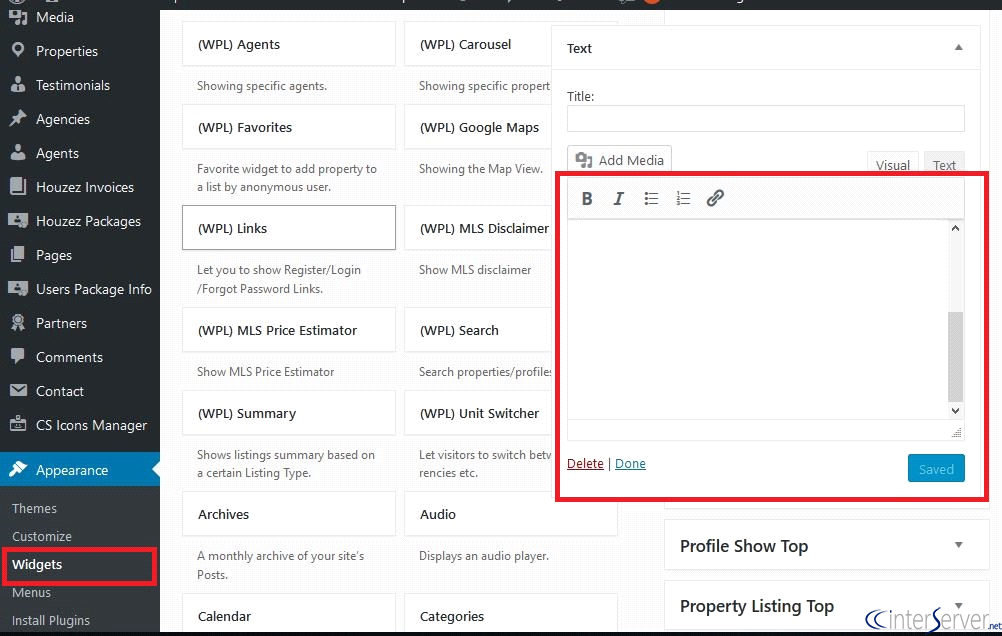
4) Now login to your WordPress dashboard and Navigate to Appearance >> Widgets.
5) Create a new test widget and paste the LinkedIn share button code into this text box and click the button “Save”.
6) If you would like to show the button below or above your posts, then login to your cPanel and select “File Manager”.
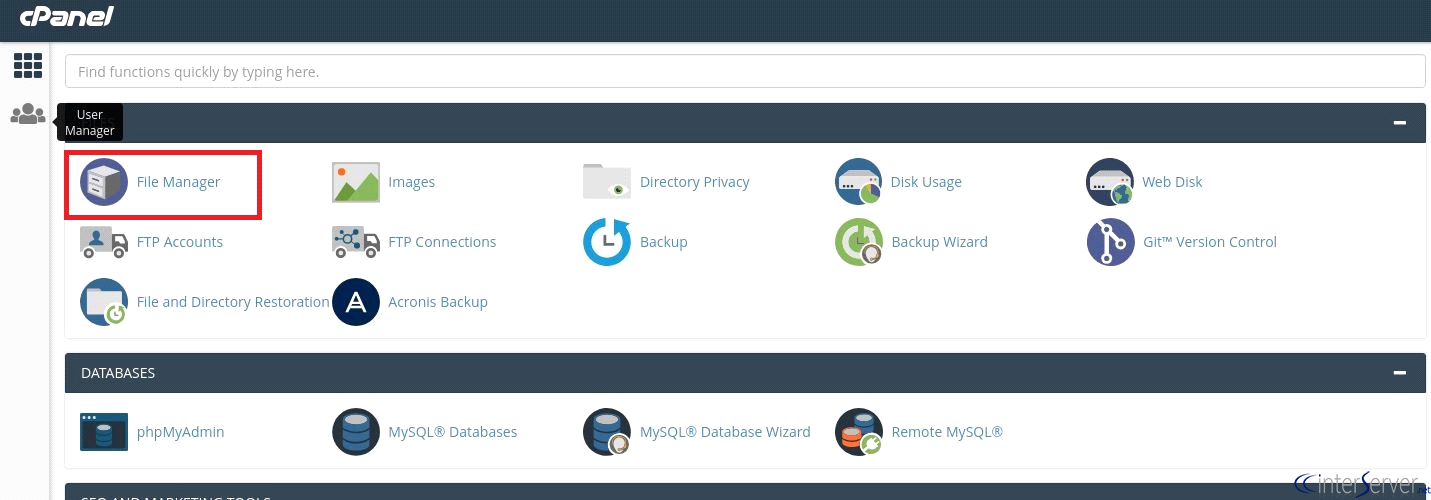
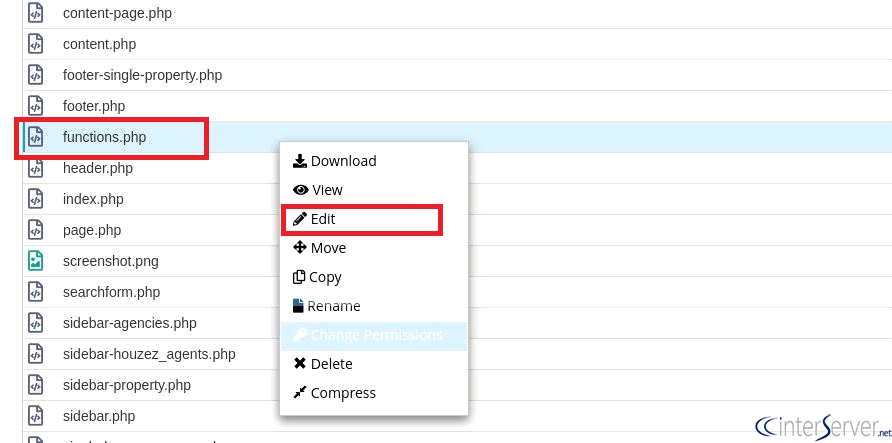
7) Go to the document root of that particular website and locate “functions.php” file under wp-content >> themes folder.
8) Right-click on the” functions.php” file and click on “Edit”.
9) If you wish to show the LinkedIn share button After your post, enter the following code in the bottom of the page:
function linkedin_share_after($content) {
$sharecode .= ‘// Paste Your LinkedIn share button code here’;
$newcontent = $content . $sharecode;
return $newcontent;
}
add_filter(‘the_content’, ‘linkedin_share_after’);
Note: Enter the LinkedIn share button code snippet in the second line.
10) If you wish to show the LinkedIn share button Before your post, enter the following code in the bottom of the page:
function linkedin_share_before($content) {
$sharecode .= ‘// Paste Your LinkedIn share button code goes here’;
$newcontent = $sharecode .$content;
return $newcontent;
}
add_filter(‘the_content’, ‘linkedin_share_before’);
Note: Enter the Linkedin share button code snippet in the second line.
11) Click the “Save” button.
If you need any further help, please do reach our support department.
Related guides
7 Common Hosting Mistakes Beginners Make (And How to Avoid Them)
7 common hosting mistakes beginners make in 2026: no backups, ignored updates, bad host choice, weak passwords, single point of failure, no staging. With fixes for each.
WordPressWebsite Migration Backup Checklist: What to Save and How to Test
Prepare a website migration backup: inventory files, databases, email and DNS, check archive integrity, test recovery and plan a safe final synchronization.
WordPressCore Web Vitals in 2026: A Practical Fix Guide for Site Owners
Core Web Vitals 2026: practical fixes for LCP, INP, and CLS. Real root causes, what to measure, common misconceptions, and a priority order of fixes for site owners.
WordPressFixing the WordPress “Death Loop”: When Missing Files slow down your site
You’ve just launched your new WordPress site or pushed a big update. In your staging environment, everything ran perfectly.