
GICT knowledge base
Install WordPress Using WordPress Manager
Published
WordPress is a free and open-source content management system which is commonly used to build websites on the internet. cPanel&WHM has provided a feature called WordPress Manager which allows you to manage new or existing WordPress sites on your cPanel account. This WordPress Manager interface will allow you to view your WordPress database name and user etc. It is also helpful to manage each site’s automatic updates configuration. In addition to that, you can also change the WordPress administrator users’ passwords and can view each site’s basic WordPress configuration etc. In this documentation, we are going to discuss about the WordPress Manager feature.
1) Log into your cPanel account using the username and password.
2) Navigate to “Application” section.
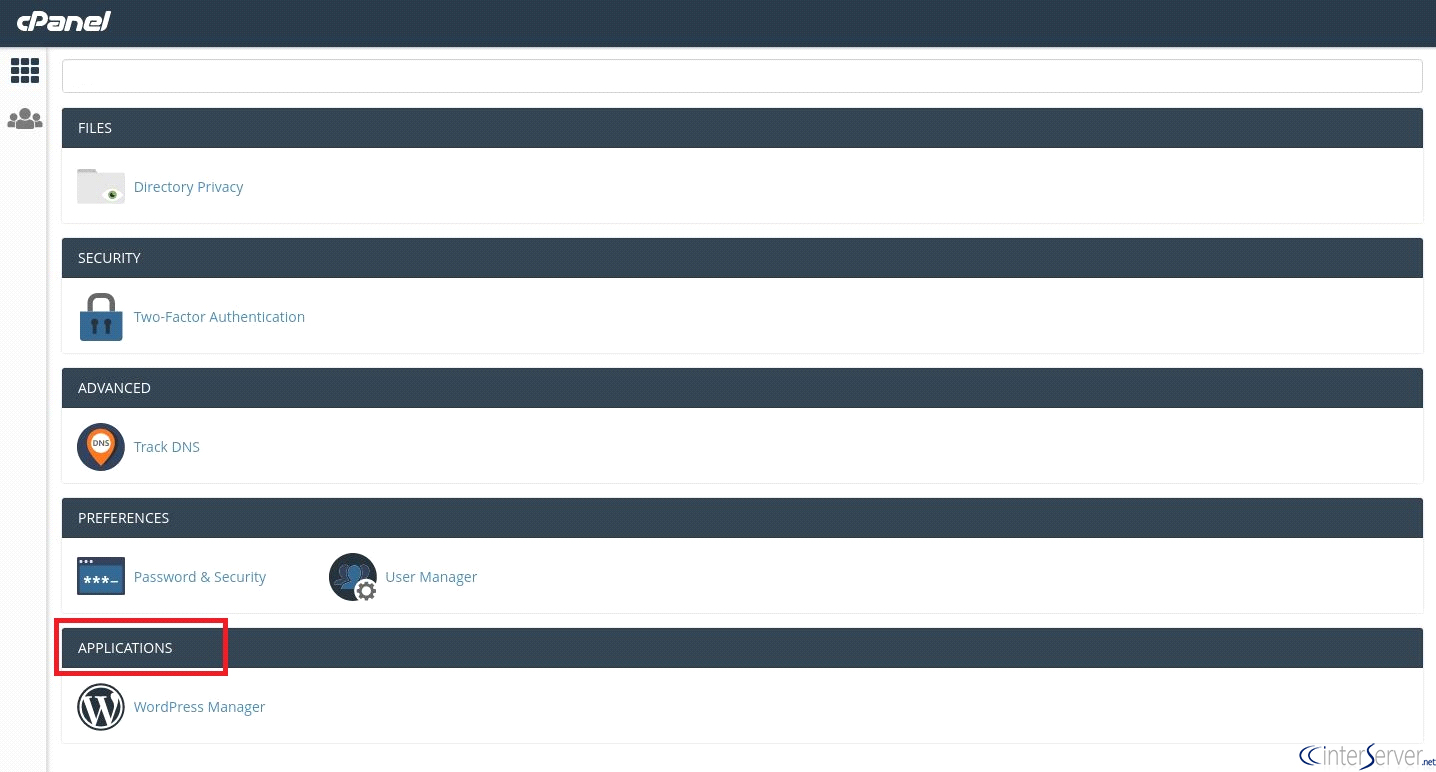
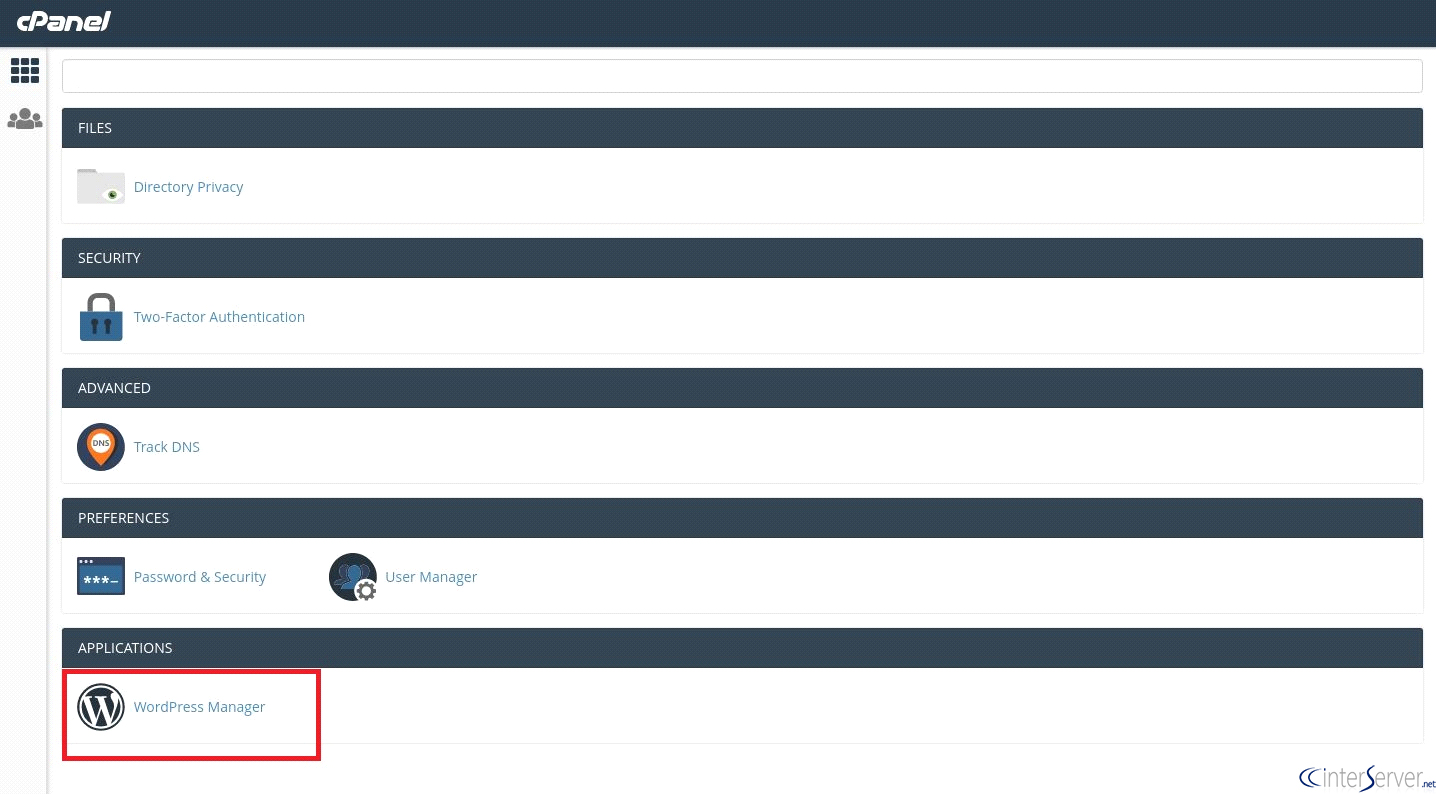
3) Select the “WordPress Manager” icon.
4) Here, you can see the WordPress Manager interface. If you want to install a WordPress using WordPress manager, then you can either choose the option “Create Site” or “New Site” from the top of the page.
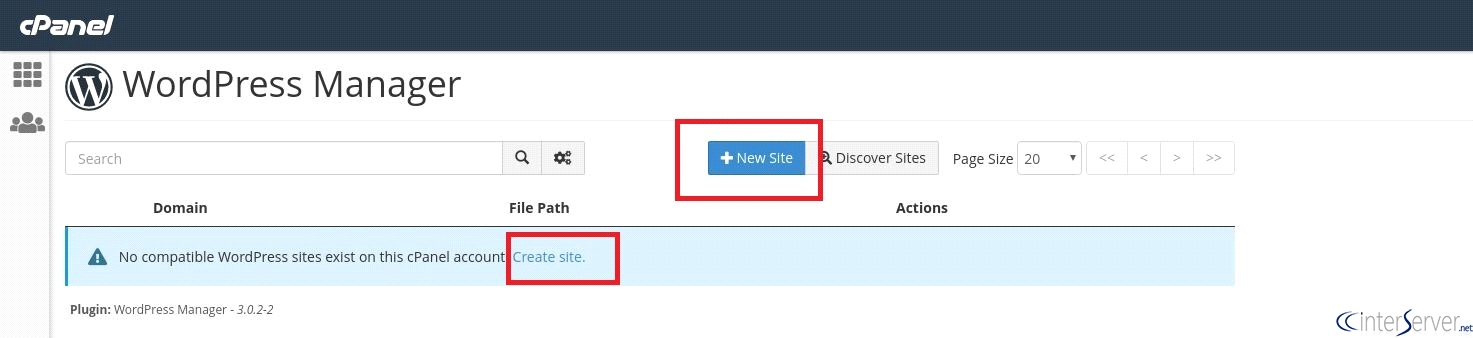
This page also lists all the WordPress installations created by this application.
5) Once the option has been selected, you will be redirected to the installation screen (cPanel >> Home >> Software >> Site Software). Here, you can choose the domain which you want to install WordPress from the drop-down table.
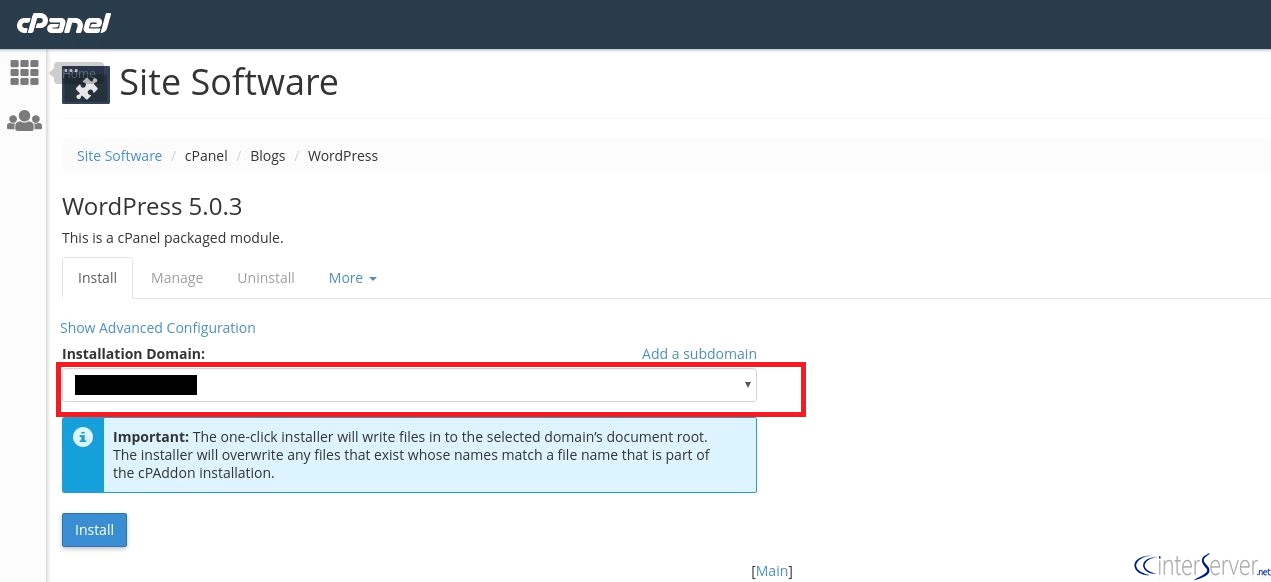
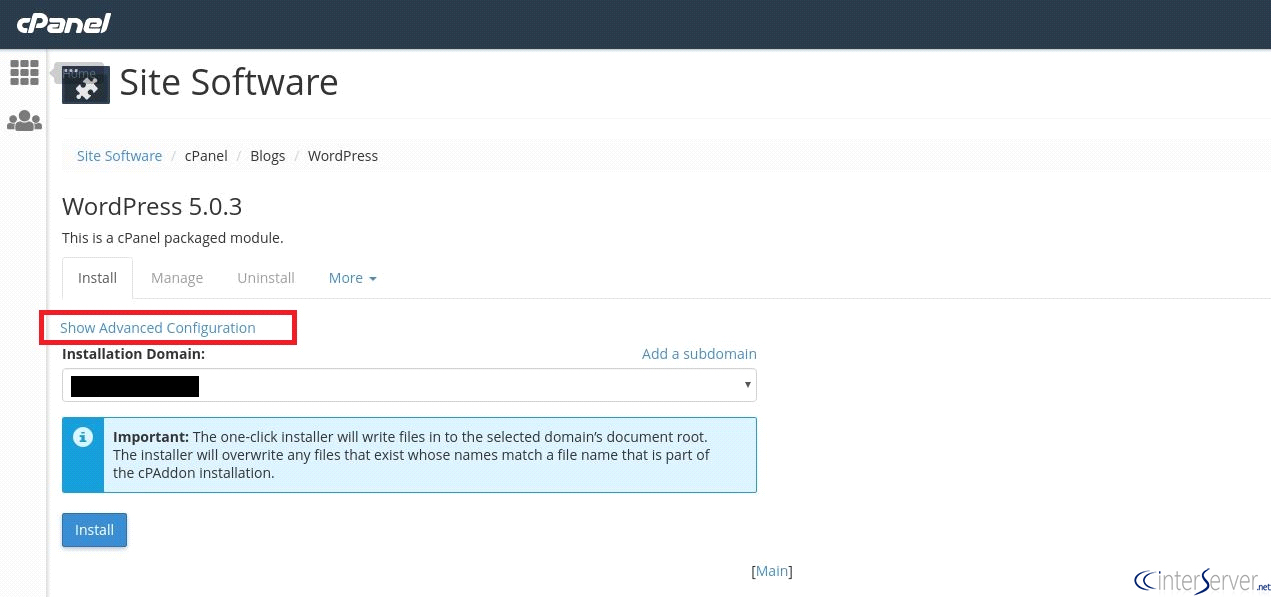
6) If you want to specify all the details for the WordPress installation such as domain name, admin user, database prefix etc, then you need to select the “Show Advanced Configuration” link for this.
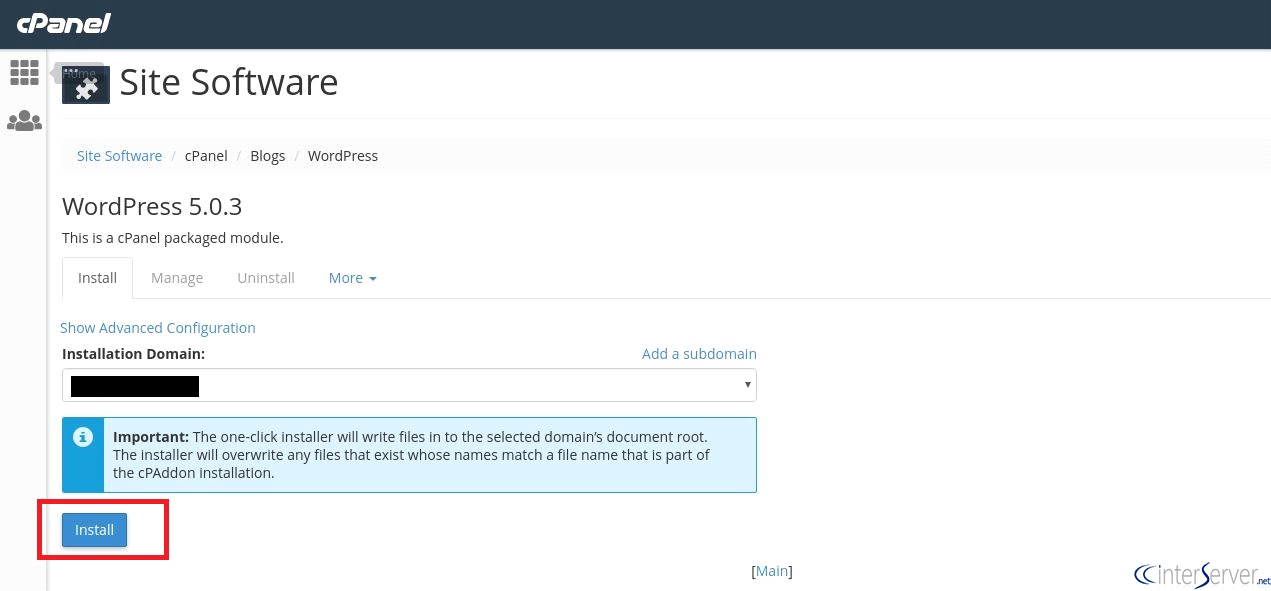
7) Now you need to click on the “Install” button to complete the installation.
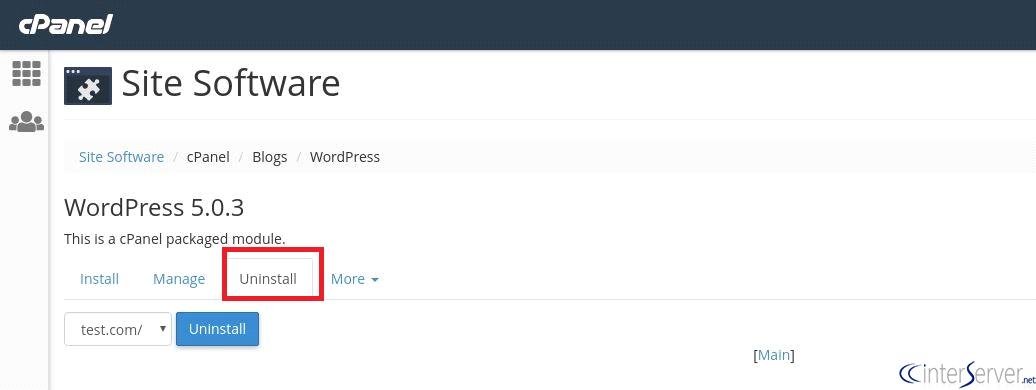
8) If you want to uninstall a WordPress site, you need to select the tab “Uninstall” from the Site Software profile and then choose the domain which you want to uninstall from the drop-down table and click on the “Uninstall” button.
If you need any further help, please do reach our support department.
Related guides
7 Common Hosting Mistakes Beginners Make (And How to Avoid Them)
7 common hosting mistakes beginners make in 2026: no backups, ignored updates, bad host choice, weak passwords, single point of failure, no staging. With fixes for each.
WordPressWebsite Migration Backup Checklist: What to Save and How to Test
Prepare a website migration backup: inventory files, databases, email and DNS, check archive integrity, test recovery and plan a safe final synchronization.
WordPressCore Web Vitals in 2026: A Practical Fix Guide for Site Owners
Core Web Vitals 2026: practical fixes for LCP, INP, and CLS. Real root causes, what to measure, common misconceptions, and a priority order of fixes for site owners.
WordPressFixing the WordPress “Death Loop”: When Missing Files slow down your site
You’ve just launched your new WordPress site or pushed a big update. In your staging environment, everything ran perfectly.