
GICT knowledge base
Install WordPress on cPanel Using Site Software
Published
We can easily install WordPress via Softaculous in cPanel. Please refer following KB to install WordPress using Softaculous Install WordPress using Softaculous in cPanel
If you don’t have Softaculous App installer, you can install the WordPress via “Site software”. In this tutorial, we can check how to install the WordPress via Site Software.
1) Make sure your cPanel/WHM is up to date before installing WordPress.
If your cPanel is not updated yet, connect to the server via SSH as a root user.
Run the following command to update cPanel.
/scripts/upcp
2) Then login to cPanel.
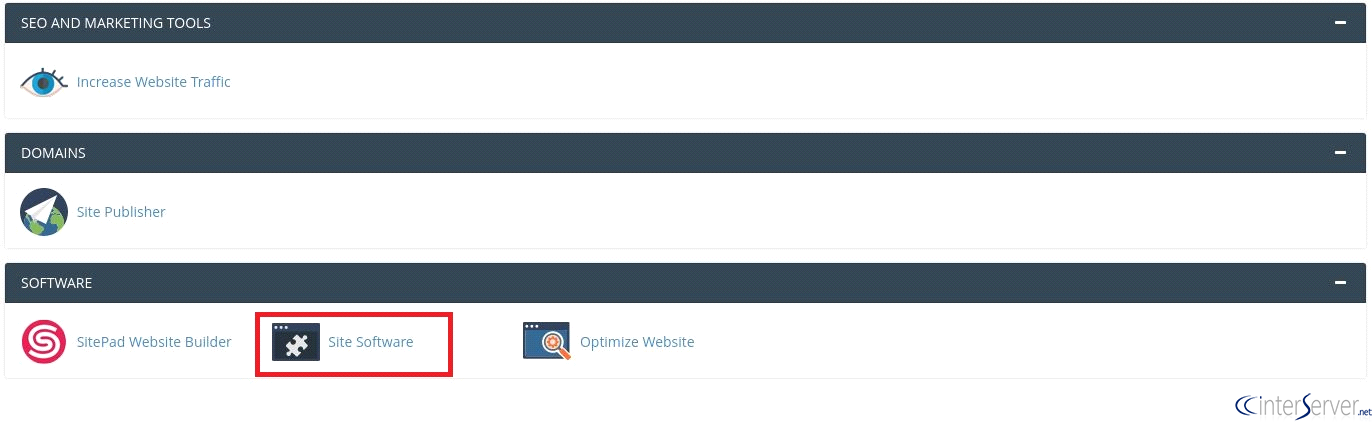
3) Go to “Site Software” under the section “Software”.
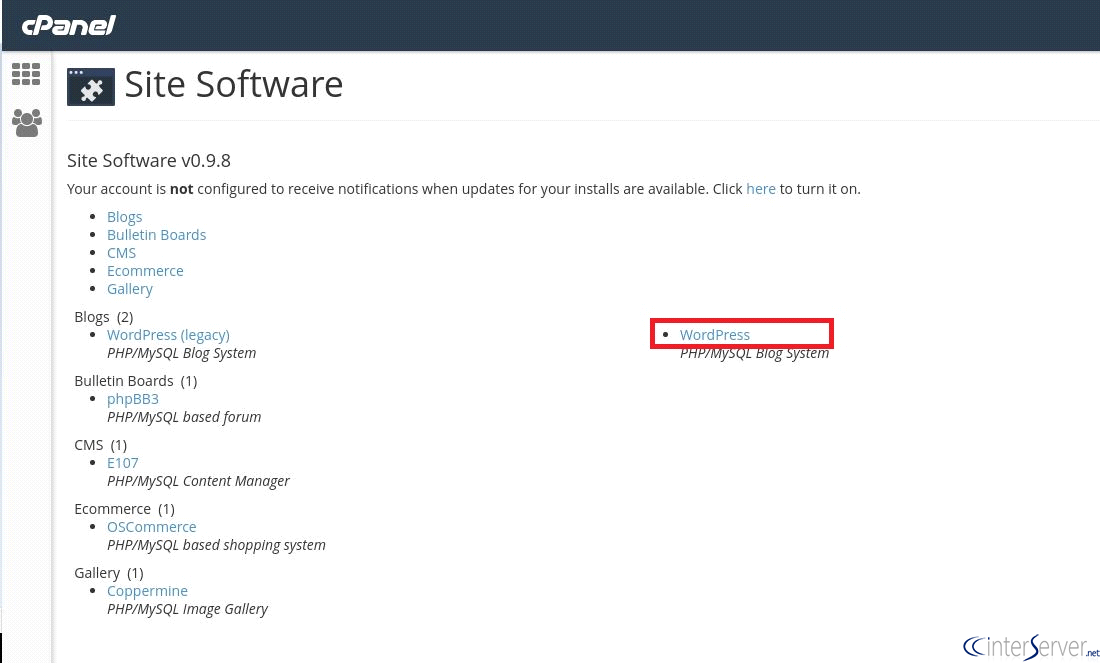
4) Click on the icon “WordPress”.
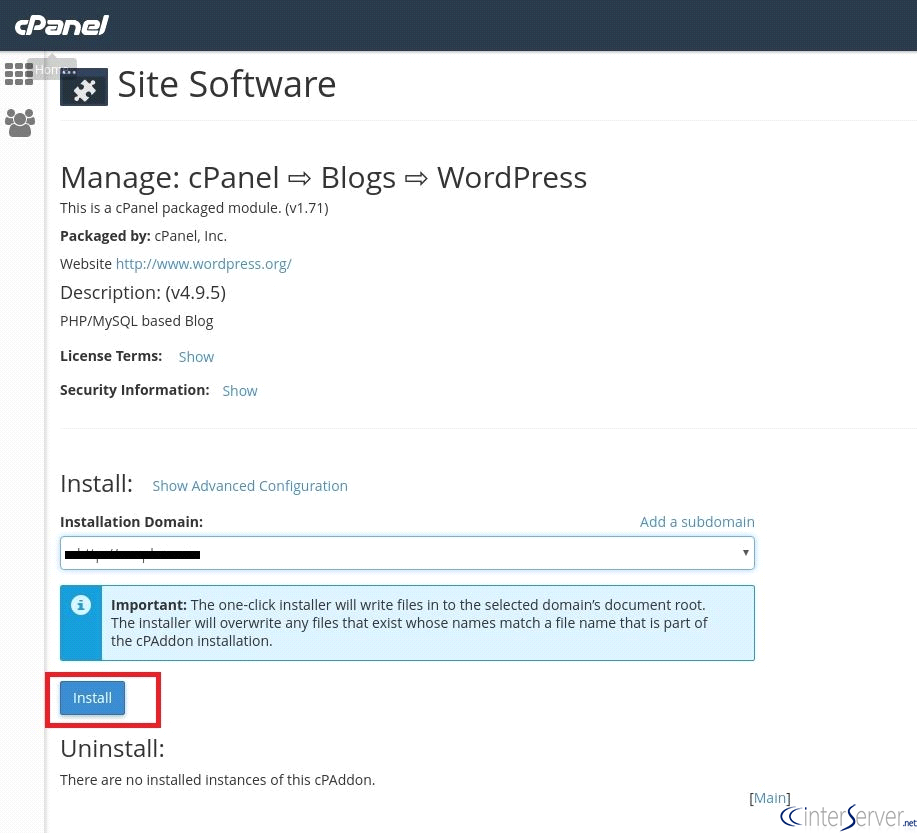
5) Select your domain which you want to install the WordPress and click the button “Install”.
6) Then you will get the installation completed message.
If you need any further assistance please contact our support department.
Related guides
7 Common Hosting Mistakes Beginners Make (And How to Avoid Them)
7 common hosting mistakes beginners make in 2026: no backups, ignored updates, bad host choice, weak passwords, single point of failure, no staging. With fixes for each.
WordPressWebsite Migration Backup Checklist: What to Save and How to Test
Prepare a website migration backup: inventory files, databases, email and DNS, check archive integrity, test recovery and plan a safe final synchronization.
WordPressCore Web Vitals in 2026: A Practical Fix Guide for Site Owners
Core Web Vitals 2026: practical fixes for LCP, INP, and CLS. Real root causes, what to measure, common misconceptions, and a priority order of fixes for site owners.
WordPressFixing the WordPress “Death Loop”: When Missing Files slow down your site
You’ve just launched your new WordPress site or pushed a big update. In your staging environment, everything ran perfectly.