
GICT knowledge base
Install Mumble Server on Ubuntu
Published
Install Mumble Server on Ubuntu
Mumble is a voice over IP (VoIP) application primarily designed for use by gamers and is similar to programs such as TeamSpeak. Users can temporarily connect channels to create large virtual channels. Mumble connects to a server via a TLS control channel, with the audio traveling via UDP encrypted with AES in OCB mode. This is useful during larger events where a small group of users may be chatting in a channel, but are linked to a common channel with other users to hear announcements. It also matches team-based first-person shooter (FPS) games. Each channel has an associated set of groups and access control lists which control user permissions. The system supports many usage scenarios, at the cost of added configuration complexity.
1) Login to your Server via SSH and enter into root environment using the below command
# sudo su
2) We can install the latest updates before proceeding.
# apt-get update
3) And next, we can install new packages
# apt-get upgrade
4) Install Mumble
The mumble-server package is available with official Ubuntu repositories. So we can install the package using:
# apt-get install mumble-server
Enter Y and press Enter button
5) Basic configuration
We have to configure the package after installation, we can use the configuration command to create some basic server and user settings.
# dpkg-reconfigure mumble-server
You can use the arrow key to select the option and enter button to save the settings.
6) We have to configure the mumble daemon to start at boot.
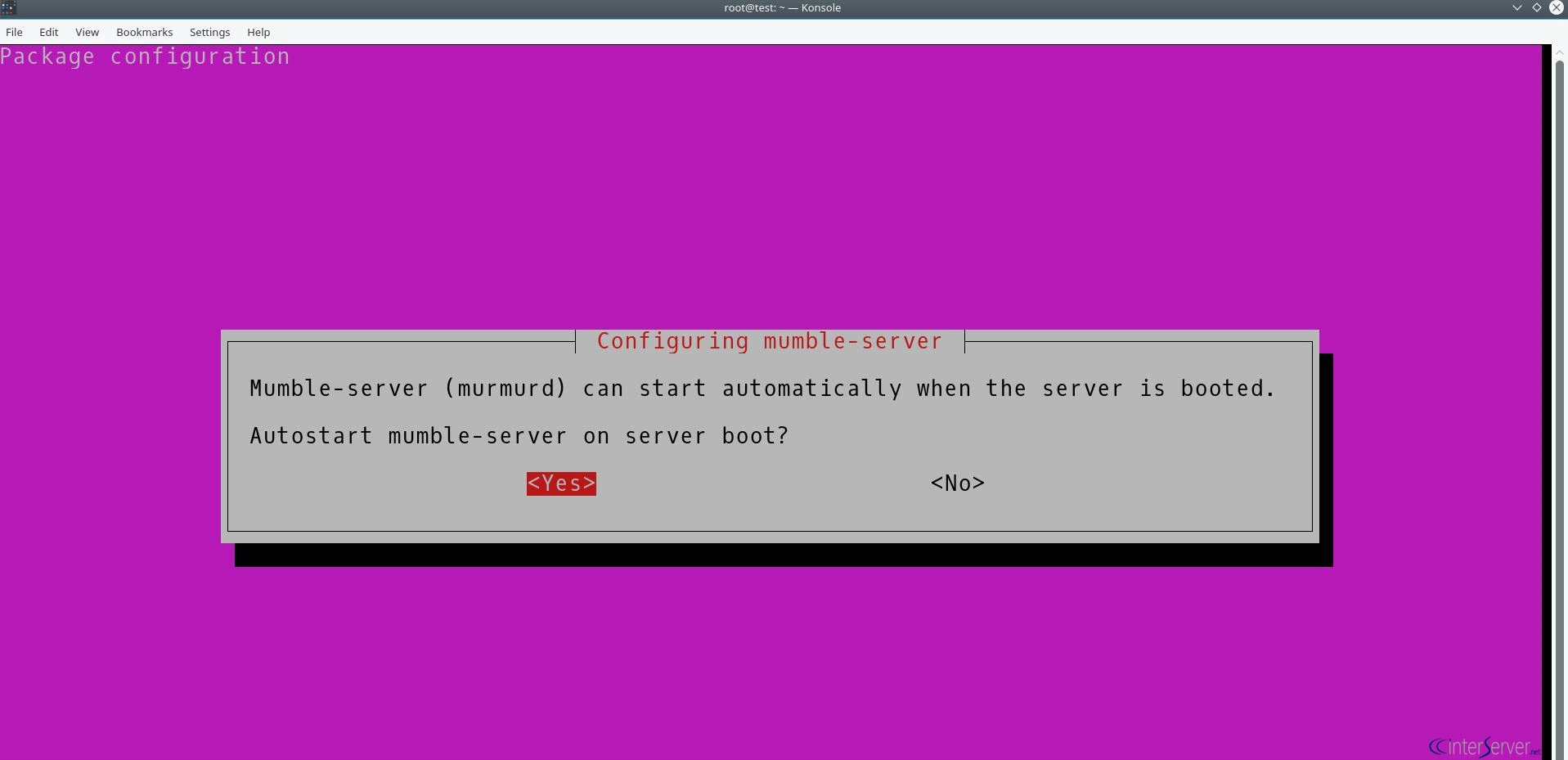
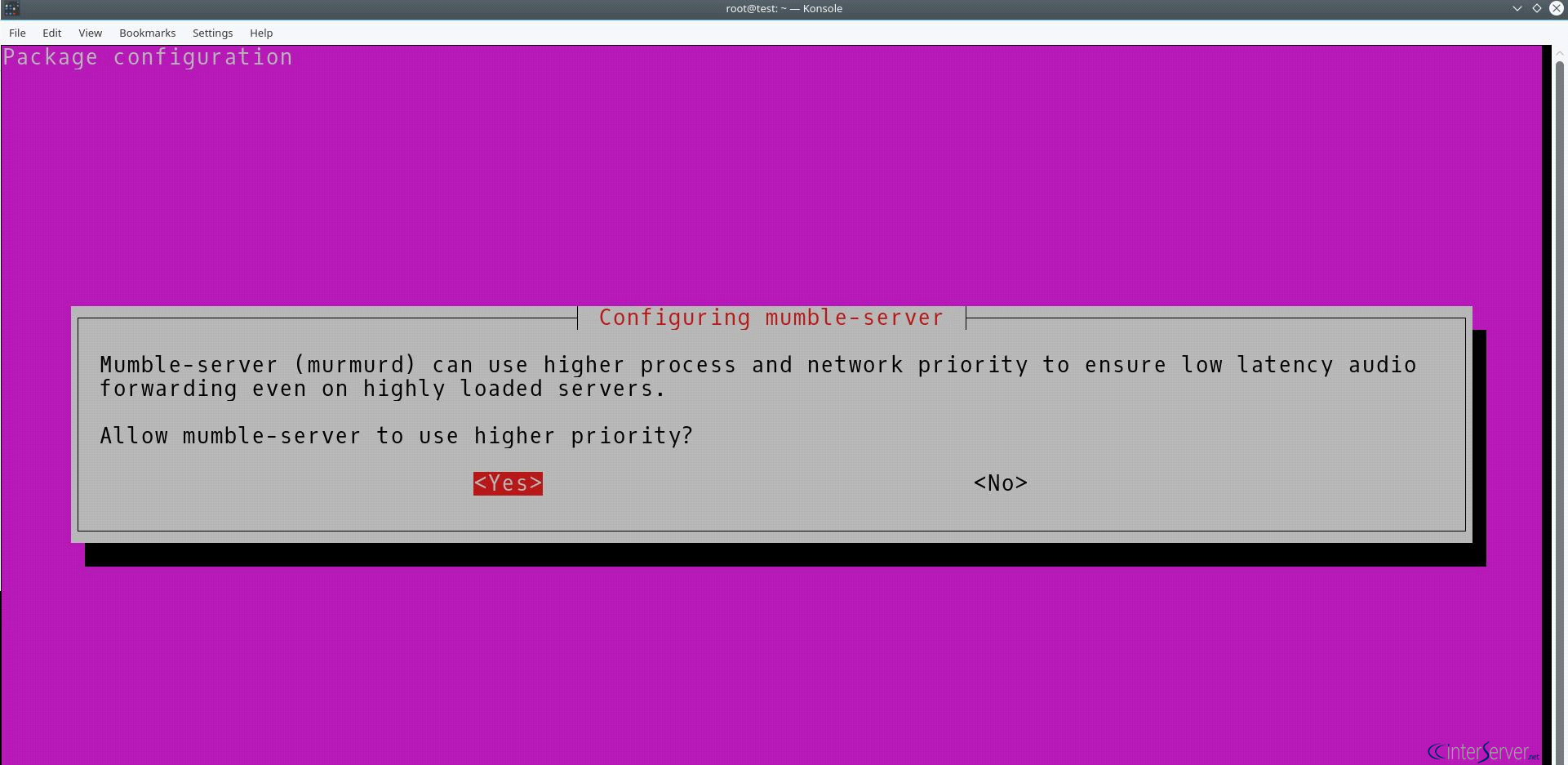
7) Set the Network Priority.
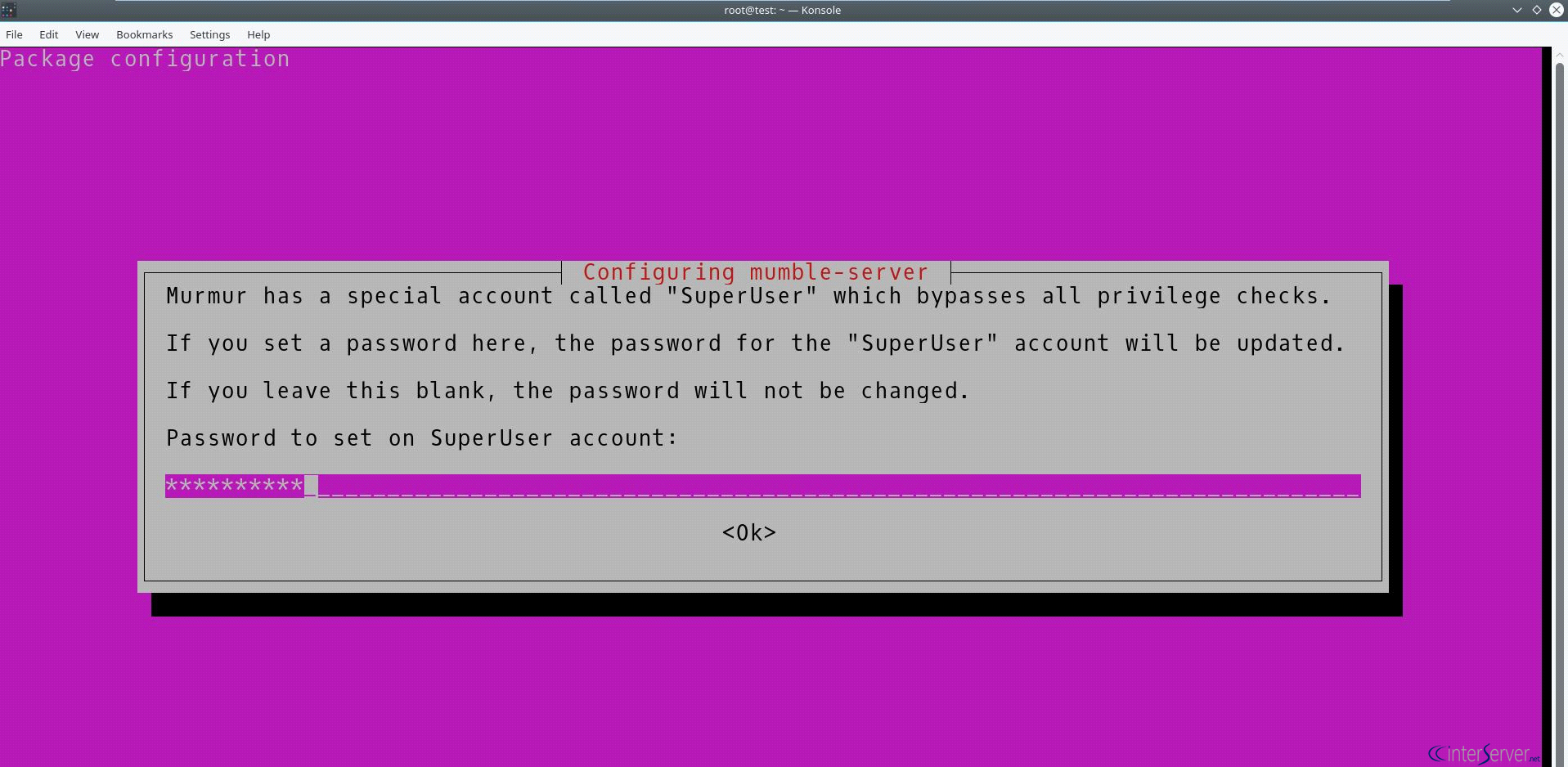
8) We can set a password for the Super User, this user is the highest-level administrative account for the server. You will need to login to mumble using this user. Leaving the password field blank will not change the password.
9) We can customize the server furthermore by editing the configuration files which is located at /etc/mumble-server.ini
The following are some commonly changed values listed for a reference. You can enable some of these settings by removing the preceding # character. This is referred to as un-commenting the line. Lines that start with # are not processed by the server.
1) We can configure the values of the directives autobanAttempts, autobanTimeframe, autobanTime to prevent brute force attempts and will ban the IP for the specified amount of time after the other two conditions are met.
2) The Welcometext directive can use to set a welcome message for the user when connecting to the server
3) We can set the custom port for the server by editing the directive port, the default port is 64738
4) Imagemessagelength – Not enabled by default; will set the maximum file size for images a user is allowed to send.
5) Textmessagelength – Not enabled by default; will limit the number of characters a user can send per message.
6) We can set the maximum number of users that can connect to the server simultaneously by editing the directive users
7) We can set the amount of bandwidth each user consumes by editing the directive bandwidth
You will need to restart Murmur before your settings will take effect. Any Mumble users on the server will be disconnected.
# service mumble-server restart
Now you can use a mumble client to connect to the server just using the credentials.
If you need any further assistance please contact our support department.
Related guides
How to Find Services That Need a Restart After Updates with needrestart
Find services using outdated libraries with needrestart on Ubuntu. Read restart reports, review automatic restart policy and plan maintenance safely.
UbuntuHow to Enable Brotli Compression in Nginx on Ubuntu 24.04
Enable Brotli in Ubuntu Nginx, preserve gzip fallback, verify response headers and avoid stale precompressed assets. Measure savings on your own files.
UbuntuHow to Prevent Overlapping Cron Jobs with flock
Prevent overlapping cron jobs with flock. Use a shared lock, understand skipped runs and verify that every entry point follows the locking policy.
UbuntuSecuring Ubuntu 24 SSH and other best practices
How to Lock Down Your Ubuntu 24 Server: A Beginner's Guide So, you just spun up a brand new Ubuntu 24 server. You may find a lot of SSH brute force logins failures.