
GICT knowledge base
How to Prevent Overlapping Cron Jobs with flock
Published
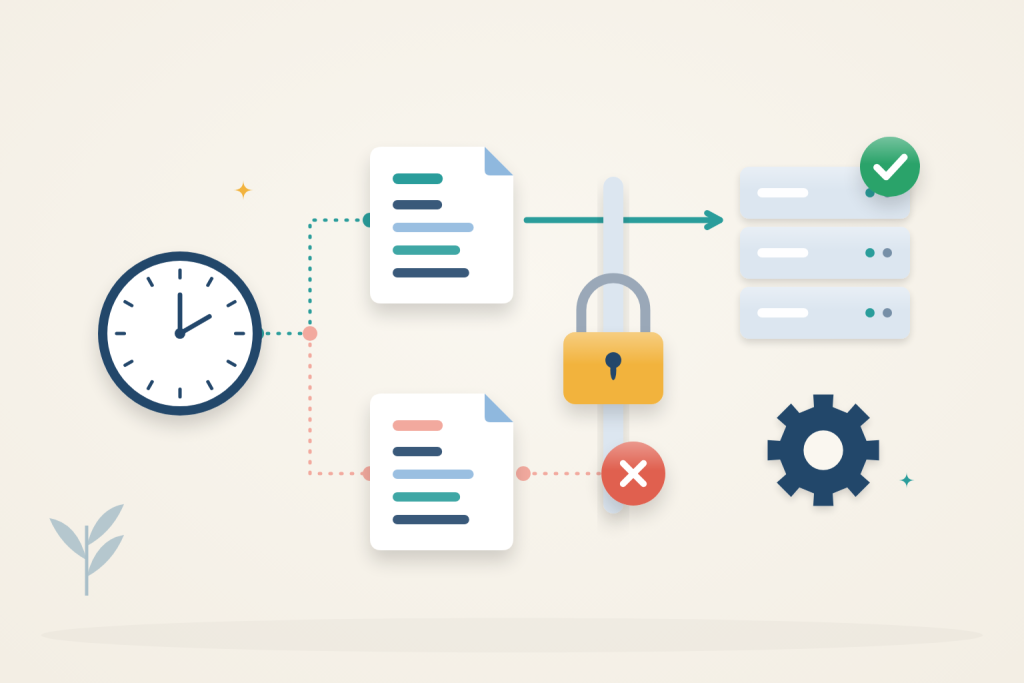
A cron job scheduled every minute can still be running when the next minute arrives. That overlap can duplicate imports, generate competing reports or make two processes write the same files. flock puts a lock around the command so only one cooperating run proceeds at a time.
Decide whether skipping a run is acceptable
A lock prevents concurrent work; it does not make a slow task finish sooner. For a report that rebuilds the current state, skipping a trigger may be harmless because the next successful run uses the latest data. For a workflow that must record every scheduled occurrence, silently skipping work is a different outcome. That workflow needs its own queue or scheduling design instead of relying on this nonblocking wrapper.
Also identify what must be protected. Two unrelated jobs normally need different lock files, so one cannot needlessly block the other. If two commands modify the same files, separate locks will not coordinate them: both must cooperate on the same lock. Use a name that describes the protected task or resource, rather than the time it happens to run.
1. Prepare the job account
Use an Ubuntu server with sudo access. Run the job commands and edit the crontab as the account that should own the task, not as root. If you need an always-on host, an GICTServer VPS can run these jobs; choose its resources for the underlying workload.
Install the required packages and start cron:
$ sudo apt update
$ sudo apt install -y util-linux cron
$ sudo systemctl enable --now cron
$ command -v flock
On Ubuntu, the last command should return:
/usr/bin/flockCreate a private directory for this account’s lock files and logs:
$ mkdir -p "$HOME/.local/state/cron-locks" "$HOME/.local/bin"
$ chmod 700 "$HOME/.local/state/cron-locks"
Keep the lock on a local filesystem. Network filesystems can have different locking behavior. Every invocation of the same job must use the same lock path; two different lock files do not protect each other.
2. Confirm that a second run is blocked
Open two SSH terminals as the same account. In the first terminal, hold the lock for 30 seconds:
$ /usr/bin/flock -n -E 75 "$HOME/.local/state/cron-locks/demo.lock" /usr/bin/sleep 30While it is still running, execute these commands in the second terminal:
$ /usr/bin/flock -n -E 75 "$HOME/.local/state/cron-locks/demo.lock" /usr/bin/true
$ echo $?
The result should be:
75Here, -n means “do not wait,” and -E 75 selects the exit status for lock contention. The second command was skipped; it did not run and fail inside the lock.
After the first terminal returns, repeat the two commands in the second terminal. The result should now be 0. When the command ends and its lock-holding file descriptors close, the lock is released automatically. The empty lock file can remain: its existence does not mean a job is running. Do not delete it to clear a lock, because another process could create a new file at that path and bypass the original lock.
3. Try it with a scheduled job
Create the file $HOME/.local/bin/cron-demo.sh with these contents:
#!/bin/sh
set -eu
echo "START $(/usr/bin/date -Is)"
/usr/bin/sleep 90
echo "END $(/usr/bin/date -Is)"
Make it executable, then open your account’s crontab:
$ chmod 700 "$HOME/.local/bin/cron-demo.sh"
$ crontab -e
Add this single line without removing existing entries:
* * * * * /usr/bin/flock -n -E 75 "$HOME/.local/state/cron-locks/demo.lock" "$HOME/.local/bin/cron-demo.sh" >> "$HOME/.local/state/cron-locks/demo.log" 2>&1This is a user crontab, so there is no username field. Save and close the editor, then confirm the entry:
$ crontab -lWait about four minutes and read the log:
$ tail -n 10 "$HOME/.local/state/cron-locks/demo.log"Each START should be followed by its END before another START appears; the final run may still be in progress. Because the script takes 90 seconds, the next one-minute trigger cannot acquire the lock and is skipped. A later trigger can run once the previous job has finished.
Skipped runs produce no script output and are not queued for later. Cron also does not put the exit code itself into this log. This pattern suits jobs where skipping one overlapping trigger is acceptable, not workflows that must process every scheduled occurrence.
4. Apply the lock to your real task
Remove the demonstration entry with crontab -e. A demonstration already running will finish normally. To protect an existing task, keep its schedule, replace its command with the same flock prefix, and use a separate, descriptive lock file for that task. Replace the demo script path with your command’s absolute path and its arguments. Keep the log redirection or your existing logging arrangement.
Edit the original entry rather than adding a second copy. Any manual launch or other scheduler that bypasses flock can still overlap: these are advisory locks, not a restriction automatically enforced on all processes.
The wrapped program must remain in the foreground until its work is complete. A script that starts background workers and exits changes when the lock is released or which child holds it. Do not assume the simple wrapper protects a daemonized job.
Read the demonstration log correctly
Look at the sequence of events, not just how many lines appear. A completed demonstration run writes one start line and one end line. A missing start at the next minute boundary is expected while that run still holds the lock. An unmatched start at the end of the log can simply mean the 90-second sleep has not finished yet.
For your real task, a lack of overlap does not prove successful processing. Keep the task’s own success and failure reporting as well as the lock. In particular, a job that acquires the lock and then fails immediately is different from a trigger that never acquired it. Those cases need different fixes: inspect the application failure in the first case and the active job in the second.
Troubleshooting
- Every run is skipped: the previous job may be stuck. Inspect that job before stopping it; removing the lock file is not a safe fix.
flockdoes not impose a runtime limit. - Permission denied: check that the cron account owns and can access the lock directory, executable and log destination. Do not solve this with world-writable permissions.
- Works manually but not in cron: use absolute executable paths and set any working directory or application environment your job requires. Cron does not load your interactive shell setup.
- A nonzero exit status: once the lock is acquired,
flocknormally returns the wrapped command’s exit status. Code75is only unambiguous when the wrapped program does not itself use it; the contention check above usestruefor that reason.
Related guides
How to Find Services That Need a Restart After Updates with needrestart
Find services using outdated libraries with needrestart on Ubuntu. Read restart reports, review automatic restart policy and plan maintenance safely.
UbuntuHow to Enable Brotli Compression in Nginx on Ubuntu 24.04
Enable Brotli in Ubuntu Nginx, preserve gzip fallback, verify response headers and avoid stale precompressed assets. Measure savings on your own files.
UbuntuSecuring Ubuntu 24 SSH and other best practices
How to Lock Down Your Ubuntu 24 Server: A Beginner's Guide So, you just spun up a brand new Ubuntu 24 server. You may find a lot of SSH brute force logins failures.
UbuntuHow to Configure Static and Dynamic IP Address in Ubuntu
Master static and dynamic IP address configuration on Ubuntu with methods like Netplan, NetworkManager, and GUI tools for reliable connectivity.