
GICT knowledge base
How to add Instagram Feed widget in a WordPress site
Published
Instagram was introduced in 2009 as an Apple iPhone Premium application. Instagram’s main goal was sharing photos and videos. It’s a social network that is the second most used social network in the world. Then almost 18 months later, Instagram released its android version. The most remarkable thing about Instagram is its filter effects. This filter effect provides unique editing features which help you to edit the media quickly. And it is powerful because, as per the news, more than a billion people were using the Instagram app every month. We can say it is the fastest growing social media network.
For instance, we have an e-commerce store for cool and antique wear clothes. And, we are dealing in many countries. So, we should create an Instagram account or page for our site and share interesting photos to get more business. Share our product details or run the marketing campaign on Instagram. As we know, billions of people are using Instagram all over the whole world. Apply some marketing techniques and increase your sales. In case you have a travel blog, You might already have an Instagram account.
In this tutorial, I will show you how to add your Instagram feed widget in WordPress site. We will just use one simple WordPress plugin to show Instagram feed on the WordPress site. It will keep users engaged on the website and they might also follow you on Instagram.
Add Instagram Feed widget in WordPress Site
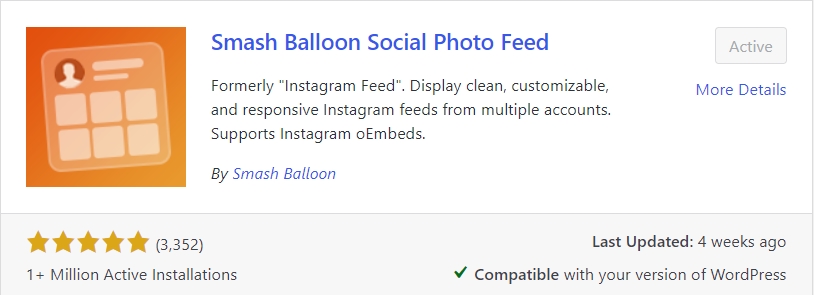
Step 1: First, Install and Activate the Smash Balloon Social Photo Feed Plugin on your WordPress site.
(To Install Click on Plugin, then Add New. Search For the plugin with the help of the Search box. Then Click on Install and Activate.)
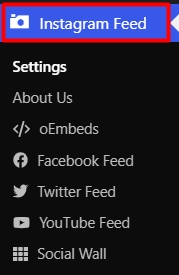
Step 2: Now, click on the Instagram Feed from the Left sidebar of the admin panel.
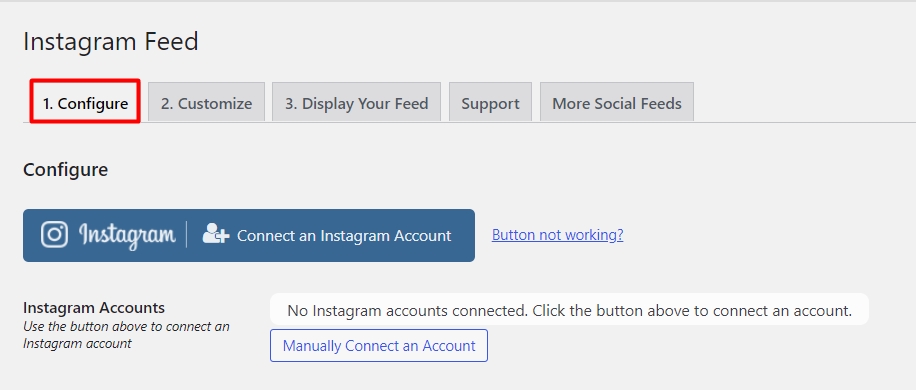
Step 3: After that, You will see a Settings page of the Instagram feed plugin. Click on the first tab with label “1. Configure”.
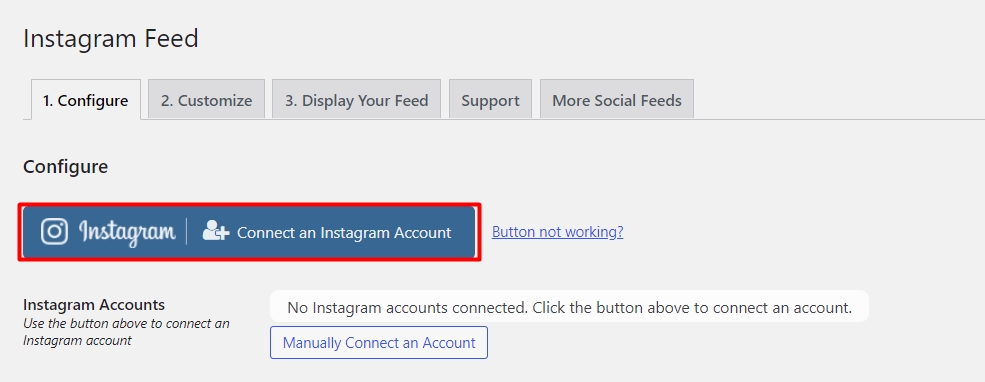
Step 4: Now, click on the Instagram Button with the Label “connect an Instagram Account”.
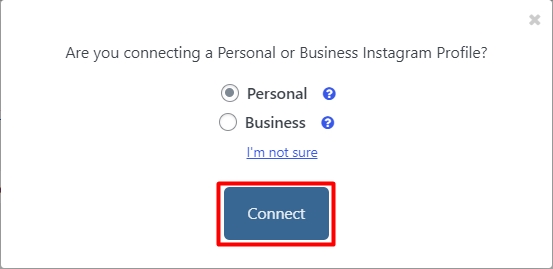
Step 5: Then, select an account type from the options. After that, click on the Connect button. (You can see some options like Personal and Business.)
Step 6: You can see a notification with a message “successfully connected”. See the below image for reference.

Step 7: Then, Click on the next tab called Customize Tab.
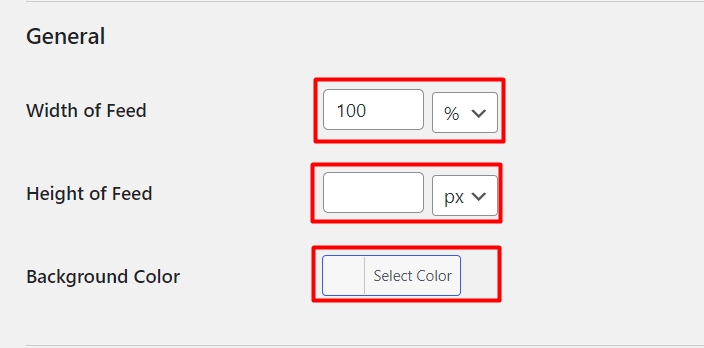
Step 8: Here on this tab, You can customize the widget style like Width, Height, and Background Color. Enter the Width and Height, then Select the Background color.
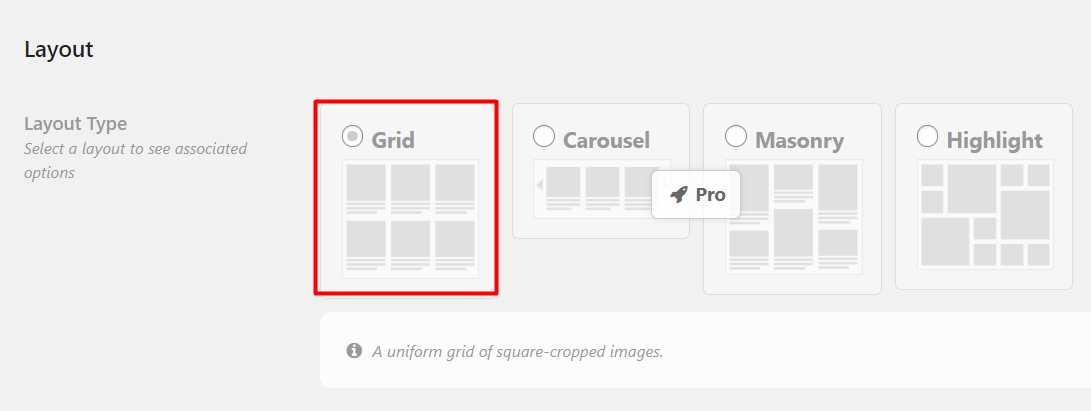
Step 9: Scroll Down the page, Then you can see a section called Layout. The Grid layout will be selected by default. (There are more layouts available in the Pro version of this plugin.)
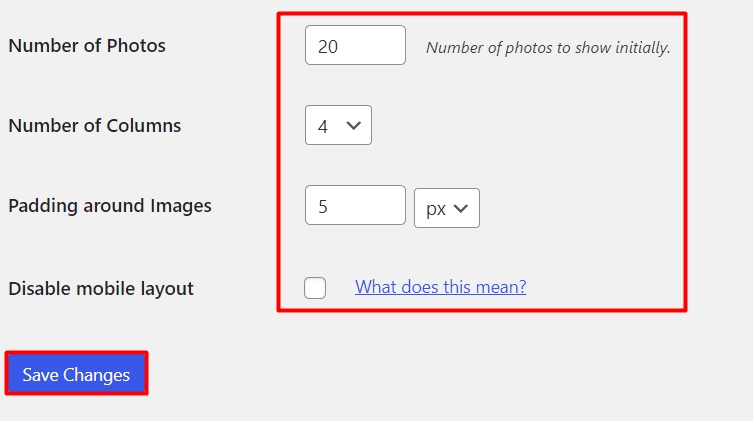
Step 10: Then, just below the Layout option, We can change the Photos, Column, and Padding. Enter the required number of photos in the widget, then Select the Number of Columns and Add the needed padding between images. Click on the Save Changes button.
(Click on the checkbox if you want to disable the widget in Mobile. On this page, you can add more attractive layouts like Post Shorting, Photo Hover Style, Carousel & Widget Header style.)
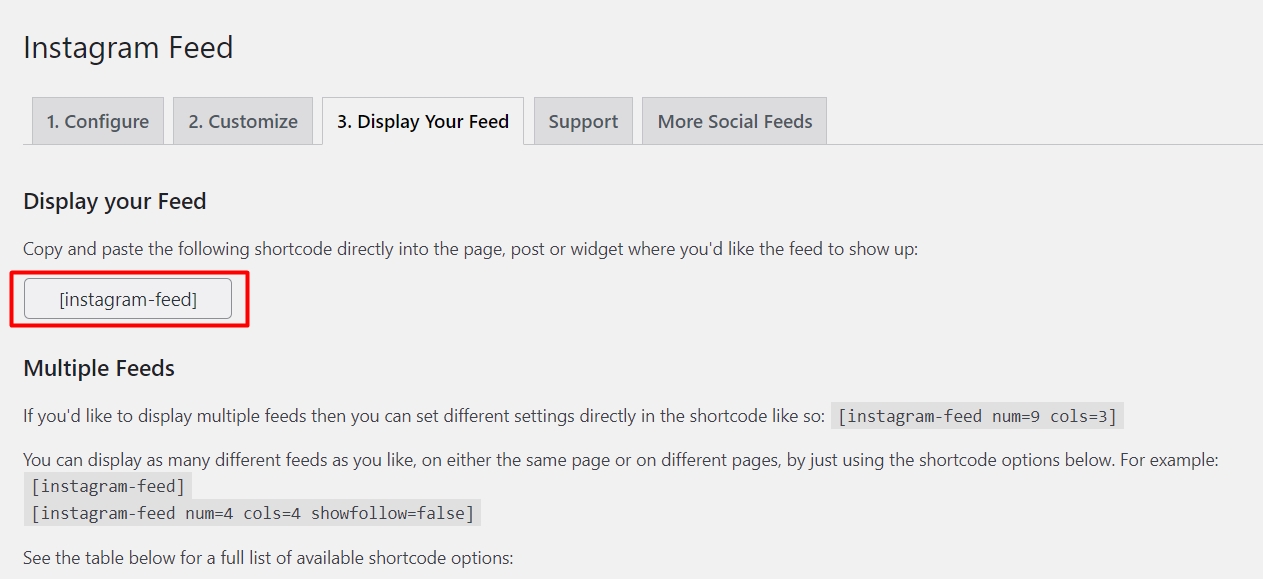
Step 11: Click on the Next tab Called Display Your Feed.
Step 12: Now, Copy the ShortCode that available just below the Heading.
Step 13: Go to Appearance Tab, Then Widget Tab.
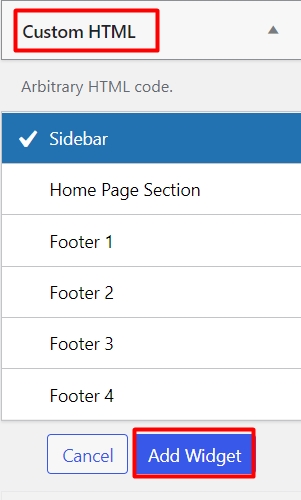
Step 14: Click on the Custom HTML Widget and then select the location of the widget from the drop-down menu, Then click on the +Add Widget button.
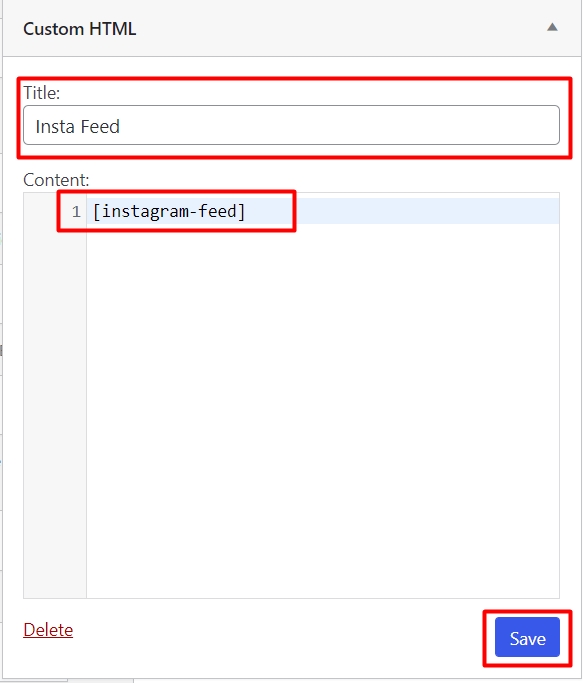
Step 15: Give the Widget title, For Example, Insta Feed, The Paste the ShortCode in Content Box. Then click on the Save button.
Congratulation. You just successfully added an Instagram Feed Widget on the WordPress site. Now, you will see the Instagram feed on the widget area where you have added a new widget. You can again change the size and configuration of the Instagram feed. This is the easiest way to show Instagram feed widget in WordPress. If you have any questions, please let us know in the following comment section. We are happy to help!
Related guides
7 Common Hosting Mistakes Beginners Make (And How to Avoid Them)
7 common hosting mistakes beginners make in 2026: no backups, ignored updates, bad host choice, weak passwords, single point of failure, no staging. With fixes for each.
WordPressWebsite Migration Backup Checklist: What to Save and How to Test
Prepare a website migration backup: inventory files, databases, email and DNS, check archive integrity, test recovery and plan a safe final synchronization.
WordPressCore Web Vitals in 2026: A Practical Fix Guide for Site Owners
Core Web Vitals 2026: practical fixes for LCP, INP, and CLS. Real root causes, what to measure, common misconceptions, and a priority order of fixes for site owners.
WordPressFixing the WordPress “Death Loop”: When Missing Files slow down your site
You’ve just launched your new WordPress site or pushed a big update. In your staging environment, everything ran perfectly.