
GICT knowledge base
How to Verify Backup Files with rclone check
Published
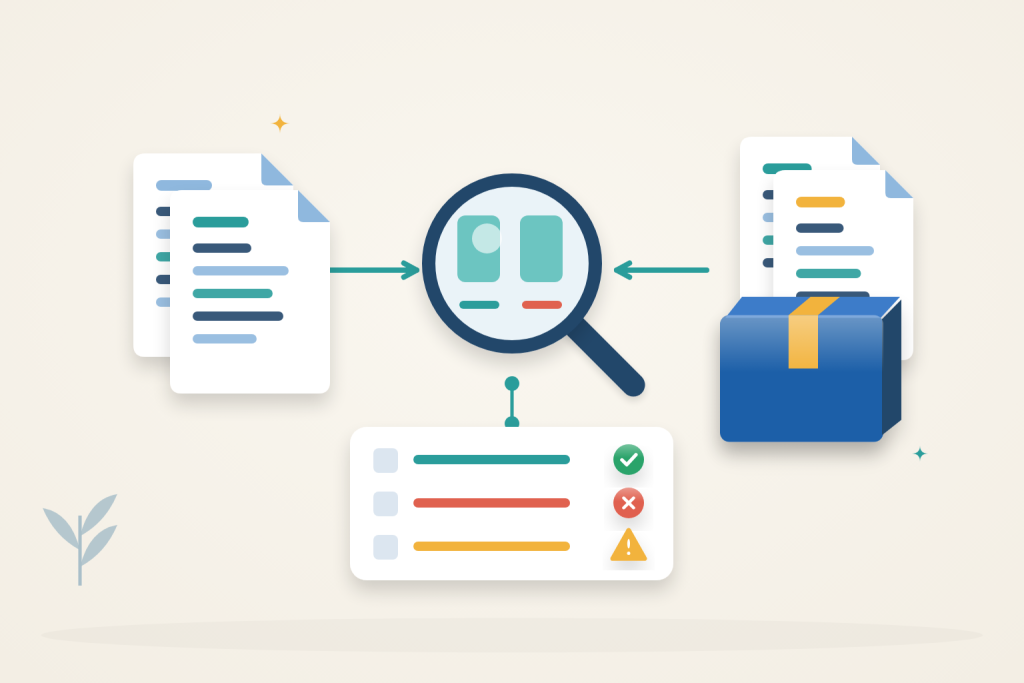
A backup can finish without containing every file you expected. rclone check compares a source directory with its backup, identifies missing or different files, and leaves both copies unchanged. A saved report makes it easier to investigate problems before you need the backup.
1. Choose the right files to compare
Use a stable source directory and an existing file-copy backup with the same relative directory layout. Both directories must be readable by your account. These examples use two local directories on Ubuntu 24.04; no cloud account is needed.
Compare the backup with the source snapshot it was made from. If your website has changed since the backup ran, differences can be legitimate. Pause writes or use an existing consistent snapshot during the check. A changing database needs a database-aware backup, not a comparison of its live data files.
If you need an always-on server to hold your website files, an GICTServer Storage VPS is an option. Size its storage for your data and retention needs; this comparison alone does not provide an off-server backup.
2. Install rclone and set the paths
Install the Ubuntu package:
$ sudo apt update
$ sudo apt install -y rclone
$ rclone version
Replace these example paths with your existing source and backup directories. Keep the same terminal open for the remaining commands:
$ source_dir="$HOME/website-snapshot"
$ backup_dir="$HOME/backup/website-snapshot"
$ ls -ld -- "$source_dir" "$backup_dir"
Check both paths carefully. The source is the reference copy; the backup is the destination being checked. Point to the corresponding directory on each side, not to the backup’s parent directory. Do not compare a folder with itself.
Create a separate report directory outside both trees:
$ report_dir=$(mktemp -d "$HOME/rclone-check.XXXXXX")Keeping reports outside the compared folders prevents the reports themselves from becoming extra files or changing while the check runs. Each new directory also keeps earlier evidence from being overwritten.
3. Run the comparison
Run the check and capture its exit status immediately:
$ rclone check "$source_dir" "$backup_dir" --combined "$report_dir/comparison.txt" --log-file "$report_dir/check.log" --log-level INFO
$ check_status=$?
$ echo "$check_status"
A result of 0 means the selected files passed the check. A nonzero result means differences or an error need investigation. Capture the status before running another command: otherwise $? refers to that later command instead.
For local files, rclone compares file sizes and content hashes. A file can therefore fail even when its size matches. Do not add --size-only when your goal is to detect content changes; equal size is not equal content.
Read the comparison report and diagnostic log:
$ cat "$report_dir/comparison.txt"
$ cat "$report_dir/check.log"
For local-only checks, a notice that no rclone configuration file exists is normal. Each report line starts with a symbol, followed by the relative path:
| Symbol | Meaning | What to investigate |
|---|---|---|
= |
File matches on both sides | No difference detected by this check. |
+ |
File exists only in the source | The backup is missing this file. |
- |
File exists only in the backup | It may be an older retained file or an unexpected extra. |
* |
File exists on both sides but differs | Check whether it changed after backup or was copied incorrectly. |
! |
A read or hash check failed | Inspect the log for an access or storage problem. |
The signs refer to the comparison direction, not actions rclone will perform. check does not copy, delete or repair these files. Report ordering can vary because files are checked concurrently.
4. Handle intentionally retained files
By default, extra files in the backup make the comparison fail. If your backup deliberately keeps older files, use a one-way check to require every current source file to exist and match, while ignoring backup-only files:
$ rclone check "$source_dir" "$backup_dir" --one-way --combined "$report_dir/one-way.txt" --log-file "$report_dir/one-way.log" --log-level INFO
$ check_status=$?
$ echo "$check_status"
This does not excuse missing or damaged source-file copies. Read the one-way report and log if the result is nonzero:
$ cat "$report_dir/one-way.txt"
$ cat "$report_dir/one-way.log"
Do not use --one-way when you need an exact mirror, including the absence of extra files.
5. Check file contents directly when needed
The default check depends on the hashes available from the storage backend. When comparing storage that lacks a shared supported hash, do not treat a size-only comparison as content verification. --download reads both copies and compares their contents directly:
$ rclone check "$source_dir" "$backup_dir" --download --combined "$report_dir/content.txt" --log-file "$report_dir/content.log" --log-level INFO
$ check_status=$?
$ echo "$check_status"
Despite its name, this also works with the local paths above. It reads the data without creating another complete downloaded copy. With remote storage, it can consume transfer bandwidth and incur provider charges. Remote setup is separate from this local-directory procedure.
Related guides
How to Restrict an SSH Key to One Command
Restrict an SSH key to one command with authorized_keys options. Protect the command and check that unwanted shell and forwarding access are denied.
Software DevelopmentHow Webhooks Power Real-Time System Notifications
Understand how webhooks facilitate real-time notifications between systems by eliminating the need for polling, ensuring faster, more efficient communication.
Software DevelopmentA Complete Guide to Microservices Architecture
Discover the fundamentals of microservices architecture, including advantages, challenges, and how to effectively implement it for scalable and resilient applications.
Software DevelopmentUnderstanding Queue Systems and Background Job Processing
Learn how queue systems and background job processing enhance application performance by managing tasks efficiently, improving responsiveness, and optimizing resource...