
GICT knowledge base
How to Use Vi/VIM Editor On Ubuntu Operating System
Published
Linux is a very vast operating system and it is used mostly by companies since it is free to use and asks no charges.
It is not the want but the need of MNC to use linux as a base operating system to reduce their cost and complete projects with best savings as possible.
We use text editors to write or make changes in a text file. With these text files many wonders can be done, and by wonders I mean you can create a shell script, a json script and YAML script and much more.
You also can change the configuration files and change the fundamental settings for any file.
Types of Text editors available on Linux Operating System
There are many text editors available on linux. Few are installed by default and others you might have to install on your own.
- GNU nano
- Emacs
- Gedit
- Sublime Text Editor
- VI
- VIM
Out of all the text editors above mentioned we will discuss the VIM text editor in today’s blog post.
In the above mentioned bullet list, 5th and 6th point i.e VI and VIM editors have many of the things in common. In fact the name VIM is an improved version of VIM editor.
VIM = V-IMproved
So, it’s very true that VIM has many additional features when compared to VI. Most people have stopped VI editor and have switched to VIM because of the above reason.
So, instead of covering VI as a text editor we will cover VIM, since VIM also has VI features included with it. Generally VIM text file editor comes preinstalled on Ubuntu OS, but if you don’t find this editor on your OS then install VIM editor by using the apt package manager from Ubuntu Operating System.
How To Install VIM on Ubuntu Linux Operating System
- Command To Update the apt package manager In Ubuntu –
$ sudo apt update - Command To Search VIM –
$ sudo apt search vim - Command To Install VIM –
$ sudo apt install vim - Command To check the version Of VIM –
$ vim --version
Modes In VIM Editor
There are two modes in the VIM editor. Both of them are mentioned below.
- Insert Mode
- Command Mode
What Is Insert Mode?
To activate the insert mode you would have to press the i key on your keyboard. Once you are in insert mode you can type whatever you want to. You can create a script or make changes in an existing file.
I am currently in insert mode and we can verify this because in the bottom left corner it is mentioned – Insert – in white color font.
What Is Command Mode In VIM File Editor?
The command mode in VIM is a mode wherein you can insert any command like to save a file, exit a file, if you want to search for a specific word. Etc. Command line is mainly used for following purposes and much more
- Save
- Exit
- Replace
- Find
- Set numbers
Now let us understand the following commands in VIM with examples.
Create A text file using VIM
To create a file using VIM execute a command with following syntax. Though you can first create a text file with touch command and then later open it with vim, but I prefer using direct vim command to create and open the respective text file.
Syntax – vim nameoffile
Example – I have created a file by using this command- $ vim sample.
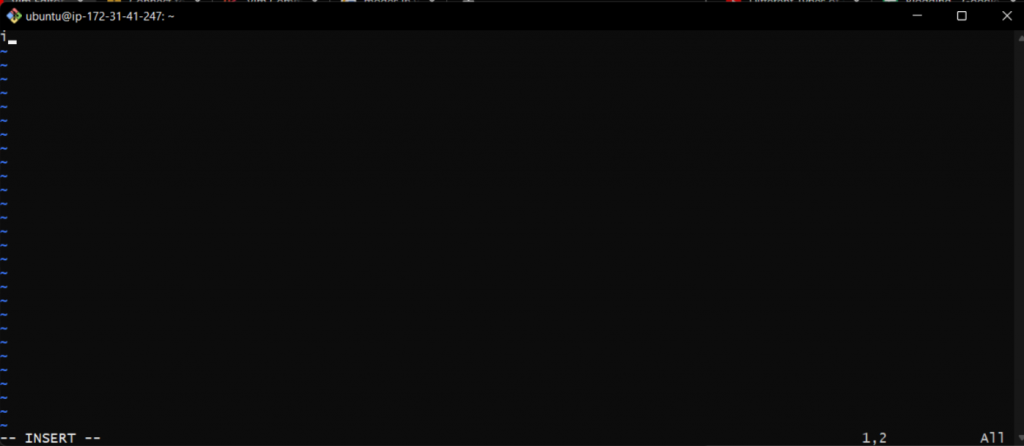
If you can see a screen similar to the above given image, the vim editor is ready and is in insert mode, see the bottom-left corner to find the current mode.
Quit VIM without saving
To quit VIM without saving anything follow the below given syntax.
Syntax – ESC + :q!
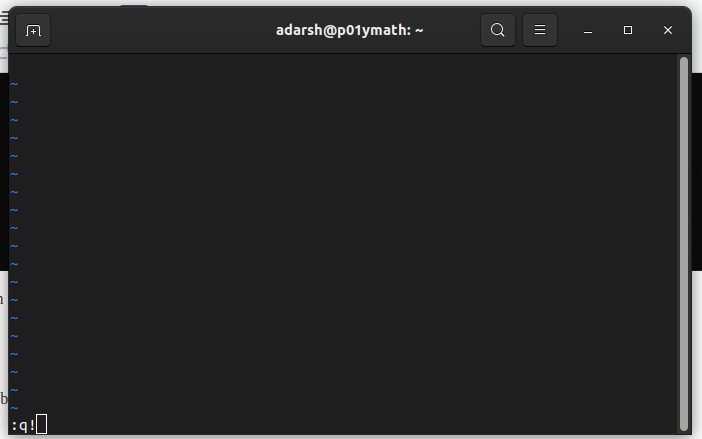
After entering the command, hit the enter button to close file without making any changes.
Quit VIM and save a file
To quit VIM and save changes follow the below syntax
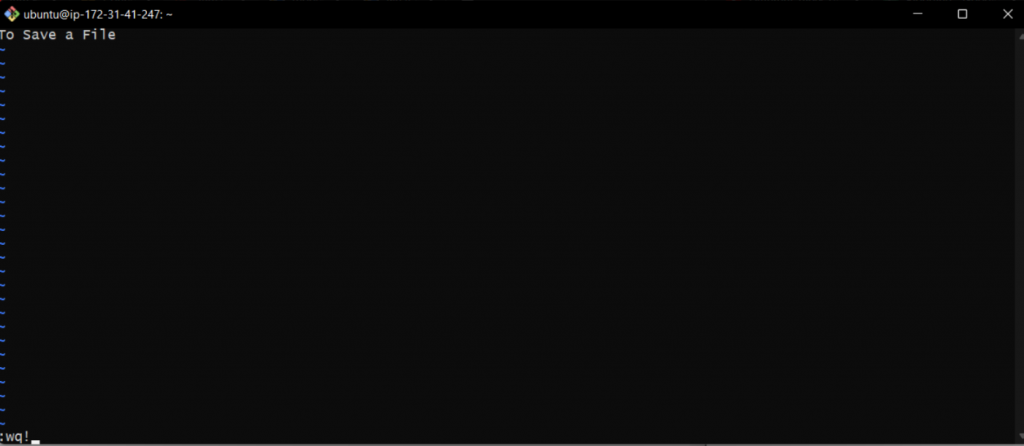
Syntax – ESC + :wq!
Here, wq stands for write and quit.
How To save changes in VIM without exiting the file editor
To save changes without exiting the text file editor follow the below syntax
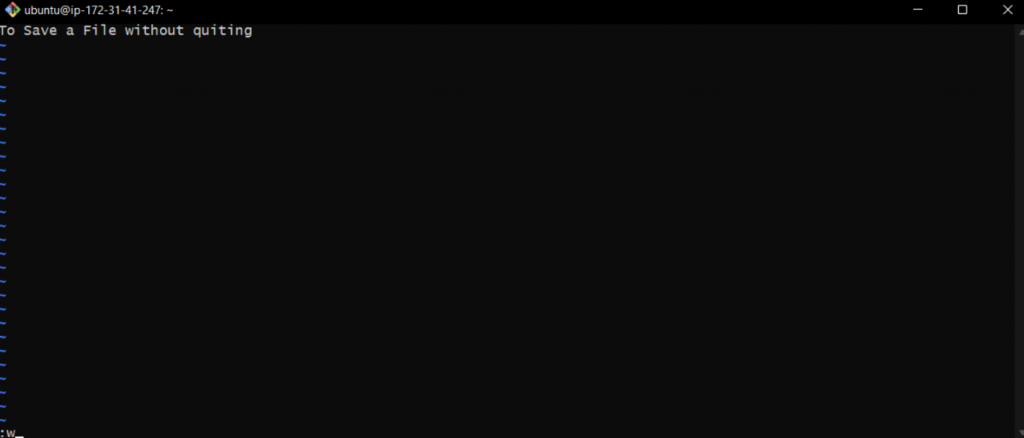
Syntax – ESC + :w
“w” stands for write (save). You will still remain in the same file as we have just saved the file and not exited.
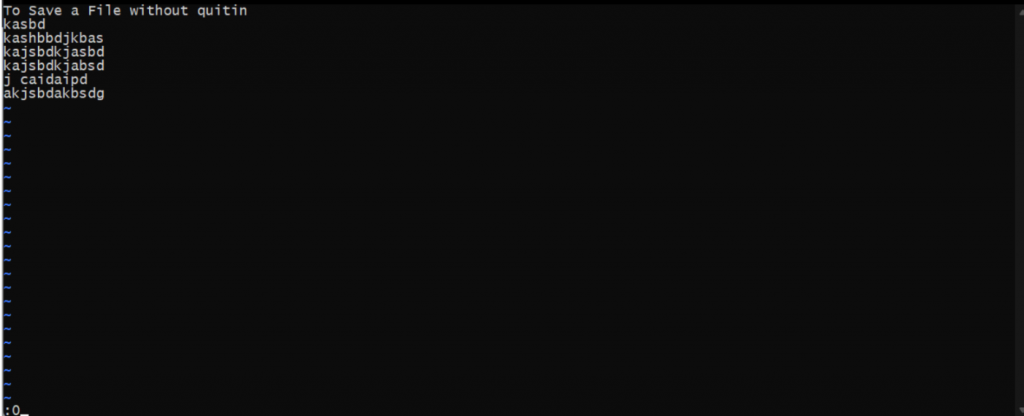
Move to the start of the line in vim.
Let’s say if I am working on the 1000th line in a text file and I want to move my cursor on the first line then what should I do?
To tackle this situation VIM has a command
- Step 1: Activate the command mode.
- Step 2 : Press :0.
- Step 3 : Press Enter
By doing so, no matter on which line you are, you would be directed to 1st line of that text file.
Perform Undo In VIM Editor
Many times we want to revert back the texts to the previous ones. In this scenario we use undo command to make the state as it was before.
We can perform undo action on the VIM editor.
- Step 1 : Press the ESC key to enter the command mode.
- Step 2 : Write
:undocommand. - Step 3 : Press Enter.
Perform Redo in VIM
We can perform redo action on VIM by using the following steps
- Step 1 : Press the ESC key on keyboard.
- Step 2 : Type
:redo. - Step 3 : Hit the ENTER key on keyboard.
Search And Highlight Text In VIM
When we are making changes in a text file which has thousands of lines of text, there comes a situation where we have to look for one specific word. In such cases we can use the find command of the VIM text editor.
- Step 1 : Press ESC on keyboard.
- Step 2 : Write
:/anyword. - Step 3 : Press Enter.
Example – :/Fourth
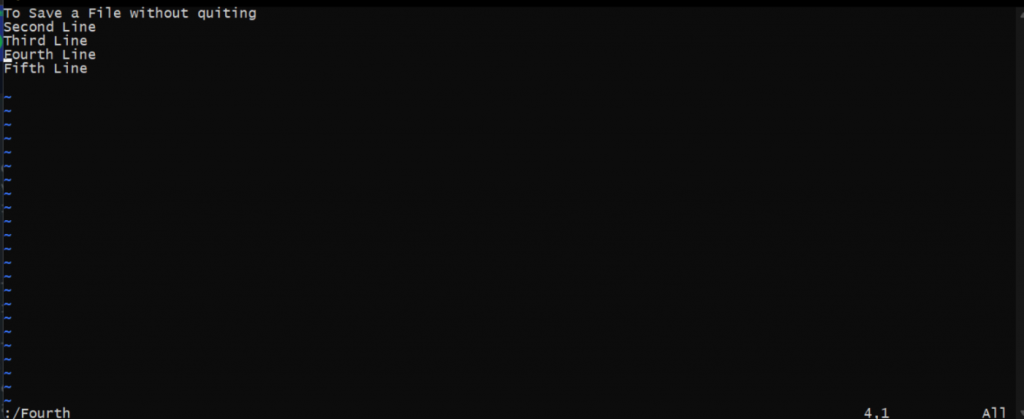
I was looking for the “Fourth” word in the text file. After hitting enter the cursor pointed to the exact word.
Conclusion
In this short tutorial we covered the basics of vim editor and the difference between VI and VIM. Not only this but also the 7 most useful commands in VIM that every Linux user should know. If you are an experienced system admin, you already have experience with vim. And many experienced system administrators prefer vim over nano editor.
We hope this tutorial was helpful for you. If you have any questions, please let us know in the comments section. We will get back to you with answer as soon as possible.
Related guides
How to Restrict an SSH Key to One Command
Restrict an SSH key to one command with authorized_keys options. Protect the command and check that unwanted shell and forwarding access are denied.
Linux and CommandsSelf-Hosted Video Processing With FFmpeg: A Practical Guide
Learn how to self-host video processing on a VPS using FFmpeg, with practical commands for conversion, compression, thumbnails, and automated workflows.
Linux and CommandsHow to use nohup: Commands in Linux That Survive Terminal Closes
Keep commands running after you close the terminal. nohup examples with wget, Python, rsync, and Docker on any VPS.
Linux and CommandsHow to Fix “Too Many Open Files” Error on Linux Servers
Learn how to fix the "Too Many Open Files" error on Linux servers by understanding file descriptors, adjusting limits, and diagnosing leaks effectively.