
GICT knowledge base
How to update a WordPress site (And turn on Auto-updates)
Published
WordPress is a popular content management system that powers over 40% of websites on the internet. It is an open-source platform that is constantly evolving with new features and security updates. However, as with any software, it is crucial to keep your WordPress site up-to-date to ensure its smooth operation and security. In this article, we’ll provide you with a guide on how to update your WordPress site, both manually and automatically. We’ll also show you how to turn on auto-updates to ensure that your website is always running on the latest version of WordPress, plugins, and themes.
So, let’s get started!
Updating the WordPress core from Admin Side
The WordPress core is the foundation of your site and contains the code that runs the entire platform. It’s important to keep the WordPress core up-to-date to ensure that your site is secure and running smoothly. Here are the steps to update the WordPress core:
- Backup Your Site: Before making any updates to your site, it’s important to backup your site files and database. This will ensure that you have a copy of your site in case anything goes wrong during the update process.
- Check Your Site Requirements: Before updating, make sure that your site meets the minimum requirements for the latest version of WordPress. Check your PHP version, MySQL version, and server requirements to ensure that your site can support the latest WordPress update.
- Update WordPress Core: To update the WordPress core, go to your WordPress Dashboard, click on the “Updates” option from the left-hand menu, and click “Update Now”. WordPress will download and install the latest version of WordPress.
- Verify the Update: After updating, it’s essential to verify that the update was successful. Check your WordPress version to ensure that it’s updated to the latest version. Also, check your site’s functionality to ensure that everything is working correctly.
- Enable Automatic Updates: To ensure that your WordPress core is always up-to-date, consider enabling automatic updates. To enable automatic updates, go to the “Dashboard,” click on the “Updates” option, and select “Enable automatic updates for WordPress.”
Updating the WordPress core is a simple process that can help keep your site running smoothly and securely. By following these steps, you can ensure that your site is always up-to-date and performing at its best. Here is how the update WordPress page looks like.
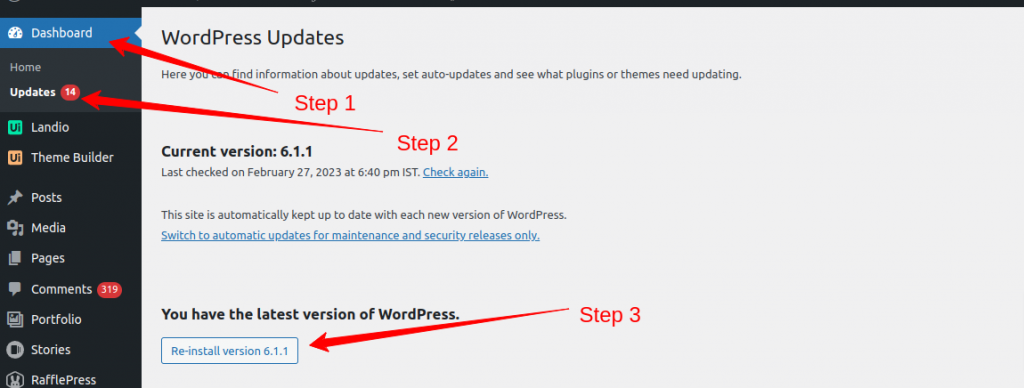
Note: You will see “Re-install” option if your WordPress is already up-to-date. Otherwise, It will ask you to update your WordPress site to the latest available version of WordPress.
Enable Automated WordPress Updates
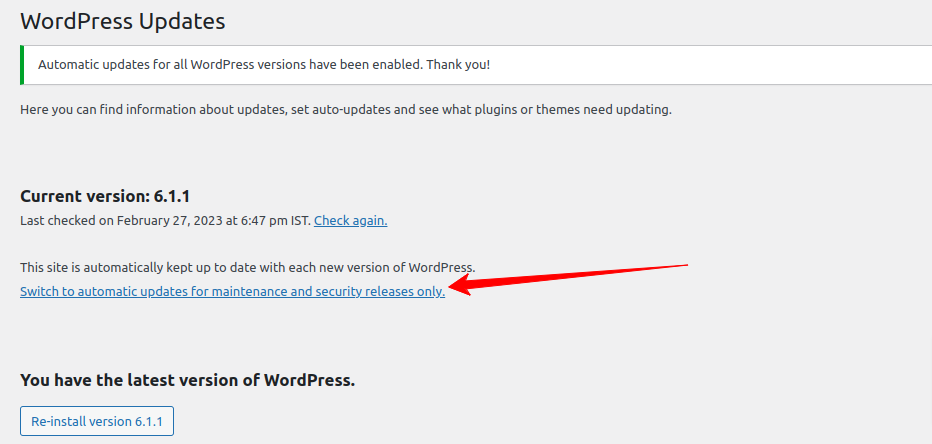
To switch to automatic WordPress updates, You can find and click on the “Enable automatic updates for all new versions of WordPress.” option given just below the current version displayed. Click on that option to enable automatic updates for your WordPress site.
Once enabled, the page will look like the following image.
So, This is how you can keep your WordPress site up-to-date from the admin side. Now, Let’s understand the best practices to update your WordPress site.
Updating WordPress: Best Practices
While updating WordPress is a crucial task, it’s important to follow best practices to ensure that your site stays safe and secure. Here are some best practices for updating WordPress:
- Backup Your Site Regularly: Always backup your site before updating. This will ensure that you have a copy of your site in case anything goes wrong during the update process.
- Check Plugin and Theme Compatibility: Before updating WordPress, check that your plugins and themes are compatible with the latest version of WordPress. Some plugins and themes may not be compatible with the latest version of WordPress, causing issues with your site.
- Update Your Plugins and Themes: Keep your plugins and themes updated to the latest version to ensure they work smoothly with the updated WordPress core.
- Use a Staging Site: A staging site is a copy of your site where you can test updates without affecting your live site. It’s a good idea to use a staging site to test updates and ensure everything works correctly before updating your live site.
- Use Strong Passwords: Use strong passwords for all user accounts, including admin accounts. This will prevent unauthorized access to your site and help keep it secure.
- Enable Automatic Updates: Enabling automatic updates for your WordPress site will ensure that your site is always running on the latest version of WordPress.
By following these best practices, you can ensure that your WordPress site stays secure, up-to-date, and running smoothly. Remember to backup your site regularly and check plugin and theme compatibility before updating. Using a staging site to test updates is also recommended to avoid any issues with your live site. With these best practices in mind, you can confidently update your WordPress site and keep it secure and up-to-date.
Conclusion
In conclusion, keeping your WordPress site up-to-date is essential for its security and performance. While updating the WordPress core can be a time-consuming process, following best practices and using automatic updates can make the task more manageable. Remember to always backup your site, check plugin and theme compatibility, and keep your plugins and themes updated. By following these tips and best practices, you can keep your WordPress site secure and up-to-date, ensuring its optimal performance.
You can also manually update your WordPress site by replacing core WordPress files with the latest version. To do so, Back up the wp-content directory and wp-config.php file and upload the latest version of WordPress in public_html of your server. Then delete the default wp-content directory and wp-config.php file and replace them with your main wp-config.php and wp-content directory. This way, You can also update your WordPress site manually.
If you have any questions regarding WordPress updates, please let us know in the comment section given below. We are happy to help!
Related guides
7 Common Hosting Mistakes Beginners Make (And How to Avoid Them)
7 common hosting mistakes beginners make in 2026: no backups, ignored updates, bad host choice, weak passwords, single point of failure, no staging. With fixes for each.
WordPressWebsite Migration Backup Checklist: What to Save and How to Test
Prepare a website migration backup: inventory files, databases, email and DNS, check archive integrity, test recovery and plan a safe final synchronization.
WordPressCore Web Vitals in 2026: A Practical Fix Guide for Site Owners
Core Web Vitals 2026: practical fixes for LCP, INP, and CLS. Real root causes, what to measure, common misconceptions, and a priority order of fixes for site owners.
WordPressFixing the WordPress “Death Loop”: When Missing Files slow down your site
You’ve just launched your new WordPress site or pushed a big update. In your staging environment, everything ran perfectly.