
GICT knowledge base
How To Set Up Remote Access Key in WHM
Published
Remote Access Key is a cPanel feature that allows external servers and software to communicate with a cPanel & WHM server. It can be used by multiple servers and services.
Remote access keys allow you to log in to your server without the need for a password. You can use a remote access key (or access hash) to authenticate with WHM’s remote API or DNS clustering features.
We can discuss how to set up a remote access key in WHM.
WHM >> Home >> Clusters >> Remote Access Key
1) Login to WHM admin panel.
2) Click on “Clusters”.
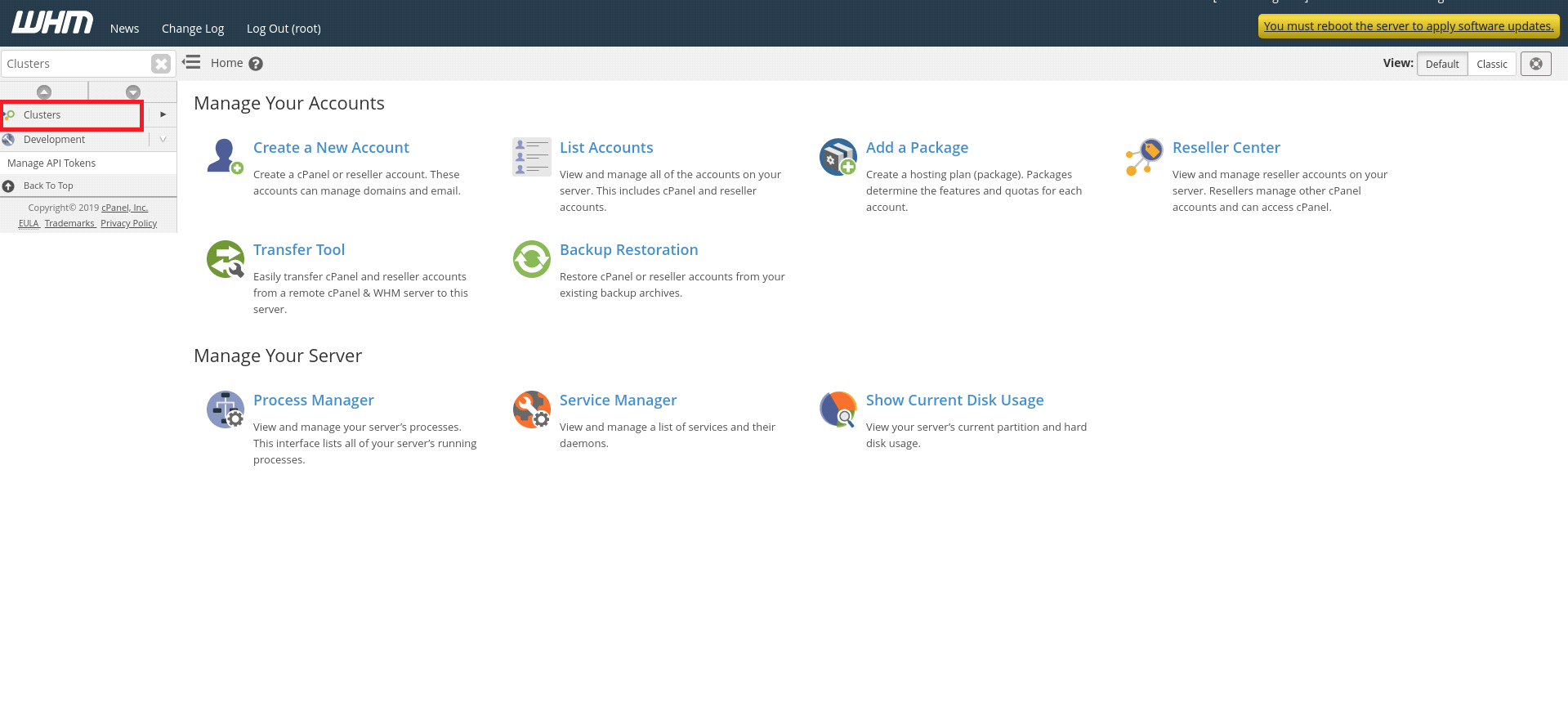
3) Select ” Remote Access Key “.
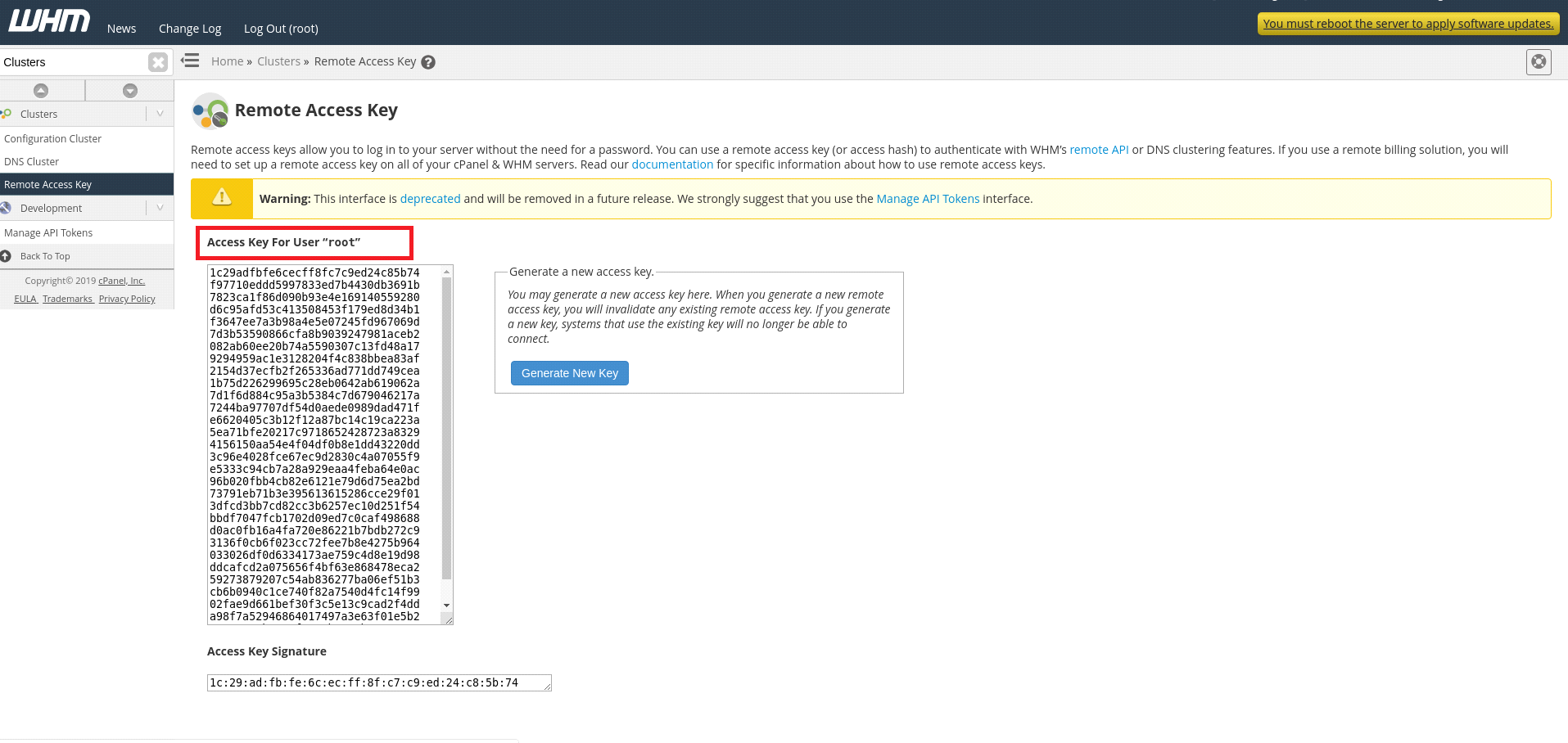
a) On this screen, you can see the currently available access key for user root on the option ” Access Key For User root “.
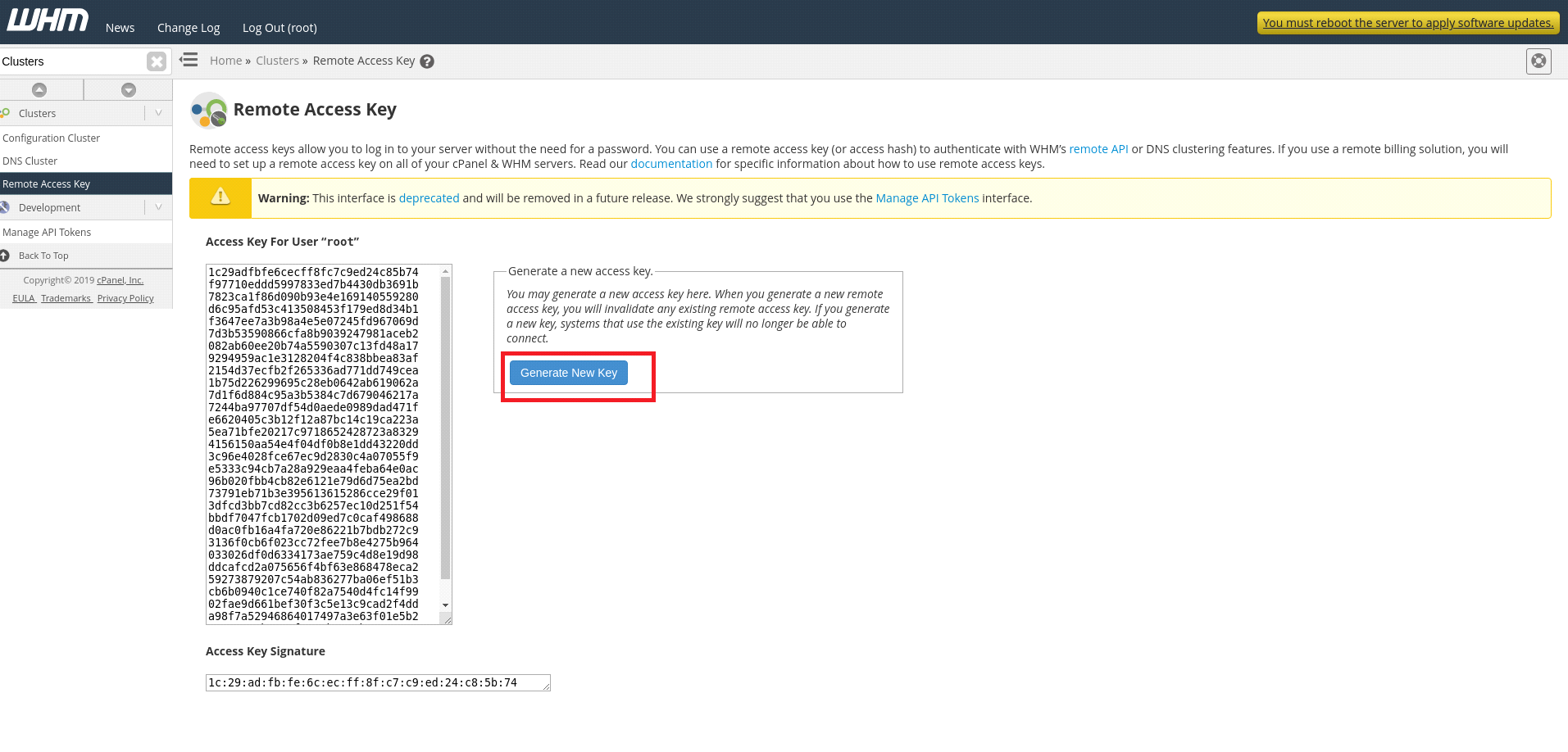
b) You can also generate a new remote access key by clicking the “Generate New Key” icon. When you generate a new remote access key, you will invalidate any existing remote access key. If you generate a new key, systems that use the existing key will no longer be able to connect.
Here you have successfully created a New Remote Access Key.
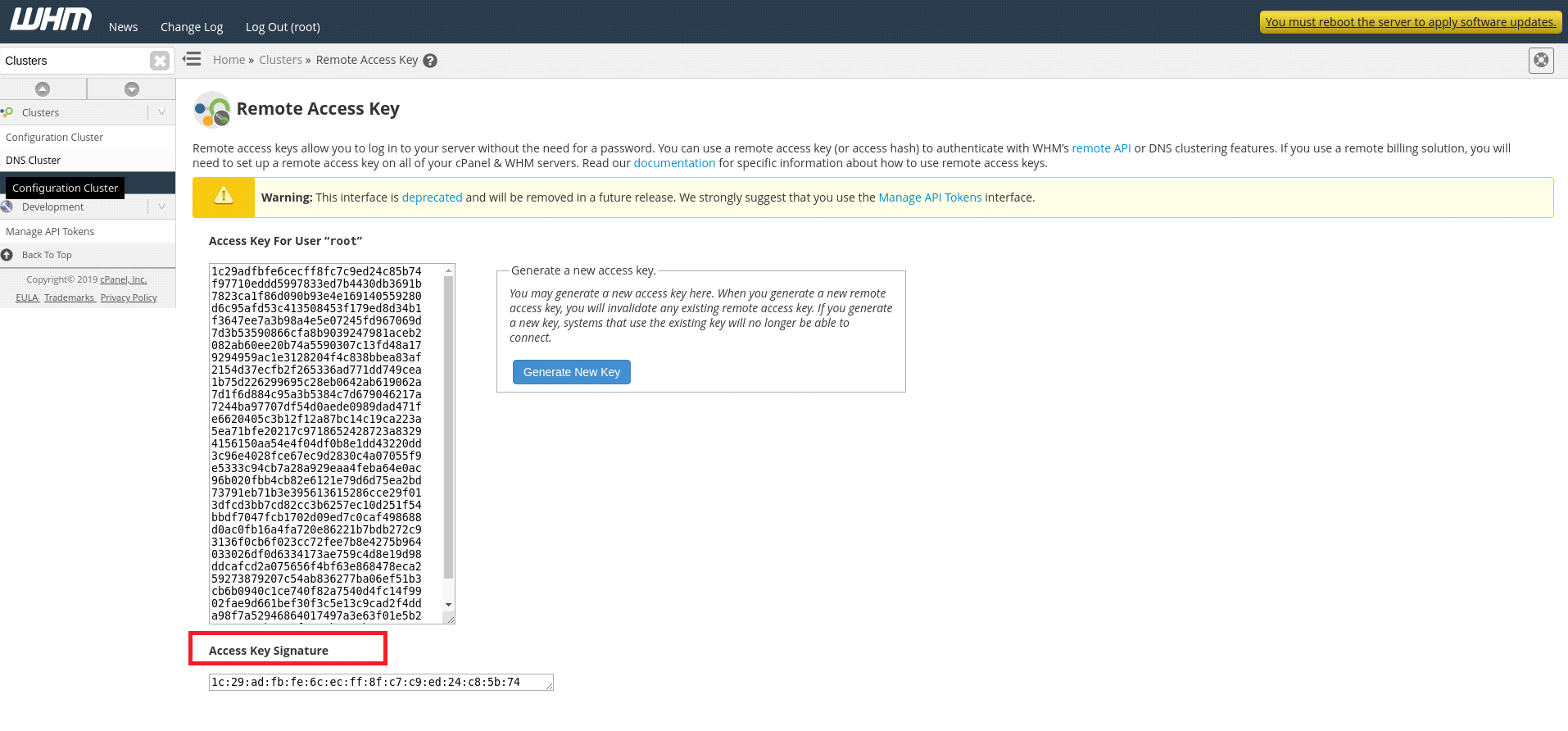
Access Key Signature
Here, we can see the “Access Key Signature” option on the bottom of the screen.
It is the first 32 characters of the Remote Access Key and also it is separated by colons.
If you need any further help, please do reach our support department.
Related guides
How to Install and Uninstall JetBackup for cPanel
How to Install JetBackup for cPanel. JetBackup is one of the leading backup solutions for cPanel & WHM that offers a user-friendly GUI. It provides
WHMSetup SendGrid on your cPanel VPS/Server
Setup SendGrid on your cPanel VPS/Server. SendGrid provides a cloud-based service for reliable transactional and marketing email.
WHMChange cPanel Nameserver Software to PowerDNS Carefully
Review WHM nameserver selection, resolver dependencies, cluster compatibility and DNSSEC requirements before a planned PowerDNS service change.
WHMTroubleshooting Jailed Shell on OpenVZ
cPanel/WHM providing Jailed shell environment for users, this feature giving high-level security for users when doing ssh access to their server.