
GICT knowledge base
How to Run Multiple PHP Versions on Nginx with PHP-FPM
Published
Sooner or later you run into the situation. One application refuses to run on anything newer than PHP 8.2, a plugin or a dependency holds it back, and you cannot upgrade it without breaking something. Meanwhile, a newer project on the same server wants PHP 8.4 for the features and the performance. You do not have to choose, and you do not need a second server. One machine can run both versions at once, side by side, and Nginx will quietly send each site to the right one.
The trick rests on how PHP-FPM works. PHP-FPM, the FastCGI Process Manager, runs each PHP version as its own independent service, listening on its own socket. Nginx then forwards each site to whichever socket it should use. This guide takes you through the whole thing on a Debian or Ubuntu server, from installing the versions to wiring up Nginx and confirming each site runs exactly the version you expect.
Prerequisites
Before you start, make sure you have:
- A Debian or Ubuntu server with Nginx already installed and serving sites.
- Root or sudo access to install packages and edit configuration.
- At least one working Nginx server block, since you will adjust which PHP socket it points to.
- A few minutes of comfort at the command line. Nothing here is exotic, but you will edit configuration files and restart services.
A note for Red Hat, CentOS, and AlmaLinux users: the approach is identical in concept, but you install versions through the Remi repository rather than the Personal Package Archive (PPA) used below, and the socket paths differ. The Nginx wiring in the later steps applies to you unchanged.
How the Pieces Fit Together
Before the commands, picture the layout, because the whole setup is simpler than it sounds once you see it. Each PHP version installs as a separate FPM service with its own socket file. Nginx does not run PHP itself. It hands a request off to a socket using the fastcgi_pass directive, and whichever FPM service listens on that socket runs the code. Point one site’s fastcgi_pass at the 8.2 socket and another’s at the 8.4 socket, and you are done.
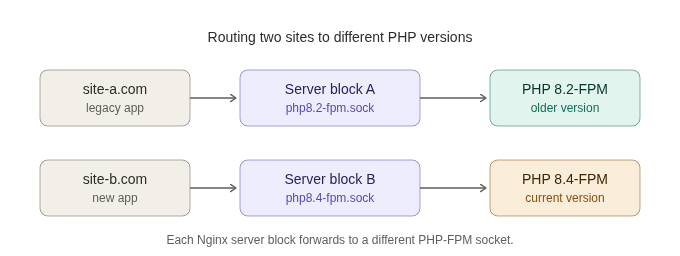
Routing two sites to different PHP versionssite-a.comlegacy appServer block Aphp8.2-fpm.sockPHP 8.2-FPMolder versionsite-b.comnew appServer block Bphp8.4-fpm.sockPHP 8.4-FPMcurrent versionEach Nginx server block forwards to a different PHP-FPM socket.
Step 1: Add the PHP Repository
The default Debian and Ubuntu repositories carry only one PHP version, so to install more than one you add a repository that packages them all. The widely used Personal Package Archive maintained by Ondřej Surý is the standard choice, and it keeps current and older versions available together.
Add the repository and refresh your package list:
sudo add-apt-repository ppa:ondrej/php
sudo apt update
On Debian, where add-apt-repository may not be present by default, install the software-properties-common package first. Once the repository is in place, every supported PHP version becomes installable by name.
Step 2: Install the PHP Versions You Need
Now install the versions you want, each with its FPM package. The package names follow a clean pattern, with the version number built right in, which is what makes running several side by side so manageable.
Install two versions, one older and one current:
sudo apt install php8.2-fpm php8.4-fpmHere is a point that catches people out, so set the right expectation now. Each version is completely independent, including its extensions. An extension you install for 8.4 does nothing for 8.2, because they are separate installations with separate configuration. So install the extensions each application needs, per version:
sudo apt install php8.2-mysql php8.2-curl php8.2-mbstring
sudo apt install php8.4-mysql php8.4-curl php8.4-mbstring
Match the extensions to what each application actually requires. Do not install versions or extensions you do not need, because every running FPM service consumes memory whether a site uses it or not, and an unused PHP version is just idle overhead.
Step 3: Confirm the Services and Find the Sockets
Both FPM services should start automatically after installation. Confirm they are running and note the socket each one listens on, since those paths are exactly what you put into Nginx next.
Check that each service is active:
systemctl status php8.2-fpm
systemctl status php8.4-fpm
Then list the socket files to see the real paths on your system:
ls /run/php/You should see entries like php8.2-fpm.sock and php8.4-fpm.sock. Copy these names exactly, because the next step depends on them matching to the character. A single wrong digit here is the most common reason the whole setup fails with a 502 error.
Step 4: Point Each Nginx Server Block at the Right Socket
This is the heart of the setup. In each site’s Nginx server block, the location that handles PHP files contains a fastcgi_pass directive, and that directive names the socket. Change it to the version you want that site to use.
For the legacy site on PHP 8.2, the PHP location block looks like this:
server {
    server_name site-a.com;
    root /var/www/site-a;
    location ~ \.php$ {
        include snippets/fastcgi-php.conf;
        fastcgi_pass unix:/run/php/php8.2-fpm.sock;
    }
}
For the newer site on PHP 8.4, the only line that changes is the socket path:
server {
    server_name site-b.com;
    root /var/www/site-b;
    location ~ \.php$ {
        include snippets/fastcgi-php.conf;
        fastcgi_pass unix:/run/php/php8.4-fpm.sock;
    }
}
That is the entire difference. Two sites, two server blocks, two fastcgi_pass lines pointing at two sockets. The include snippets/fastcgi-php.conf line pulls in the standard FastCGI parameters so you do not have to write them out by hand, and it stays the same regardless of version.
Step 5: Test, Reload, and Verify
Never reload Nginx on faith, because reloading a broken configuration can take your sites offline. Test first, every time.
Check the configuration for errors:
sudo nginx -tIf it reports the configuration is valid, reload Nginx to apply the changes without dropping connections:
sudo systemctl reload nginxNow confirm each site is genuinely running the version you assigned, rather than trusting that it worked. Drop a small file into each site’s web root:
<?php phpinfo(); ?>Load that file in a browser for each site and check the version reported at the top of the page. Site A should report 8.2 and site B should report 8.4. Once you have confirmed both, delete the phpinfo files immediately, since leaving them exposed hands an attacker a detailed map of your server configuration.
If a site returns a 502 Bad Gateway instead, go straight back to the socket path. Compare the fastcgi_pass value against the real filename from Step 3, character for character. That mismatch is the cause far more often than anything else.
Conclusion
Running several PHP versions on one Nginx server comes down to a clean idea: each version is its own FPM service on its own socket, and Nginx routes each site to the socket it needs. You add a repository that carries multiple versions, install the ones you want along with their per-version extensions, confirm the sockets, and set each server block’s fastcgi_pass to the matching path. Then you test the configuration, reload, and verify with a quick phpinfo check before cleaning up.
The setup scales as far as you need. Add a third version the same way, install it, and point another site at its socket. The moment a 502 appears, check the socket path first, because that one line is where this setup almost always succeeds or fails.
Related guides
WebSockets Explained: How Real-Time Communication Actually Works
WebSockets explained: how the HTTP upgrade works, what frames look like, how to set up a WebSocket server on your VPS, and how to debug connection problems.
web developmentCookies vs LocalStorage vs SessionStorage: What Each One Exactly Means
A simplest breakdown of the three ways browsers store data: cookies, localStorage, and sessionStorage.
web developmentHow to Fix 413 Request Entity Too Large Error in Nginx (5 Working Solutions)
Learn five effective solutions to fix the 413 Request Entity Too Large error in Nginx to ensure seamless file uploads.
web developmentUnderstanding CORS and Why Browsers Block Cross-Origin Requests
Understand CORS, its system of cross-origin requests, how to configure it in web servers like Nginx and Apache, and common errors and solutions.