
GICT knowledge base
How to Point a Domain to a Server in Local System for Testing Websites?
Published
How to Point a Domain to a Server in Local System for Testing Websites?
If you are creating a website in the new server before updating nameservers at your domain registrar end, you can point that domain to a new server in your local system via the hosts file. When you call a website in a browser, the system first checks your hosts file entries for that domain. If there is no entry for that domain, the system will go to DNS root servers to find that domain hosted server. If your nameservers are not updated, you will get a page like below screenshot.

Consider the scenario you have migrated your website from old host to the new host and the website is still resolving to the old server and you want to test your website is working or not. In this situation, you can point your website to your new server in your local system. Assume your new server IP is 192.168.1.10 and domain name is example.com. You can add below entry in your hosts file to point website to the new server.
Open your hosts file then add:
192.168.1.10 example.com
Then save the file. You can confirm the domain is resolving to the new server in your local system by ping domain name.
Open your Terminal or Command prompt and run below command.
ping example.com
In this case, you will get below result.
Pinging example.com [192.168.1.10] with 32 bytes of data
In this tutorial, I will show how to edit hosts file in Windows, Mac, and Linux.
Windows
If you are using Windows Operating System, the hosts file location is C:\Windows\System32\Drivers\etc\
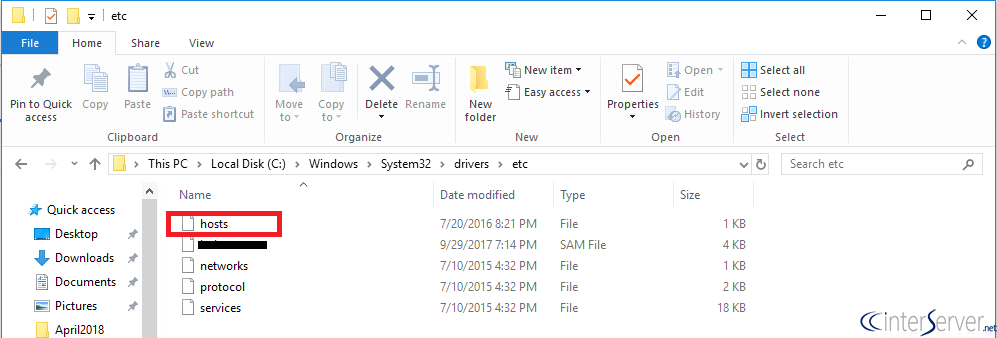
From there you can access the hosts file.
Open with a text editor and add a new entry at the end of the file.
xxx.xxx.xxx.xxx.xxx domainname .com
Then save the file.
Mac
If you are using Mac OS, the hosts file location is /private/etc/hosts
Open your terminal to access hosts file and run below command to edit hosts file.
sudo nano /private/etc/hosts
Linux
If you are using Red Hat based OS, the hosts file location is /etc/hosts
Open your terminal and switch to root user to access hosts file and run below command.
vim /etc/hosts
If you are using Debian based OS open terminal and run below command to edit the hosts file.
sudo vim /etc/hosts
If you need any further assistance please contact our support department.
Related guides
How to Fix DNSSEC SERVFAIL Errors
Fix DNSSEC SERVFAIL errors by checking parent DS records, DNSKEYs, and signature dates. Verify the repair with DNSSEC validation enabled.
DNSHow to Fix Cloudflare Redirect Loops in WordPress
Diagnose DMARC failures when SPF and DKIM pass, compare the From, envelope, and signing domains, and fix alignment at your mail provider.
DNSReverse DNS Policies at GICTServer
Understanding Reverse DNS Policies at GICTServer Setting up Reverse DNS (rDNS) is one of those tasks that sounds complicated, but it’s actually pretty straightforward...
DNSHow to use nslookup command on Linux and Windows Operating System
nslookup is a windows and Linux utility tool that allows you to check the dns information of any domain on the internet.