
GICT knowledge base
How to Fix DNSSEC SERVFAIL Errors
Published
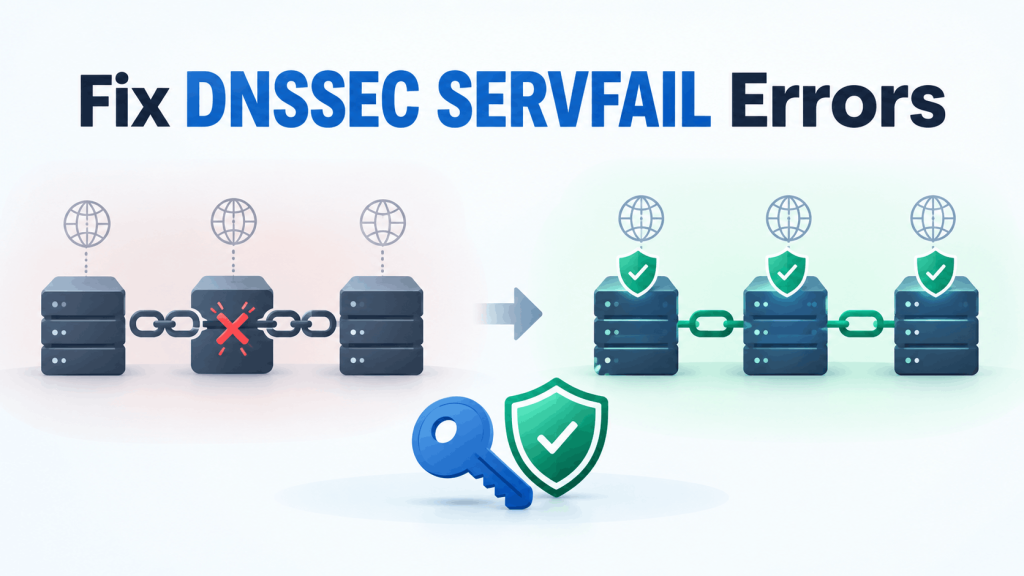
A domain can have the correct IP address and still fail to resolve. After a DNS provider change, an old DS record at the parent can make validating resolvers reject the new provider’s answers with SERVFAIL. The web server is not the part that needs fixing.
This guide separates DNSSEC validation failures from ordinary DNS failures, checks the parent-to-child link, and applies the matching repair. The examples use example.com; substitute the affected domain.
Before you change anything
You need access to the domain’s DNS provider and, for a registered domain, its registrar’s DNSSEC settings. These may be different companies. For a delegated subdomain, the operator of the parent zone manages its DS records instead.
Run the diagnostic commands from Ubuntu or another machine with dig. On Ubuntu, install the tools:
$ sudo apt-get update
$ sudo apt-get install -y dnsutils
$ DOMAIN=example.com
$ RESOLVER=1.1.1.1
$ marks a shell command; do not copy it. Keep using the same terminal so the variables remain set. Use the actual name that fails for the initial lookup. If that name belongs to a delegated subdomain, or follows a CNAME into another zone, investigate the zone whose validation fails rather than assuming the registered domain’s DS is at fault.
Do not change DNSSEC just because a browser says the site is unavailable. SERVFAIL can also mean unreachable authoritative servers, a broken delegation, or a transport problem. If both checks below fail, DNSSEC is not yet isolated as the cause.
Compare validation with checking disabled
Ask the same resolver for the same record twice:
$ dig @"$RESOLVER" "$DOMAIN" A +dnssec
$ dig @"$RESOLVER" "$DOMAIN" A +dnssec +cdflag
Keep the full output. +short hides the response status and flags you need here. +dnssec requests DNSSEC records; it does not make dig validate signatures itself. +cdflag asks the resolver to disable checking for this query.
| Normal query | Query with +cdflag |
What it tells you |
|---|---|---|
SERVFAIL |
Returns the expected record | Strong evidence of a validation problem. Check the trust chain. |
SERVFAIL |
Still fails or times out | Also investigate delegation, authoritative availability, and network transport. |
NOERROR, with ad |
Returns the record | The validating resolver authenticated the answer. |
NOERROR, without ad |
Returns the record | Resolution works, but this output does not establish a secure chain. |
Read any Extended DNS Error (EDE) near the OPT section. Messages such as DNSKEY Missing or Signature Expired help narrow the cause, but not every resolver supplies them. Treat ad as meaningful only from a resolver you trust over a trustworthy connection.
+cdflag is a diagnostic, not a repair. Leaving validation disabled hides the broken chain. It does not fix the domain for everyone else.
Find the parent DS and current DNSKEY
For DS and DNSKEY checks, DOMAIN must be the affected zone apex (for example, example.com, not www.example.com). Reset it if necessary, then follow the delegation to locate the parent nameservers:
$ dig +trace "$DOMAIN" DSThe trace shows where the DS is served; it does not cryptographically validate the chain. It also needs direct outbound DNS access to the authoritative servers. If that is blocked, use a DNS diagnostic service such as DNSViz or run the command from another network.
Choose an IP address for a parent authoritative server from the trace. Set AUTH_IP to an address of a current authoritative server for your domain, obtained from the delegation or your DNS provider. Replace the placeholders below:
$ PARENT_IP=REPLACE_WITH_PARENT_SERVER_IP
$ AUTH_IP=REPLACE_WITH_CURRENT_AUTHORITATIVE_IP
$ dig @"$PARENT_IP" "$DOMAIN" DS +norecurse +dnssec
$ dig @"$AUTH_IP" "$DOMAIN" DNSKEY +norecurse +dnssec
$ dig @"$AUTH_IP" "$DOMAIN" A +norecurse +dnssec
Querying an authoritative server directly avoids the recursive resolver’s cached copy. An authoritative NOERROR answer is not proof of successful validation: the server can happily serve records that validators reject.
A DS record has four fields after DS: key tag, algorithm, digest type, and digest. Compare all four with the DS value supplied by the current DNS provider. Matching only the key tag is insufficient. If several DS records exist, check the provider’s complete intended set; do not delete legitimate rollover records merely because they differ.
The parent DS must match an appropriate DNSKEY served by the child. Do not add the DS as an ordinary record inside the child zone. That does not update the delegation the resolver checks.
Apply the repair that matches the evidence
The DNS provider changed, but the parent DS did not
Open the current DNS provider’s DNSSEC settings. Confirm that signing is active and that its authoritative servers are serving the intended keys and signatures. Obtain the provider’s current DS values.
At the registrar, open the domain’s DNSSEC or DS records section. For a delegated subdomain, make this change in its parent zone instead. Replace the obsolete DS information using the current provider’s instructions, including its required rollover sequence. Copy the algorithm and digest type as well as the digest; do not guess them.
Requery the parent directly using the DS command above. The saved settings in a dashboard are not sufficient proof that the parent has published the change. Then query each current authoritative server to make sure they serve a consistent signed zone.
A DS exists, but the current provider is not signing
The parent is telling validators to expect DNSSEC data that the child does not supply. Prefer enabling signing at the current DNS provider, confirming its DNSKEY and signatures, and publishing the matching DS at the parent.
If you intentionally need an unsigned zone, remove its DS through the registrar or parent operator. This is a deliberate removal of DNSSEC protection, not a completed secure repair. Allow cached DS records to expire. If the zone is still signing, keep it signing while that transition completes; turning off signing first can cause the outage you are trying to avoid.
The signatures expired or are not valid yet
Inspect the signed answer and your clock:
$ dig @"$AUTH_IP" "$DOMAIN" A +norecurse +dnssec +multiline
$ date -u
An RRSIG contains its expiration time followed by its inception time, normally displayed as UTC YYYYMMDDHHMMSS values. The presence of an RRSIG alone does not mean it is valid.
For managed DNS, send the provider the affected name, query output, authoritative server address, and signature dates. Ask it to correct signing and distribution. For a signing server you operate, check its clock, signing service, key availability, and zone publication. Correct the cause and republish fresh signatures through that system’s normal signing process. Restarting nginx or changing an A record will not renew an expired DNS signature.
If only one authoritative server has old keys or signatures, fix the provider’s zone synchronization. Otherwise different resolvers can see different outcomes.
Verify the repair with validation enabled
Set DOMAIN back to the name that originally failed if it differs from the zone apex. Repeat the query without +cdflag, then check another validating resolver:
$ dig @"$RESOLVER" "$DOMAIN" A +dnssec
$ dig @8.8.8.8 "$DOMAIN" A +dnssec
For a fully signed, repaired chain, expect NOERROR, the intended answer, and the ad flag. If you intentionally removed the DS, a successful answer without ad may be expected; do not describe that as restored DNSSEC protection.
Repeat the checks for the hostnames and record types that were failing, such as www or MX.
If SERVFAIL remains
- The parent still serves the old DS. Confirm you edited DNSSEC settings for the correct domain and registrar, not an unrelated DNS zone. Ask the registrar to check publication if its dashboard and the parent disagree.
- Only some authoritative servers are correct. Repeat the DNSKEY and signed-answer queries against every listed server. Fix inconsistent zone data before relying on another resolver test.
- Large DNS responses fail. Retry the failing lookup with
+tcp. A transport-dependent result can indicate blocked TCP/UDP 53 or an EDNS/network issue, not a bad key. - Only one resolver fails. Compare its cache state and diagnostics. If you operate that resolver, check its clock and trust-anchor maintenance; do not turn off validation to make the error disappear.
Related guides
How to Fix Cloudflare Redirect Loops in WordPress
Diagnose DMARC failures when SPF and DKIM pass, compare the From, envelope, and signing domains, and fix alignment at your mail provider.
DNSReverse DNS Policies at GICTServer
Understanding Reverse DNS Policies at GICTServer Setting up Reverse DNS (rDNS) is one of those tasks that sounds complicated, but it’s actually pretty straightforward...
DNSHow to use nslookup command on Linux and Windows Operating System
nslookup is a windows and Linux utility tool that allows you to check the dns information of any domain on the internet.
DNSChange cPanel Nameserver Software to PowerDNS Carefully
Review WHM nameserver selection, resolver dependencies, cluster compatibility and DNSSEC requirements before a planned PowerDNS service change.