
GICT knowledge base
How to Open Specific Port for a Particular IP in CSF?
Published
How to Open Specific Port for a Particular IP in CSF?
Config Server Firewall alias CSF is a free and advanced firewall for most Linux distributions and Linux based servers. In addition to the basic functionality of a firewall filtering packets CSF includes other security features, such as login/intrusion/flood detections. CSF provides UI integration for control panels like cPanel, DirectAdmin etc. It has a lot of advantages. CSF can detect many attacks such as port scans, SYN floods, and login brute force attacks on many services of the server. It is configured to temporarily block clients who are suspected to be attacking server. It is not recommended to open unused ports in the server, because of security reasons. If it is insisted to be, so we can add custom rules to CSF and open the ports. In this tutorial let’s have a look into how we can provide access to a specific port for a particular IP address in the server without opening the port publicly in the CSF conf.
1) Login to the WHM of your server.
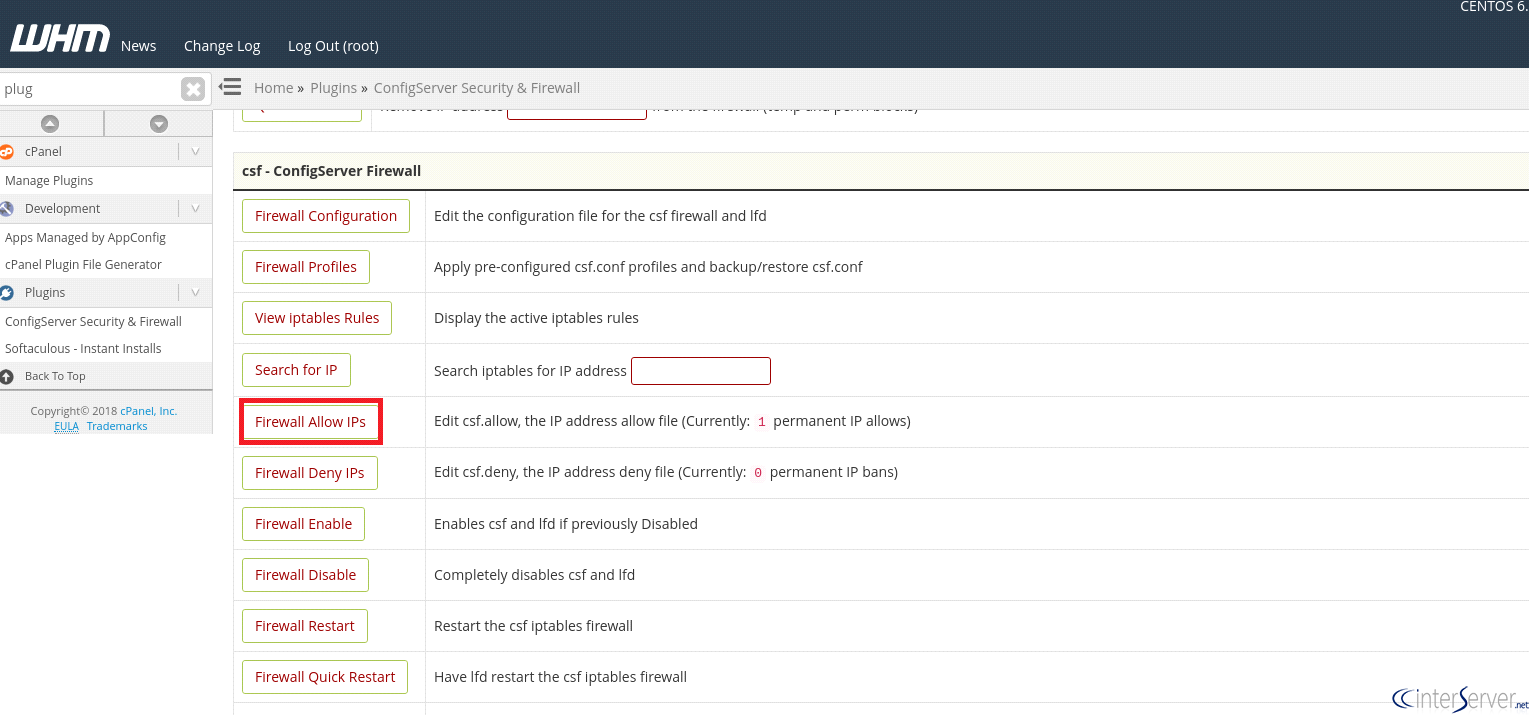
2) Navigate to Config Server Security and Firewall (CSF) and select “Firewall Allow IP’s”.
3) In the Firewall Allow IP’s add the rule to allow access to a particular IP address for to a specific port. For example, if we want to create a rule to allow inbound MySQL connections from IP 67.222.0.1 it would look like the following.
tcp|in|d=3306|s=IP_Address
The above rules stand for “tcp” defines the protocol we are using.
“in” defines the inbound traffic to your server.
“d” to specify the port number.
“s” to determine the IP.
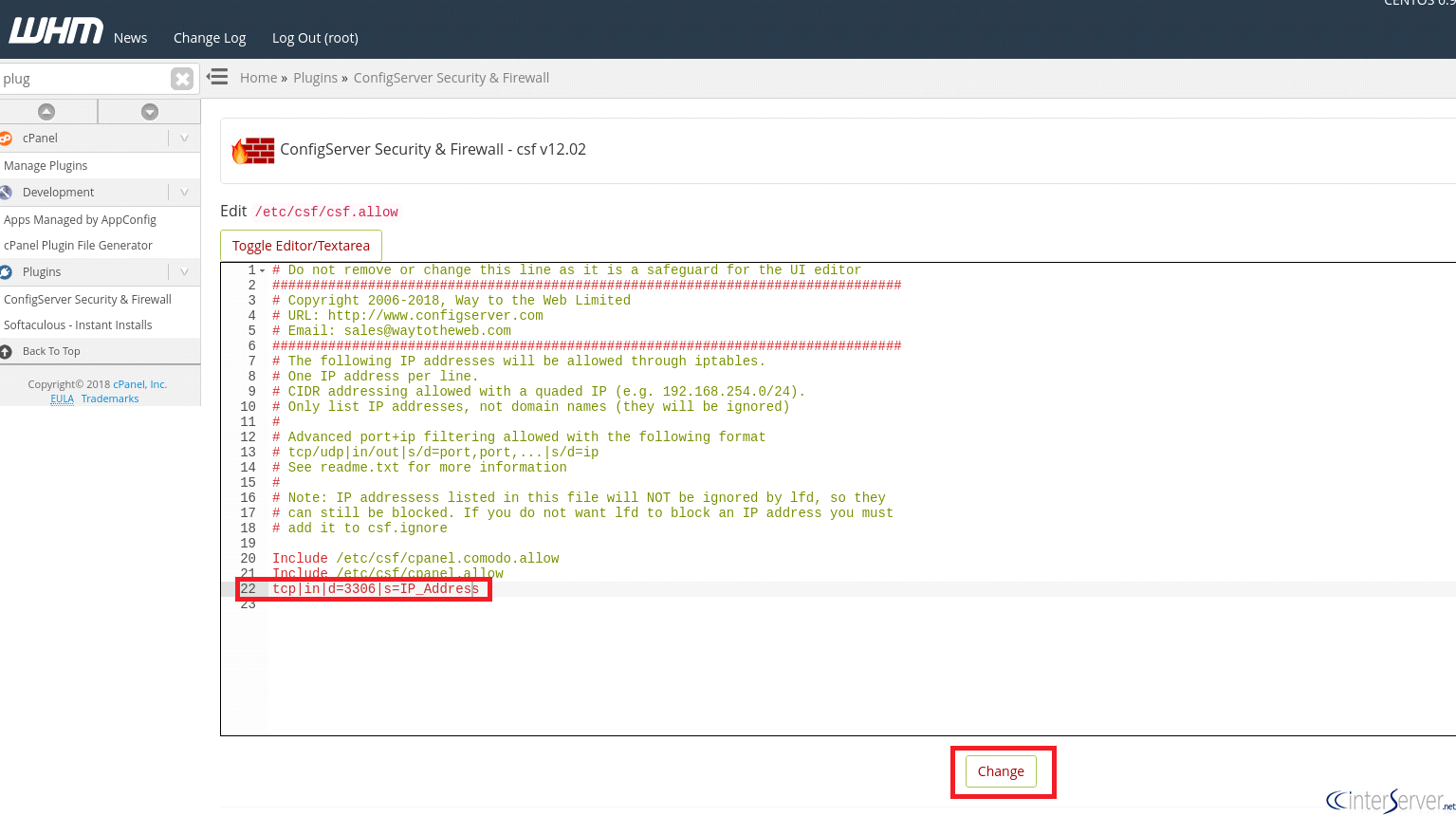
Also please do not forget to replace the “IP Address” with your preferred IP address.
4) After adding the rule click on the change button and restart the CSF by clicking in the “Restart CSF and LFD” option.
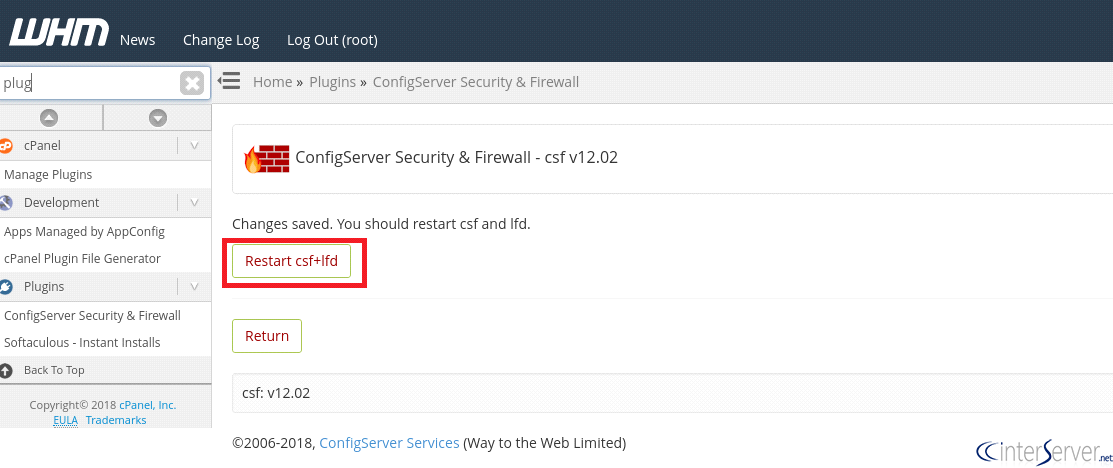
Once the restart completes you will be able to access the specific port from that particular IP address.
We can add this rule on the CSF from CLI too. Let’s see how we can enable this from the CLI.
1) Login to your server via SSH as root.
# ssh root@server_IP
2) Open the file /etc/csf/csf.allow with your favorite text editor.
# vi /etc/csf/csf.allow
3) Now add the rule “tcp|in|d=3306|s=IP_Address” in the file and we can add the rule in the same format as we added above and save the file.
4) At last, restart the service CSF using the following command in order to get reflected by the changes made.
# csf -r
Finally, we have learned how to open a specific port for a particular IP address on the server.
If you need any further help, please do reach our support department.
Related guides
How to Install and Uninstall JetBackup for cPanel
How to Install JetBackup for cPanel. JetBackup is one of the leading backup solutions for cPanel & WHM that offers a user-friendly GUI. It provides
WHMSetup SendGrid on your cPanel VPS/Server
Setup SendGrid on your cPanel VPS/Server. SendGrid provides a cloud-based service for reliable transactional and marketing email.
WHMChange cPanel Nameserver Software to PowerDNS Carefully
Review WHM nameserver selection, resolver dependencies, cluster compatibility and DNSSEC requirements before a planned PowerDNS service change.
WHMTroubleshooting Jailed Shell on OpenVZ
cPanel/WHM providing Jailed shell environment for users, this feature giving high-level security for users when doing ssh access to their server.