
GICT knowledge base
How to Install WordPress on Webuzo?
Published
There is no doubt that WordPress is one of the best Content management system available in the market. WordPress powers millions of websites on the Internet and has a repository of thousands of free plugins and themes.
WordPress is a free and open-source content management system (CMS) based on PHP & MySQL. In this tutorial, I am going to discuss how to install WordPress on the Webuzo Panel.
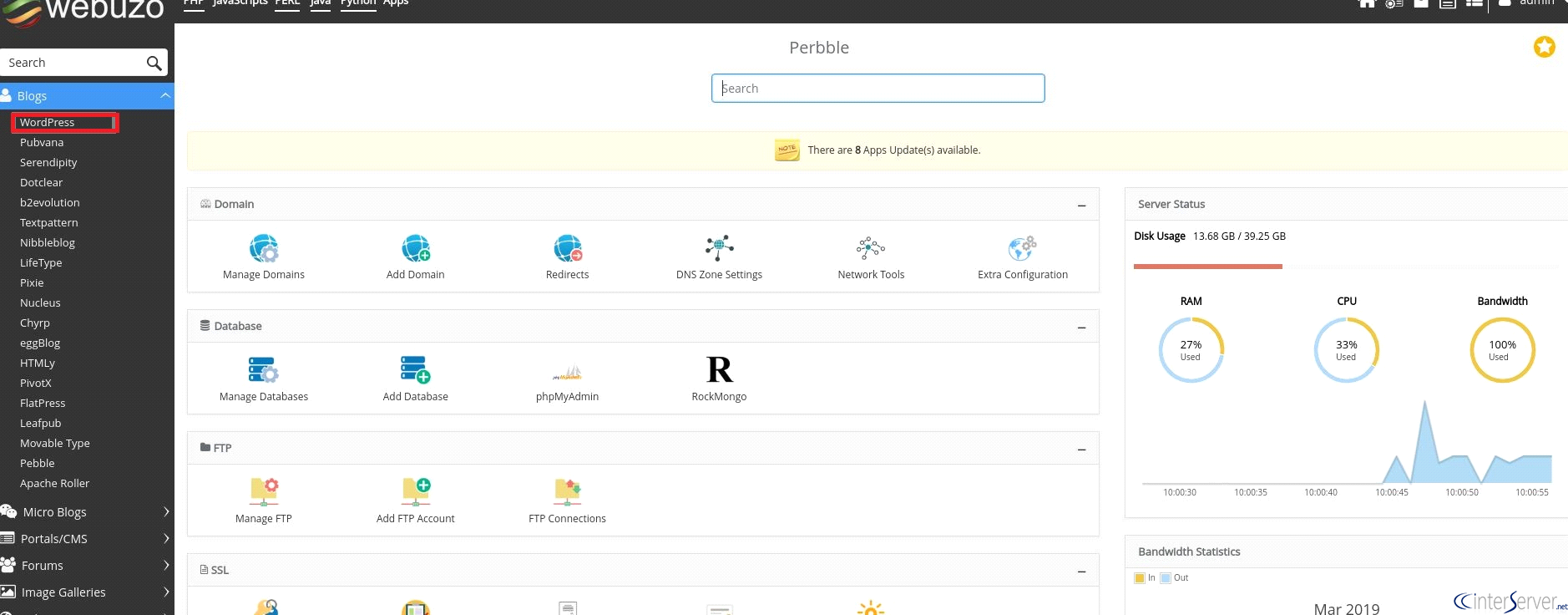
1) Login to Webuzo end-user panel. Select WordPress from the long list of categories on the left side.
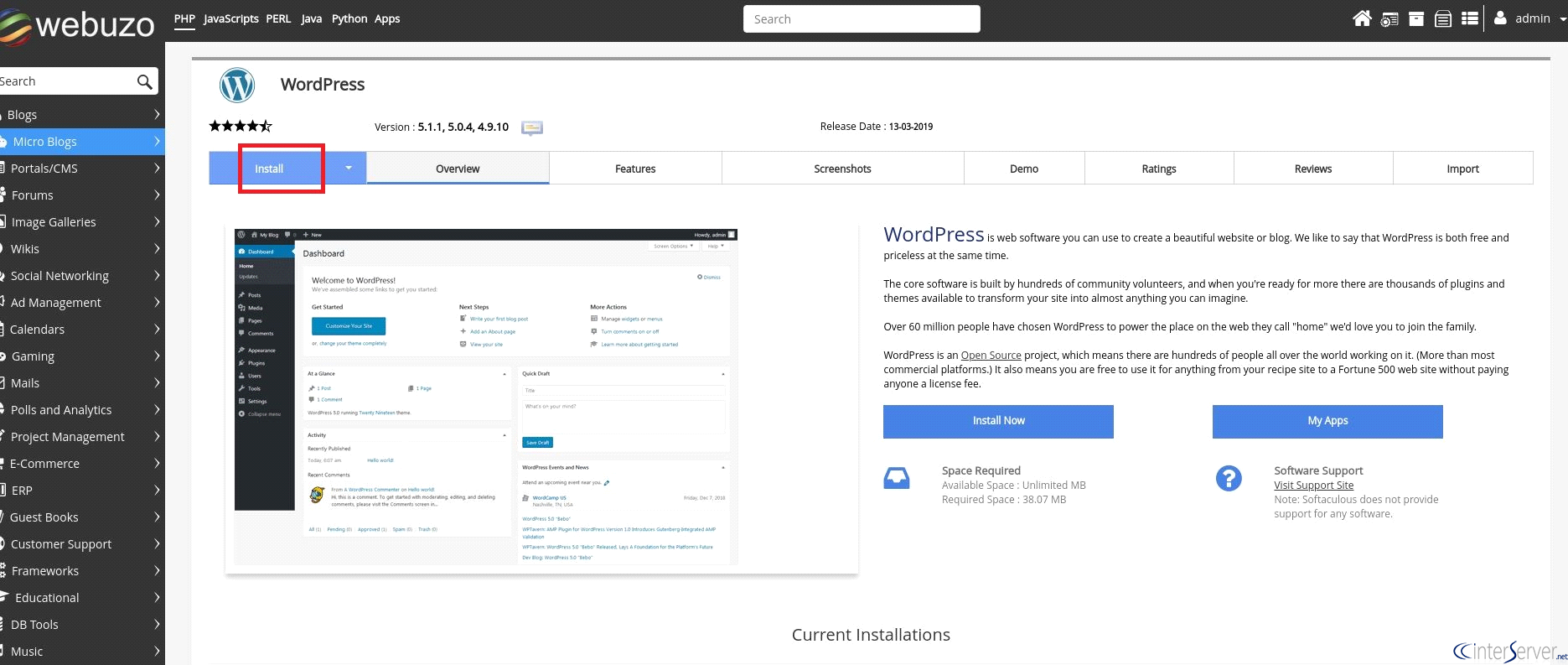
2) Click on the button “Install”.
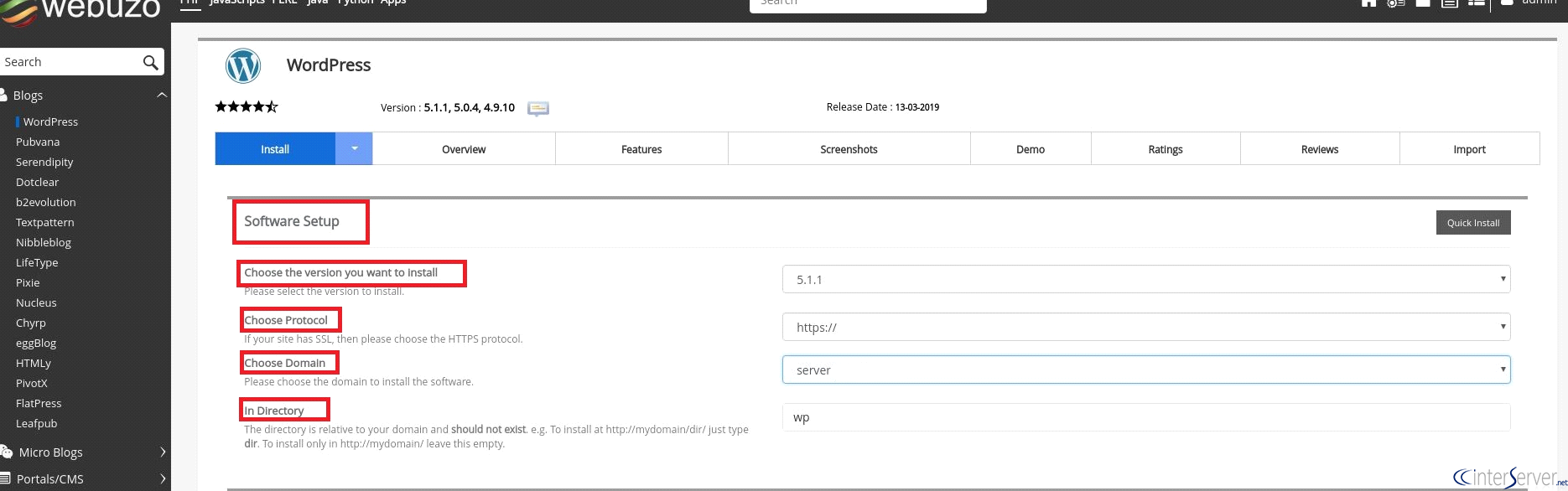
3) Choose the “version” you want to install for WordPress. Then you have to “Choose the protocol” and the “Domain Name”. In “Directory option”, If you want to install your WordPress site on https://example.com, leave this field empty. If you want to specify the directory name like https://example.com/dir, Enter the name of the directory in which you want to install WordPress.
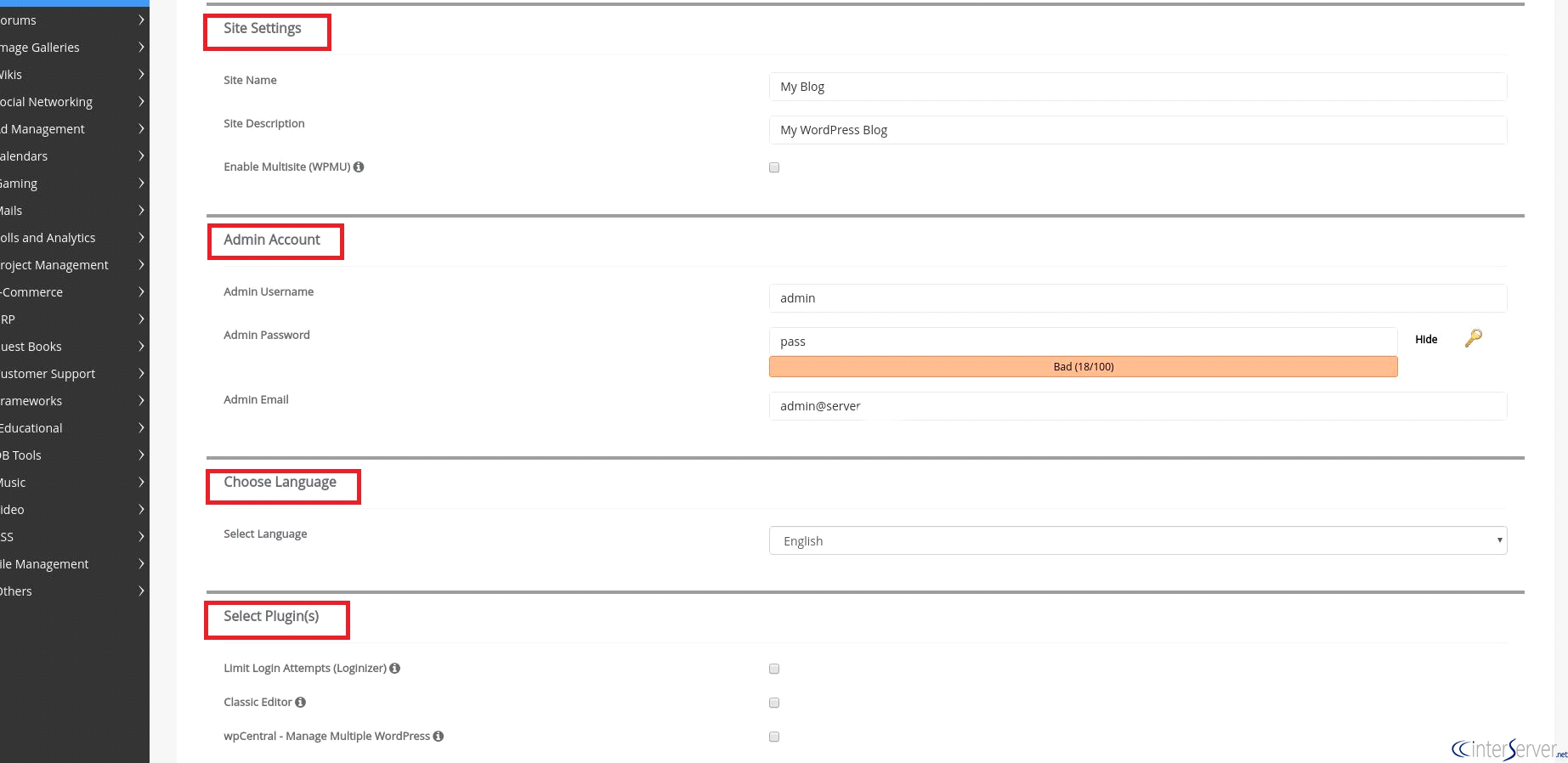
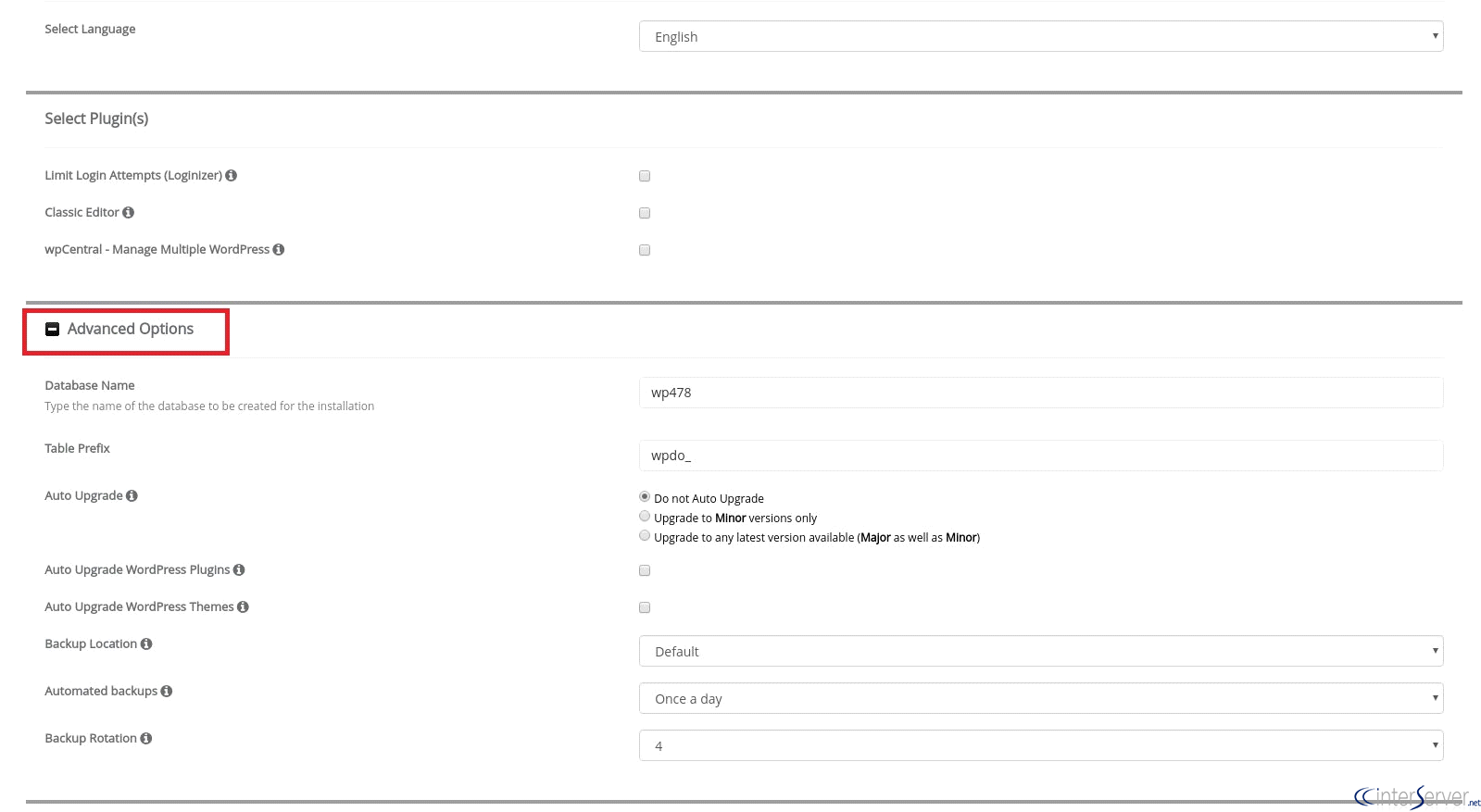
4) Now we can see the options for Site settings, Admin account settings, Choose the language, Select Plugin(s), etc. Add your site details here.
5) Then go to the next option and we can see “Advanced Options”. You can add database name and table prefix there. “Auto upgrade” option updates the WordPress automatically ie, it will update the plugins and themes as well as the core WordPress automatically. By using “Automated Backups” option, we can automatically take backups daily, weekly or monthly. Under “Backup rotation”, select how many backups you want available. Backup Rotation can keep up to 10 backups.
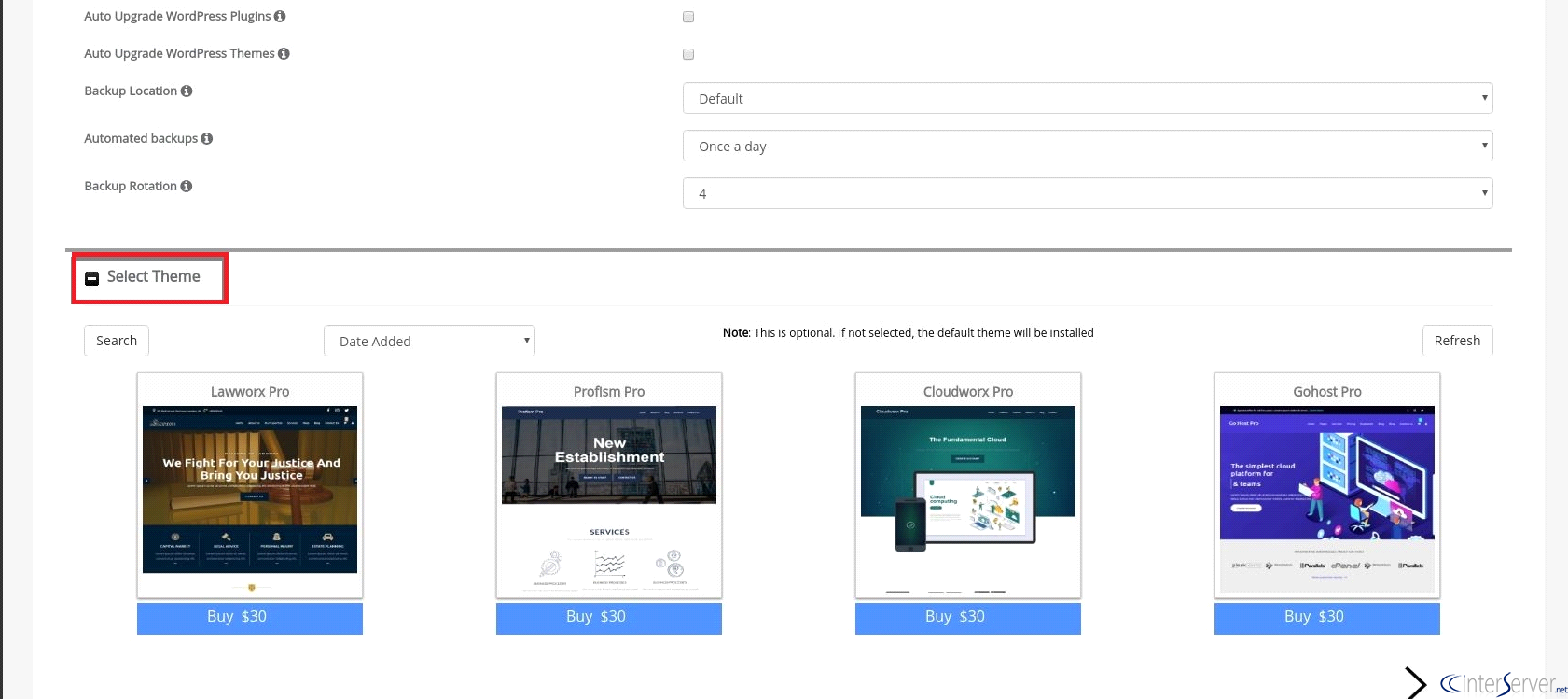
6) At last, you have to select the “Theme”. This is an optional feature and if not selected, the default theme will be installed.
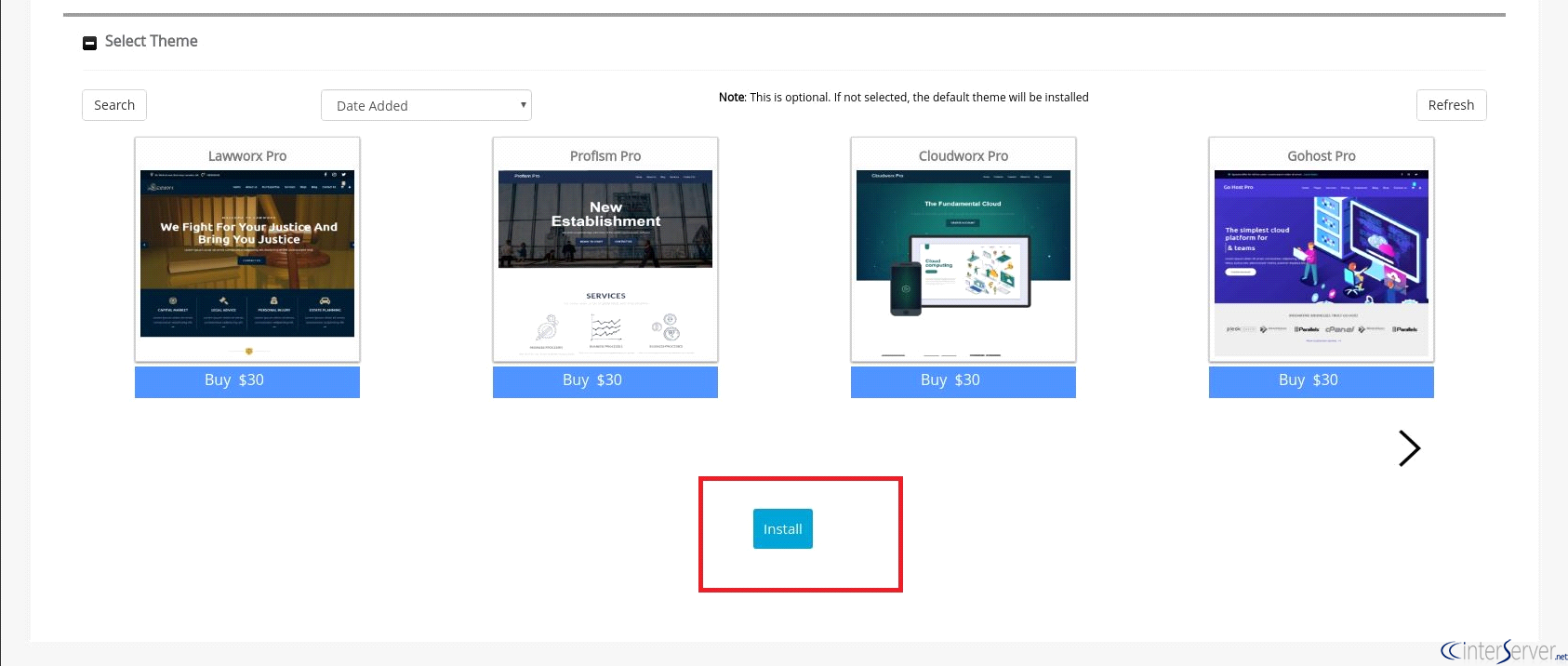
7) Now, Click on the “Install” button given at the bottom of the page.
Now wait for some time and you will get the message “Congratulations, the software was installed successfully” once the installation is complete.
If you need any further help, please do reach our support department.
Related guides
Webuzo on a VPS
How to Get Started with Webuzo: Free Single-User Licensing on Your VPS Managing your own Virtual Private Server (VPS) doesn't have to be a headache.
Webuzo/BreadbasketInstall Webuzo on Ubuntu
In this tutorial, we can check how to Install Webuzo on Ubuntu. Webuzo is a free, single-user control panel that helps to deploy web applications like
Webuzo/BreadbasketWebuzo fails with Account creation on ACMEv1 is disabled
The error Account creation on ACMEv1 is disabled will be fixed in the next release of webuzo. Until then the acme.sh script can be manually updated via github.
Webuzo/BreadbasketHow to Install Moodle on Webuzo Server?
In this tutorial, I would like to discuss how we can configure and install Moodle on Webuzo server .1) We have to configure our domain