
GICT knowledge base
How to Fix Too Many Redirects Error in WordPress
Published
WordPress is a powerful and stable reliable system to use. But there is some problem due to lack of proper configuration or by external sources. The programming language used by WordPress is pretty solid. The external sources such as plugin and themes are making WordPress more complicated because sometimes, they become incompatible. As a result, your site goes down and all your browser gives you the error like below
For example: On Firefox, this error will be displayed like this:
“The page isn’t redirecting properly. Firefox has detected that the server is redirecting the request for this address in a way that will never complete.”
It means, there are too many redirects or that your site is in a loop.
Why does this error happen?
Sometimes it may occur due to improper configuration. WordPress itself uses a form of redirection when new posts and pages. Another possibility is a fault in the program.
How to solve this issue?
When you are setting up your website, you can set your URL with “www” prefix or without prefix.
For example
If the site is incorrectly configured, that is an error in URL may lead you to the too many redirects. To fix this error:
1) Login to the WordPress admin panel
2) Go to “Settings” which is in the left column of the screen
3) You will see the URL text box named “WordPress Address” and one for “Site Address.”
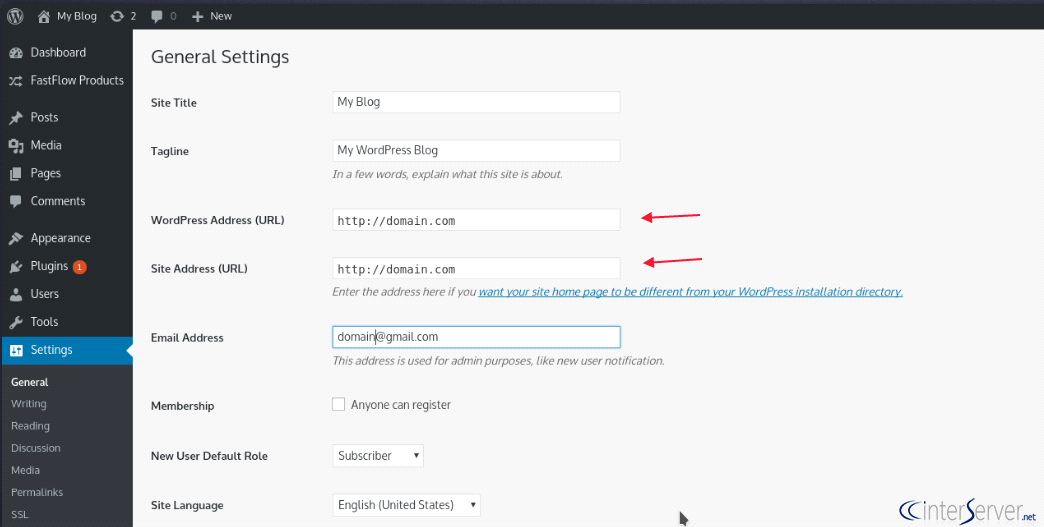
4) Change the URLs to their original configuration. Add or remove the prefix “www” for both URLs, this will determine how to handle your domain.
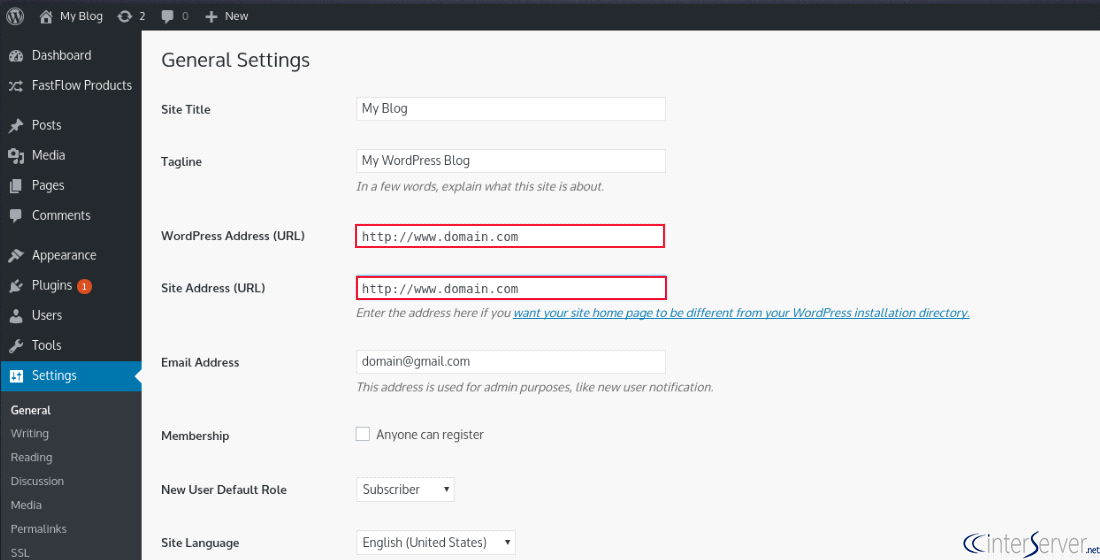
5) Once the setting has been done, click on “Save Changes”.
If you can’t access this general setting when you have a multisite network. Then you can add some code to your wp-config.php
# define(‘WP_HOME’,’http://www.domain.com’);
# define(‘WP_SITEURL’,’http://www.domain.com’);
These two lines should be placed above the following line.
/* That’s all, stop editing! Happy blogging. */
Redirection due Plugin
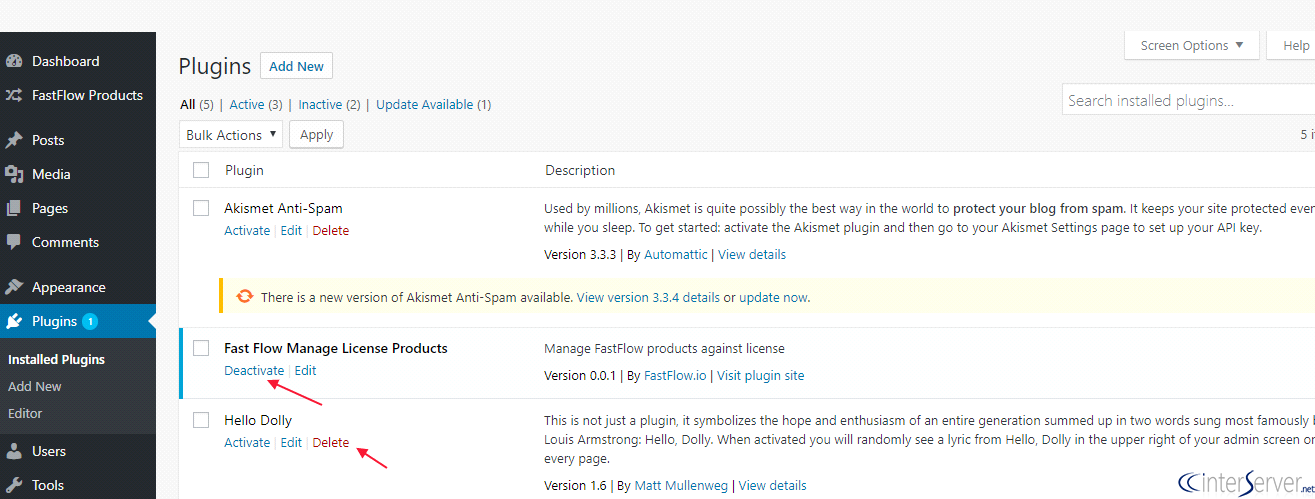
If the above solution is not solving your problem. Please check your plugins. Furthermore, you need to find out which plugin is causing the problem. If the problem happens after a plugin installed or update plugins then simply you can revert the changes that you recently made. This will solve your problem.
If you don’t have any idea about which plugin is causing the error, you can deactivate all plugins and try to load your site. You can also delete specific plugin which is causing the error.
You can do this with your WordPress “Plugins” section.
Disabling your .htaccess file
Sometimes your htaccess file is making your website go into a redirection loop. To solve this issue, you can disable the .htaccess file.
1) Access File Manager via your hosting control panel.
2) Select your .htaccess file, right-click it and select Rename.
3) Rename your .htaccess file, for example to .htaccess-back
Clear Your Cache and Cookies
Sometimes, you need to clear your browser’s cache and cookies. If you have done a major change to your site, it may not be visible until you clean. Then you should clean your browser cache and cookies to see the changes that you have done.
That is how you fix Too many redirects error in WordPress. If you need any further help, please do reach our support department.
Related guides
7 Common Hosting Mistakes Beginners Make (And How to Avoid Them)
7 common hosting mistakes beginners make in 2026: no backups, ignored updates, bad host choice, weak passwords, single point of failure, no staging. With fixes for each.
WordPressWebsite Migration Backup Checklist: What to Save and How to Test
Prepare a website migration backup: inventory files, databases, email and DNS, check archive integrity, test recovery and plan a safe final synchronization.
WordPressCore Web Vitals in 2026: A Practical Fix Guide for Site Owners
Core Web Vitals 2026: practical fixes for LCP, INP, and CLS. Real root causes, what to measure, common misconceptions, and a priority order of fixes for site owners.
WordPressFixing the WordPress “Death Loop”: When Missing Files slow down your site
You’ve just launched your new WordPress site or pushed a big update. In your staging environment, everything ran perfectly.