
GICT knowledge base
How to Enable Private Mode on WordPress Website?
Published
If you wish to limit your WordPress site from visitors, then here is an easy way. You can enable private mode on WordPress by installing the plugin “Restricted Site Access”. This plugin will allow you to restrict all unwanted users and may send a WordPress login page while accessing the site.
The main reasons for having a WordPress page private.
If you are just building your website, then you can enable this private mode and it will help you to prevent the access to your website.
The private WordPress is useful for sharing your family photos and personal blogs etc.
It will be always helpful if you have a private online diary.
Teams working on projects can collaborate on a private blog.
A classroom website can be made private and accessible only to registered students.
Steps to make WordPress site in private mode.
1) Login to WordPress dashboard.
2) Install a plugin “Restricted Site Access” from plugins> > Add new, this plugin is very useful if you are looking for a quick and easy way to redirect visitors while you’re setting up WordPress on a new domain or need to perform maintenance.
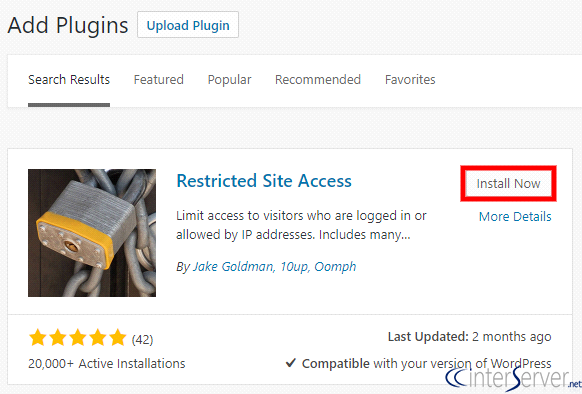
3) After installing and activating that plugin, please navigate to “Reading” section under “Settings” on WordPress Dashboard.
From the “Site Visibility” option click on the radio button “Restrict site access to visitors who are logged in or allowed by IP address” to activate the plugin. Enable the option ” Send them to the WordPress login screen ” to handle restricted visitors, which may send the WordPress login page when a restricted visitor access your website. You can add IPs of allowed users in the box “Unrestricted IP addresses”.
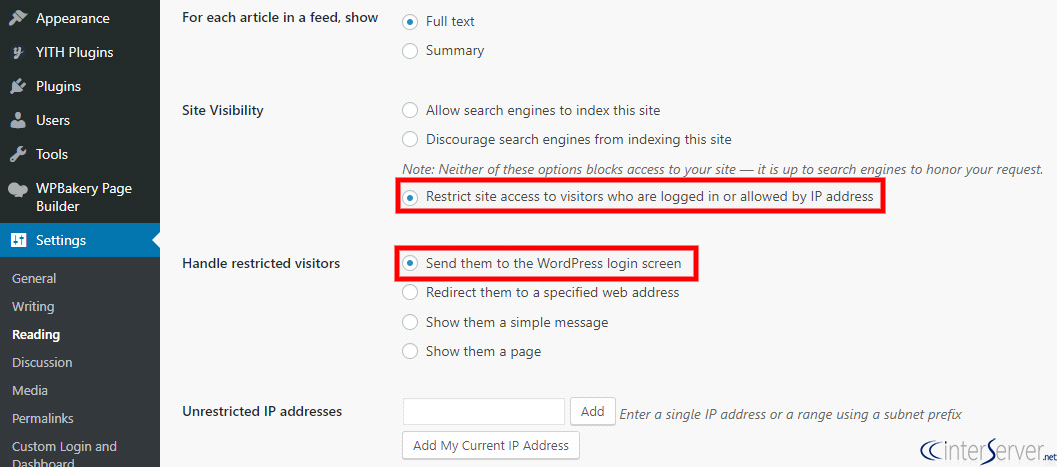
After making the above changes click on “Save Changes” button to enable all changes.
That’s it now your website is only being accessible by the allowed users.
If you need any further assistance please contact our support department.
Related guides
7 Common Hosting Mistakes Beginners Make (And How to Avoid Them)
7 common hosting mistakes beginners make in 2026: no backups, ignored updates, bad host choice, weak passwords, single point of failure, no staging. With fixes for each.
WordPressWebsite Migration Backup Checklist: What to Save and How to Test
Prepare a website migration backup: inventory files, databases, email and DNS, check archive integrity, test recovery and plan a safe final synchronization.
WordPressCore Web Vitals in 2026: A Practical Fix Guide for Site Owners
Core Web Vitals 2026: practical fixes for LCP, INP, and CLS. Real root causes, what to measure, common misconceptions, and a priority order of fixes for site owners.
WordPressFixing the WordPress “Death Loop”: When Missing Files slow down your site
You’ve just launched your new WordPress site or pushed a big update. In your staging environment, everything ran perfectly.