
GICT knowledge base
How to Customize the 404 Page for Your WordPress Site
Published
While it is important to ensure that all of the links, both internal and external, work correctly on your blog, there will always be the chance that something goes wrong, and if a link leads to a page which can’t be found, visitors will be greeted by the infamous 404 error. Everyone has encountered the 404 error before, but many 404 pages offer nothing more than a generic ‘Page Not Found’ message.
Most WordPress themes, as well as those which come with a base installation of WordPress, come with their own 404 error page. The new Twenty Fourteen theme which comes with WordPress 3.8 and later comes with a basic 404 page which provides a message and a search function, but many users may want to customize this to provide something more useful or better suited to the style and content of their websites. This guide takes a look at customizing your 404 page.
1 – Editing the 404.php File
The 404 error page is the 404.php file which is installed by most new themes, including all of the official WordPress themes.
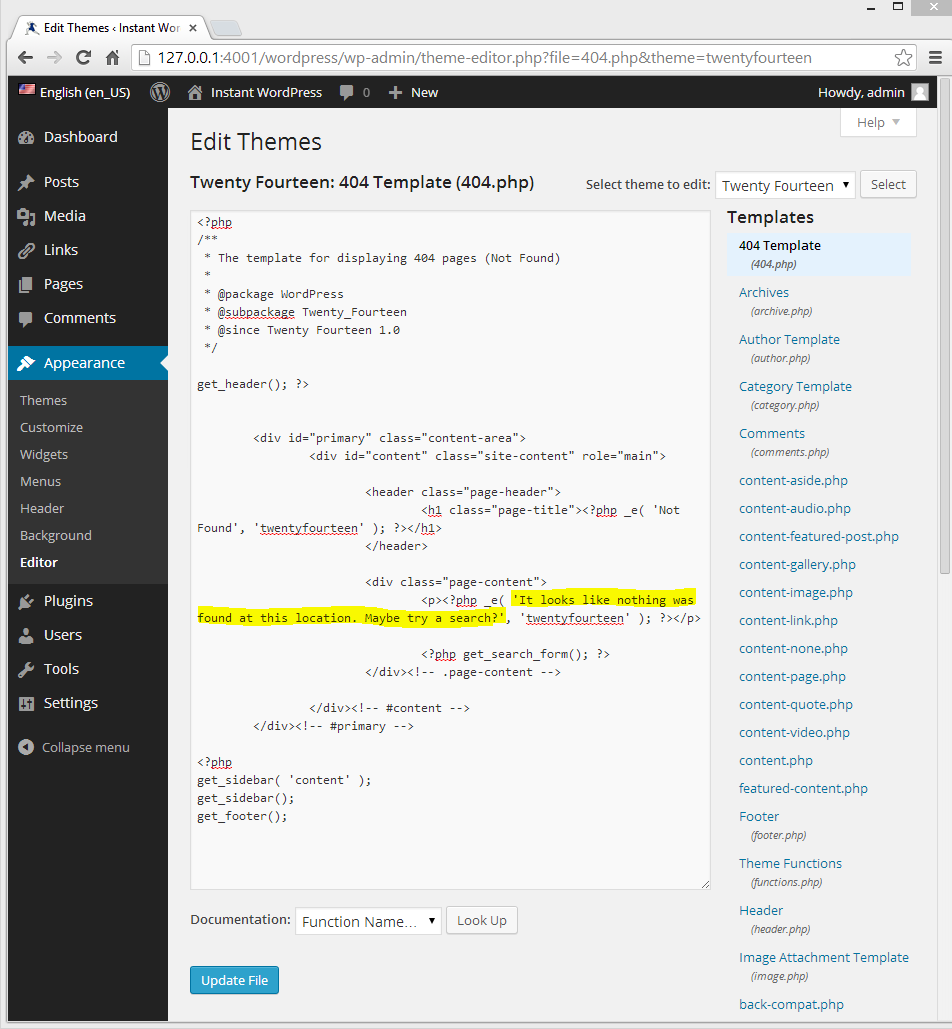
- In your administrator dashboard, navigate to Appearance > Editor and open the 404 Template by clicking on 404.php in the sidebar to the right.
- To change the message on the 404 page, replace the highlighted text with the text of your choice.
- If you want to add one or more links to your 404 page, you can do so by adding them within the highlighted area show in the screenshot below in the following format:
<a href=”Enter your link here/”>Enter the link text here</a>
Ensure that the custom text and links all fall between the apostrophes, otherwise you will get a parse error when you update the file.
2 – Uploading a New 404 Error Page
Some themes don’t come with their own 404 error pages, in which case visitors will likely see the generic 404 page provided by the Web browser or hosting company. However, you should be able to use any other 404 page with your current theme.
Using an FTP client (your hosting company will likely provide a Web-based one), navigate to “/wp-content/themes/(your current theme)” and upload a copy of your own 404.php file. Alternatively, you can download the 404.php file from another theme, such as one of the preinstalled WordPress themes and copy it to this location.
Related guides
7 Common Hosting Mistakes Beginners Make (And How to Avoid Them)
7 common hosting mistakes beginners make in 2026: no backups, ignored updates, bad host choice, weak passwords, single point of failure, no staging. With fixes for each.
WordPressWebsite Migration Backup Checklist: What to Save and How to Test
Prepare a website migration backup: inventory files, databases, email and DNS, check archive integrity, test recovery and plan a safe final synchronization.
WordPressCore Web Vitals in 2026: A Practical Fix Guide for Site Owners
Core Web Vitals 2026: practical fixes for LCP, INP, and CLS. Real root causes, what to measure, common misconceptions, and a priority order of fixes for site owners.
WordPressFixing the WordPress “Death Loop”: When Missing Files slow down your site
You’ve just launched your new WordPress site or pushed a big update. In your staging environment, everything ran perfectly.